How to Reset Shark Robot Vacuum Without App Fast
How to Reset Shark Robot Vacuum Without App: Start with a manual power cycle, then check the dock, charging contacts, battery behavior, sensors, and brush system before deciding whether repair or replacement makes sense.
To reset a Shark robot vacuum without the app, remove it from the dock, power it off, wait briefly, and turn it back on. If it still will not respond, check dock power, charging contacts, and battery behavior before trying a deeper reset.
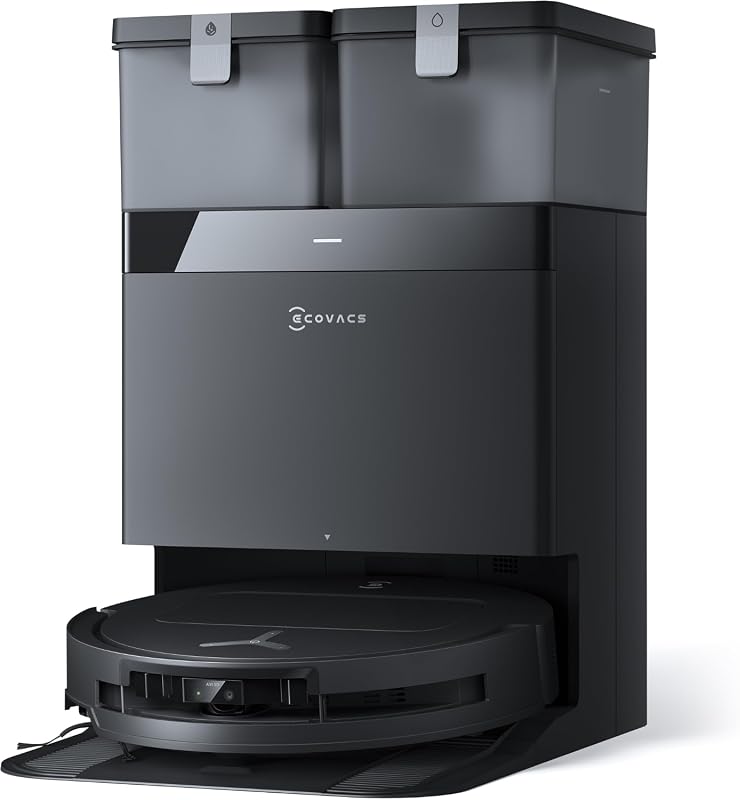
A premium Shark robot vacuum and mop combo for owners replacing an aging robot after reset, charging, navigation, or hardware troubleshooting has failed.
A high-end same-brand upgrade for buyers who want advanced cleaning and dock automation without choosing Shark’s highest-tier package.
How to Reset Shark Robot Vacuum Without App is usually a manual power-cycle process. Remove the robot from the dock, switch it off, wait for the system to shut down, then restart it after checking the dock and charging contacts.
- Fast fix: A soft reset usually means powering the robot off, waiting 10 to 30 seconds, and turning it back on.
- Check power first: Dirty contacts, a weak outlet, or poor dock alignment can make a successful reset appear ineffective.
- Not every issue is software: Short runtime, overheating, or grinding sounds often point to battery or hardware trouble.
- App is not always required: Many Shark models can still do basic cleaning without Wi-Fi or the mobile app.
- Use model-specific guidance: Light codes, factory reset steps, and saved settings vary by Shark series.
How to Reset a Shark Robot Vacuum Without the App Fast
The quickest no-app reset is a soft reset, not a full factory wipe. That matters because a soft reset can clear temporary glitches without forcing you to rebuild every setting, reconnect Wi-Fi, or start setup from scratch.
Soft reset steps for most Shark robot vacuum models
Shark robot vacuums vary by series, so the exact switch location and button labels can differ. Still, the basic manual reset process is similar across many models.
Take the vacuum off its charging base and place it on a flat floor surface. This helps rule out dock contact issues during the reset.
If your model has a physical power switch, move it to the off position. If it relies on a power button instead, press and hold the button as described in the official manual for your series.
Leave the robot powered down long enough for the system to fully shut off. This pause is what makes the reset more effective than a quick tap on the power button.
Power the robot back on, then place it on the dock or start it on the floor. Watch for normal startup lights and listen for a standard boot sound rather than repeated beeps or immediate error behavior.
If the robot responds normally after this, the issue was likely temporary. If not, the next sections will help you decide whether the problem is power-related, maintenance-related, or something a reset cannot fix.
How long to power cycle before turning it back on
For a basic soft reset, waiting around 10 to 30 seconds is often enough. If the robot was fully frozen, some owners find a longer wait of about one minute more effective because it gives the internal system more time to clear a stalled state.
A very short off-on toggle may not do much. If the first attempt fails, try a second power cycle with a longer wait before assuming the reset method does not apply to your unit.
If your Shark keeps acting dead after a reset, leave it on the dock for a while and verify the dock is actually delivering power before repeating the process.
What the indicator lights mean during a reset
Indicator lights vary by model, but they usually tell you whether the robot is charging, booting, paused, or reporting an error. A steady charging light often means dock contact is working, while flashing lights can point to startup activity, battery issues, or a maintenance alert.
If you see repeated flashing, unusual color patterns, or a warning that returns immediately after reboot, check the model-specific manual. Shark’s official support pages and manual PDFs are the best source for interpreting light codes because they can differ by series and firmware version.
Some Shark robots store error behavior until the underlying issue is fixed. In those cases, a reset may restart the vacuum, but the same warning can reappear if the brushroll, bin, sensors, or charging contacts still need attention.
When a Manual Reset Is the Right Fix
A manual reset works best for temporary software hiccups and minor communication issues. It is less useful for worn batteries, blocked sensors, or damaged charging hardware.
Common problems a reset can solve
A no-app reset is often worth trying if your Shark robot vacuum:
- stops responding to button presses
- freezes mid-cleaning
- fails to leave the dock even though it appears charged
- shows a temporary error after getting stuck
- has trouble reconnecting after a router or power outage
- acts oddly after a failed schedule or interrupted cleaning cycle
These are the kinds of issues that can come from a stalled process rather than a failed part.
Signs the issue is not reset-related
If the robot will not charge at all, smells hot, makes grinding noises, or shuts down within minutes, a reset is probably not the main fix. The same applies if you notice broken wheels, cracked housing, bent charging tabs, or a dock that never shows power.
Repeated navigation failures can also point to dirty sensors, cluttered floors, or room setup issues instead of software trouble. If your unit keeps stopping near ledges or dark rugs, inspect the cliff sensors and floor conditions before trying repeated resets.

This premium same-brand replacement is most relevant when an older Shark continues to show dock, battery, navigation, or mechanical problems after reset and maintenance attempts.
- Owners replacing an older Shark
- Hands-free vacuuming, mopping, and dock care
- Homes where premium automation is worthwhile
- Current package, warranty, and seller details
- Dock space and floor clearance
- Wi-Fi, app, mapping, and smart-feature requirements
When Wi-Fi or app pairing is optional versus required
For basic cleaning, many Shark robot vacuums can still start, stop, dock, or run with onboard controls even if the app is unavailable. That means a manual reset can be enough when your main goal is simply getting the robot moving again.
App pairing becomes more important if you need schedules, map management, firmware updates, room selection, or smart-home integrations. If those features are central to how you use the vacuum, a manual reset may solve only part of the problem.
If charging behavior seems inconsistent after a reset, it can help to review broader power safety habits such as checking heat and power adapter quality, similar to the guidance in are budget chargers safe to use.
Before You Reset: Model Check, Power Status, and Safe Setup
Before you start pressing buttons, confirm that the problem is not something simpler. A surprising number of failed resets turn out to be weak dock contact, a switched outlet, or the wrong instructions for the model.
How to confirm your Shark model and series
Look for the model number on the underside of the robot, near the dust bin area, or on the charging base label. The manual, retail box, and Shark support site may also list the series name.
This matters because reset behavior, light codes, and pairing steps can differ between older app-connected units and newer mapping-focused models. Always match your instructions to the exact series when possible.
Battery charge level, dock contact points, and outlet check
If the battery is deeply drained, the robot may appear unresponsive even though the reset steps were correct. Place it on the dock carefully and confirm the charging contacts align cleanly.
Also inspect the outlet. A switched power strip, overloaded extension setup, or loose plug can make the dock look fine while delivering inconsistent power. If you are troubleshooting home charging hardware in general, our guide on how a charger works explains why stable contact and power delivery matter.
Use only the correct Shark dock and power adapter for your model unless the manufacturer clearly states otherwise.
Safe handling, heat, and the limits of repeated resets
Repeated resets are not a cure-all. If the vacuum or dock feels unusually hot, stop and let it cool before trying again. Heat can point to charging trouble, battery stress, or a motor blockage.
Do not open the battery compartment, modify the dock, or keep forcing restarts on a robot that smells burnt, shows swelling, or overheats. Follow Shark’s safety guidance and stop using damaged power accessories.
It is also smart to keep pets and children away while troubleshooting. A robot that suddenly reboots can move without much warning.
How Shark Robot Vacuums Work After a Reset
One reason people hesitate to reset their robot is fear of losing everything. In many cases, a soft reset is less disruptive than expected.
What settings are cleared and what usually stays saved
A soft reset usually clears temporary operating states rather than erasing the entire device. That means the robot may keep basic stored information, while a deeper factory reset is more likely to wipe pairings and custom settings.
Because this varies by model, treat any saved schedules, maps, or Wi-Fi credentials as potentially at risk if you move beyond a simple power cycle. If preserving those settings matters, check Shark’s manual before trying more aggressive reset options.
Connectivity, mapping, and scheduling changes to expect
After a manual restart, the robot may need a little time to reconnect to the dock or your home network. If Wi-Fi features do not return right away, that does not always mean the reset failed.
Mapped cleaning data and room labels are more likely to be affected by factory reset procedures than by a standard power cycle. Scheduling can also pause until the robot fully reconnects and syncs again.
If you later need to manually re-pair the robot, keep your phone on the correct Wi-Fi band supported by the model and confirm the app version is current in the official app store listing.
Dimensions, dock placement, and room setup basics to verify
If the robot behaves strangely after a reset, double-check the dock setup. Make sure the base is on a hard, level surface with enough open space around it for the robot to align and depart cleanly.
Room layout matters too. Loose cords, thick rug edges, reflective surfaces, and tightly packed chair legs can create symptoms that look like a software problem. If your home has lots of pet hair or debris buildup, comparing your cleaning needs with a full-size stick model can help, such as in this guide to which cordless vacuum is best for pet hair.
Troubleshooting If the Reset Did Not Work
If a manual reset changes nothing, move on to simple maintenance and power checks. Many “dead” robot vacuums are really dirty, blocked, or not charging properly.
Clean the charging contacts, sensors, brushroll, and dust bin
Wipe the metal charging contacts on both the robot and dock with a dry, soft cloth. Dust, hair, and residue can interrupt charging enough to cause startup failures or random shutdowns.
Next, empty the dust bin, clear the brushroll, and inspect the side brushes and front wheel for wrapped hair. Clean the sensors gently according to the manual. A robot that cannot read its sensors properly may stop, back up, or refuse to start even after a reset.
- Clean contacts only when the dock is unplugged.
- Remove wrapped hair from rollers and wheel axles before retrying a reset.
- Check that the dust bin clicks fully into place.
- Inspect cliff sensors if the robot avoids normal flooring or stops near edges.
Check battery condition, charging behavior, and replacement timing
If the robot charges only briefly, runs for very short sessions, or dies far from the dock, battery wear may be the bigger issue. Battery lifespan depends on usage, heat, storage habits, and charging consistency, so there is no universal replacement timeline that fits every Shark model.
Watch for these clues: the robot never reaches a full charge, loses charge quickly while idle, or boots only when placed on the dock. Those signs often point to battery health rather than software trouble.
If you are comparing battery aging patterns across vacuum types, our cordless vacuum cleaner battery guide covers general replacement and runtime considerations.
Listen for unusual noise, motor strain, or overheating
A healthy startup usually sounds brief and consistent. Grinding, repeated clicking, loud whining, or a strained motor sound can mean the brush system, wheel drive, or suction path is obstructed.
Overheating is another red flag. If the robot gets hot quickly after rebooting, stop troubleshooting and let it cool. Repeatedly forcing a hot appliance to run can make the issue worse.
When to try a factory reset, dock reset, or manual re-pairing
If a soft reset fails and the robot still powers on, the next step may be a factory reset or fresh pairing sequence. Those procedures vary more by model than basic power cycling, so use the official Shark instructions for your exact series.
Try a deeper reset only after you have ruled out dirty contacts, blocked sensors, outlet issues, and battery problems. Otherwise, you may erase settings without fixing the real fault.
Key Decision Criteria if Your Shark Keeps Failing After Reset
At some point, the question stops being “How do I reset it?” and becomes “Is this robot worth fixing?” These are the factors that matter most.
Battery age, runtime, and charging consistency
If runtime has dropped sharply and charging is inconsistent, battery replacement may be the most logical next step. Confirm that a genuine or manufacturer-approved replacement is available for your exact model before spending more time on resets.
Consumables and wear items: filters, side brushes, and rollers
Filters, brushes, and rollers are normal wear items. If they are overdue for replacement, the robot may clean poorly, strain more during operation, and trigger recurring errors that a reset cannot solve.
Connectivity limits: app support, Wi-Fi band compatibility, and firmware
Older Shark robots may have narrower app or router compatibility than newer ones. If your home network changed recently, check whether the vacuum supports the Wi-Fi band and app version you are trying to use.
Firmware also matters. Some bugs are fixed through updates, but updates usually require the app and a stable connection.
Warranty details, repair cost, and replacement value in 2026
In 2026, replacement value depends on how old the robot is, whether parts are still easy to get, and how much a new battery, dock, or repair would cost in your region. Rather than guessing, compare the price of the needed part with the current value of a comparable new robot from a reputable seller.
Also review Shark’s current warranty terms, support options, and any official service guidance before buying parts. Availability and coverage can change over time.
Common Mistakes to Avoid With Shark Robot Vacuum Resets
A reset can fail for simple reasons that are easy to miss. Avoid these common mistakes before assuming the robot is beyond repair.
Resetting while docked incorrectly or on a weak outlet
If the robot is sitting crooked on the dock, it may not be charging at all during the restart attempt. A weak outlet, switched strip, or loose adapter connection can create the same confusion.
Ignoring cable condition, adapter heat, or damaged charging pins
Check the dock cable and adapter for wear, heat, or visible damage. Bent pins, cracked insulation, or unusually hot power accessories are signs to stop and verify the correct replacement part rather than continuing resets.
Forgetting to inspect floors, cliff sensors, and stuck debris
A robot that keeps throwing errors after reboot may simply be blocked by its environment. Dark surfaces, debris packed into wheels, and dirty cliff sensors can all mimic more serious faults.
Final Recommendation: Best Next Step Based on the Problem
If your Shark robot vacuum is unresponsive but otherwise looks normal, start with a soft reset and a careful dock power check. If it restarts but still behaves oddly, move to cleaning the contacts, sensors, brushroll, and bin before considering a factory reset.
Choose a quick reset, deeper maintenance, part replacement, or support claim
The best next step depends on the symptom. Freezing and button lag usually justify a quick reset. Poor charging or short runtime points more toward battery and dock checks. Repeated errors after cleaning may justify parts replacement or an official support claim.

This is the more practical premium upgrade for buyers who have finished troubleshooting and want a newer Shark robot with advanced automated cleaning support.
- Comparing repair cost with replacement value
- Mapping, routine vacuuming, and mopping
- A premium Shark upgrade below the top tier
- Current base, accessories, and warranty
- App and Wi-Fi requirements
- Dock dimensions and maintenance needs
Who this no-app reset method fits best and where its limits show
This method fits users who need the fastest safe way to reboot a Shark robot without relying on Wi-Fi, account access, or the mobile app. Its limit is that it cannot fix worn batteries, damaged docks, blocked motors, or model-specific firmware issues.
What to verify before buying replacement batteries, docks, or chargers
Match the exact model number, dock type, and power accessory requirements before ordering anything. Confirm compatibility, warranty impact, return policy, and whether the part is official or explicitly approved for your Shark series.
A manual Shark robot vacuum reset is the right first move for freezing, startup glitches, and temporary connection problems, especially when you do not have app access. If that fails, focus on charging contact cleanup, battery health, and model-specific support information instead of repeating resets that will not solve a hardware problem.
Best for Shark’s premium hands-free replacement package.
Check Premium Model →Best for an advanced same-brand upgrade at a lower tier.
Check Value Upgrade →Frequently Asked Questions
Can I reset a Shark robot vacuum without the app?
Yes, many Shark robot vacuums support a basic manual reset through a power cycle. The exact steps can differ by model, so check the official manual for your series if the first method does not work.
How long should I leave my Shark robot vacuum off during a reset?
About 10 to 30 seconds is usually enough for a soft reset. If the robot is frozen or acting completely unresponsive, waiting up to a minute can help.
Will a manual reset erase maps and schedules?
A simple power cycle usually clears temporary glitches rather than wiping everything. A factory reset is more likely to remove Wi-Fi settings, maps, and scheduled cleaning data.
What if my Shark robot vacuum still will not charge after a reset?
Check the outlet, dock position, cable condition, and charging contacts first. If the robot still does not charge correctly, the issue may be the battery, dock, or another hardware fault.
Do I need Wi-Fi to use a Shark robot vacuum after resetting it?
Not always. Many Shark robots can still run basic cleaning functions from onboard controls, but app-based features like mapping, schedules, and updates may require Wi-Fi.
When should I stop trying resets and contact Shark support?
Stop if the robot overheats, smells burnt, makes abnormal noises, or shows visible damage. Those symptoms suggest a hardware or safety issue that a reset is unlikely to fix.