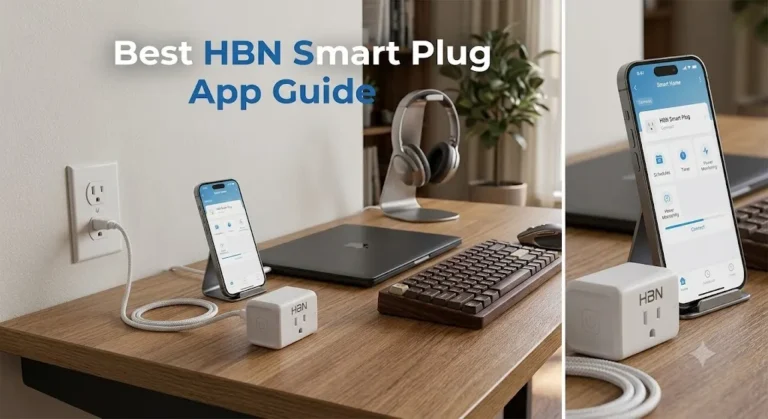
Can t Get Smart Plug to Connect Fix It Fast Today
If you can’t get a smart plug to connect, the fastest fix is usually to reset the plug, make sure your phone is on the correct 2.4 GHz Wi-Fi network, and remove anything that blocks discovery like a VPN or guest network. If that still fails, the issue is often compatibility, app permissions, or router settings rather than the plug itself.
- 2.4 GHz matters: Many smart plugs still need it for setup, even if your phone prefers 5.
- Reset correctly: Use the exact reset method and light pattern from the manual before retrying.
- Check app access: Bluetooth, location, and account permissions can block discovery.
- Router settings can interfere: Guest networks, VPNs, mesh isolation, and band steering often cause pairing failures.
- Replace or upgrade when needed: Repeated overheating, damage, or failed pairing after clean setup is a red flag.
Can’t Get Smart Plug to Connect? Start Here With the Fastest Fix
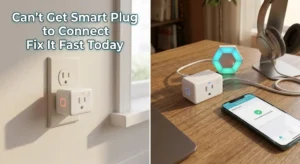
Most smart plug pairing problems come down to one of three things: the plug is not truly in pairing mode, the phone is not allowed to discover devices properly, or the router is hiding the network the plug needs. Start with the basics before you assume the device is defective.
The most common reason smart plugs fail to connect in 2026
The most common failure is still a network mismatch. Many smart plugs need a 2.4 GHz Wi-Fi network for setup, while many phones default to a stronger 5 GHz band when both are available. If the app can’t see the plug, the router may also be using settings that block discovery, such as client isolation, a guest network, or overly strict security rules.
Quick answer: what to check first before trying anything else
Check four things in this order: the plug is reset and blinking as the manual describes, your phone has Bluetooth and location permissions enabled if the app requires them, your Wi-Fi password is correct, and your phone is on the same 2.4 GHz network the plug expects. If you want a broader smart-home setup check, it also helps to review how your lights and assistants are configured, such as in this guide to smart lights that work with Google Home.
How Smart Plug Connection Works in a Typical Home Setup
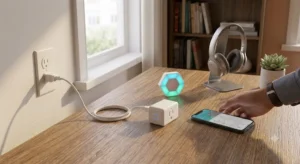
A smart plug usually needs three things to talk to each other: the plug, the app, and the router. The app helps start pairing, the router carries the home network connection, and the plug joins that network so you can control it later from your phone or voice assistant.
Wi-Fi bands, app pairing, and why 2.4 GHz still matters
Many smart-home devices use 2.4 GHz because it travels farther and handles walls better than 5 GHz. That does not make it faster, but it often makes pairing easier in real homes with thicker walls, apartments with crowded networks, or rooms far from the router. Some newer plugs may support multiple bands or newer standards, but you should always confirm the exact model’s requirements in the manual or product listing.
What the plug, router, and app each need to communicate
The plug needs power from the outlet, the router needs to broadcast a network the plug can join, and the app needs permission to find nearby devices during setup. Some brands also require an account, a region setting, or a specific app version before pairing will work. If the app store listing or official manual mentions extra setup steps, follow those instead of guessing.
Before You Troubleshoot: Compatibility, App Requirements, and Basic Specs
Before you spend time resetting everything, verify that the plug is actually compatible with your home setup. Compatibility issues are easy to miss because the packaging may look generic even when the app, region, or router requirements are not.
- Check compatibility, model number, app requirements, dimensions, wattage, and intended use
- Confirm safety guidance, warranty, return policy, privacy settings, and update support
Router settings, phone OS version, and account requirements to verify
Look for router features that can interfere with pairing, including guest mode, AP isolation, hidden SSIDs, or band steering that keeps pushing your phone between 2.4 GHz and 5 GHz. Also confirm your phone’s operating system is supported by the app, because older OS versions can break device discovery or prevent login. If the plug requires an account, check whether the region, email verification, or two-factor authentication must be completed before pairing.
Smart plug dimensions, outlet fit, and load limits to confirm
Some smart plugs are compact enough to leave the second outlet usable, while others are bulky and block adjacent sockets. That does not usually stop pairing, but it matters for real-world use and can make the plug seem “bad” when the issue is actually outlet fit or a poor power connection. You should also confirm the plug’s rated load limits in the official specs before connecting lamps, fans, holiday lights, or anything with a motor.
Warranty details and support limits worth checking before you waste time
If the plug keeps failing after a proper reset and clean pairing attempt, check the warranty terms and support page before doing anything more involved. Some manufacturers limit troubleshooting to app-based steps, while others offer replacement only if you can show the serial number, purchase date, or firmware status. A quick look at the official support page can save time if the model has a known app issue or regional limitation.
Step-by-Step Fixes for a Smart Plug That Won’t Connect
Use the steps below in order. Stop as soon as the plug connects successfully, and avoid repeated factory resets unless the manual recommends them.
Common Mistakes That Block Pairing and How to Avoid Them
Many people do everything “right” and still miss one small setting that blocks setup. The good news is that most of these issues are fixable without replacing the plug.
Using a guest network, VPN, or mesh setting that breaks discovery
Guest networks often isolate devices from each other, which can stop the app from finding the plug. A VPN on your phone can also interfere with local discovery in some apps. With mesh systems, device steering or node isolation can sometimes cause the plug to appear online and offline during setup, so check your mesh app if pairing fails repeatedly.
Overloading the smart plug or plugging into a weak outlet
Power problems can look like connection problems. If the outlet is loose, damaged, or controlled by a wall switch that gets turned off, the plug may reboot unexpectedly and never finish setup. Also, do not exceed the plug’s rated wattage or connect devices the manufacturer says not to switch.
Pairing with an outdated app, wrong region, or unsupported voice assistant
Some smart plugs only work with certain app regions, account types, or voice platforms. An outdated app can also fail to recognize a newer firmware version or a revised onboarding screen. If the plug supports Alexa, Google Home, Apple Home, or another assistant, confirm the exact compatibility on the official product page rather than assuming all smart home apps behave the same.
Safety, Heat, and Maintenance: What to Watch After It Connects
Once the plug connects, the job is not quite done. Safe use and regular inspection matter because smart plugs sit in a high-duty area of the home: near power, heat, dust, and sometimes heavy appliances.
Rated wattage, heat buildup, and safe-use limits you should not exceed
Always stay within the plug’s rated wattage and the manufacturer’s device restrictions. Heat can build up faster with space heaters, coffee makers, air conditioners, and other high-draw appliances, even if the plug appears to work at first. When in doubt, use smart plugs for lower-risk loads like lamps, fans, and simple holiday lighting rather than anything that cycles heavily or runs very hot.
Cable quality, outlet condition, and inspection tips for ongoing reliability
Check the outlet for looseness, discoloration, or scorch marks, and confirm the plug sits fully seated without wobbling. If the connected device uses a cord, inspect that cable too, since a damaged cord can create intermittent power loss that looks like Wi-Fi trouble. For homes with older wiring, a qualified electrician may be needed if the outlet itself seems unreliable.
Cleaning, storage, and replacement guidance when a plug starts failing
Unplug the device before cleaning it, and use only dry or slightly damp methods recommended by the manufacturer. Store spare plugs in a dry place away from heat and sunlight. If a plug repeatedly drops off the network, overheats, or needs frequent resets, replacement is often more practical than continued troubleshooting.
Who a Smart Plug Is Best For in 2026, and When It Is Not Worth It
Smart plugs are still one of the easiest ways to add scheduling, remote control, and simple automation to a home. They are not the right answer for every appliance or every Wi-Fi setup, though.
Best use cases: lamps, fans, holiday lights, and simple automations
Smart plugs work best for devices that only need on/off control. That includes table lamps, basic fans, decorative lighting, and routines like turning something off at bedtime or when you leave home. They are especially useful for renters and students who want a low-cost automation option without rewiring anything.
Limitations: bulky adapters, unstable Wi-Fi, and devices that should not be switched
If your Wi-Fi is unstable, a smart plug can become frustrating because the app may show delayed status updates or missed commands. Bulky adapters can also block neighboring outlets, which matters in tight spaces behind desks, nightstands, and kitchen counters. More importantly, some devices should not be controlled this way, especially anything the manufacturer warns against switching or anything that depends on constant power for safety or memory.
Alternative options if your home setup keeps failing to pair
If pairing keeps failing, consider a different smart plug brand with a clearer app, a model that supports your preferred ecosystem, or a plug designed for your router setup. In some homes, the better fix is network improvement rather than another plug. If you are expanding a broader smart-home setup, you may also want to compare your options against other smart lights for home or review smart lights for home automation to see whether a different device type fits your routine better.
Final Recommendation: What to Do If You Still Can’t Get the Smart Plug to Connect
If the plug still will not connect after a correct reset, verified 2.4 GHz setup, permission check, and router reboot, the next step is to decide whether the problem is the plug, the app, or your network. At that point, support, replacement, or a network upgrade is usually more effective than repeating the same pairing steps.
When to replace the plug, contact support, or upgrade your network
Contact support if the plug is new, under warranty, or listed as compatible with your router and phone but still fails after clean setup. Replace the plug if it is damaged, overheating, or repeatedly disconnecting even after firmware updates. Upgrade the network if multiple smart devices struggle in the same area, because weak coverage, router age, or mesh configuration may be the real issue.
For most readers, the best path is to verify 2.4 GHz compatibility, reset the plug correctly, and remove app or router blockers before assuming failure. If those steps do not solve it and the hardware or network still behaves badly, replacement or a router fix is the smarter value choice than endless re-pairing.
Frequently Asked Questions
The most common causes are a 2.4 GHz network mismatch, incorrect pairing mode, or app permissions that block discovery. Router settings like guest networks, isolation, or band steering can also stop setup.
Many smart plugs do, especially during initial setup. Check the manual or official compatibility page because some newer models support different bands or setup methods.
Some apps need Bluetooth and location access to find the plug during pairing. If those permissions were denied, device discovery may fail until you enable them in phone settings.
Mesh systems can move devices between nodes or isolate them during setup, which may interrupt discovery. Try pairing near the main router or check mesh settings that affect local device access.
No. Always stay within the plug’s rated wattage and avoid devices the manufacturer says not to switch, especially high-heat or high-draw appliances.
Replace it if it overheats, shows physical damage, repeatedly disconnects after updates, or still will not pair after a proper reset and clean setup. If the outlet or network is the issue, fix those first.