Why Is My Monster Smart Lighting Not Working Fixes
Why Is My Monster Smart Lighting Not Working? Fixes
If your Monster smart lighting is not working, the most common causes are usually simple: no power, a failed pairing state, a Wi-Fi problem, or an app connection issue. Start with the outlet, switch, app, and router before assuming the bulb, strip, or controller has failed.
Start with power, app connection, Wi-Fi, and reset status, because those cause most Monster smart lighting problems. If the light still fails after a clean re-pair and compatibility check, it is time to use warranty support or replace it.
Still Having Problems? Consider These Smart Lighting Upgrades
If your Monster light still fails after basic power, pairing, and Wi-Fi checks, these premium alternatives cover three different upgrade paths: indoor smart lighting, permanent outdoor lighting, and gaming/design-focused lighting.

Philips Hue 75″ Smart Light Strip
A premium indoor upgrade for readers who want a more expandable smart-lighting ecosystem.
View on Amazon →
Govee Permanent Outdoor Lights 2
A stronger choice when your upgrade goal is permanent exterior or seasonal smart lighting.
View on Amazon →
Nanoleaf Lines Smart RGBW Lighting
A design-focused upgrade for gaming rooms, offices, streaming setups, and feature walls.
View on Amazon →- Power first: A dead outlet, off switch, or tripped breaker can make the light seem broken.
- Pairing matters: Failed setup or stale device entries often block app control.
- Network issues: Weak signal, band confusion, or router instability can make lights appear offline.
- Check compatibility: Fixture type, voltage, dimmers, and platform support all affect performance.
Why Is My Monster Smart Lighting Not Working? Start With the Most Likely Fixes
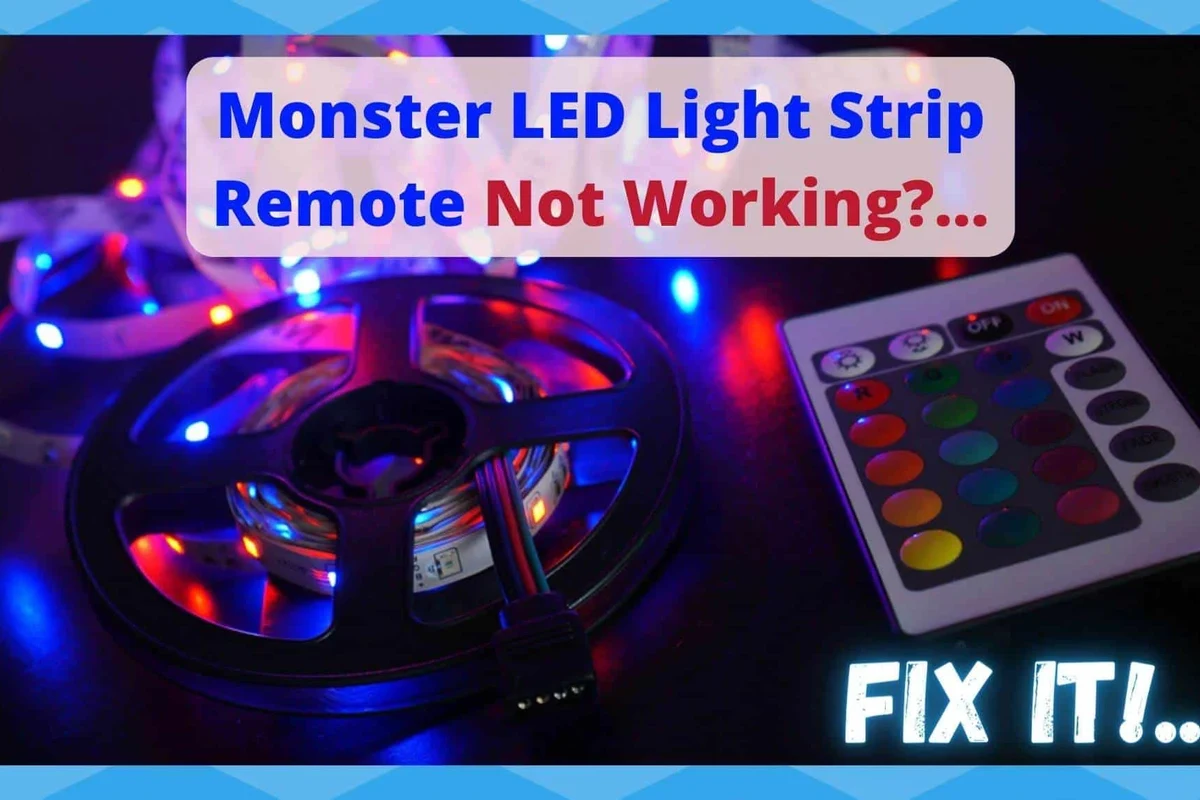
Most smart lighting problems come down to one of four things: the fixture is not getting power, the app has lost connection, the network is unstable, or the light is stuck in the wrong setup state. That means the fastest fix is usually to check the basics first instead of changing settings at random.
Check power, app connection, Wi-Fi, and reset status first
Begin by confirming the wall switch is on, the outlet works, and the breaker has not tripped. If the light has a control app, make sure the device still appears online and that your phone is connected to the same network the light expects.
Many smart lights also stop responding after a failed pairing attempt or a partial reset. If the light is blinking in an unexpected pattern, consult the official manual or app help screen before trying more advanced steps.
When the issue is the bulb, the app, or the network
If only one bulb or strip section fails, the problem is more likely local to the device, socket, or controller. If all Monster lights stop responding at once, the app account, router, or internet connection is the more likely cause.
For broader smart-home compatibility questions, it can also help to review whether your setup works with your voice assistant or hub. If you use Alexa, see our guide on smart lighting compatibility with Alexa for a quick platform check.
How Monster Smart Lighting Works and What It Needs to Run Properly
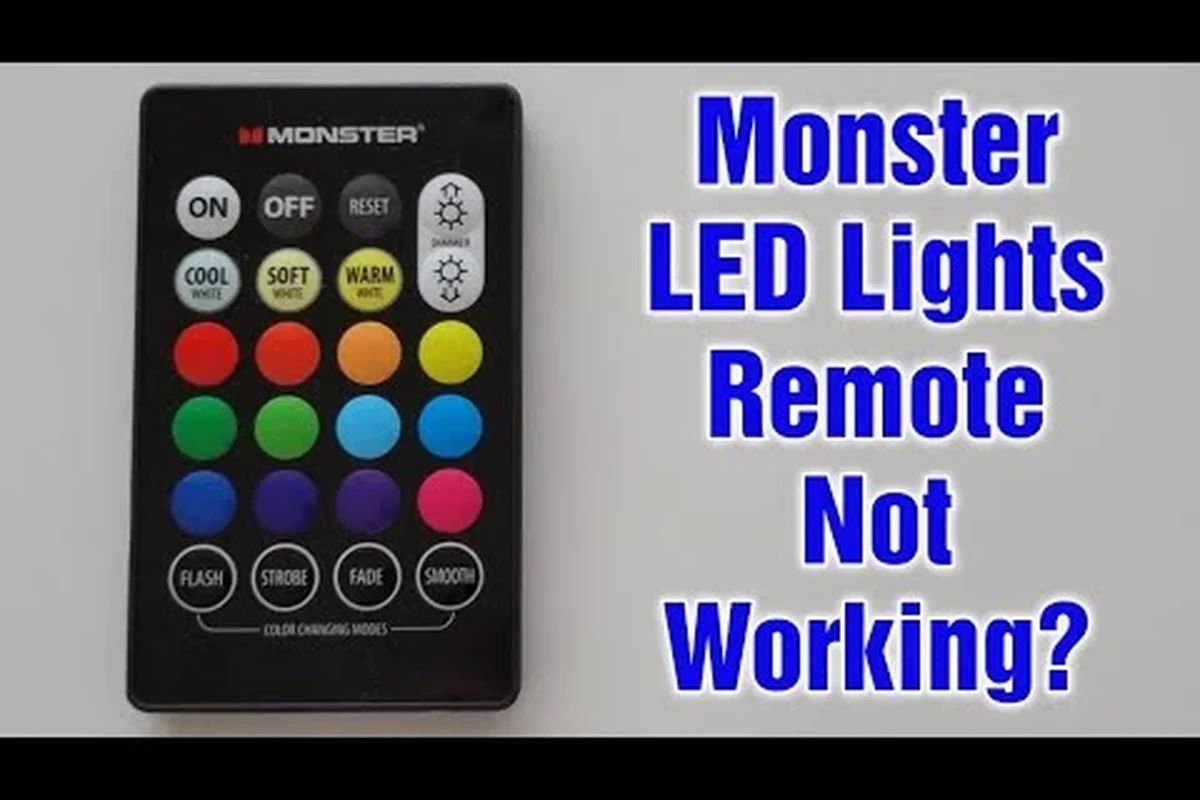
Smart lighting is not just a bulb that turns on from a wall switch. It needs steady power, a successful pairing process, and a control path through the app, Bluetooth, Wi-Fi, or a hub depending on the model.
Power source, pairing process, and app control basics
Most Monster smart lights rely on continuous power to stay reachable. If the switch is turned off, the app cannot control the light because the device is effectively disconnected from power.
During setup, the light usually enters pairing mode so the app can find it and register it to your account. If pairing fails, the device may still be functional but locked in an incomplete setup state.
Connectivity requirements: Wi-Fi band, Bluetooth, and router stability
Some smart lights use Bluetooth for initial setup and Wi-Fi for day-to-day control, while others use only one connection method. The exact requirement varies by model, so the manual or product page should be your first reference.
Network stability matters just as much as signal strength. If the router is crowded, restarting frequently, or splitting devices across different bands, the light may appear offline even when power is fine.
Monster smart lighting features can vary by product line, app version, and region. Always verify the exact model’s setup steps, supported Wi-Fi band, and platform compatibility before troubleshooting further.
Setup Requirements, Compatibility, and the Specs to Verify Before Troubleshooting
When a smart light will not work, the issue is sometimes a mismatch between the device and the fixture, app, or home network. Verifying compatibility first can save time and prevent avoidable resets.
Fixture fit, bulb/base type, voltage, and supported smart home platforms
Check that the bulb base or strip controller matches the fixture or installation location. A bulb that physically fits still may not be appropriate if the socket type, voltage, or intended use does not match the manufacturer’s guidance.
Also confirm whether the light supports the smart home platform you want to use. If your setup depends on Google Home or another assistant, review the platform support list before assuming the device should appear automatically.
App requirements, account setup, firmware updates, and permission settings
Some lights require the latest app version, a specific account login, or location and Bluetooth permissions to complete setup. If the app cannot find the device, those settings are worth checking before you reset anything.
Firmware updates can also affect how reliably a light connects or responds. If the app offers an update, let it finish before testing again, and avoid closing the app midway through the process.
Dimensions, placement limits, and environmental conditions to check
Placement can matter for strips, accent lights, and controllers. Tight corners, enclosed cabinets, high-heat locations, or damp areas can all affect performance and longevity.
For bedroom or desk lighting, make sure the device has enough ventilation and is not pressed against heat sources, fabric, or clutter.
If the light works in one outlet or fixture but not another, the issue is usually with the original location, switch, or socket rather than the smart light itself.
Step-by-Step Troubleshooting for Monster Smart Lighting That Won’t Turn On or Pair
Use a safe, methodical approach and change one thing at a time. That makes it easier to tell whether the issue is electrical, network-related, or tied to the device setup.
Confirm power at the outlet, switch, and breaker
Test the outlet with another device if possible, and confirm the wall switch is supplying power. If the light is connected to a circuit breaker, make sure the breaker has not tripped or been partially switched.
If the light is part of a lamp or fixture with a manual switch, leave that switch on during smart setup.
Re-seat the bulb, inspect contacts, and test with another fixture
Turn the power off before removing or re-seating a bulb. Then reinstall it firmly but without forcing it, and check that the contacts are clean and aligned.
If the model allows it, test the bulb or controller in a different compatible fixture. That helps separate a bad socket or switch from a device problem.
Stop using the device if you see burn marks, cracked plastic, exposed wires, damaged plugs, or signs of overheating. Follow the manufacturer’s safety guidance and replace damaged parts instead of forcing the light back into service.
Reconnect the app, rejoin Wi-Fi, and retry pairing mode
Close and reopen the app, then confirm your phone is on the correct Wi-Fi network. If the light was previously connected to another router, band, or account, it may not appear until those details match the setup requirements.
Some devices require you to hold a button or power-cycle the light to re-enter pairing mode. Follow the official steps for your exact model rather than guessing.
Reset the light and remove old device entries before re-adding
If a light is stuck offline, a factory reset may be necessary. Before re-adding it, remove any old device entry from the app so you do not end up with duplicate names or stale connection data.
After reset, give the device time to initialize fully before pairing again.
Verify the outlet, switch, and breaker before touching app settings.
Re-seat the bulb or controller and confirm the fixture is compatible.
Reconnect the app, verify Wi-Fi, and retry pairing mode.
Remove old device entries, then reset and re-add the light.
Common Mistakes That Make Monster Smart Lights Seem Broken
Some “failures” are really setup mistakes that make the light act inconsistent or unreachable. These are especially common in homes with mixed switches, older wiring, or crowded Wi-Fi.
Using an incompatible dimmer, switch, or hub
Not every smart light works well with every dimmer or in-wall switch. If the circuit cuts power too aggressively or behaves unpredictably, the smart device may flicker, disconnect, or fail to wake properly.
Likewise, a hub or assistant may not support the exact model you bought. If you are comparing smart lighting ecosystems, our overview of smart lights for home automation can help.
Weak Wi-Fi signal, crowded networks, and router band confusion
Smart lights do not need huge bandwidth, but they do need a stable connection. If the router is far away, the signal is blocked by walls, or many devices are competing at once, the light may drop offline.
Band confusion is another frequent issue. If your router uses both 2.4 GHz and 5 GHz networks with similar names, the app may have trouble placing the device on the correct band during setup.
Firmware lag, outdated app versions, and permission issues
An outdated app can make a light look unresponsive even when the hardware is fine. The same is true if your phone is blocking Bluetooth, local network, or location permissions that the setup process needs.
When the app behaves oddly, update it from the official app store first. Then check whether the light has a pending firmware update or a login/account issue.
- Keep your phone close to the light during initial pairing.
- Use the exact app recommended by the manufacturer.
- Rename devices clearly so you can identify which bulb, strip, or controller is offline.
Safety, Maintenance, and Care to Keep Smart Lighting Working Longer
Smart lighting lasts longer when it is kept within its intended environment and inspected regularly.
Heat limits, ventilation, and when to stop using the device
Heat is one of the biggest causes of premature failure in lighting gear. If a device is in an enclosed space, near insulation, or packed against other electronics, move it to a better-ventilated location if the manufacturer allows it.
If the light repeatedly overheats, shuts down, or smells unusual, stop using it and review the manual or support guidance.
Cleaning, storage, and handling tips for bulbs, strips, and controllers
Use a dry, soft cloth for cleaning and avoid moisture unless the product is specifically rated for it. For light strips, handle the adhesive and connectors gently.
If you store seasonal lighting, coil cords loosely and keep the original packaging or a labeled container when possible.
Inspection guidance: cords, plugs, LED damage, and replacement signs
Check cords and plugs for fraying, bent pins, loose connectors, or discoloration. If an LED section is dark, flickering, or partially unresponsive, the issue may be a failed segment rather than a software glitch.
Replacement is usually the better option when damage is physical, repetitive, or tied to heat. For general power troubleshooting, see why a charger would stop working and why a charger is not charging .
Value, Limitations, and Who Monster Smart Lighting Fits Best
Monster smart lighting can be a practical choice if you want app-based control, presets, or accent lighting without a complicated install. It is less ideal if you want something that works like a basic bulb with almost no app dependence.
Best use cases for bedrooms, living rooms, desks, and accent lighting
These lights tend to make the most sense in spaces where mood, color, or scheduling matters more than raw brightness. Bedrooms, desks, gaming setups, shelves, and living room accents are common use cases.
If you are building out a room from scratch, our roundup of smart lights for bedroom use may help you compare form factors and control options.
Philips Hue 75″ Smart Light Strip
If repeated Monster pairing or app problems are pushing you toward a replacement, Philips Hue is the strongest premium indoor ecosystem upgrade among the products featured here.
- Premium white and color smart-lighting option
- Better suited to buyers building a wider smart-lighting ecosystem
- Natural fit for living rooms, entertainment areas, and accent lighting
- Recognizable smart-home lighting platform
Main trade-off: A premium ecosystem is usually more investment than someone needs for one simple accent-lighting location.
Check Philips Hue on Amazon → ASIN: B08P2CV1KFPractical trade-offs: brightness, app dependence, and connectivity limits
The main trade-off with smart lighting is that convenience depends on software and network reliability. If the app goes down, the router changes, or the device loses pairing, the experience can be less simple than a standard light.
Brightness, color quality, and automation behavior can also vary by model, so it is worth checking the current product page and manual before buying.
Govee Permanent Outdoor Lights 2 — 100ft
This is not a direct indoor replacement for every Monster bulb or strip. It is the stronger option if your replacement goal is permanent outdoor accent lighting, eaves, patios, or seasonal exterior effects.
- Permanent outdoor smart-lighting format
- 100-foot lighting run
- RGBIC multi-color effects
- Useful for exterior accent and seasonal lighting
Main trade-off: This product targets exterior/permanent installations, so it is not the correct replacement for a bedside bulb or small indoor strip.
View Govee Outdoor Lights on Amazon → ASIN: B0D14WP9TBWarranty details, replacement options, and what to verify before buying
Before you buy or request support, confirm the warranty terms, return window, and replacement process for your exact model. Policies can vary by retailer, region, and product family.
If the device is new and still failing after the basic checks, document the symptoms, app messages, and reset steps you already tried.
- Check the exact model’s app, Wi-Fi, and platform compatibility.
- Verify the fixture fit, voltage, and placement requirements.
- Confirm warranty, return policy, and update support before relying on the light.
Nanoleaf Lines WiFi Smart RGBW Lighting
If you are replacing Monster lighting because you want a more dramatic room upgrade instead of another simple strip, Nanoleaf Lines is the design-focused premium option.
- Modular wall-lighting design
- RGBW smart lighting
- Strong visual fit for gaming rooms and offices
- Better suited to decorative feature lighting than basic illumination
Main trade-off: It is a decorative upgrade rather than a direct replacement for every standard bulb or strip use case.
Check Nanoleaf Lines on Amazon → ASIN: B09LWVWN8MPremium Smart Lighting Upgrade Comparison
| Product | Best For | Lighting Type | Our Pick | Amazon |
|---|---|---|---|---|
| Philips Hue 75″ Light Strip | Premium indoor ecosystem | White & Color Light Strip | Best Overall Upgrade | View |
| Govee Permanent Outdoor Lights 2 | Outdoor / permanent accent lighting | 100ft RGBIC Outdoor | Best Outdoor Upgrade | View |
| Nanoleaf Lines | Gaming / office / feature walls | Modular RGBW Wall Lighting | Best Design Upgrade | View |
Final Recommendation: When to Fix, Reset, Replace, or Upgrade
Fix the setup first if the light has a power issue, pairing problem, or weak network connection. Reset it if the app and network checks do not solve the problem, and replace it if you see physical damage, repeated overheating, or persistent failure after a clean re-pair.
If you are deciding whether to stay with Monster smart lighting or move to a different option, match the replacement to your actual use case rather than buying the most expensive light.
For most readers asking why is my Monster smart lighting not working, the answer is usually power, pairing, Wi-Fi, or a reset issue rather than a dead device. If the light still fails after those checks, use the warranty path or choose a model with clearer compatibility and stronger support for the type of lighting setup you actually want.
Frequently Asked Questions
Check the outlet, switch, and breaker first, then confirm the bulb or controller is seated correctly. If the device still does not power on, test it in another compatible fixture or contact support.
This usually points to a Wi-Fi, account, or app permission issue rather than a dead light. Reconnect the phone to the correct network, refresh the app, and check whether the device needs to be re-paired.
Some smart lights do, but the requirement varies by model. Check the official manual or product listing for the exact Wi-Fi band before troubleshooting pairing problems.
Use the reset method listed in the official manual for your exact model. After resetting, remove the old device entry from the app before adding the light again.
Yes. An incompatible dimmer or switch can cause flickering, disconnects, or failure to power properly. Smart lights usually work best on a standard switch that leaves continuous power available unless the manufacturer says otherwise.
Replace it if you see physical damage, overheating, burn marks, or repeated failure after a proper reset and compatibility check. If it is still under warranty, review the support and replacement terms first.