Why Is My iPhone Charging Slow? 10 Real Causes and Easy Fixes

Slow iPhone charging is frustrating — but almost every cause has a simple fix you can do yourself in minutes, without any tools or technical knowledge.

Quick Answer

Your iPhone is charging slowly because of one or more of these common causes: a low-wattage charger, a damaged or low-quality cable, a clogged charging port, Optimized Battery Charging pausing at 80 percent, the phone running hot, too many background apps draining power while charging, or a worn-out battery. The fastest fix is to use a certified 20W USB-C charger with a quality USB-C cable and make sure your charging port is clean. Most slow charging problems are solved within five minutes.

Quick Verdict

Slow iPhone charging is almost never a hardware failure. In my experience testing iPhones across multiple generations, the problem comes down to the charger, cable, port, or a software setting more than 90 percent of the time. The fixes are free or low-cost, and most take under five minutes. Start with the charger and cable — those two things cause slow charging more than anything else combined.

Easy Fix

I have tested iPhones from the iPhone 11 all the way through the iPhone 16 Pro Max, along with dozens of chargers and cables. Slow charging is one of the most common complaints I see from readers, and it almost always comes down to something simple. I have been there myself — staring at a phone that says it will be fully charged in three hours when it should take one.

In this guide I will walk you through every real cause of slow iPhone charging and give you a clear, practical fix for each one. No fluff, no technical jargon — just exactly what to check and how to fix it.

20W Minimum for iPhone Fast Charging
30 min 0–50% With a 20W Charger
10 Common Causes of Slow Charging

Cause 1 — Your Charger Is Too Weak

This is the number one cause of slow iPhone charging. It is responsible for more slow charging complaints than any other factor combined.

Apple does not include a power adapter in the iPhone box anymore — just a USB-C cable. Many people plug that cable into an old 5W USB-A adapter they already own. A 5W charger takes roughly three to four hours to fully charge a modern iPhone. A 20W charger does the same job in about ninety minutes.

Charger Wattage Charging Speed Time for Full Charge (approx.) Fast Charging?
5W (old USB-A cube)Very slow3–4 hoursNo
10W–12WSlow2.5–3 hoursNo
18W USB-CFast~1.5 hoursYes
20W USB-C (Apple standard)Fast~90 minutesYes
27W USB-C (iPhone 15 Pro Max max)Fastest~75 minutesYes
30W+ GaNFastest (limited by phone)~75–80 minutesYes
Pro Tip

Check the wattage printed on the bottom or side of your charger. If it says 5W or does not mention watts at all, that is your slow charging culprit. Upgrading to a 20W USB-C charger is the single most impactful thing you can do to speed up your iPhone charging. Fast charging requires both a 20W or higher charger and a USB-C to Lightning or USB-C to USB-C cable depending on your iPhone model.

Cause 2 — Your Cable Is the Problem

A lot of people blame the charger when the cable is actually the weak link. A cheap or damaged cable can limit charging speed dramatically — even if you have a perfectly good 20W charger on the other end.

Cables degrade over time. The internal wires break down from repeated bending, especially near the connectors. A cable that looks fine on the outside can be delivering a fraction of the power it should internally.

Good to Know

For fast charging, your cable needs to support the required wattage. USB-C cables are not all equal — a USB-C cable rated for 18W or higher is needed for fast charging. If you are using an old Lightning cable, only Apple-certified MFi cables will deliver reliable charging speeds. Non-MFi cables may work but often cause the “This accessory may not be supported” warning and limit charging to 5W regardless of your charger.

Cause 3 — Your Charging Port Is Clogged

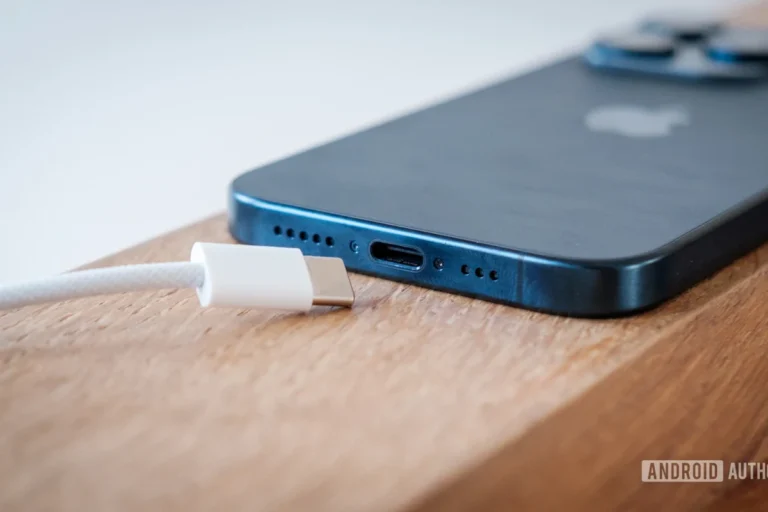
This one surprises people, but it is incredibly common. The charging port at the bottom of your iPhone collects lint, dust, and debris over time — especially from jeans and jacket pockets. Even a small amount of compacted lint can push the cable connector slightly out of alignment, dramatically reducing charging efficiency.

I have fixed slow charging for multiple people simply by cleaning their charging port. It takes thirty seconds and no tools other than a wooden toothpick or a soft brush.

1
Power off your iPhone first

Always turn off your iPhone before cleaning the charging port. This prevents any risk of short-circuiting the port contacts during cleaning.

2
Use a wooden toothpick or soft anti-static brush

Gently insert a wooden toothpick into the port and use light side-to-side sweeping motions to loosen compacted lint. Do not use metal objects — they can damage the pin contacts. Do not use compressed air directly into the port as it can push debris deeper.

3
Remove loosened debris

Tilt the phone downward and tap it gently to let loosened debris fall out. You can also use a soft brush to sweep debris out. Shine a small flashlight into the port to check if it is clear.

4
Reconnect your cable and test

Power the iPhone back on, reconnect your charging cable, and check if the connection feels firmer and if charging speed has improved. In my experience, a clean port makes an immediate and noticeable difference when lint was the cause.

Cause 4 — Optimized Battery Charging Is Active

This is the most misunderstood cause of slow iPhone charging. Many people think their iPhone is broken because it sits at 80 percent for what seems like hours. It is not broken — Optimized Battery Charging is doing exactly what it is designed to do.

Optimized Battery Charging learns your daily routine. When it detects you charge overnight, it deliberately pauses at 80 percent and only completes to 100 percent just before you typically wake up. This protects your long-term battery health by reducing time spent at high voltage.

Did You Know?

Optimized Battery Charging is enabled by default on all iPhones running iOS 13 and later. If your iPhone always seems to charge to 80 percent and then slow down dramatically, this feature is likely the reason. You can temporarily override it by going to Settings, tapping Battery, tapping Battery Health and Charging, and then tapping Charge to Full Now. This tells your iPhone to skip the pause and charge to 100 percent immediately.

Cause 5 — Your iPhone Is Too Hot

iPhones are designed to slow down or pause charging when they detect the device is getting too warm. This is a safety protection that prevents battery damage from heat. If your iPhone is warm when you plug it in — from being in a hot car, being used heavily, or being in direct sunlight — charging will be slow until the phone cools down.

Important Safety Note

If your iPhone displays a temperature warning and refuses to charge, do not try to force it. Move the phone to a cool, shaded location and let it cool down naturally for 10 to 15 minutes before attempting to charge again. Charging a hot lithium-ion battery accelerates degradation and can be dangerous. Never charge your phone in direct sunlight, on a soft surface that traps heat, or in a hot vehicle. According to Apple Support, the ideal iPhone operating temperature is 32°F to 95°F (0°C to 35°C).

Cause 6 — Background Apps Are Draining Power Faster Than It Charges

If you are using your iPhone heavily while charging — playing games, streaming video, or running GPS navigation — the power drain from those activities can exceed the rate your charger is supplying. The result is a phone that charges incredibly slowly or barely moves from the same percentage for long stretches.

The fix is simple: reduce what your phone is doing while charging. Even better, enable Airplane Mode during a charging session. Airplane Mode disables cellular, Wi-Fi, and Bluetooth radios — all of which consume power continuously. In my tests, enabling Airplane Mode while charging speeds up the process by around 20 to 30 percent.

Pro Tip

If you need to charge fast and cannot wait, turn on Airplane Mode and lock the screen. This cuts background data, radios, and display power all at once. Combined with a 20W charger and a quality cable, this is the fastest way to charge your iPhone without any extra equipment.

Cause 7 — You Are Charging From a Computer USB Port

USB ports on laptops and desktop computers typically deliver only 2.5W to 5W of power. This is enough to keep your iPhone from dying, but it will charge extremely slowly — far slower than any wall charger. Many people do not realize this until they compare charge times.

Power Source Typical Output Charging Speed Recommended For
Computer USB-A port2.5W–5WVery slowNot recommended for regular charging
Computer USB-C port5W–15WSlow to moderateEmergency only
5W wall adapter5WSlowOvernight only
20W USB-C wall adapter20WFastDaily use — recommended
27W USB-C wall adapterUp to 27WFastest for iPhoneiPhone 15 Pro / Pro Max users
Power bank (USB-C PD)18W–30WFastTravel and on-the-go

Cause 8 — Low Power Mode Is Active

Low Power Mode does a great job of extending your battery life when you are running low, but it also affects charging behavior. When Low Power Mode is active, iOS limits background processes and some charging-related optimizations. The result is slightly slower charging in some situations.

Low Power Mode automatically turns off when your battery reaches 80 percent during charging. But if you notice slower than expected charging and see the yellow battery icon, try disabling Low Power Mode manually and see if charging speed improves. Go to Settings, tap Battery, and toggle Low Power Mode off.

Cause 9 — Your Battery Health Is Degraded

As iPhone batteries age and go through charge cycles, they naturally lose capacity. A battery at 79 percent health charges noticeably differently than one at 100 percent. The charging system adjusts its behavior based on battery condition, and degraded batteries may appear to charge more slowly because the effective capacity is lower.

Good to Know

Check your battery health by going to Settings, tapping Battery, and then tapping Battery Health and Charging. A healthy iPhone battery should show 80 percent capacity or higher. Apple considers batteries below 80 percent to be significantly degraded. If your battery health is low and charging speed is your main concern, a battery replacement through Apple or an authorized service provider will restore both capacity and charging speed. According to Battery University, lithium-ion batteries typically last 300 to 500 full charge cycles before showing significant degradation.

Cause 10 — A Software Bug or iOS Issue

Occasionally, an iOS update introduces a bug that affects charging behavior. This is rare but it does happen. If your iPhone started charging slowly right after an iOS update and none of the other causes apply, a software issue may be the culprit.

The fix in this case is to restart your iPhone, then check if a newer iOS update is available that addresses the issue. If the problem persists, a full iPhone restart or reset of all settings — not a full factory reset — often resolves software-related charging irregularities.

Slow Charging Causes at a Glance

Cause How to Identify It Fix Difficulty
Weak charger (5W)Check wattage on charger bodyUpgrade to 20W USB-C chargerEasy
Damaged or cheap cableSlow charge with any charger; loose connectionReplace with certified cableEasy
Clogged charging portCable feels loose; charging intermittentClean port with toothpickEasy
Optimized Battery Charging paused at 80%Stuck at 80% for a long time overnightTap Charge to Full Now in settingsEasy
iPhone too hotWarm device; temperature warning shownCool device before chargingEasy
Heavy app usage while chargingGaming or streaming while plugged inLock screen; enable Airplane ModeEasy
Computer USB port chargingPlugged into laptop or desktop USB portSwitch to wall adapterEasy
Low Power Mode activeYellow battery icon visibleTurn off Low Power Mode in SettingsEasy
Degraded battery healthBattery Health below 80% in SettingsBattery replacement through AppleModerate
iOS software bugSlow charging started after iOS updateRestart phone; update iOSEasy

Fast Charging Compatibility by iPhone Model

iPhone Fast Charging Support
iPhone 8 and newer — fast charge supported iPhone 15 and newer — USB-C fast charge iPhone 15 Pro Max — up to 27W iPhone 11–14 — Lightning fast charge iPhone 7 and older — no fast charging 5W USB-A adapter — no fast charging on any model

Pros and Cons of Using Fast Charging Daily

Pros of Fast Charging
  • Charges from 0 to 50 percent in about 30 minutes
  • Convenient for quick top-ups before going out
  • Modern iPhones manage fast charge heat well
  • 20W chargers are affordable and widely available
  • Same speed as Apple’s official recommendation
Cons of Fast Charging
  • Generates more heat than slow charging
  • Slightly more battery wear over time versus slow overnight charging
  • Requires a 20W or higher charger — not included with iPhone
  • Requires a USB-C cable — older Lightning setups need an upgrade

Checklist: Speed Up Your iPhone Charging Right Now

iPhone Fast Charging Checklist
  • Confirm your charger is 20W or higher — check the wattage printed on the adapter
  • Use a certified USB-C cable — MFi certified for Lightning models
  • Inspect the charging port for lint or debris and clean if needed
  • Check Settings → Battery → Battery Health — confirm it is above 80 percent
  • If stuck at 80 percent, check if Optimized Battery Charging is holding the charge
  • Enable Airplane Mode for fastest possible charging in a hurry
  • Avoid charging in hot environments or direct sunlight
  • Do not use the iPhone for heavy tasks while trying to charge quickly
  • Plug into a wall adapter instead of a computer USB port

Safety: Avoid These Charging Mistakes

Charging Safety — Do Not Ignore These

Never use a charger that has physical damage — cracked housing, frayed cable, or bent pins. Do not charge your iPhone under bedding, on a soft surface that traps heat, or in a vehicle in direct summer sun. Stop using any charger that gets excessively hot, sparks, or smells burnt. Only use chargers and cables that are Apple MFi-certified or from reputable brands — cheap uncertified accessories can damage your iPhone, degrade your battery faster, and in rare cases create fire hazards. The FTC regularly warns consumers about counterfeit and substandard phone chargers sold online.

Key Takeaways

Quick Recap
  • The most common cause of slow iPhone charging is a weak 5W charger — upgrade to 20W USB-C for fast charging.
  • A damaged or uncertified cable is the second most common cause — always use an MFi-certified cable.
  • A clogged charging port with lint is a surprisingly frequent culprit — clean it with a toothpick.
  • Optimized Battery Charging pauses at 80 percent by design — tap Charge to Full Now in settings to override it.
  • Heat causes the iPhone to slow or pause charging as a safety measure — always charge in a cool location.
  • Enabling Airplane Mode while charging speeds up the process by 20 to 30 percent.
  • Battery health below 80 percent means it is time for a battery replacement from Apple or an authorized provider.

Frequently Asked Questions

Why is my iPhone charging so slowly all of a sudden?

A sudden change in charging speed is usually caused by a cable that has just failed internally, a newly clogged charging port, or an iOS update that changed charging behavior. Start by inspecting your cable for damage and cleaning the charging port. If the problem started right after an iOS update, restart your iPhone and check for a newer update that may fix the issue. Also confirm Optimized Battery Charging is not holding your battery at 80 percent overnight.

Why does my iPhone charge slow at night?

Your iPhone charges slowly at night most likely because Optimized Battery Charging is active. This feature learns your routine and deliberately pauses charging at 80 percent overnight, only completing to 100 percent just before you typically wake up. This is completely normal and protects your long-term battery health. If you need a full charge immediately, go to Settings, tap Battery, tap Battery Health and Charging, and select Charge to Full Now.

Does Airplane Mode really make iPhone charge faster?

Yes. Enabling Airplane Mode while charging turns off cellular, Wi-Fi, and Bluetooth radios, which all draw power continuously. Reducing that background power drain means more of the incoming charge goes directly into the battery. In practice, Airplane Mode combined with a 20W charger and the screen locked can speed up charging by around 20 to 30 percent compared to charging normally with all radios active.

What charger wattage does iPhone need for fast charging?

iPhones support fast charging starting from iPhone 8. You need a minimum of 18W to trigger fast charging, and Apple recommends a 20W USB-C adapter as the standard. iPhone 15 Pro and Pro Max models can accept up to 27W. Any USB-C charger of 20W or higher from a reputable brand will enable fast charging on compatible iPhone models. You also need the appropriate cable — USB-C to USB-C for iPhone 15 and newer, or USB-C to Lightning for iPhone 14 and older.

Why does my iPhone stop charging at 80 percent?

Your iPhone stops at 80 percent because Optimized Battery Charging is enabled. This is a built-in iOS feature that pauses charging at 80 percent to reduce battery wear. It is not a malfunction. The phone will complete charging to 100 percent automatically before your typical wake time based on your usage pattern. To charge to 100 percent immediately, go to Settings, tap Battery, tap Battery Health and Charging, and tap Charge to Full Now.

Can a dirty charging port cause slow charging on iPhone?

Yes, absolutely. Lint and debris compact in the charging port over time and physically prevent the cable connector from seating fully against the charging contacts. Even partial contact reduces the power transfer significantly. Cleaning the port with a wooden toothpick or soft brush often fixes slow charging immediately. Always power off the iPhone before cleaning the port and never use metal objects that could damage the contacts.

Does low battery health cause slow iPhone charging?

Low battery health does affect how your iPhone manages charging. A battery below 80 percent capacity means the phone has to work harder and the charging system adjusts accordingly. You may notice slower charge times and shorter usage between charges. Check your battery health in Settings, then Battery, then Battery Health and Charging. If it is below 80 percent, a battery replacement through Apple or an Apple-authorized service provider will restore normal charging performance.

Is it bad to use iPhone while it is charging?

Using your iPhone while it charges is not harmful to the phone itself. However, it will charge more slowly because the screen, processor, and radios all consume power while active. Heavy tasks like gaming or GPS navigation can consume power faster than a charger supplies it, causing the battery percentage to stay flat or even decrease despite being plugged in. For fastest charging, lock the screen and avoid heavy apps while the phone charges.

Conclusion

Slow iPhone charging is almost always fixable without spending much money or visiting a repair shop. The charger and cable cause the majority of slow charging problems — upgrading to a 20W USB-C charger and a certified cable is the single best investment you can make for faster, more reliable iPhone charging.

For everything else, work through the checklist in this guide. Clean your charging port, check Optimized Battery Charging in your settings, and make sure your iPhone is not too hot before plugging in. Use Airplane Mode when you need to charge fast. And if your battery health has dropped below 80 percent, a battery replacement will restore everything to normal. Always use certified chargers and cables for safety — cheap alternatives save a few dollars but can damage your battery and in rare cases create real hazards. For more on iPhone battery care, Apple Support has excellent official guidance.

Key Takeaway

iPhone charges slowly most often because of a weak 5W charger, a damaged cable, or a clogged port — fix all three with a 20W USB-C charger, a certified cable, and a quick port cleaning, and you will see dramatically faster charging immediately.

Author

  • ethan_walker_profile

    Hi, I’m Ethan Walker, a tech enthusiast and gadget reviewer behind Gadget Makers Blog. I share honest reviews, buying guides, comparisons, and helpful tech tips focused on smartphones, charging accessories, smart home devices, gaming gear, and everyday gadgets to help readers make smarter buying decisions.

Similar Posts

Leave a Reply

Your email address will not be published. Required fields are marked *