Why Is My iPhone Charging Slow? 10 Real Causes and Easy Fixes
Your iPhone may charge slowly because the adapter supplies too little power, the cable or port has a problem, the charger is sharing power, the phone is hot or cold, demanding apps are running, or iOS is intentionally pausing near your charge limit. Start by checking Battery settings, then test a dedicated USB-C Power Delivery charger and a known-good cable.
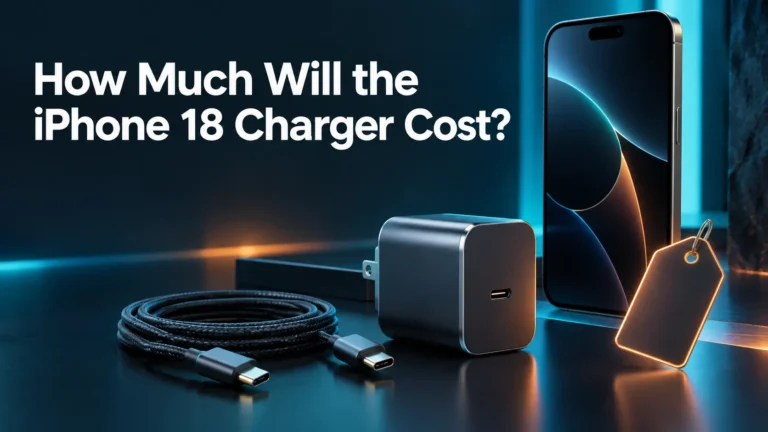
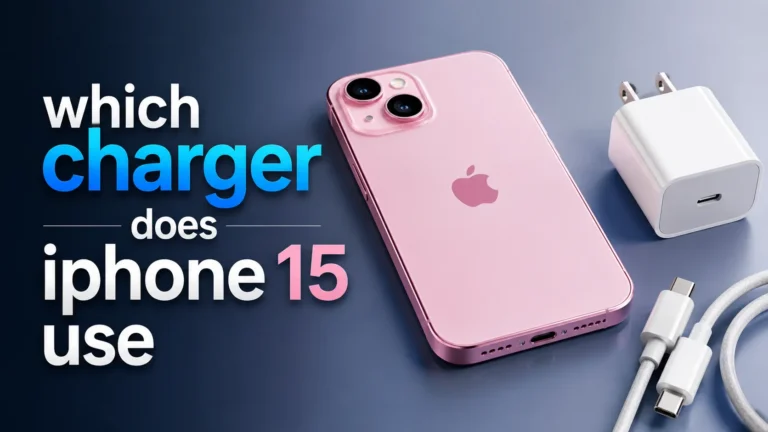
A straightforward official adapter for compatible iPhones. It removes the uncertainty caused by an old low-output USB-A cube.
This three-port charger is useful when the same adapter must charge an iPhone, tablet, power bank, and many USB-C notebooks.
Check Battery settings, disconnect other devices, try another cable, and use a wall socket before buying anything.
Recent iOS versions provide useful charging information. With iOS 18 and later, the Battery screen can show a Slow Charger message when a higher-wattage adapter could improve charging. This does not automatically mean the charger is defective.
With iOS 26, Battery settings can also estimate how long the phone needs to reach 80%, 100%, or the selected charge limit. iOS may display an Incompatible Charger message when a connected charger is not charging the phone.
Apple says charging may take longer with a wired adapter that supplies 7.5W or less. For many newer iPhones, a dedicated 20W USB-C Power Delivery adapter is the practical fast-charge choice.
Breaks, bent pins, loose connectors, discoloration, repeated sharp bends, or heat near the connector can interrupt power delivery. Stop using damaged accessories.
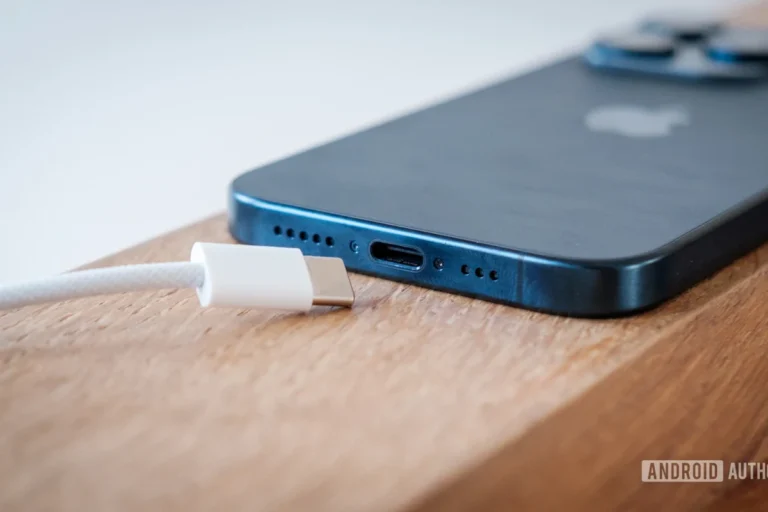
Debris can prevent the connector from seating firmly. Apple recommends removing debris and checking for a firm connection. Never force the plug or insert metal objects.
A multi-port adapter, computer, USB hub, car port, or power accessory may reduce the power delivered to the iPhone when other devices are connected.
Games, camera apps, navigation, high-quality video, and a bright screen can consume part of the incoming power. The battery percentage then rises more slowly.
iOS can slow or pause wired and wireless charging to protect the battery. Charging resumes when the battery returns to a safe temperature.
Optimized Battery Charging can delay charging past 80%. iPhone 15 and later can also stop near a manually selected charge limit between 80% and 100%.
If known-good chargers, cables, outlets, settings, and temperature changes do not help, the battery, port, or another internal component may need inspection.
- Open Settings → Battery. Look for Slow Charger, Charging On Hold, a charge limit, or an estimated charging time.
- Use a dedicated wall outlet. Avoid a computer port, car port, or shared USB hub during testing.
- Test a 20W-or-higher USB-C PD adapter. iPhone 15 and later use USB-C to USB-C; older compatible models use USB-C to Lightning.
- Try a known-good cable. Check both ends for looseness, bending, discoloration, exposed wire, or unusual heat.
- Disconnect other devices. Multi-port chargers can divide their total output.
- Check the charging port. Remove visible debris carefully. Do not use liquids, compressed air, or metal tools.
- Limit phone use. Lock the screen and stop games, navigation, video streaming, and camera use.
- Move to a cooler or warmer place. Remove the case if the phone tends to overheat while charging.
- Restart and update iOS. Then test charging again with the same known-good accessories.
- Arrange service if the problem remains. This is especially important for a loose port, swollen battery, repeated alerts, or charging that stops with several tested accessories.

This is a useful replacement when your current charger is an old 5W USB-A cube, displays a Slow Charger message, or has physical damage.
| Power source | What can happen | Best action |
|---|---|---|
| 7.5W-or-lower wired charger | Apple says charging may take longer than expected | Use a compatible USB-C Power Delivery adapter |
| Dedicated 20W USB-C charger | Supports fast charging on many newer iPhones | Good baseline for troubleshooting |
| Multi-port wall charger | Output may be divided among connected devices | Disconnect other devices or use the highest-output port |
| Computer or USB hub | Available output varies and may be reduced | Test with a dedicated wall charger |
| Car USB port | Older ports can charge more slowly | Use a compatible USB-C PD car adapter when speed matters |
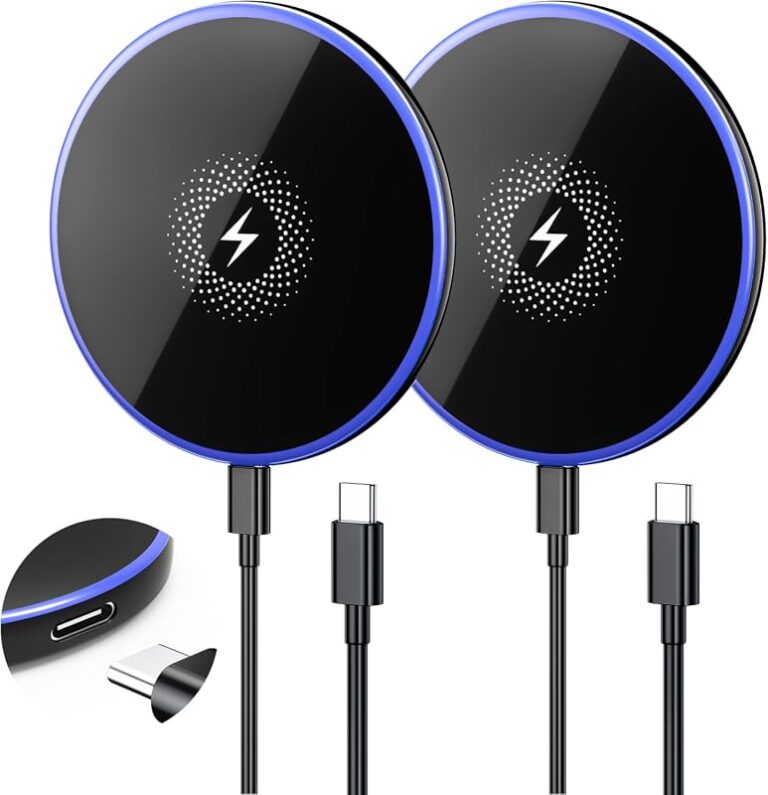
| Wireless charger below 10W | Apple says charging may take longer | Use MagSafe or a Qi2-certified charger for faster wireless charging |
Charging that slows or pauses near 80% may be intentional. Optimized Battery Charging learns your routine and can delay charging past 80% when it expects the phone to remain connected for a long time.
On iPhone 15 and later, check Settings → Battery → Charging. A selected charge limit can stop charging near a chosen level from 80% to 100%. When Optimized Battery Charging is active, the Lock Screen may show when charging will finish; you can choose Charge Now when you need a full battery sooner.
Apple states that iPhone charging can slow or stop when the device becomes too hot or too cold. A message such as “Charging On Hold” may appear. Charging resumes automatically when the battery returns to a safe temperature.
Apple recommends charging between 32°F and 95°F (0°C and 35°C), avoiding direct sunlight and hot vehicles, and removing the case when the phone tends to heat up while charging.
Charging can also appear slow when graphics-heavy games, camera features, navigation, or high-quality video are running. Locking the screen and pausing demanding tasks reduces the phone’s power use. Airplane Mode may reduce activity, but a fixed “20–30% faster” result is not guaranteed and has therefore been removed from this updated guide.

This model has two USB-C ports and one USB-A port. A single USB-C device can receive up to 65W, while total output is shared when several devices are connected.
- Stop using a cable with exposed wire, a broken connector, sharp bends, or unusual heat.
- Never force a USB-C or Lightning connector into the port.
- Keep the connector dry and use a soft, dry, lint-free cloth on the cable connector.
- Do not put liquid, cleaning products, metal objects, cotton swabs, or paper towels inside the port.
- Do not charge an iPhone that is wet. Allow it to dry according to Apple’s instructions.
- Arrange service when the connector only works at an angle or the port feels loose.
Rechargeable batteries lose capacity and peak-performance capability as they chemically age. Low maximum capacity does not prove that every slow-charging problem comes from the battery, but a significantly aged battery can reduce daily runtime and may require service.
Check Settings → Battery → Battery Health or Battery Health & Charging, depending on the iPhone and iOS version. Follow any service recommendation shown by iOS. Seek Apple or an authorized provider if the battery is swollen, the display is lifting, the phone becomes abnormally hot, or several known-good charging setups fail.
| Symptom | Likely explanation | Next step |
|---|---|---|
| Slow Charger message | A higher-power setup could improve charging | Use a dedicated USB-C PD wall charger |
| Stops around 80% | Optimization, charge limit, or temperature | Check Battery → Charging and the Lock Screen message |
| Slow only when gaming | The phone is consuming much of the incoming power | Lock the screen and pause demanding apps |
| Slow on a computer or car port | The port may supply limited power | Test a dedicated wall adapter |
| Cable works only at an angle | Damaged cable, debris, or port wear | Stop forcing it; test another cable and arrange inspection |
| Phone is hot and charging pauses | Thermal protection is active | Move to a cooler place and let charging resume automatically |
Why is my iPhone suddenly charging slowly?
Check for a Slow Charger or Charging On Hold message, test another cable and wall adapter, inspect the port, disconnect other devices, and restart the iPhone.
What does Slow Charger mean on iPhone?
It means a higher-wattage charging setup could improve the experience. It does not necessarily mean the current charger is broken.
Is a 20W charger enough for fast charging?
For iPhone 12, iPhone SE third generation, and later, Apple lists a 20W minimum for fast charging. Compatibility and cable type still matter.
Why does my iPhone stop charging at 80%?
Optimized Battery Charging, a selected charge limit on iPhone 15 or later, or high battery temperature can pause charging near 80%.
Can using apps make charging slower?
Yes. Games, camera use, navigation, video streaming, and high screen brightness can consume part of the incoming power.
Does a computer USB port charge more slowly?
It can. Available output varies, and Apple notes that computer, hub, and car ports may be slower than a dedicated USB-C wall charger.
Can temperature slow iPhone charging?
Yes. iOS may automatically slow or pause charging when the battery becomes too hot or too cold.
Should I clean the charging port with a toothpick?
Do not insert metal or other foreign objects into the connector. Remove only visible loose debris carefully and seek professional help for compacted debris or damage.
Can a 65W USB-C charger charge an iPhone?
Yes, when it supports compatible USB Power Delivery. The iPhone requests the power it supports; a multi-port charger may share output.
When should I get the iPhone serviced?
Arrange service when several known-good chargers fail, the port is loose, charging works only at an angle, the battery swells, the display lifts, or iOS recommends service.
Start with Battery settings, a dedicated wall outlet, a known-good cable, and a trusted 20W USB-C adapter. Move to service only when those checks do not solve the problem.
Check Apple 20W Price