Why Is My Usb-c Cable Charging Slowly
Your USB-C cable may be slow because it is the wrong type for the charger and device combination, or because the charger, port, battery, or heat is limiting speed. Check the rated wattage, USB-PD support, and cable condition before replacing anything.
If your USB-C cable is charging slowly, the cable is only one possible cause. Slow charging usually comes from a mismatch between the cable, charger, device, battery condition, or even heat and background power use.
- Check the whole chain: Charger, cable, device, and outlet all affect speed.
- Verify the specs: Wattage, USB-PD support, and e-marker support matter for fast charging.
- Watch for wear: Fraying, looseness, heat, and cutouts are signs to replace the cable.
- Device limits matter: Battery health, temperature, and background use can slow charging.
- Buy for your use case: Phone, tablet, and laptop charging need different cable ratings.
Why Your USB-C Cable Is Charging Slowly: The Most Common Causes
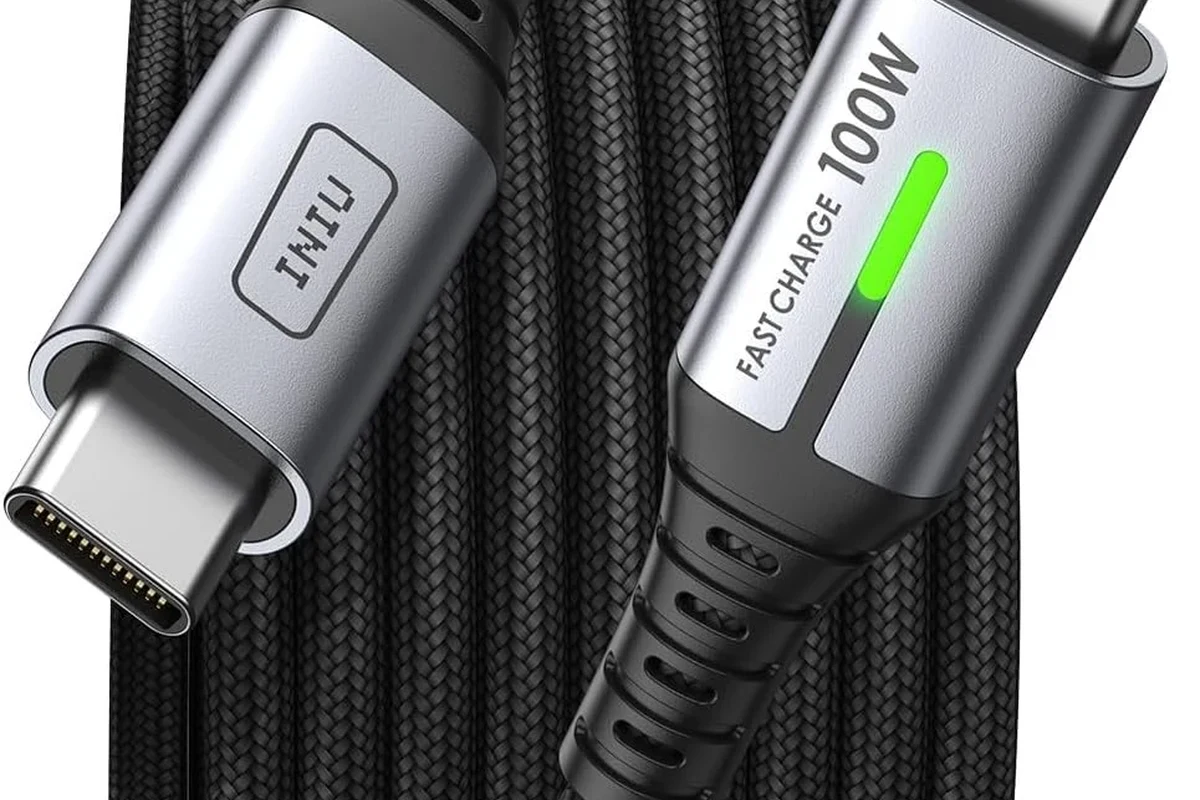
USB-C charging can feel inconsistent because the cable is part of a larger power system, not the whole system. A phone or laptop may charge slowly if the cable is worn, the charger is underpowered, the device limits input, or the connection is dirty or damaged.
In many cases, the cable is not “bad” in the simple sense. It may just be the wrong type for the power level you expect, or it may be fine for charging a phone but not ideal for a tablet or laptop.
How USB-C Charging Works in 2026: Cable, Charger, Device, and Power Negotiation
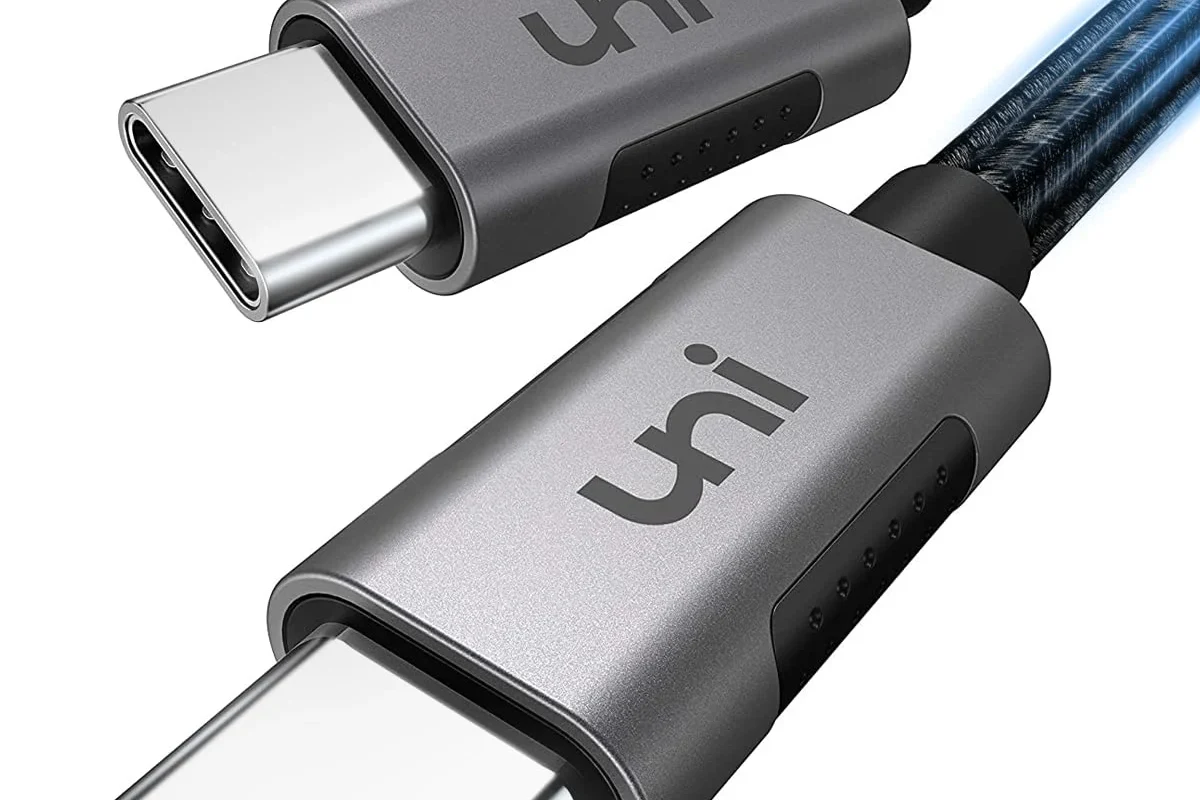
USB-C charging depends on power negotiation between the charger and the device. The charger offers power, the cable carries it, and the device decides how much to accept based on its own limits, battery state, temperature, and charging protocol support.
USB Power Delivery, often called USB-PD, is the common fast-charging standard for many phones, tablets, laptops, handhelds, and accessories. But even when both ends use USB-C, fast charging is not automatic; the cable must support the needed current, and some higher-power setups require an e-marker chip in the cable.
That is why a strong charger can still produce slow charging if the cable is only rated for basic use, if the device does not support the protocol, or if the system is protecting itself from heat.
USB-C is the connector shape, not a guarantee of speed. The actual charging rate depends on the charger, cable, device, and supported charging standard.
Quick Checks to Identify the Bottleneck Before Replacing Anything
Before buying a new cable, narrow down the cause. A few simple checks can tell you whether the slowdown is coming from the charger, the cable, the device, or the power source.
Confirm the charger’s rated wattage and the device’s maximum input
Look at the charger label and the device’s official specifications. If the charger is low wattage, it may be working correctly but still not fast enough for the device you are charging.
Also check the device’s maximum input, because a phone or laptop can only draw up to its own supported limit. A higher-wattage charger does not force a device to charge faster than it was designed to accept.
Inspect the cable for USB-C, USB-PD, and e-marker compatibility
Not every USB-C cable supports the same power level. Some cables are built for basic charging or data transfer, while others are designed for higher-wattage USB-PD charging and may include an e-marker for proper power negotiation.
Check the cable packaging, product page, or manufacturer listing for the supported wattage and whether it is intended for phones, tablets, or laptops. If that information is missing or vague, treat the cable as a lower-confidence option.
Check the port, adapter, and wall outlet for heat, dust, or damage
Dust, lint, bent pins, loose plugs, or heat buildup can reduce charging performance. A poor wall adapter or worn outlet can also interrupt stable power delivery.
Unplug the setup and inspect the USB-C port on the device and the connector ends on the cable. If the port feels loose, looks discolored, or gets unusually hot, stop using it and follow the manufacturer’s guidance.
Stop using damaged cables, overheating chargers, swollen batteries, or ports that show scorch marks, melting, or repeated disconnects.
When the Cable Is the Problem: Quality, Length, Gauge, and Build Differences
Some cables slow charging because they are built with thinner internal wiring, weaker connectors, or lower-quality materials. Others fail because repeated bending has damaged the conductors inside even if the outer jacket still looks fine.
Why low-quality or non-certified cables slow charging
Low-quality cables may not consistently carry the current your charger and device are trying to negotiate. That can lead to slower charging, intermittent charging, or a device falling back to a safer but slower mode.
Certification and clear specification labeling matter because they help you verify what the cable is actually designed to handle. If a listing does not clearly state supported wattage, protocol support, or intended device class, it is harder to trust for fast charging.
How cable length and wire gauge affect real-world speed
Longer cables can introduce more resistance, which may reduce charging efficiency. That does not mean long cables are unusable, but it does mean build quality and wire gauge matter more as length increases.
A short, well-made cable often performs better for desk charging, while longer cables are more convenient for travel or couch use. The trade-off is usually convenience versus the best possible charging performance.
Signs a cable should be replaced immediately
Replace the cable if you see fraying, kinks near the ends, exposed wire, bent connectors, a loose fit, or charging that cuts in and out when the cable moves. Those are common signs of internal wear.
If the cable or connector feels hot, smells unusual, or only works at certain angles, stop using it. A cable that behaves inconsistently is not just annoying; it may also be a safety risk.
If a cable, charger, or device becomes hot enough to be uncomfortable to touch, unplug it and let it cool before inspecting it. Do not keep using equipment that shows heat damage or unstable charging behavior.
Device and Charger Limits That Can Make Fast Charging Look Slow
Many charging complaints are actually device-limit issues. A phone may charge more slowly after it reaches a higher battery percentage, or a laptop may only fast-charge under specific conditions.
Phone, tablet, laptop, and accessory compatibility differences
Phones often support lower wattage than laptops, but they may still charge quickly enough with the right cable and adapter. Tablets and handheld gaming devices can sit in the middle, while laptops often need higher-wattage USB-PD support and a cable rated for that load.
Accessories such as earbuds, watches, controllers, and portable speakers may also charge differently depending on their internal battery management. Some devices intentionally limit input to protect battery life.
Why a powerful charger still charges slowly with the wrong cable
A high-wattage charger does not override cable limits. If the cable is only rated for basic charging or cannot support the current the charger wants to provide, the system may fall back to a slower rate.
This is why users sometimes replace the charger when the cable is the real bottleneck. The charger may be fine; the cable simply cannot carry the intended power level.
Battery health, temperature, and background use as hidden slowdowns
Devices often reduce charging speed when the battery is hot, very cold, or already near full. Background tasks such as gaming, video calls, hotspot use, navigation, or screen brightness can also make charging appear slower because the device is using power while it charges.
Older batteries may charge less efficiently than new ones. If a device has aged battery health, the slowdown may be normal behavior rather than a cable failure.
Many devices intentionally slow charging near the top of the battery to reduce heat and help battery longevity.
Safe Charging Practices: Heat, Power Ratings, and Risk Limits
Fast charging should still stay within the device’s and cable’s rated limits. The goal is not maximum power at all costs; it is stable charging that stays cool enough and matches the hardware specifications.
Understanding safe wattage ranges and what “too much power” really means
With USB-C charging, a higher-wattage charger is usually safe if the device supports proper USB-PD negotiation. The device only draws what it needs, so “too much power” is generally not the issue when the hardware is compliant.
The real concern is using poorly made or unsupported accessories that do not manage power correctly. That is why official specifications and recognized standards matter more than marketing claims.
How to reduce heat buildup during charging
Keep the device on a hard surface, avoid covering it with blankets or clothing, and reduce heavy use while charging. Remove thick cases if they trap heat and your device manufacturer says that is acceptable.
Also avoid charging in direct sun, in a hot car, or near other heat sources. Cooler conditions usually help charging stay more consistent.
When to stop using a cable, charger, or port
Stop using the setup if you notice repeated disconnects, visible damage, burning smells, discoloration, or extreme heat. Do not try to repair a damaged charging cable by taping it, bending it back, or forcing a loose plug to stay in place.
If the device port itself is damaged, follow the manufacturer’s repair guidance or contact support rather than trying to clean or pry it aggressively.
How to Choose a Faster Replacement Cable Without Overspending
If your checks point to the cable, choose a replacement based on verified specs instead of appearance. A well-matched cable should support the power level your device actually needs, not just look premium.
What specs matter most: USB-PD support, data rate, e-marker, and wattage
For charging speed, the most important details are USB-PD support, the cable’s maximum wattage, and whether it includes an e-marker when required for higher-power use. Data speed matters more for file transfers and some docks, but it can still be useful if you connect accessories or external drives.
Always confirm the cable’s intended use case. A cable made for phone charging may not be the best choice for a laptop, and a laptop cable may be overkill if you only need to charge earbuds and a phone.
Best fit by use case: phone charging, laptop charging, travel, or desk setup
For phone charging, a shorter, certified or clearly specified cable is usually the best value. For laptop charging, prioritize the wattage rating and make sure the cable is explicitly meant for higher-power USB-C charging.
For travel, durability and flexibility matter because cables get packed and bent more often. For a desk setup, a longer cable may be worth it if you need reach, but confirm that the extra length will not compromise the speed you expect.
Value trade-offs: cheap cables vs certified premium options
Cheap cables can be fine for low-power use if the specs are clear and the build quality is decent. The risk is that many low-cost listings are vague about wattage, protocol support, or durability.
Premium options usually offer better strain relief, clearer labeling, and more reliable construction, but you still need to verify the specs. A higher price alone is not proof of better charging performance.
- Check compatibility, model number, app requirements, dimensions, ports, wattage, and intended use
- Confirm safety guidance, warranty, return policy, privacy settings, and update support
Maintenance, Storage, and Final Recommendation for Reliable USB-C Charging
A good cable can still underperform if it is poorly maintained. Dust, tight bends, and rough storage shorten cable life and can make charging less stable over time.
Cleaning connectors, preventing bend damage, and storing cables properly
Keep connectors free of lint and debris, but clean them gently and only when the cable is unplugged. Avoid sharp folds near the connector ends, because that is where internal damage often starts.
When storing cables, coil them loosely instead of wrapping them tightly around a charger or device. Loose storage reduces stress on the wires and helps the cable last longer.
Replacement timing and a simple decision tree for next steps
If the cable is physically damaged, replace it. If the cable looks fine but charging is still slow, compare the charger wattage, device limits, and cable specifications before buying anything.
If another known-good cable charges the same device faster, your original cable is likely the bottleneck. If every cable behaves the same way, the charger, port, battery, or power source is more likely responsible.
Final recommendation: what to check first and what to buy if you need a fix
Start with the charger rating, the device’s supported input, and the cable’s verified USB-PD and wattage support. That sequence solves more slow-charging problems than replacing the cable at random.
If you do need a replacement, choose a cable that clearly matches your device’s power needs, has a reputable build, and is long enough for your setup without being unnecessarily long. For most people, that is the most reliable way to restore normal charging speed without overspending.
Frequently Asked Questions
Yes. A cable that does not support the needed wattage or charging standard can force the device to charge more slowly. The charger and device also have to support the same power level.
Check the charger’s wattage, the device’s maximum input, and the cable’s stated USB-PD or wattage rating. If another known-good cable charges faster, the original cable is likely the problem.
No. The device only draws what it supports, and charging may slow down because of temperature, battery health, or background power use. A powerful charger still needs a compatible cable and device.
Look for verified wattage support, USB-PD compatibility, and an e-marker when required for higher-power use. Cable length and build quality also affect real-world performance.
Stop using it if you see fraying, bent connectors, loose connections, repeated disconnects, unusual heat, or burn marks. Replace it instead of trying to repair damaged charging gear.
Buy a cable that clearly matches your device’s charging needs and supports the right wattage and USB-PD standard. For laptops and higher-power devices, verify the cable is rated for that load before purchasing.