Usb-c Charging Cable Vs Data Cable
A USB-C charging cable powers devices, while a USB-C data cable can also transfer files and support syncing or setup. If you want one cable for more tasks, choose a data cable; if you only need basic charging, a charging-only cable is enough.
USB-C cables can look identical while doing very different jobs. The simplest way to choose is this: a charging cable moves power, while a data cable can also transfer files, sync devices, update firmware, and sometimes carry video.
- Connector vs capability: USB-C is the plug shape, not proof of charging speed or data support.
- Charging-only use: Best for simple power needs like earbuds, wearables, and spare chargers.
- Data cable use: Better for syncing, backups, firmware updates, docks, and external drives.
- Always check specs: Verify wattage, USB Power Delivery, data speed, and device compatibility.
- Safety matters: Replace frayed, loose, or overheating cables right away.
USB-C Charging Cable vs Data Cable: What’s the Difference and Which One Do You Need?
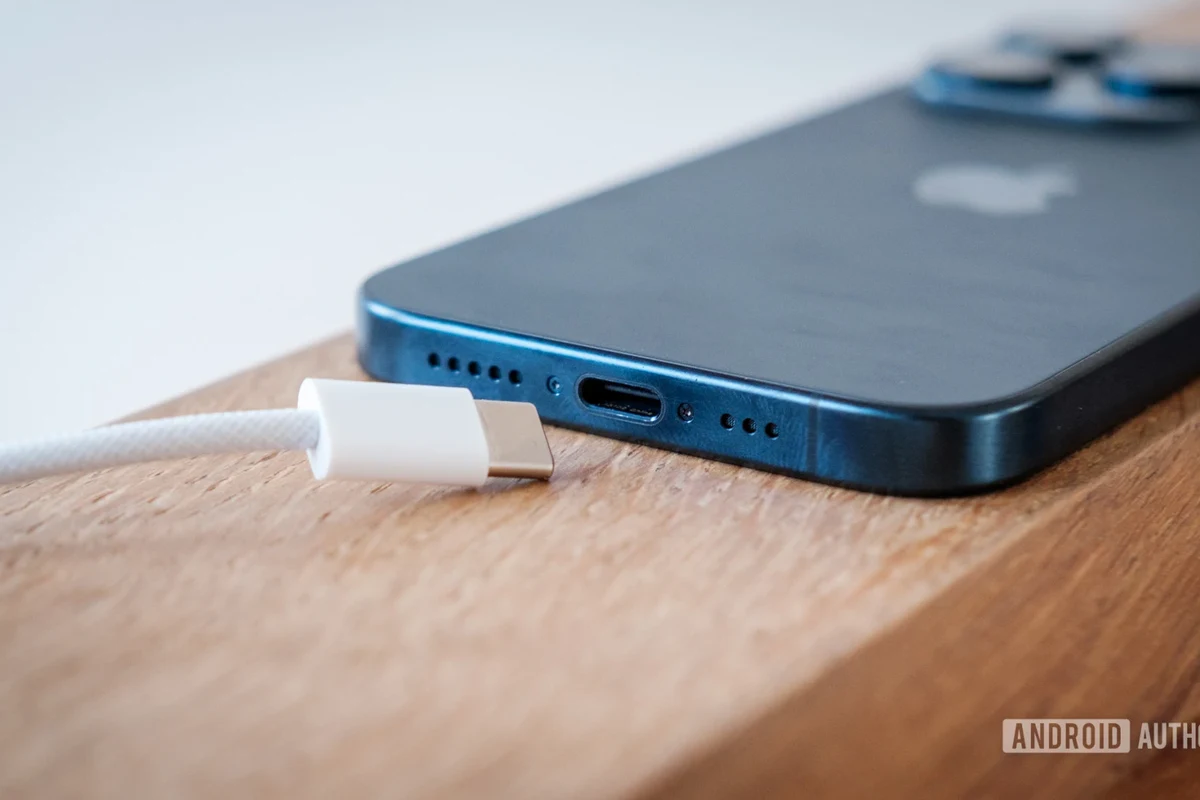
Quick answer: charging cables can power devices, but data cables also transfer files, sync devices, and support setup tasks
If you only need to charge a phone, earbuds, power bank, or wearable, a charging-only USB-C cable may be enough. If you connect phones to laptops, move photos, back up files, use external drives, dock a laptop, or troubleshoot a device, a data cable is the smarter choice because the extra wiring and rating support more than power alone.
How USB-C Cables Work: Power Delivery, Data Pins, and Why the Difference Matters
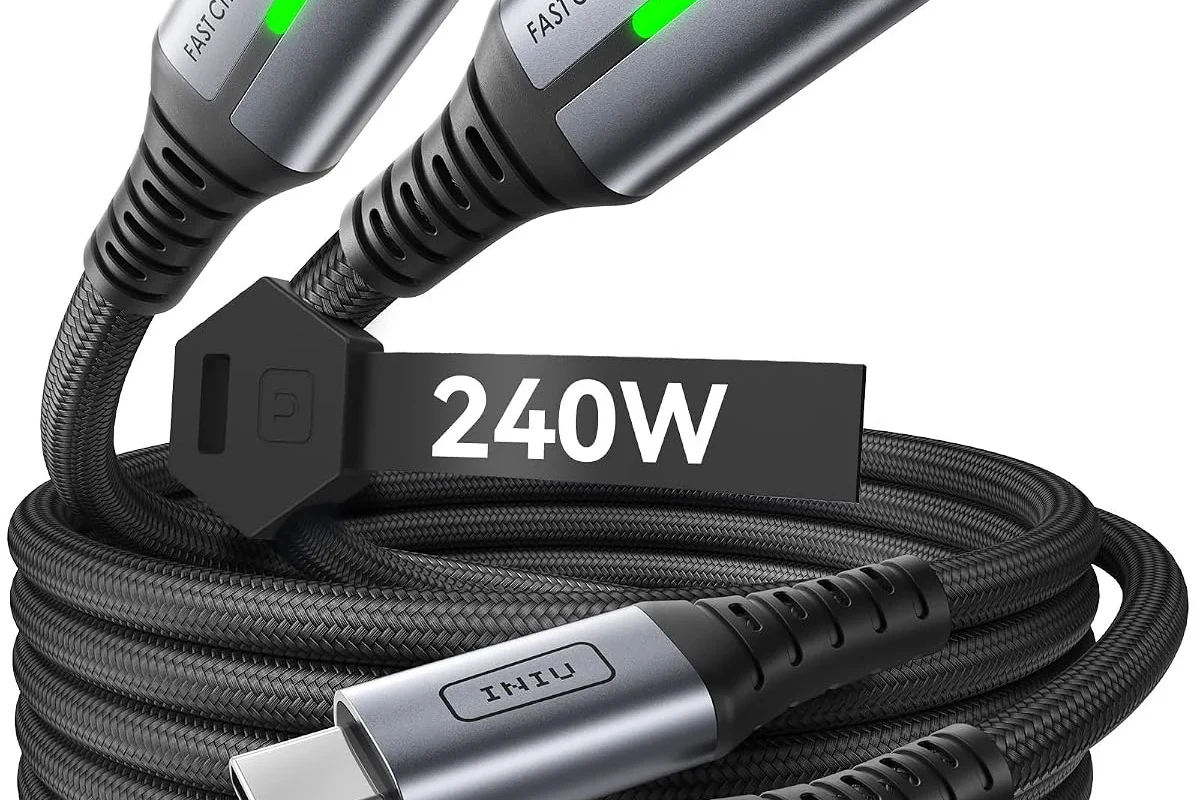
What a USB-C connector can do versus what the cable is actually rated for
USB-C is the connector shape, not the full performance promise. A cable can have USB-C ends and still be limited to power only, basic USB 2.0 data, or higher-speed USB 3.x or USB4 transfer, depending on how it was built and certified.
That matters because the device and cable have to agree on what they can safely do together. Your phone, laptop, charger, and cable all play a role in the final result, so the fastest or safest outcome is determined by the weakest link in the chain.
How power-only, USB 2.0, USB 3.x, and USB4 cables differ in performance
Power-only cables are designed to move electricity, not data. They are common for simple charging needs and may be fine for accessories that never need syncing, but they will not support file transfer or device setup over USB.
USB 2.0 data cables can transfer files and sync devices, but they are much slower than newer standards. USB 3.x and USB4 cables are built for faster data movement and may also support advanced features such as external displays or high-performance docks, but only when the device and port also support those features.
Some USB-C cables are electronically marked, or “e-marked,” which helps devices identify higher-power and higher-performance capability more reliably.
Charging Cable vs Data Cable: Key Specifications to Check Before You Buy
Wattage rating, amperage, and whether the cable supports USB Power Delivery
For charging, check the cable’s wattage and current rating, then compare that with your charger and device. If your phone or laptop supports USB Power Delivery, the cable should be rated for that use case and the charger should also support it; otherwise, you may still charge, but not at the fastest supported speed.
Do not assume every USB-C cable is safe for higher-power charging. The cable’s internal construction, connectors, and any required e-marker support all matter when power levels rise.
Data speed ratings, video support, and compatibility with phones, tablets, laptops, and docks
Data speed ratings tell you how fast files can move between devices, but only if both ends support the same standard. A cable that works well for charging a tablet may still be too limited for a laptop dock, external SSD, or monitor connection.
Some USB-C cables also support video output, but that is not automatic. If you plan to connect a laptop to a monitor or a dock, confirm the cable’s display support and check the device manual for port compatibility before buying.
Cable quality markers: shielding, connector build, length, and e-marker chips for higher-power use
Better shielding can help reduce interference, especially in busy desk setups with multiple devices and power bricks. Strong connector housings, strain relief, and flexible but sturdy jackets are also useful because USB-C plugs are used often and can wear out at the tip first.
Length also affects convenience and, in some cases, performance. Very long cables can be less practical for fast charging on the go, and some high-power or high-speed uses require cables that meet stricter build requirements, including e-markers for certain power levels.
- Check whether you need power only, file transfer, or video support
- Match the cable rating to the charger, device, and intended use
- Confirm USB Power Delivery, data speed, and e-marker details when higher power is involved
- Review the device manual for port limits and supported cable types
Which Cable Fits Your Device and Use Case?
Best choice for smartphones, earbuds, power banks, and wearables
For many phones, earbuds, power banks, and wearables, a charging-only cable is often enough if the device is mainly topped up from a wall adapter, car charger, or portable battery. That said, a data cable can be more useful if you occasionally need to move photos, restore settings, or connect the device to a computer for setup.
For everyday carry, the best option is often the cable that matches your most common task. If you never sync the device to a computer, you may not need to pay extra for higher data capability.
Best choice for laptops, tablets, external drives, and multi-device setups
Laptops, tablets, docks, and external drives usually benefit more from a true data cable because they often need more than charging. A better data cable can simplify one-cable desk setups, support backups, and reduce the chance that a cable becomes the bottleneck in a fast charging or transfer workflow.
Multi-device homes and offices also benefit from clearer cable labeling. When several USB-C cables are mixed together, it is easy to grab the wrong one and end up with slower charging or no data transfer at all.
| Option | Best For | Key Consideration |
|---|---|---|
| Charging-only USB-C cable | Phones, earbuds, power banks, wearables | Good for simple power, but no file transfer |
| USB-C data cable | Laptops, tablets, docks, external drives | More versatile, but check speed and power ratings |
When a charging-only cable is enough and when a data cable is the smarter buy
A charging-only cable is enough when the device never needs a computer connection and your main goal is convenience. It can also make sense for backup chargers in a car, drawer, office, or travel bag where simplicity matters more than flexibility.
A data cable is the smarter buy when you want fewer accessories, more future-proofing, or the ability to handle setup, syncing, and troubleshooting without hunting for another cord. If you are unsure, the data cable is usually the safer all-around purchase because it covers more use cases.
Real-World Benefits and Trade-Offs of Each Cable Type
Why charging-only cables can be simpler, cheaper, and sometimes more durable
Charging-only cables can be easier to buy and easier to identify, especially if you keep one dedicated to bedside charging or travel. Because they do less, they may also be a practical choice for people who want a basic, no-fuss cable for power banks, speakers, or accessories that never sync data.
In some cases, a simpler cable can feel less cluttered and may be a better value for users who do not need data transfer. The trade-off is obvious: less versatility and a higher chance of needing a second cable later.
Why data cables offer better versatility for syncing, backups, firmware updates, and travel
Data cables are more flexible because they handle more than one job. They can support file transfers, device restoration, backups, accessory setup, and sometimes firmware updates that require a wired connection.
That versatility is especially helpful for travelers, students, remote workers, and creators who want one cable that can do more at a desk, in a bag, or in a hotel room. It also reduces the chance of carrying the wrong cable when you are away from home.
- Works for charging and data tasks
- More useful across different devices
- Better for backups, syncing, and setup
- May cost more than a basic charging cable
- Still may not support the fastest speeds or video
- Requires more attention to compatibility details
Limitations to consider: slower transfer speeds, reduced charging performance, and device mismatch
A data cable is not automatically the fastest cable, and a USB-C plug does not guarantee top charging performance. A cable may support data but still be limited to modest speeds, or it may support charging but not the wattage your laptop or tablet can accept.
Device mismatch is one of the most common frustrations. A cable can be perfectly fine, but if the charger, port, or device only supports a lower standard, you will not get the best possible result.
Common Mistakes People Make When Choosing USB-C Cables
Assuming every USB-C cable supports fast charging or high-speed data
This is the biggest mistake. Many shoppers see the same connector on both ends and assume the cable does everything, but the internal wiring and rating determine whether it is only for charging, also for data, or suitable for more advanced use.
Always read the product details instead of relying on the connector shape alone. If the listing does not clearly state power, data, or video capability, treat that as a warning sign and verify before buying.
Ignoring device wattage limits, port standards, and cable length effects
Your device may limit charging speed even if the cable and charger are more capable. The same is true for data: the port on the phone, laptop, hub, or dock may cap performance below what the cable can theoretically do.
Cable length can also affect convenience and, in some cases, practical performance. Longer cables may be useful on a couch or conference table, but they are not always the best choice for the highest-power or highest-speed setup.
Mixing up USB-C connector shape with actual charging or data capability
USB-C is only the physical plug. It does not tell you whether the cable supports power delivery, fast sync, video output, or a particular USB generation.
If you want to avoid confusion, think of the connector as the doorway and the rating as what is allowed through it. The shape gets you connected; the specification tells you what the cable can actually do.
Safe Use, Heat Checks, and Replacement Guidance for USB-C Cables
How to inspect cables for fraying, loose connectors, bent tips, and overheating
Check the ends of the cable regularly for fraying, bent metal, loose fit, or discoloration. Also watch for heat around the plug, charger, or device port, especially during longer charging sessions or when using higher-power adapters.
Stop using damaged cables, loose connectors, overheating chargers, or any accessory that smells burnt, feels unusually hot, or charges unreliably. Follow the manufacturer’s guidance and replace the accessory rather than trying to force it to work.
Safe-use limits: matching the cable to the charger’s rated wattage and the device’s power needs
Use a cable that is rated for the charger and the device, not just one that physically fits. If the charger can supply more power than the cable is built to handle, the cable may run hotter, perform poorly, or fail prematurely.
For best results, check the device manual, charger label, and cable specifications together. This is especially important for laptops, tablets, docks, and fast-charging phones that rely on USB Power Delivery.
When to replace a cable and why damaged or uncertified cables can be a risk
Replace a cable if it becomes unreliable, the connector loosens, the jacket cracks, or charging behavior changes unexpectedly. Damaged or uncertified cables can create heat, poor connections, or inconsistent performance, and they may not hold up well under regular use.
If you are buying a replacement, look for clear specifications, warranty information, and a reputable seller or manufacturer. For critical devices, it is worth confirming compatibility before relying on the cable every day.
Care, Storage, Value, and Final Recommendation: Which One Should You Choose in 2026?
Best storage habits to extend cable life and reduce strain at the connector
Loop cables loosely instead of wrapping them tightly around a charger or device. Avoid sharp bends near the connector, and keep cables away from heavy furniture edges, pet chewing, and tangled drawer storage that can stress the ends over time.
How to judge value based on build quality, certification, warranty, and intended use
Value is not just the lowest price. A better cable is one that matches your actual use case, clearly states its power and data limits, and comes with enough build quality and warranty support to make sense for how often you will use it.
Note
Specifications, certifications, and included features can vary by model, region, and retailer. Confirm the current product page and the device manufacturer’s compatibility notes before you buy.
Transparent recommendation: choose charging-only for simple power, data cable for flexibility and future-proofing
If your device only needs power and you want a simple backup cord, a charging-only USB-C cable is a practical choice. If you want one cable that can handle charging plus syncing, backups, setup, and broader compatibility, a USB-C data cable is the better long-term buy.
For most people, the safest default is the data cable because it covers more tasks without sacrificing charging on compatible devices. The only time a charging-only cable is clearly better is when you know data will never matter for that device.
- USB-C describes the connector, not the cable’s full capability.
- Charging-only cables are fine for simple power needs.
- Data cables are more versatile for syncing, backups, and setup.
- Always verify wattage, data speed, and device compatibility before buying.
Frequently Asked Questions
Not always. Some USB-C cables are power-only, while others also support file transfer and syncing, so you need to check the cable’s specifications.
Look for the cable’s wattage, amperage, and USB Power Delivery support. You should also confirm that your charger and device support the same charging standard.
No. USB-C cables can range from power-only to USB 2.0, USB 3.x, or USB4 speeds, and the device port must also support the same standard.
A data cable is usually more versatile because it can charge and transfer files. A charging-only cable is fine if you only need power and want a simpler option.
Replace it if you see fraying, bent connectors, loose fit, overheating, or unreliable charging. Damaged cables can become unsafe or stop working properly.
Check the wattage, data speed, USB Power Delivery support, and whether the cable matches your device’s port and intended use. Also review the manufacturer’s compatibility notes and warranty terms.