

Can a Docking Station Charge a Laptop
Yes, a docking station can charge a laptop if both the dock and laptop support charging over the same connection. The dock also has to provide enough wattage for your laptop’s model and workload.
Yes—many docking stations can charge a laptop, but only if the dock and laptop both support power delivery over the same connection. The answer depends on the dock’s wattage, the laptop’s charging requirements, and whether the USB-C or Thunderbolt port is designed for charging.
- Compatibility first: USB-C shape alone does not guarantee laptop charging support.
- Wattage matters: The dock must meet your laptop’s power needs or charging may be slow.
- Cable quality counts: A weak cable can limit charging speed or stability.
- Check the full setup: Displays, Ethernet, and accessories can affect power delivery.
- Use official specs: Confirm laptop and dock compatibility before buying.
If the laptop receives power but charges slowly, use our guide to charging limits through a USB-C hub. For a desk setup with two displays, follow the dual-monitor docking station setup guide.
Can a Docking Station Charge a Laptop? The Short Answer and What It Depends On
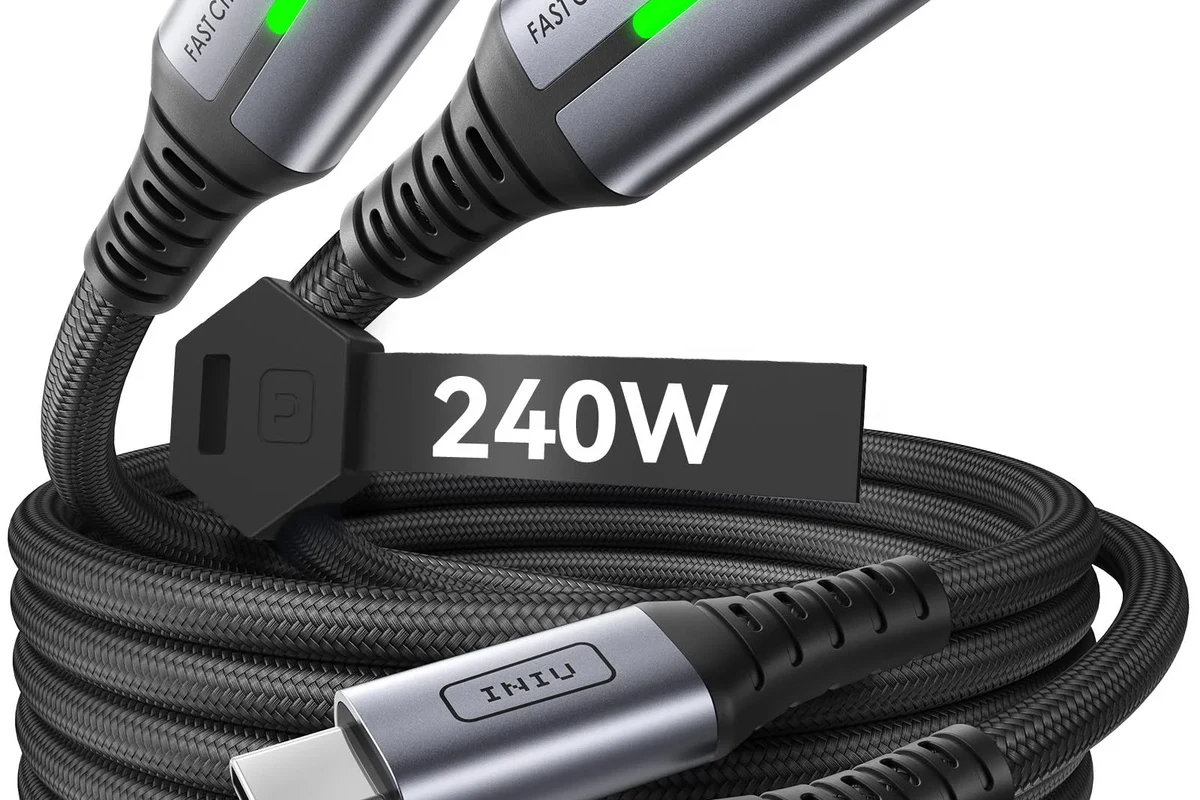
A docking station can charge a laptop when it is built to deliver power, not just data. In practice, that means the dock must provide enough wattage for your computer and your laptop must accept charging through the port you are using.
Some docks are made for full desk setups with charging, displays, Ethernet, and accessories. Others are simpler hubs that only move data and video, so they may connect your peripherals without powering the computer at all.
How Laptop Charging Through a Docking Station Works
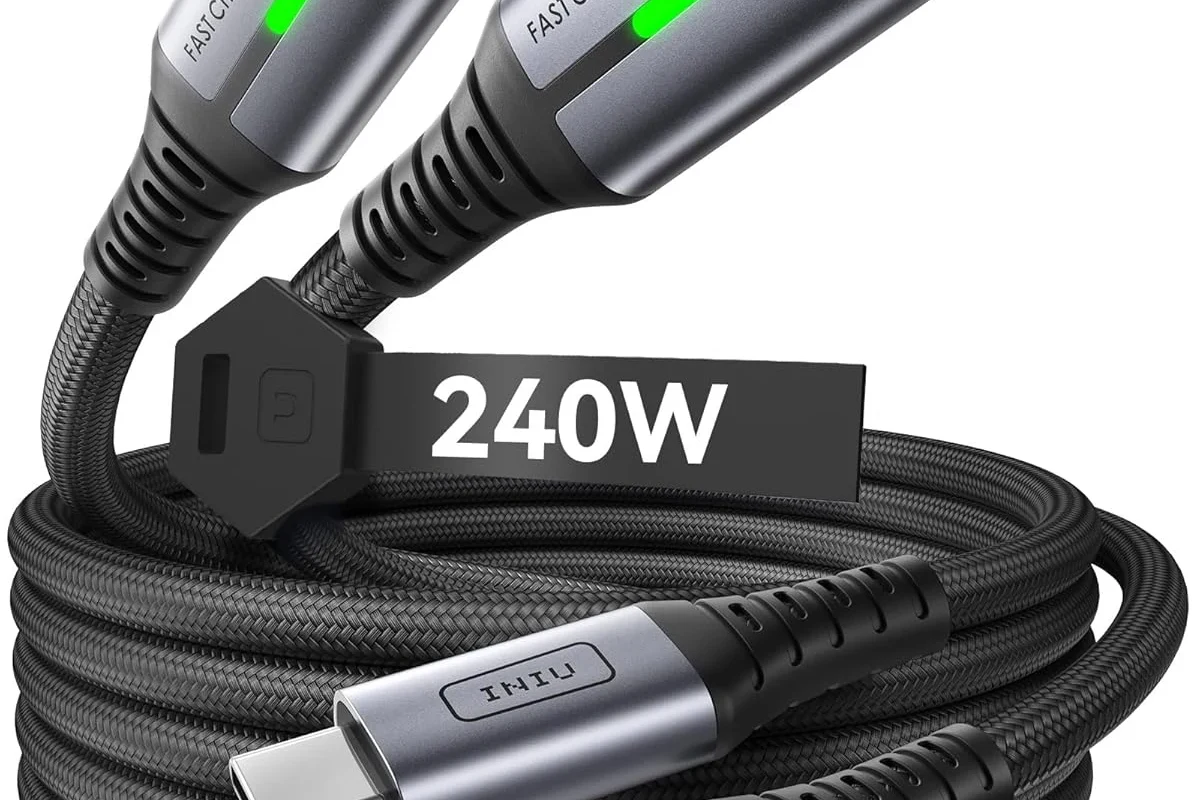
Charging through a dock usually happens over USB-C Power Delivery, often shortened to USB-C PD. The dock sends power through the same cable used for video, file transfer, and accessories, which is why one cable can sometimes handle the entire desk setup.
USB-C Power Delivery basics
USB-C PD is a charging standard that lets compatible devices negotiate how much power to send and receive. Instead of forcing a fixed output, the laptop and dock communicate to settle on a supported charging level.
USB-C is the connector shape, but USB-C Power Delivery is the charging standard. A USB-C port does not automatically mean the port can charge a laptop.
That distinction matters because two devices can both use USB-C and still behave very differently. One USB-C port may support charging, another may support data only, and some laptops support charging only from a specific port or adapter type.
Why some docks charge and others only pass data
Many docks include a power input and a power output path, so they can charge a connected laptop while also powering attached devices. Data-only hubs may lack the circuitry, adapter support, or thermal design needed to safely pass enough power to a computer.
Manufacturer naming can be confusing. A product called a “hub,” “dock,” or “station” may still have very different charging behavior, so the official spec sheet matters more than the product name.
Some docking stations also reserve part of their incoming power for accessories, displays, or Ethernet controllers. That means the laptop may receive less power than the adapter rating suggests, especially if the dock is driving multiple high-power devices at once.
Key Compatibility Factors to Check Before Buying
Before you buy a dock for charging, check the laptop’s port type, its charging limits, and the dock’s power output. This avoids the common mistake of buying a premium dock that works perfectly for displays but not for laptop charging.
Laptop port type, charging support, and wattage limits
Start with the laptop manual or the manufacturer’s support page. Look for whether the USB-C or Thunderbolt port supports charging, what wattage the laptop expects, and whether the computer can charge from third-party docks or only from the original power adapter.
- Check your laptop model number and confirm charging support on the official spec page
- Verify the dock’s output wattage and whether it includes a compatible power adapter
- Confirm the port type, cable standard, and any display or accessory requirements
- Review warranty terms, firmware update support, and return policy before relying on the dock daily
Wattage matters because a dock that supplies less power than your laptop needs may charge slowly, hold the battery steady, or lose ground during heavy use. High-performance laptops, gaming laptops, and mobile workstations often need more power than a basic office dock can provide.
Dock output wattage, cable quality, and firmware support
Do not rely on the dock’s marketing headline alone. Check the actual power output rating, the included cable specification, and whether the manufacturer offers firmware updates for power stability, display compatibility, or sleep/wake behavior.
- Use the cable included by the manufacturer when possible, especially for high-wattage charging
- Replace any cable that feels loose, shows bent connectors, or runs unusually warm
- Keep the dock’s firmware and your laptop’s system updates current when the vendor recommends it
Cable quality can affect charging reliability, especially at higher wattages. A cable that works for data may not be rated for full-power laptop charging, and an older cable may limit speed even if the dock itself is capable of more.
Thunderbolt vs USB-C vs proprietary docking stations
Thunderbolt docks often support more bandwidth and may handle multiple displays and higher-performance workflows better than basic USB-C docks. Standard USB-C docks can still charge many laptops well, but they may offer fewer display lanes, lower total power, or less consistent support across brands.
Proprietary docking stations, often used by some business laptops, may offer very good charging and expansion but can be limited to specific laptop families. If you switch brands often, a universal USB-C or Thunderbolt dock is usually easier to live with.
Who Benefits Most From a Charging Dock in 2026
A charging dock is most useful for people who want a cleaner desk and a faster transition between portable and desktop use. It can be especially helpful when a laptop serves as both a travel machine and the main home or office computer.
Best fit for hybrid workers, creators, and desk setups
Hybrid workers benefit from one-cable convenience when moving between meetings and desk work. Creators and multitaskers often like docks because they can connect external monitors, storage, Ethernet, and charging at the same time.
People who regularly dock and undock a laptop, want fewer cables on the desk, and need charging plus accessories from one connection. The main limitation is that power and display performance still depend on laptop compatibility.
Students and home users can also benefit if they want a simple study or work station without carrying multiple adapters. Gamers and power users should be more selective, since some docks cannot keep up with the power draw or display needs of high-end systems.
When a dock is not the right solution
A dock may not be the best choice if your laptop does not support charging over USB-C, if you need the highest possible charging speed, or if your machine requires a special barrel-style or magnetic charger. In those cases, a dock can still handle peripherals, but it should not be treated as the primary charger.
If you move around constantly and rarely sit at a fixed desk, a dock may add cost and clutter without much benefit. A compact charger and a small hub may be the better match for travel-first use.
Real-World Benefits and Trade-Offs of Dock-Powered Charging
Dock-powered charging is appealing because it reduces cable clutter and turns a laptop into a more desktop-like setup. The trade-off is that charging speed, heat, and accessory performance can vary depending on how much the dock is doing at once.
Desk cleanliness, one-cable convenience, and device management
One of the biggest benefits is simplicity. A single cable can connect power, monitors, keyboard, mouse, storage, audio, and Ethernet, which makes setup and teardown much faster for shared desks or hybrid workspaces.
- Less desk clutter
- Faster connect and disconnect workflow
- Can power accessories and displays from one hub
- Charging speed may be lower than the original adapter
- Compatibility varies by laptop model
- Higher-end setups may need more expensive docks
For people who manage multiple devices, a dock can also make cable routing and storage easier. That said, the convenience only pays off if the dock is stable, properly powered, and compatible with the laptop’s charging profile.
Performance limits, heat buildup, and charging speed variability
Charging through a dock can be slower than using the laptop’s dedicated charger, especially during gaming, video editing, or heavy multitasking. Some laptops may even charge slowly while under load because the dock’s output is being shared across the system and connected devices.
If a dock, cable, or power adapter becomes unusually hot, smells burnt, disconnects repeatedly, or shows visible damage, stop using it and follow the manufacturer’s guidance. Heat and damaged cables are warning signs, not normal behavior.
Heat is another practical concern. Docks placed in tight cabinets, under papers, or behind monitors may run hotter than they should, especially when powering displays and charging a laptop at the same time.
How to Choose the Right Dock: Specs and Buying Criteria
The best dock is not always the one with the most ports. It is the one that matches your laptop’s charging needs, display setup, and accessory load without forcing you to compromise on stability.
Recommended wattage ranges for common laptop classes
As a general buying rule, lightweight ultraportables often work with lower-wattage charging, while larger productivity laptops and creator machines usually need more. Gaming laptops and workstation-class systems may require much higher power and may not be fully satisfied by a standard dock.
Because laptop power requirements vary so much, it is best to confirm the exact wattage in the official documentation rather than guessing from the screen size or price tier. If the dock’s output is below the laptop’s requirement, expect slower charging or battery drain under load.
Port selection, display support, Ethernet, and accessory needs
Think about the whole desk, not just charging. If you need dual monitors, wired internet, external storage, a webcam, or a headset, the dock must support all of those connections without sacrificing the charging path.
Display support can be a hidden constraint. Some docks can charge a laptop but cannot drive the number of monitors or resolution combination you want, especially on laptops with limited USB-C display bandwidth.
Build quality, cable length, and power adapter considerations
Build quality matters because a dock often stays on the desk and gets connected and disconnected daily. A sturdy enclosure, stable cable connection, and sensible cable length can make the setup easier to place and less likely to fail from strain.
Also check whether the dock includes its own power adapter or expects you to supply one. A dock without the right adapter may not deliver its rated charging performance, and some models need a specific adapter to unlock full functionality.
Safe Use, Common Mistakes, and Maintenance Tips
Most dock charging problems come from mismatched expectations, not from the dock being “broken.” A careful setup, a good cable, and regular inspection go a long way toward avoiding frustration.
Avoiding underpowered docks, cheap cables, and overheating
The most common mistake is buying a dock that looks feature-rich but cannot supply enough power for the laptop. Another is using a low-quality cable that limits charging speed or introduces unstable connections.
Stop using damaged electronics, swollen batteries, frayed cables, overheating chargers, or unstable docks and follow the manufacturer’s guidance.
Placement matters too. Leave room for airflow around the dock, especially if it powers multiple accessories. Avoid covering it with paper, fabric, or other items that can trap heat.
Inspection, cleaning, storage, and replacement guidance
Check the dock and cable regularly for loose ports, bent connectors, dust buildup, or discoloration around the power area. If the connection becomes intermittent, the safest next step is usually to replace the cable first, then verify the dock and laptop ports.
Unplug the dock before cleaning it, use a dry microfiber cloth for the exterior, and avoid liquids near ports or vents. Store the dock and cable loosely rather than tightly bent, which can reduce wear over time.
Keep the manual and warranty information handy in case you need support. For business laptops especially, the manufacturer’s compatibility list and firmware notes can save time when a dock charges inconsistently or fails to wake displays properly.
Final Verdict: Is a Charging Dock Worth It for Your Laptop?
A docking station is worth it if you want a cleaner desk, one-cable convenience, and a better way to connect monitors and accessories while charging. It is especially useful for hybrid workers, students, and creators whose laptops support USB-C or Thunderbolt charging and whose power needs fit the dock’s output.
Choose a charging dock when your laptop officially supports charging through the dock’s connection type and the dock’s wattage is high enough for your workload. If your laptop needs a special charger, demands very high wattage, or has limited dock support, a dedicated charger plus a separate hub is usually the safer and more reliable choice.
Before buying, verify the laptop model, charging standard, dock wattage, cable rating, and any firmware or compatibility notes from the manufacturer. That small check is what separates a genuinely useful dock from one that only looks convenient on paper.
Frequently Asked Questions
No. A dock must support laptop charging and your laptop must accept power through that port. Many hubs pass data only, so always check the official specs.
It depends on the laptop model and workload. Lightweight laptops may work with lower wattage, while larger productivity or gaming laptops often need more power than a basic dock can provide.
Often yes. The cable must support the right charging and data standard, and low-quality or older cables can limit speed or cause unstable connections.
Not always. Charging speed varies by dock wattage, cable quality, connected accessories, and how much power the laptop is using.
Stop using it if you notice overheating, burning smells, visible damage, loose ports, or frayed cables. Follow the manufacturer’s guidance for inspection and replacement.
Check laptop charging support, dock output wattage, cable rating, display needs, and firmware or compatibility notes. Confirm the model number and official specifications before relying on the dock daily.




2 Comments