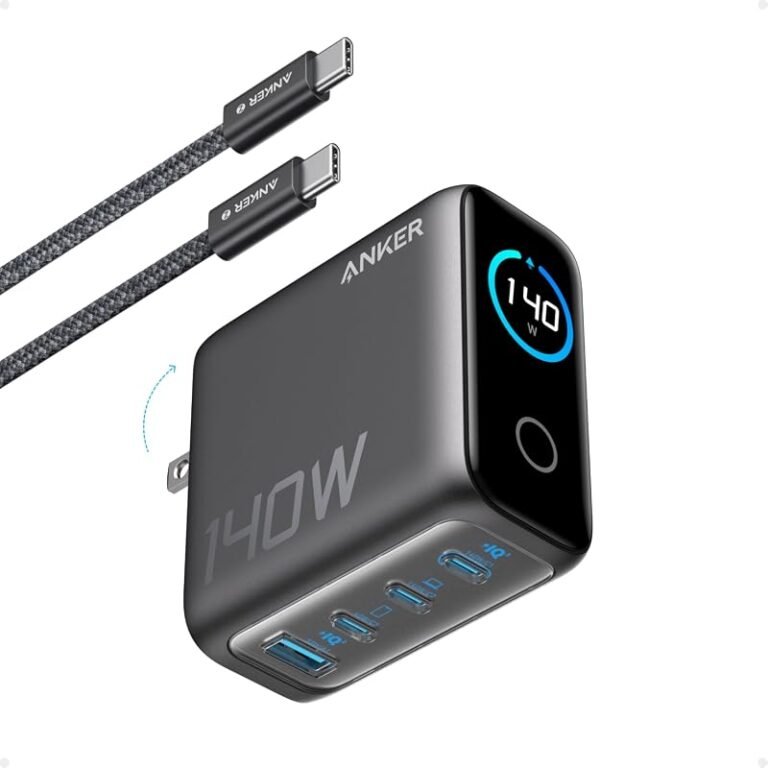
Usb-c Cable for Phone and Laptop
A USB-C cable can charge both a phone and a laptop if it matches the laptop’s wattage and the charger’s output. For best results, verify power, data speed, and safety before buying.
A USB-C cable for phone and laptop is often the simplest way to charge two very different devices with one accessory, but only if the cable matches the power and data needs of both. The right choice depends on wattage support, cable quality, and whether you need basic charging or faster data transfer too.
- Match the laptop first: The cable must handle the highest charging demand in your setup.
- Check more than the connector: USB-C shape does not guarantee fast charging or fast data.
- Choose the right length: Short for travel, longer for bedside or desk charging.
- Watch for damage: Fraying, looseness, heat, and cutouts are signs to replace the cable.
- Verify the full chain: Cable, charger, power bank, and device must all be compatible.
USB-C Cable for Phone and Laptop: The Quick Answer, Best Use Cases, and What to Expect

For most people, the best USB-C cable is one that safely supports the laptop’s charging wattage, works with the phone’s fast-charging standard, and has the right length for daily use. If you only need charging, a good charging-focused cable is often enough; if you also move files, dock to a monitor, or connect accessories, you may need a higher-spec cable.
That matters because USB-C looks universal on the outside, but the cable inside can vary a lot. Two cables with the same connector can behave very differently once you ask them to charge a laptop, transfer large files, or carry video signals.
How a USB-C Cable Works for Both Phones and Laptops
USB-C is the connector shape, not the full performance promise. The cable’s internal wiring, chip support, and certification determine how much power and data it can carry.
Power delivery basics: charging speed, wattage, and device negotiation
Most modern phones and laptops use USB Power Delivery, often called USB PD, to negotiate charging safely. The charger, cable, and device communicate so the device can request the power level it supports instead of forcing a fixed output.
For a phone, that often means faster charging than an older USB-A cable can provide. For a laptop, the cable must support the wattage the computer expects; otherwise, it may charge slowly, pause under load, or only maintain battery level while the laptop is in use.
Exact charging behavior varies by phone model, laptop model, charger, and even firmware. Always check the manufacturer’s charging guidance for the specific device you own.
Data transfer basics: USB 2.0 vs USB 3.x vs Thunderbolt cables
Not every USB-C cable transfers data at the same speed. Some cables are mainly for charging and only support basic USB 2.0 data rates, while others support USB 3.x or Thunderbolt-level performance for faster file transfers and broader accessory compatibility.
This matters if you back up a phone to a laptop, move video files, or use a dock. A charging-only or basic data cable may still power everything correctly, but it can feel slow when you try to copy large folders or connect external drives.
USB-C describes the plug shape, but charging, data speed, and video support are separate features that must each be confirmed.
Who This Cable Is Best For in 2026
A single USB-C cable can simplify life for many households, especially as more phones, tablets, laptops, earbuds, and portable accessories move to the same connector. It is most useful when you want fewer cables in your bag, on your nightstand, or at your desk.
Users with USB-C phones, tablets, ultrabooks, and travel setups
This cable is a strong fit for students, remote workers, frequent travelers, and anyone using a USB-C phone alongside a USB-C laptop or tablet. It also helps in shared spaces where one reliable cable can serve several devices without creating a tangle of mismatched chargers.
People who want one everyday cable for charging a USB-C phone and a USB-C laptop, as long as the cable’s wattage rating matches the laptop’s needs.
When a single cable makes sense versus keeping separate cables
One cable makes sense when both devices can charge comfortably from the same power source and you do not need specialized performance. Separate cables still make sense if your laptop needs very high wattage, your desk setup uses a dock, or you want a short bedside cable and a longer travel cable for different situations.
- Keep one cable in your bag and one at your desk if you move between locations often.
- Use separate cables when one device needs fast data transfer and the other only needs charging.
- Choose a laptop-rated cable first, then confirm it also works well with your phone.
Key Specs to Check Before You Buy
Because USB-C cables vary so much, the most important buying step is reading the specs carefully. The label should tell you more than the connector shape ever will.
Rated wattage, charging standard support, and laptop power needs
Check the cable’s rated wattage and make sure it can handle the laptop’s charging requirements. A phone may work with many cables, but a laptop can be more demanding, especially if it charges while running apps, streaming video, or powering peripherals.
If the cable lists support for USB PD or a similar charging standard, that is a good sign, but it still should be matched to the charger and laptop. The charger must also supply enough power, and the laptop must accept that charging method.
Cable length, thickness, flexibility, and portability trade-offs
Shorter cables are easier to pack and often reduce clutter, while longer cables are more comfortable when outlets are far away. Thicker cables may feel sturdier and handle more power, but they can be less flexible and take up more space in a bag.
For bedside charging, a longer cable can be useful. For a travel kit or power bank, a shorter, lighter cable may be more practical.
Build quality: braided jackets, connector strain relief, and certified safety
Look for a jacket material and connector design that can handle repeated bending near the ends. Braided cables, reinforced strain relief, and clear certification or compliance claims from the manufacturer can all be helpful, though the exact meaning depends on the brand and product category.
Do not keep using a cable that runs hot, sparks, feels loose in the connector, or shows fraying, exposed wires, or melted plastic. Stop using damaged charging gear and follow the manufacturer’s safety guidance.
Real-World Benefits and Practical Limits
The biggest advantage of a USB-C cable for phone and laptop is convenience. The biggest limitation is that “USB-C” does not automatically mean top charging speed, fast data, or video output.
Faster charging, fewer cables, and cleaner desk or travel organization
A single cable can reduce clutter and make packing easier. It can also simplify charging at a desk, in a car, or in a hotel room because you are less likely to carry the wrong connector type.
For many users, that simplicity is the real value. Fewer cables also means fewer things to untangle, misplace, or replace.
Common limitations: slow data rates, video support gaps, and incompatible chargers
Some USB-C cables are made mainly for power and may only support slower data speeds. Others may not support video output at all, which matters if you want to connect a laptop to a monitor through a dock or USB-C display setup.
Compatibility also depends on the charger. A good cable cannot create power that the charger does not provide, and a high-wattage laptop cable will not help if the wall adapter or power bank is underpowered.
When a USB-C cable is not enough for full laptop performance
Some laptops can charge over USB-C but still perform best with a dedicated dock or original power adapter, especially under heavy workloads. If your laptop needs a very specific power profile, or if you rely on external displays and accessories, a basic cable may not cover every use case.
In those situations, check the laptop manual and the charger’s output specs before assuming any USB-C cable will do the job.
How to Choose the Right USB-C Cable for Your Phone and Laptop
The right choice is usually the cable that safely covers your laptop first and still works well with your phone. After that, think about length, flexibility, and whether you need data or just charging.
Match the cable to your charger, power bank, and device wattage
Start with the highest-power device you plan to charge. If the cable can handle the laptop, it will usually be fine for the phone, but the reverse is not always true.
Also check your charger or power bank output. A cable rated for high wattage still needs a power source capable of delivering that power, and some portable chargers reduce output when multiple ports are used.
- Confirm the laptop’s charging wattage and supported charging standard.
- Check whether the cable is charging-only, data-capable, or full-featured.
- Verify charger output, cable length, and connector compatibility.
- Review warranty terms, return policy, and any safety or recall notices.
Choose the right length for desk use, bedside charging, and travel
Short cables are tidy and easy to pack. Medium-length cables are the most versatile for everyday use, while longer cables are better when outlets are inconveniently placed.
It can help to own two lengths rather than forcing one cable to do everything. A short cable works well with a power bank, while a longer one is more comfortable for home use.
Pick the right feature set: charging-only, data, or full-featured cable
If you only charge devices, a charging-focused cable may be enough. If you sync files, use external storage, or connect to docks, choose a data-capable cable with the right speed class.
If you are unsure, look for the manufacturer’s exact feature list rather than assuming all USB-C cables do the same thing. That small step can prevent slow transfers, poor charging performance, and avoidable returns.
Safe Use, Care, and Replacement Guidance
Good cable care extends the life of the accessory and helps avoid charging problems. It also reduces the chance of connector damage, intermittent charging, or heat-related issues.
Heat checks, inspection signs, and when to stop using a cable
A cable or charger that becomes unusually hot should be checked right away. Mild warmth can be normal during fast charging, but persistent heat, odor, discoloration, or shutdowns are warning signs.
Stop using a cable if the jacket is cracked, the connector is bent, the plug feels loose, or charging becomes inconsistent. Replace damaged accessories instead of trying to force them to work.
Proper storage, bending limits, and avoiding connector damage
Do not wrap the cable too tightly around a charger or device. Tight bends near the connector are one of the most common causes of wear, especially in bags or drawers where the cable is repeatedly compressed.
Use gentle coils for storage and avoid yanking the cord out by the cable itself. Pull from the connector body instead.
When to replace an aging cable and what warning signs matter most
Replace the cable if charging is slower than expected, the connection cuts out when the device moves, or the plug no longer seats firmly. Visible wear is not the only reason to replace it; performance problems are just as important.
If a cable is old but still working, it is still worth inspecting regularly, especially if it travels often or powers a laptop. For safety and reliability, a worn cable is usually better replaced early than kept in service too long.
Final Recommendation: The Best Value USB-C Cable Setup for Most Users
The best value setup for most people is one USB-C cable rated for the laptop’s power needs, with enough data support for your everyday tasks and a length that fits your main charging location. If you can only buy one cable, prioritize compatibility and safety over extra features you may never use.
Best overall buying approach for phone-and-laptop compatibility
Choose a reputable cable with clear wattage and data specifications, then verify that your charger and laptop both support the same charging path. That gives you the best chance of one cable working well across home, work, and travel.
Best choice by user type: budget, travel, power, and durability priorities
Budget buyers should focus on verified charging compatibility and basic durability. Travelers should favor a compact, flexible cable with dependable strain relief. Power users should look for higher wattage support and the data or video features their setup actually requires. Durability-focused buyers should prioritize reinforced connectors, clear warranty terms, and a design that stands up to frequent bending.
Frequently Asked Questions
Yes, if the cable supports the laptop’s wattage and the charger provides enough power. The phone will usually charge fine with the same cable as long as the connector and charging standard are compatible.
Look for a cable rated to meet or exceed your laptop’s charging requirement. Check the laptop manual or manufacturer specs, because wattage needs vary by model.
No. Some cables are charging-only or only support slower data speeds, while others support USB 3.x or Thunderbolt-level transfer rates. Verify the exact data rating before buying if you move files often.
A safe cable should not overheat, fray, spark, smell burnt, or feel loose in the connector. If you notice those signs, stop using it and replace it.
Not always, but braided cables often hold up well to frequent use and storage. Still check the wattage rating, data support, and connector reinforcement rather than choosing based on jacket material alone.
Verify wattage, charging standard support, data speed, cable length, and compatibility with your charger and devices. It is also smart to review warranty terms, return policy, and any current safety or recall notices.