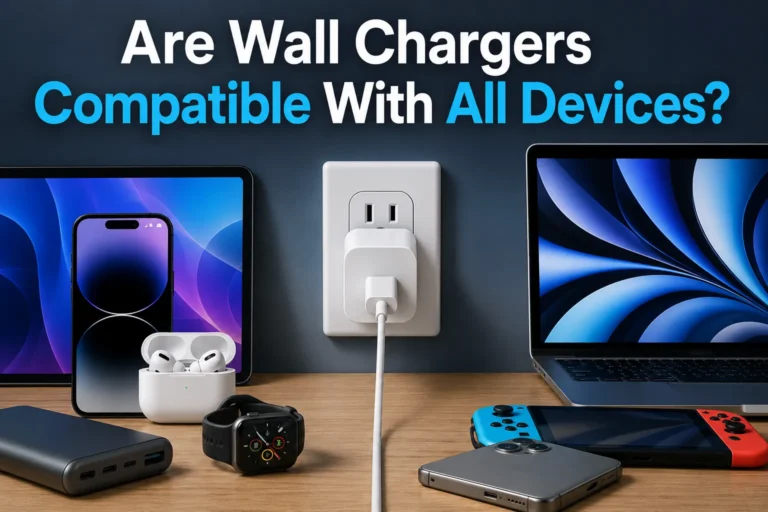
Can Any Usb-c Cable Charge a Laptop
No, not every USB-C cable can charge a laptop. The cable, charger, and laptop all need to support the same power level and charging standard.
Not every USB-C cable can charge a laptop. A laptop will only charge safely and reliably if the cable, charger, and computer all support the same power standard and wattage.
- USB-C shape is not enough: A cable can fit the port and still be too weak for laptop charging.
- Wattage matters: The cable and charger must match the laptop’s power needs.
- Check for USB PD support: Most modern laptop charging depends on USB Power Delivery.
- Look for wear and heat: Fraying, looseness, and overheating mean it is time to replace the cable.
Can Any USB-C Cable Charge a Laptop? The Short Answer and What It Really Means
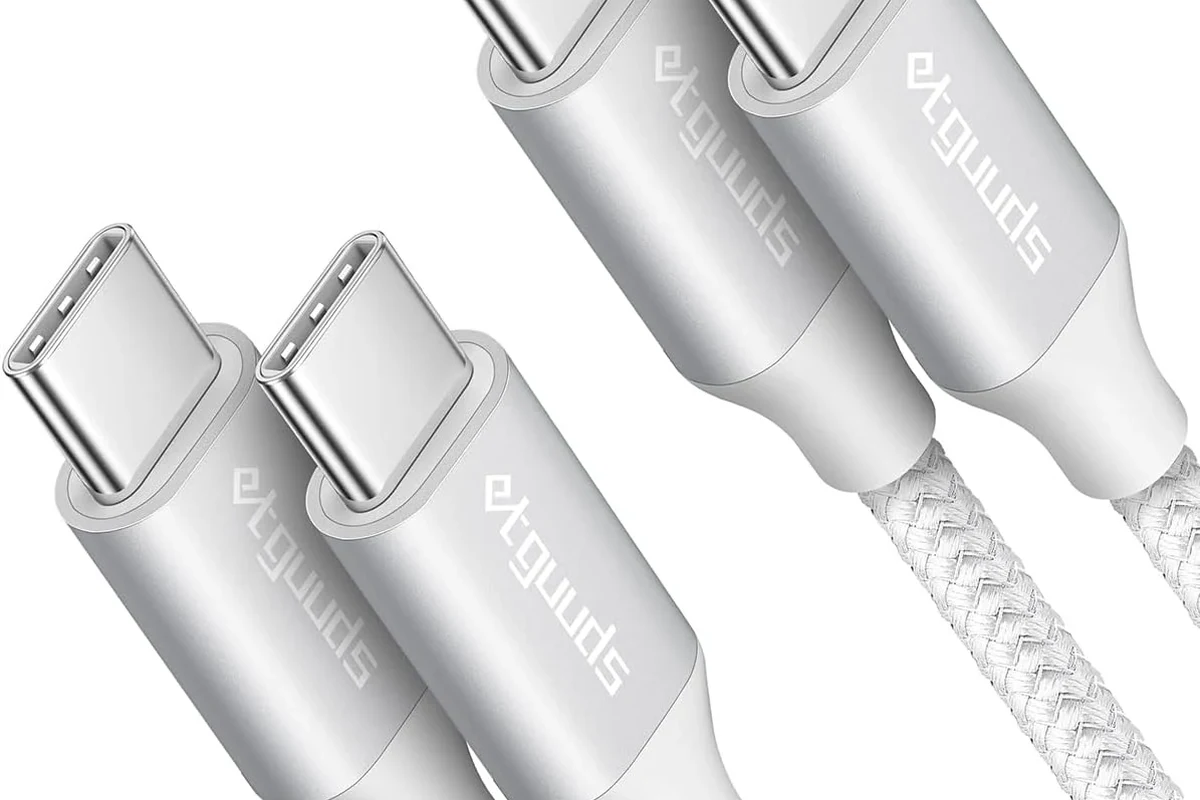
The short answer is no: any USB-C cable can fit a USB-C port, but that does not mean it can deliver enough power for a laptop. Some cables are designed for low-power phones and accessories, while others are built for higher-wattage laptop charging.
In practice, the cable is only one part of the system. Your laptop must support USB-C charging, your charger must provide enough wattage, and the cable must be rated to carry that power without overheating or throttling.
How USB-C Laptop Charging Works in 2026
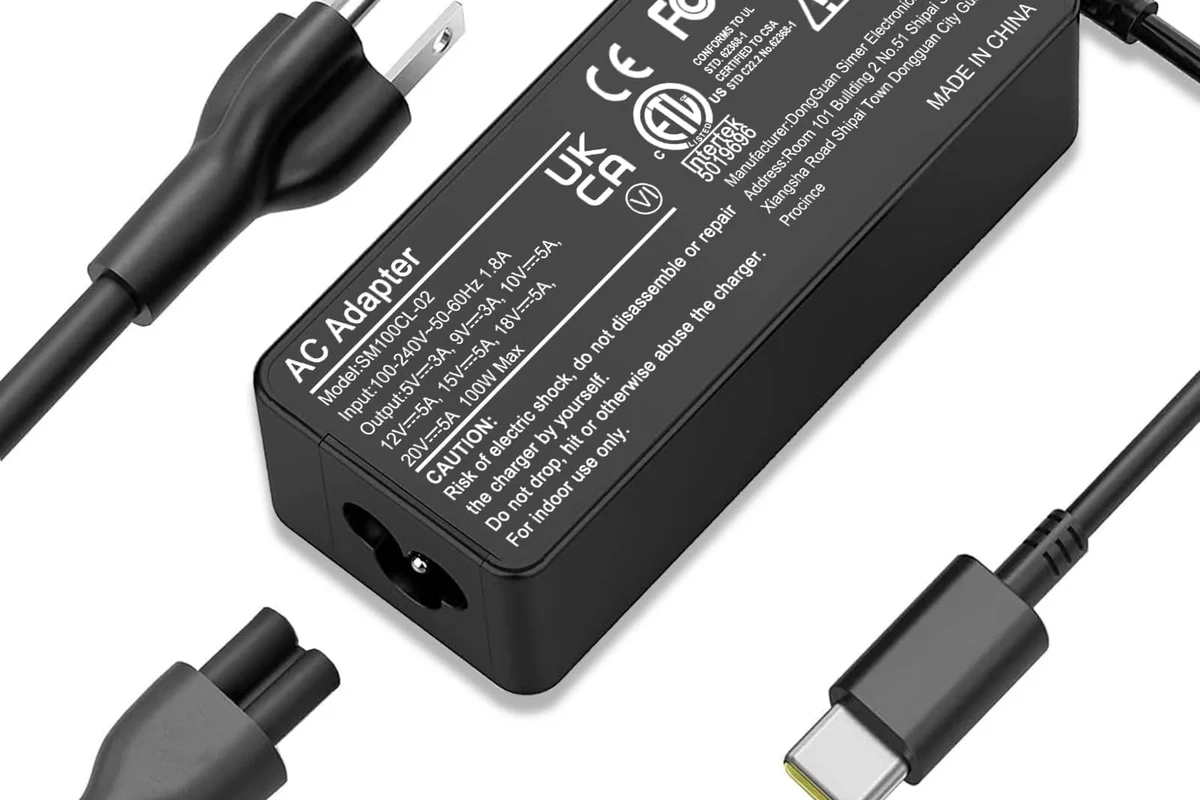
USB-C charging usually depends on USB Power Delivery, often called USB PD. That standard lets a charger and laptop communicate so the device can request the power level it needs instead of receiving a fixed, one-size-fits-all output.
USB Power Delivery, wattage, and why not all cables are equal
USB-C cables are not automatically equal because they may be built for different power levels. A basic cable might be fine for earbuds or a phone, while a higher-rated cable is needed for a laptop that expects more wattage.
Wattage matters because a laptop can draw more power than a phone, especially during charging while in use. If the cable is not rated for the required current, charging may be slow, unstable, or limited by the weakest part of the setup.
How laptops negotiate power with chargers and cables
When you connect a USB-C charger, the laptop and charger negotiate how much power to send and receive. If the charger, cable, or laptop cannot agree on a high enough setting, the system typically falls back to a lower level rather than charging at full speed.
This is why a laptop might charge from one USB-C setup and barely keep up on another. The result depends on the laptop’s internal charging design, the charger’s output profile, and the cable’s power capability.
Manufacturer charging claims can vary by model, region, and firmware. Check the laptop manual or official support page for the exact wattage and charger type your device expects.
Which USB-C Cables Can Safely Charge a Laptop?
To safely charge a laptop, choose a cable that matches the power level you need and is meant for USB-C Power Delivery. A cable that works for data transfer is not automatically a good charging cable, and a charging cable that works for one laptop may not be enough for another.
Key specs to check: watt rating, e-marker chips, and cable gauge
The main specs to verify are the cable’s watt rating, whether it includes an e-marker chip, and how it is built internally. E-marker chips are commonly used in higher-power USB-C cables so the charger and device can identify the cable’s capability and avoid unsafe power requests.
Cable gauge also matters because thicker internal conductors generally handle power better over a given distance. If the product page does not clearly state the power rating, treat it as a sign to verify the manufacturer’s documentation before using it for a laptop.
Why cable length and build quality affect charging performance
Longer cables can create more resistance, which may reduce charging efficiency or limit how much power reaches the laptop. Build quality matters too, because poor connectors, weak strain relief, or thin internal wiring can lead to excess heat and unreliable charging.
A well-made cable should feel secure at the connector and stay consistent during normal movement on a desk or in a bag. If charging cuts in and out when the cable is touched, that is a warning sign that the cable or connector may be failing.
Stop using a cable if it becomes unusually hot, smells burnt, shows fraying, or causes the charger to cycle on and off. Heat, damage, or loose connections can increase the risk of failure.
What Your Laptop Needs Before a USB-C Cable Will Work
Even a good USB-C cable will not charge every laptop. The laptop itself has to support USB-C charging, and the charger has to supply enough wattage for the device’s normal use.
USB-C charging support versus USB-C data-only ports
Some laptops include USB-C ports for data, display output, or accessory connections but do not support charging through those ports. Others support charging on only one USB-C port, while some can charge from either side.
The safest way to confirm support is to check the laptop manual, the manufacturer’s specifications, or the port icons printed near the connector. If the port is not marked clearly, do not assume charging will work just because the plug fits.
Minimum charger wattage by laptop type: ultrabooks, gaming laptops, and workstations
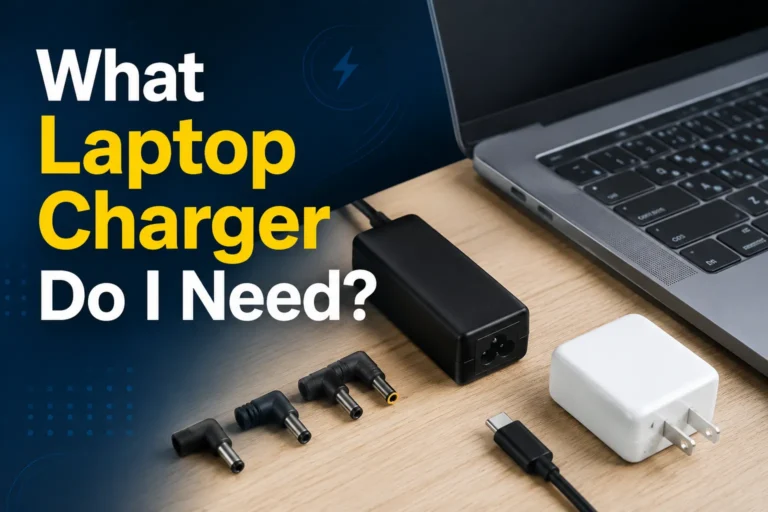
Ultrabooks and lightweight laptops often charge from lower-wattage USB-C adapters, but the exact number varies by model. Gaming laptops and mobile workstations usually need much more power, and many of them either require a high-wattage USB-C charger or still depend on a proprietary power adapter for full performance.
If the charger is underpowered, the laptop may charge slowly, hold steady only while idle, or continue draining during heavy tasks. That does not always mean something is broken; it often means the charger is not strong enough for the workload.
- Check whether the laptop supports USB-C charging at all
- Match the charger wattage to the laptop’s official requirement
- Verify the cable’s power rating and USB PD support
- Inspect the cable and ports for wear, heat, or loose fit
Real-World Benefits and Limits of Using USB-C for Laptop Charging
USB-C charging is popular because it simplifies travel and reduces the number of chargers you need to carry. But the convenience comes with limits, especially when a laptop needs a lot of power or is being used for demanding work.
Portability, universal compatibility, and travel convenience
A single USB-C charger and cable can often power a laptop, tablet, phone, and other accessories, which is helpful for students, remote workers, and travelers. It also makes it easier to replace a lost charger because USB-C is widely available.
For people who move between home, office, and coffee shops, that flexibility can be a major benefit. One compatible charger can reduce bag clutter and simplify cable management.
Common limitations: slow charging, underpowered cables, and heat buildup
The biggest downside is that USB-C charging is not always fast enough for every workload. A cable that is technically compatible may still charge slowly if the charger output is too low or the laptop is using more power than the adapter can supply.
Heat is another concern. Higher power levels, long charging sessions, and poor-quality accessories can create warmth at the charger, cable ends, or laptop port, so regular inspection matters.
- One cable standard works across many devices
- Easy to travel with and replace
- Can reduce desk clutter
- Not every cable supports laptop-level wattage
- Underpowered chargers may charge slowly
- Heat and wear can become issues over time
How to Choose the Right USB-C Cable for Your Laptop
The best cable is the one that matches your laptop’s charging requirement, your charger’s output, and your typical use case. Choosing based on price alone can lead to slow charging or avoidable wear.
Decision criteria: 60W, 100W, 240W, durability, and certification
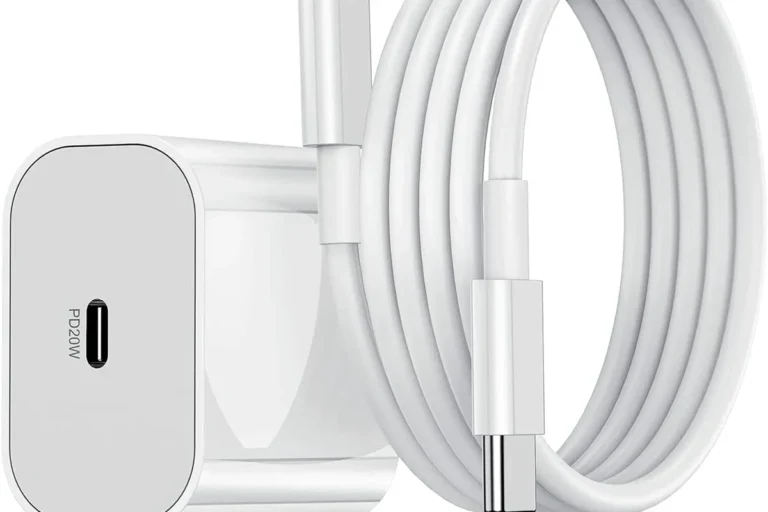
Many buyers narrow the choice by watt class. A 60W cable may be enough for some lighter laptops, a 100W cable fits many mainstream notebooks, and higher-power cables are intended for newer high-wattage setups that support the latest USB-C charging capabilities.
Durability and certification also matter. Look for clear manufacturer specifications, reputable USB-IF or equivalent compliance claims when available, and a design that matches your daily routine, whether that means frequent packing, desk use, or travel.
If you are unsure, choose a cable rated above your laptop’s expected charging need rather than below it, then verify that your charger also supports the same power level.
Who each cable type fits best: students, remote workers, creators, and travelers
Students often do well with a reliable midrange cable that can handle everyday charging between classes or at a desk. Remote workers may prefer a sturdier cable with better strain relief because it stays plugged in longer and gets more frequent use.
Creators and gamers should pay closer attention to wattage because performance workloads can outpace a weak charger. Travelers usually benefit most from a compact, clearly rated cable that is easy to pack and simple to identify in a bag.
| Option | Best For | Key Consideration |
|---|---|---|
| 60W USB-C cable | Light laptops and basic daily use | May be too limited for larger notebooks |
| 100W USB-C cable | Many mainstream laptops | Check that the charger also supports 100W |
| Higher-wattage USB-C cable | Power-hungry laptops and newer setups | Must match both device support and charger output |
Safe Use, Inspection, and Maintenance Tips for USB-C Laptop Cables
Good care extends cable life and helps prevent charging problems. Most issues show up gradually, so a quick visual and tactile check can catch trouble before it affects your laptop.
Warning signs of wear, overheating, or poor connection
Look for bent connector tips, exposed wiring, discoloration, soft spots, and looseness at the plug. If the cable only charges when held at a certain angle, the internal conductors or the port may be worn.
Also pay attention to heat. A little warmth can be normal during fast charging, but a cable or connector that becomes uncomfortably hot should be removed from use until you can verify the cause.
Stop using damaged cables, frayed jackets, swollen batteries, or overheating chargers. Follow the manufacturer’s instructions and replace questionable accessories instead of trying to force a connection.
Storage, replacement timing, and avoiding damage from bent connectors
Store cables loosely coiled rather than wrapped tightly around a charger or folded at sharp angles. Tight bends near the connector are a common cause of early failure because they stress the internal wires every time the cable moves.
Replace the cable when the jacket cracks, the connector loosens, or charging becomes inconsistent. Waiting too long can lead to interruptions during work, travel, or device updates when you least want a power problem.
- Keep one cable dedicated to laptop charging so it does not get overworked by constant swapping
- Label higher-wattage cables if you own several USB-C cords
- Check both ends of the cable regularly, not just the visible middle section
- Use the laptop’s official charging guidance when replacing a lost or damaged cable
Final Verdict: When Any USB-C Cable Is Enough—and When It Is Not
Any USB-C cable is only enough if the laptop supports USB-C charging and the cable is rated for the power level the laptop and charger need. For light accessories or low-power devices, many USB-C cables will work; for laptops, you should verify wattage, USB PD support, and build quality before relying on one.
If you want the safest choice, match the laptop’s official charging requirement, use a charger with adequate output, and buy a cable that is clearly rated for that same level. When the specs are unclear, check the laptop manual or the manufacturer’s support page before plugging in.
Choose a USB-C cable based on wattage and compatibility, not plug shape alone. If your laptop is high-power, demanding, or sensitive to charging limits, a properly rated cable and charger are essential; if it is a lighter notebook, a well-specified midrange USB-C cable may be all you need.
Frequently Asked Questions
No. A USB-C cable may fit the port but still lack the wattage or power-delivery support needed for laptop charging.
Check the laptop manual, official specifications, or port markings. Some USB-C ports are data-only and cannot charge the device.
It depends on the laptop model. Many light laptops use lower wattage, while larger notebooks and performance systems may need 100W or more.
Slow charging usually means the charger or cable cannot supply enough power for the laptop’s current workload. Cable length, quality, and device power use can also affect speed.
Replace it if the cable is frayed, loose, discolored, unusually hot, or only charges at certain angles. Those are signs of wear or connection problems.
Verify the power rating, USB Power Delivery support, e-marker information if needed, and compatibility with your laptop and charger. Also confirm the return policy and warranty terms.