
USB-C Dock Stuck at 4K 30Hz? How to Get 60Hz
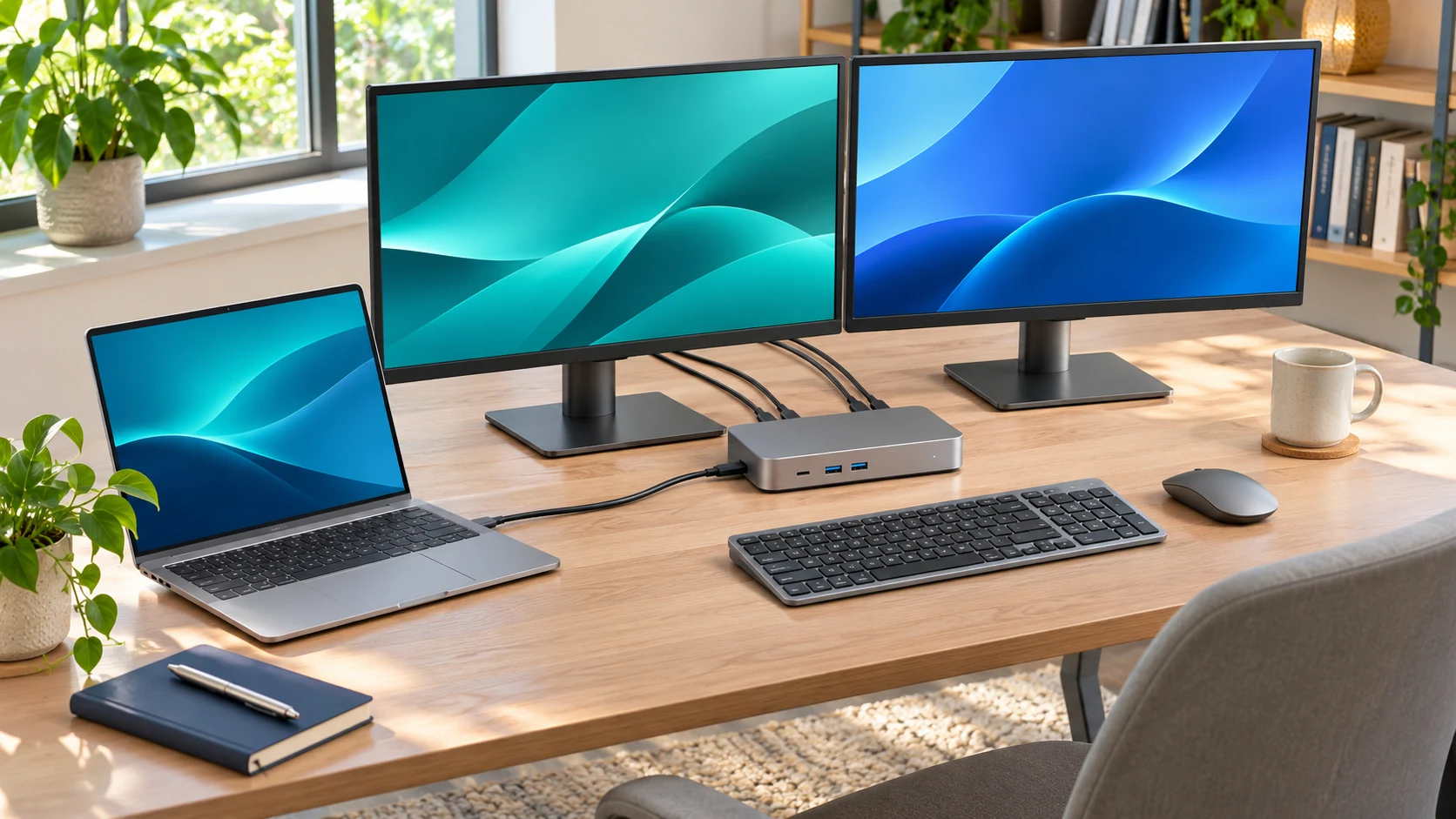
USB-C dock stuck at 4K 30Hz? Disconnect your second monitor, then check whether 60Hz becomes available at 3840 × 2160. If it does, look up the dock’s limits for two displays. If it doesn’t, connect the same monitor directly to the laptop using a port and cable rated for 4K 60Hz. That comparison helps you decide what to test next before spending money.
This guide starts with a monitor that already shows a picture. If yours stays blank or never appears in display settings, start with the USB-C hub monitor detection guide.
Why a 4K monitor can still feel slow
At 30Hz the screen refreshes 30 times per second. At 60Hz it refreshes twice as often, so cursor movement, scrolling, and dragging windows usually look smoother. Both modes can still carry a 3840 × 2160 picture. If the desktop looks sharp but motion feels choppy, check the signal’s refresh rate before troubleshooting app performance.
Write down your laptop model, dock model, monitor model and the port used at each end. A dock labeled “4K” may list different limits for HDMI and DisplayPort, and a second monitor can change which modes are available. Having the exact models makes it possible to check your setup against the vendor’s display table.
Find what limits 4K to 30Hz
| What happens | What to check next |
|---|---|
| 60Hz is available at 3840 × 2160 | Select it and confirm the display stays stable. The existing connection can offer the mode. |
| 60Hz appears when the second screen is unplugged | Check the dock’s display table for your exact two-monitor combination and laptop port. |
| 60Hz works directly but drops to 30Hz through the dock | Test the dock’s other video output, the dock-to-monitor cable, and the supplied host cable. Compare against the dock’s resolution table. |
| 30Hz is the ceiling even with a direct connection | Check the laptop’s direct output, the monitor input, and the cable or adapter before replacing the dock. |
1. Check the resolution and refresh rate together
Windows 11: Go to Settings → System → Display → Advanced display. Choose the external display, confirm its resolution, and select 60Hz if it is offered at 3840 × 2160. Microsoft marks some refresh rates with an asterisk when selecting them will change the resolution. Recheck the displayed mode after switching. See Microsoft’s refresh-rate instructions.
macOS: Open System Settings → Displays and select the external monitor. Check the available refresh rates for the selected display mode. If you use a scaled mode, check the monitor’s on-screen signal information to confirm the actual incoming resolution and refresh rate. See Apple’s external display guide.
If you’re mirroring two screens, try extending the desktop or temporarily using only the external monitor during the test. This lets you check the external display on its own. On either operating system, open the monitor’s on-screen information panel if it has one and record the incoming resolution and refresh rate. That reading is especially useful if changing the refresh rate also changes the resolution.
2. Test a single monitor through the dock
Physically disconnect the second monitor and remove any display splitter, converter, or KVM from the test path. Leave the dock’s normal power supply connected. Check the refresh-rate list again. If one screen reaches 4K 60Hz but two do not, write down the working port and check the manufacturer’s table for the exact port combination you need.
The laptop matters here. For example, Dell’s WD19 documentation lists a single 4K 30Hz output in its two-lane HBR2 configuration and a single 4K 60Hz output in its two-lane HBR3 configuration. The same dock can offer different modes with different hosts. See the Dell WD19 display resolution table.
If the single-monitor test works, reconnect the second display and note which refresh rate each screen is offered. Try your preferred port combination from the dock manual. If two 4K screens are beyond its documented limit, test 4K 60Hz on the main screen and a lower resolution on the secondary one. Check the table again if you need both screens at 4K 60Hz.
3. Compare with a direct laptop-to-monitor connection
Use a laptop output that supports 4K 60Hz. Where practical, keep the same monitor input and the same known-good display cable so you are changing fewer things. If your laptop has no suitable direct port, use an adapter whose specifications explicitly list 3840 × 2160 at 60Hz with your host connection.
If direct 60Hz works, return to the dock and swap one part at a time. Start with the dock’s original host cable. For the HDMI run to the monitor, a certified Premium High Speed HDMI cable is a sensible test for an 18 Gbps 4K 60Hz connection. Check the monitor manual for the capabilities of the exact input you’re using. See the HDMI cable certification guide.
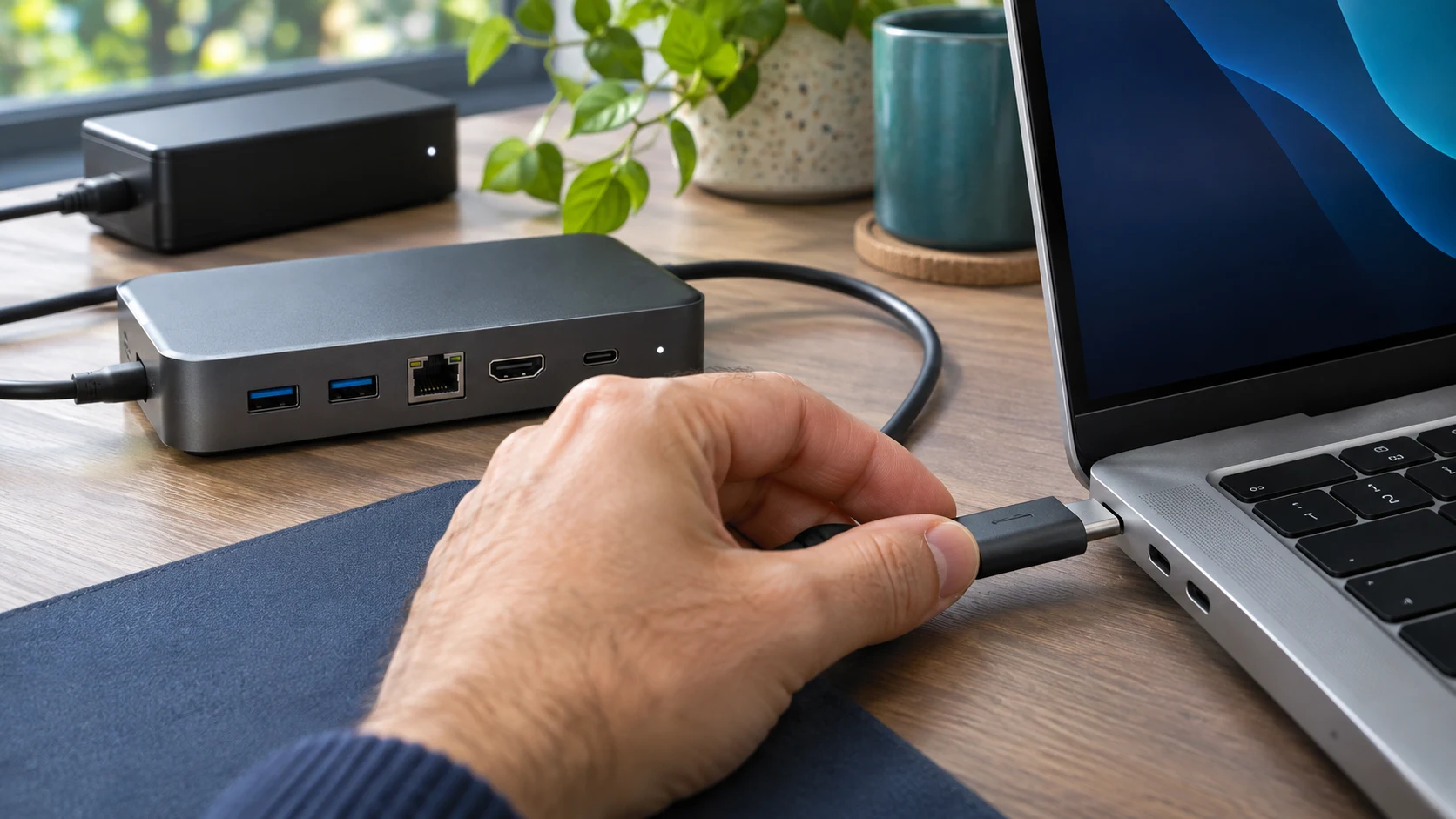
Distinguish the two cables before you swap anything. The host cable links the laptop to the dock. The display cable links the dock to the monitor. A USB-C host cable that charges the laptop may still be unsuitable for your dock’s video connection. Start with the supplied cable or the manufacturer’s recommended replacement. See our Thunderbolt cable guide if your dock calls for a Thunderbolt cable.
A direct connection that reaches 60Hz is a useful baseline. If it works over the laptop’s HDMI port, you’ve confirmed that the monitor and that HDMI cable can handle the mode. The laptop’s USB-C port and the dock still need to support it together. Apple also recommends testing a direct connection when a Mac display falls short of its expected resolution or refresh rate. See Apple’s display troubleshooting guide.
4. Verify the exact dock model and hardware revision
Look up the model code on the dock itself. Match the manufacturer’s specifications against your laptop port, dock output, resolution, refresh rate and display count. Plugable, for example, documents older and newer revisions of its USBC-7IN1 hub. Its newer revision can reach 4K 60Hz on compatible DisplayPort 1.4 Alt Mode hosts, while the older revision was limited to 4K 30Hz. See Plugable’s revision guide.
If the dock manual lists 60Hz on your exact setup but it still does not appear, check the laptop and dock makers’ support pages for firmware or graphics-driver updates for your specific models. If you’re using a Thunderbolt dock over a regular USB-C connection, check the model’s fallback mode before replacing cables. See our guide to Thunderbolt docks on USB-C laptops.
5. Test the exact laptop port and monitor input
If your laptop has several USB-C ports, check its manual for the ones that carry video and the modes they support. Move the dock to another documented video-capable port and repeat the one-monitor test. Likewise, check the monitor manual for which HDMI or DisplayPort input supports 4K 60Hz. Pick the input manually on the monitor so you know which path you are measuring.
If the dock offers HDMI and DisplayPort, compare the two using cables appropriate for each output. Suppose the manual lists 4K 60Hz over DisplayPort, and your monitor reaches it over a direct DisplayPort cable from the dock. You can keep using that working output and avoid buying a replacement dock. If only one of the monitor’s inputs supports the mode, label the cable or note the input for future setup.
What to buy only after you identify the limit
- A display cable if the same dock output and monitor input reach 60Hz with a known-good cable.
- A host cable if the dock works at 60Hz with its supplied or recommended cable on the same laptop port.
- A different dock if the current dock’s manual rules out 4K 60Hz on your laptop or with your display combination. Verify the replacement’s table for the exact host and outputs first.
- Nothing if changing the operating-system setting, monitor input or dock output restores a stable 4K 60Hz signal.
If you contact support, include the laptop and dock model numbers, the cables and ports you tried, and the resolution and refresh rate you saw for each test. “Direct at 60Hz, dock at 30Hz, one monitor connected” is more actionable than reporting that 4K feels slow.
Frequently asked questions
Can a new HDMI cable make a 4K 30Hz dock run at 60Hz?
A better cable can help when the existing cable is the bottleneck. A dock or host with a documented 4K 30Hz limit needs a different output path that supports 4K 60Hz.
Why does 60Hz disappear when I plug in a second monitor?
The two outputs may share video bandwidth, or the dock may limit that specific port combination. If unplugging one display restores 60Hz, match your intended setup against the dock’s multi-display table before buying anything.
Do I need a Thunderbolt dock for one 4K 60Hz screen?
A USB-C dock can handle one 4K 60Hz screen when the laptop port, dock output, cable and monitor input support that mode together. For multiple screens, our DisplayLink vs Thunderbolt dock comparison explains how the connection types differ.
Why is 60Hz available at a lower resolution but missing at 4K?
The current connection may have enough bandwidth for 60Hz at a smaller resolution but fall short at 3840 × 2160. Check the dock’s resolution table and rerun the single-display and direct tests. On Windows, double-check the resolution after selecting a rate marked with an asterisk.
Before buying a replacement: Write down which connection first loses 60Hz. If direct works but the dock fails its documented single-display test with known-good cables, you have a clear starting point for support or a replacement.



One Comment