USB-C Dock Ethernet Not Working? Fixes for Windows & Mac
If your USB-C dock Ethernet is not working, start by checking whether your laptop can see the dock’s Ethernet adapter. If it can, try a known-good Ethernet cable and a different LAN port on your router or switch. If the adapter itself is missing, focus on the dock’s connection to the laptop, its power supply, and model-specific drivers or firmware.
If you need wired internet immediately, a separate USB-C Ethernet adapter can bypass the dock’s network port while you keep using its monitor and USB connections. If you can spare a few minutes, run the free checks below first.
Match the symptom to the next test
| What you see | What to try first |
|---|---|
| No Ethernet adapter in system settings | Reconnect and power-cycle the dock. Use its host port and original host cable. |
| Adapter is present, but Ethernet shows disconnected | Try a known-good Ethernet cable and a different LAN port on the router or switch. |
| Ethernet is connected, but websites won’t load | Check whether the Ethernet interface has a usable IP address and default gateway. Test the same cable on another device. |
| Ethernet drops after waking the laptop | Test a dock reconnect. Check for firmware and driver updates for your exact model. |
| Link shows 100 Mbps on gigabit equipment | Swap the Ethernet cable and switch port. Check negotiated link speed before running an internet speed test. |
1. Run the five-minute cable and dock checks
Reseat the Ethernet cable at both ends until the plugs latch. Use a known-good cable and another active LAN port on the router or switch. If the dock has link lights, check its manual for what the indicators mean. An illuminated link light can show that the devices established a physical link, while internet access still depends on the network configuration.
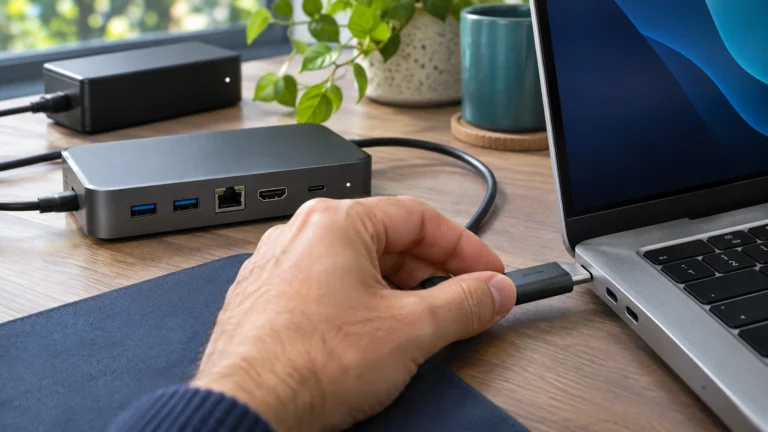
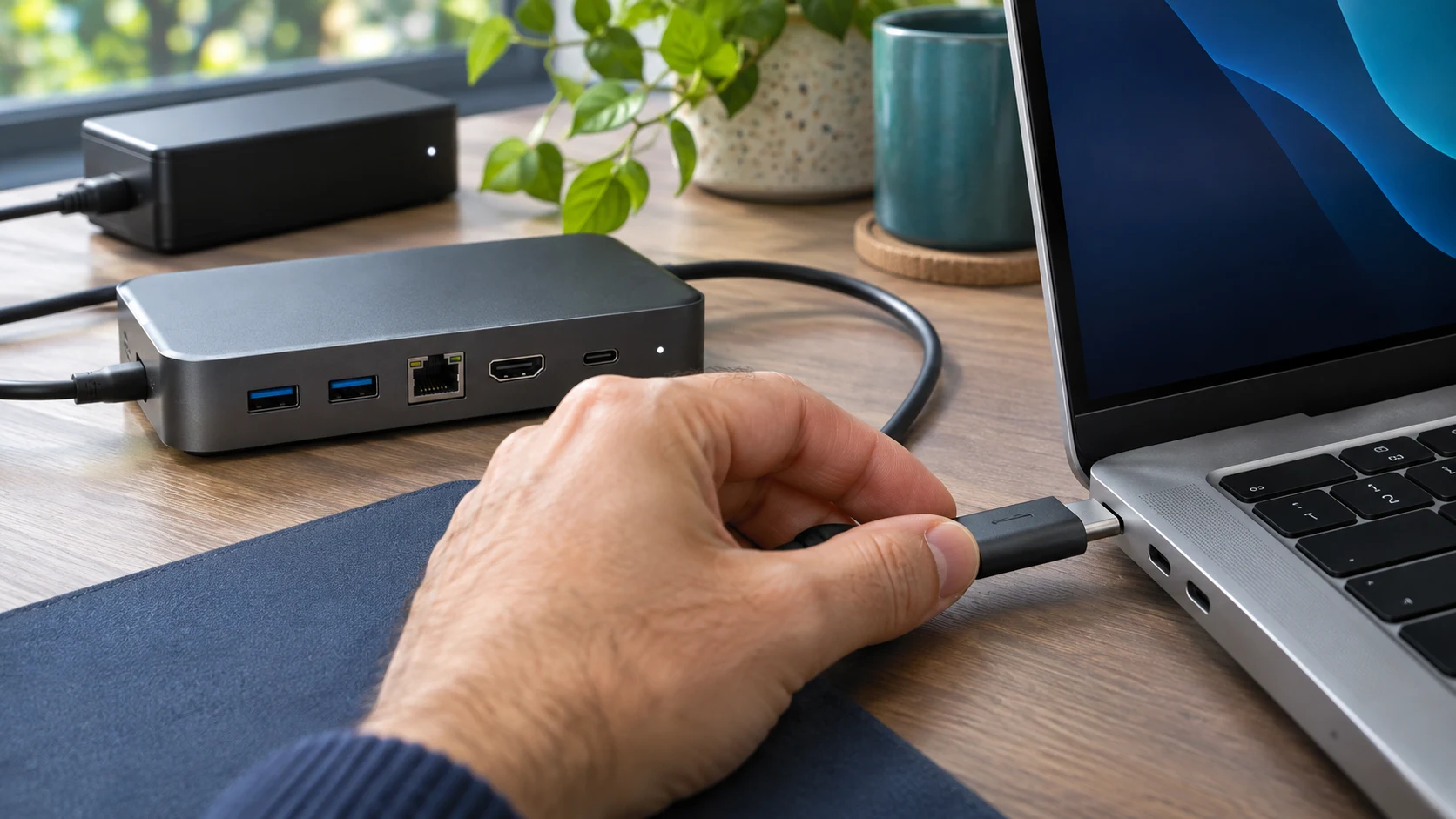
If the adapter is missing, disconnect the dock’s host cable from the laptop. Unplug dock power if it has its own power adapter, then reconnect power and the host cable in the order the manufacturer recommends. On a dock with several USB-C ports, use the one marked for the host or laptop. If the host cable is removable, start with the supplied cable or a data-capable replacement that meets the dock’s requirements.
If the laptop has built-in Ethernet, connect the same Ethernet cable directly to it. Otherwise try another computer or a known-good USB Ethernet adapter. Keep the cable and switch port the same for that comparison. This is the quickest way to separate a dock problem from a network problem.
2. Find the dock’s Ethernet adapter in Windows 11
Open Settings → Network & internet → Ethernet. If Ethernet is missing, open Device Manager → Network adapters and reconnect the dock while watching the list. The adapter may appear under its chipset name, such as Realtek, instead of the dock’s brand.
If an adapter appears with a warning icon, check its device status and use the dock maker’s support page for your exact model and Windows version. If the adapter is completely absent and the dock’s other USB accessories are also missing, test the host cable or a second compatible laptop port before changing network settings. A monitor lighting up through the dock by itself does not establish that the Ethernet controller is detected.
If Windows sees the adapter but the network is unreachable, the Windows 11 Get Help troubleshooter can help isolate the issue. Leave Network reset until the end, especially on a work computer with VPN software or virtual network adapters. See Microsoft’s Ethernet troubleshooting guide for the Windows steps.
3. Find the Ethernet service on a Mac
Open System Settings → Network with the dock connected. Look for Ethernet or an interface named for the adapter. If the hardware is detected but there’s no network service for it, use Add Service from the Network action menu and choose the matching interface. If the interface isn’t available to select, check the host connection and the dock maker’s macOS support notes.
If the service is present but your Mac has no usable address on a DHCP network, open the service’s Details → TCP/IP and try Renew DHCP Lease. Keep any manually assigned settings supplied by your network administrator. See Apple’s DHCP renewal instructions.
4. Diagnose Ethernet that connects but has no internet
For a short test, turn off Wi-Fi if you can do so without interrupting a remote session. This prevents a working wireless connection from masking the wired result. If the wired interface only shows a self-assigned IPv4 address on a network that normally uses DHCP, check another LAN port or network device before buying anything.
On an office network, tell IT that the connection is coming through a dock. Some networks require device registration, a supported MAC-address pass-through setup, or wired 802.1X authentication. If the same dock and cable work at home, the office network configuration is the next thing to check.
5. Fix drops after sleep or a slow negotiated link
If the connection drops only after sleep and comes back after reconnecting the dock, look for firmware and Ethernet driver notes for the exact model. Dell, for example, documents a missing Ethernet controller symptom for specific WD19S, WD19DCS, and WD22TB4 docks models. Use the fix for the hardware you own.
If the link is steady but negotiates only 100 Mbps, test a known-good cable with a known gigabit switch port and leave speed negotiation on automatic unless your network administrator specifies otherwise. For a 2.5 GbE dock to link at 2.5 Gbps, the device at the other end of the cable also needs to support that speed. An internet speed test measures the full path to the test server, so check Ethernet link speed first.
When a USB-C Ethernet adapter is worth buying
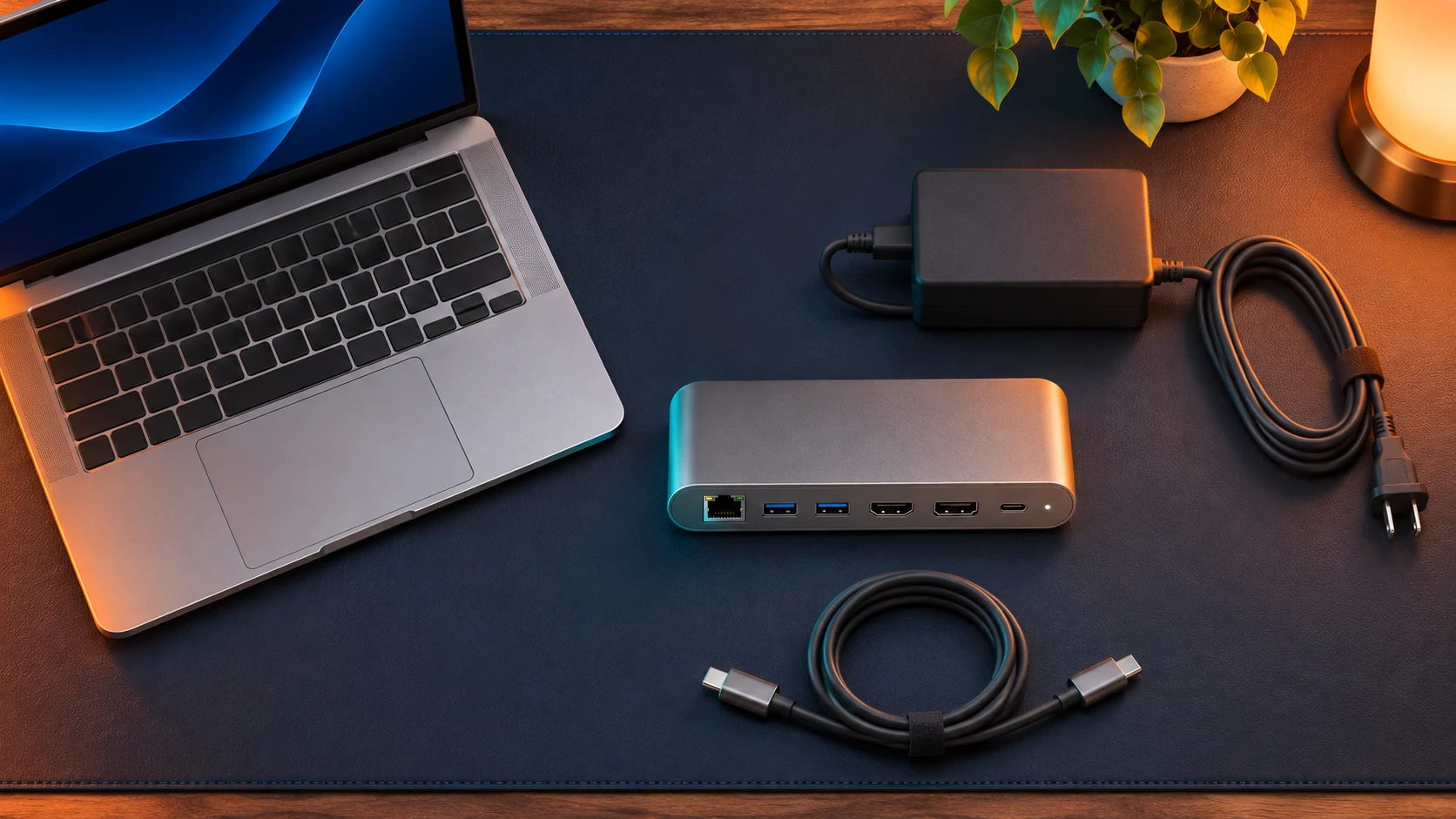
Buy a separate adapter if the same Ethernet cable and switch port work through another network interface but the dock still fails after you confirm the host connection and check the model-specific support guidance. A dedicated adapter uses an extra laptop port, but it can keep a working monitor and accessory setup in service.
For a standard gigabit network, the TP-Link UE300C is a compact USB-C-to-RJ45 option. Check its compatibility with your operating system and any office network requirements before ordering. If you already have a reliable spare adapter, use it for the bypass test.
Affiliate disclosure: We may earn a commission if you buy through these links. As an Amazon Associate I earn from qualifying purchases.
If multiple dock functions fail on a second compatible laptop as well, check the warranty before buying a replacement. If you need both wired networking and an external display, see our USB-C hubs with HDMI and Ethernet guide. If the dock also fails to charge, start with these Thunderbolt dock charging checks.
Frequently asked questions
Can the dock’s monitor work while Ethernet fails? Yes. The display connection and Ethernet adapter can fail independently. Confirm that your operating system detects the Ethernet interface before troubleshooting internet access.
Why does the Ethernet light turn on when there’s no internet? The light generally reports a physical link or activity, depending on the dock. The laptop may still lack a usable IP address, or the network may require authentication.
Should I replace the dock if a separate adapter works? A separate adapter is a practical workaround if the dock’s other ports meet your needs. If you need Ethernet through the dock and it fails on another compatible laptop with known-good cabling, check the warranty or contact the manufacturer.