iHome Smart Plug Setup Guide for Easy Smart Home Control
Setting up an iHome smart plug is usually straightforward: install the correct app, connect the plug to a 2.4 GHz Wi‑Fi network, and pair it from the app before naming it and assigning it to a room. Once it’s online, you can use it for app control, schedules, timers, and voice commands, as long as your model and smart-home platform are compatible.
- Setup basics: The plug usually needs the official app and a 2.4 GHz Wi‑Fi network.
- Best use: It is ideal for lamps, fans, and other simple on/off devices.
- Compatibility: Verify model number, wattage limits, and voice-assistant support before buying.
- Common issue: Pairing failures often come from the wrong Wi‑Fi band or reset method.
- Safety: Stop using any plug or cord that shows heat, damage, or a loose fit.
How to Set Up an iHome Smart Plug in Minutes
The basic process is designed for quick setup, but the exact screens and menu names can vary by model, app version, and phone operating system. If you already know your plug’s model number, it’s worth checking the official manual first so you can confirm the right app and pairing method.
What the setup process does and what you need before you start
Setup usually links the plug to your home Wi‑Fi, your app account, and any voice assistant you want to use later. That connection is what lets you turn the outlet on and off remotely, create schedules, and control connected devices from your phone.
- Check the exact model number and the app listed in the manual
- Confirm your Wi‑Fi band, outlet location, and the device you plan to plug in
- Review the rated wattage, voltage, and any safety limits before connecting appliances
Quick answer: app, Wi‑Fi, outlet, and device pairing basics
In most cases, you need the manufacturer’s app, a 2.4 GHz Wi‑Fi network, a free wall outlet, and a device you want to control. If the plug does not enter pairing mode right away, the reset method may differ by model, so follow the manual rather than guessing.
How the iHome Smart Plug Works With Your Smart Home
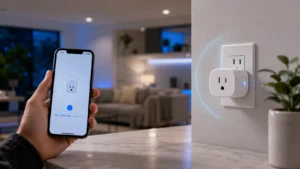
An iHome smart plug acts like a remote-controlled power switch for one outlet. It does not make your appliance “smart” by itself, but it gives you app-based control and automation features that can be useful for lighting, small appliances, and everyday routines.
Wi‑Fi connectivity, app control, and voice assistant compatibility
Most smart plugs in this category use your home Wi‑Fi to communicate with the app, which means they do not need a separate hub in many setups. Voice assistant support may be available through a linked account or companion platform, but compatibility can vary by model and region, so check the current product listing and support pages before buying.
Scheduling, timers, remote access, and automation use cases
Smart plugs are popular because they can automate simple routines without replacing your existing appliance. For example, you can schedule a lamp to turn on at dusk, set a fan to shut off after bedtime, or use remote access to power-cycle a device when you are away from home.
If you are building out a broader lighting setup, you may also want to compare the plug with other options such as smart light switches or smart lights, especially if you want room-wide control instead of outlet control.
Key Specs and Compatibility Checks Before You Buy
Compatibility matters more than marketing language here. A smart plug can look universal, but outlet shape, app support, Wi‑Fi requirements, and power limits all affect whether it will work in your home safely and conveniently.
Outlet fit, plug size, supported voltage, and rated wattage limits to verify
Before purchasing, confirm that the plug’s body will not block adjacent outlets on a crowded power strip or wall plate. Also verify the supported voltage and rated wattage in the product documentation, because those limits determine which lamps, fans, coffee makers, or other appliances are appropriate.
App requirements, 2.4 GHz network support, and device compatibility
Many smart plugs require a companion app and a 2.4 GHz Wi‑Fi network, even if your router also broadcasts 5 GHz. That detail trips up a lot of first-time setups, so check your router settings before pairing.
Device compatibility also matters. A smart plug works best with ordinary on/off appliances, not with electronics that need constant power, special shutdown procedures, or built-in safety controls.
Warranty details, model differences, and what specifications to confirm in 2026
Warranty terms, firmware support, and app features can change by model, region, and retailer, so confirm the current documentation before you buy. In 2026, it is especially important to check whether the app is still actively maintained and whether the model still appears in the manufacturer’s support pages.
Step-by-Step iHome Smart Plug Setup Guide
The cleanest setup path is to prepare your network first, then pair the plug, then finish the naming and automation steps. That order reduces the chance of failed pairing and makes it easier to spot whether the issue is the app, the router, or the plug itself.
Preparing the app, account, and home network
Start by downloading the official app referenced in the plug’s manual or product page, then create or sign in to your account. Before pairing, confirm that your router is broadcasting a 2.4 GHz network and that your phone has a stable connection.
Putting the plug into pairing mode and connecting it to Wi‑Fi
Plug the device into a wall outlet near your router for the first setup attempt. If the indicator light or app instructions show a pairing mode, follow that sequence exactly; if not, use the reset method described in the manual.
Once the plug appears in the app, select your home network, enter the Wi‑Fi password, and wait for the connection to complete. If the app prompts for permissions such as local network access or notifications, review them carefully so you know what each one does.
Renaming devices, assigning rooms, and creating your first automation
After pairing, rename the plug to something obvious like “Desk Lamp” or “Coffee Corner” so voice commands and schedules are easy to recognize. Assigning a room also helps when you add more smart devices later.
- Use short, distinct names that are easy for voice assistants to understand
- Test on/off control from the app before creating a schedule
- Start with one simple automation, then add more once you know the plug is stable
Your first automation should be simple, such as turning a lamp on at sunset or switching a fan off after a set time. If you are building a larger smart-home setup, it may help to compare plug-based control with app-controlled bulbs from our guide to smart lights for home automation or platform-specific options like smart lights for Alexa.
Who the iHome Smart Plug Fits Best
This type of smart plug is best for people who want simple automation without replacing fixtures or learning a more complex hub-based system. It is especially useful when you only need to control power to one appliance at a time.
Best use cases for lamps, fans, coffee makers, and seasonal lighting
Smart plugs are a natural fit for table lamps, small fans, holiday lights, and other devices that only need basic on/off control. They can also be useful for coffee makers or other countertop appliances, provided the manufacturer’s load limits and safety instructions allow that use.
Ideal users: renters, beginners, busy households, and budget smart-home buyers
Renters often like smart plugs because they do not require wiring changes. Beginners appreciate the low learning curve, while busy households benefit from schedules and remote control for everyday routines.
When a smart plug is the wrong solution
A smart plug is not the right answer if you need dimming, color control, whole-room lighting, or control over a hardwired fixture. It is also a poor fit for devices that must never lose power, such as some network gear, medical equipment, or electronics that require a proper shutdown process.
Real-World Benefits, Limitations, and Value
The value of a smart plug comes from convenience, not complexity. If you want a low-cost way to automate one appliance, it can be a practical addition to a smart home; if you want deeper control, you may need a different device category.
Convenience, energy control, and voice-command advantages
Smart plugs can make daily routines easier by letting you turn devices on and off from your phone or by voice. They can also help you reduce wasted runtime by scheduling power-off times for lamps, fans, and similar devices.
Common drawbacks: Wi‑Fi dependence, app friction, and outlet blocking
The biggest downside is dependence on Wi‑Fi and the companion app. If your network is unstable or the app is clunky, setup and control can feel more frustrating than a simple manual switch.
Physical size is another common issue. Some smart plugs block neighboring sockets, especially on compact power strips or crowded wall plates, so placement matters as much as software.
Comparison points against competing smart plugs and what to prioritize
When comparing iHome smart plug setup against competing plugs, focus on the app quality, network compatibility, voice-assistant support, physical size, and how clearly the manufacturer explains safety limits. Those factors matter more than flashy feature lists if you want a plug that is easy to live with.
- Choose a model with clear 2.4 GHz Wi‑Fi support and active app maintenance
- Prioritize a compact design if you need to preserve nearby outlets
- Use the plug only with devices that stay within the manufacturer’s load limits
Safety, Maintenance, and Common Setup Mistakes
Smart plugs are simple devices, but they still sit between your appliance and household power, so safety and inspection matter. A good setup is not just about pairing successfully; it is also about using the plug in a way that stays within the manufacturer’s limits over time.
Safe-use limits, heat checks, overload prevention, and inspection guidance
Check the plug and the connected device after the first few uses, especially if you are powering anything that draws more energy than a lamp. If you notice heat, buzzing, intermittent power, or a loose fit, stop using it until you verify the issue with the manual or support resources.
Cleaning, storage, and replacement signs to watch for over time
Unplug the device before cleaning it, and use only a dry or slightly damp cloth on the outer shell if the manual allows it. Store the plug in a dry place if you do not plan to use it for a long period, and inspect it again before reinstalling it.
Replacement is worth considering if the plug no longer pairs reliably, disconnects often after router changes, or shows physical wear. Firmware and app support also matter, because an otherwise functional plug can become annoying if the software side is neglected.
Troubleshooting pairing failures, offline devices, and scheduling issues
If pairing fails, the usual causes are the wrong Wi‑Fi band, an incorrect password, a phone that is not on the same network, or a plug that is not fully in pairing mode. Restarting the router, moving closer during setup, and checking the manual’s reset steps usually solve the most common problems.
If the plug goes offline later, confirm that your router settings have not changed and that the plug still has a strong signal. Scheduling issues often come from time zone settings, daylight-saving changes, or app permissions, so review those before assuming the device is defective.
Final Recommendation: Is the iHome Smart Plug Setup Worth It?
For most people, the iHome smart plug setup is worth it if you want simple, practical smart-home control with minimal installation effort. It is a good fit for everyday routines, but only if you confirm the model’s app support, Wi‑Fi compatibility, and power limits before buying.
Best-fit verdict based on ease of setup, everyday usefulness, and value
If your goal is to automate a lamp, fan, or seasonal light without rewiring anything, this kind of smart plug is one of the easiest entry points into home automation. If you want broader room control, more advanced scenes, or tighter platform integration, you may be better served by another smart-home category instead.
What to verify before purchasing or keeping the plug in your setup
Before you commit, confirm the exact model number, current app support, 2.4 GHz Wi‑Fi requirement, rated load, and warranty terms. If any of those details are unclear, use the official manual and support pages as your final reference, since smart-home features can change by firmware and region.
Frequently Asked Questions
You usually need the official app, a compatible account, a 2.4 GHz Wi‑Fi network, and a free outlet. Check the manual for your exact model because app and pairing steps can vary.
The most common causes are using the wrong Wi‑Fi band, entering the wrong password, or not putting the plug fully into pairing mode. Try moving closer to the router and follow the reset steps in the manual.
It works best with simple on/off devices like lamps, fans, and seasonal lighting. Always confirm the plug’s rated wattage and avoid devices that must not lose power.
It typically needs Wi‑Fi for setup, remote access, and app control. Local behavior can vary by model, but you should assume internet access is important for full smart features.
Check router changes, signal strength, app permissions, and whether the plug still has power. If the issue continues, re-pair the device using the official reset method.
Confirm the exact model number, app support, 2.4 GHz compatibility, wattage limit, outlet fit, and warranty terms. Those details matter more than marketing claims and can vary by region or retailer.