Kasa Smart Plugs Offline Causes Fixes and Best Tips
Kasa smart plugs usually go offline because of Wi-Fi, router, app, or setup issues rather than a permanent failure. Start with power, 2.4 GHz network checks, and a proper restart before deciding whether to reset or replace the plug.
When kasa smart plugs offline shows up in the app, the problem is usually a Wi-Fi, router, account, or setup issue rather than a dead plug. In most cases, you can get it back online by checking power, confirming 2.4 GHz Wi-Fi, and restarting the plug and router in the right order.
- Most common cause: Weak or mismatched 2.4 GHz Wi-Fi is usually the first thing to check.
- Fastest fix: Restart the plug, router, and phone, then re-add the device if needed.
- Safety matters: Heat, loose outlets, and overloaded devices can create both offline issues and hazards.
- Best fit: Kasa plugs work best for simple on/off loads like lamps and small fans.
Why Kasa Smart Plugs Go Offline and What It Means

An offline Kasa plug usually means the app can no longer reach the device through your home network. That does not always mean the outlet has lost power; sometimes the plug still works locally, but the cloud connection, router link, or app session has broken.
Quick answer: the most common causes and the fastest fix
The most common causes are weak Wi-Fi signal, a router reboot or settings change, a 2.4 GHz band mismatch, app login issues, or firmware trouble. The fastest first fix is to power-cycle the plug and router, then confirm the device is on a supported 2.4 GHz network and still visible in the Kasa app.
How Kasa smart plugs work with Wi-Fi, the app, and local control
Kasa smart plugs typically rely on your home Wi-Fi network for setup, remote control, scheduling, and voice assistant features. Some functions may still work locally when the internet is down, but the app’s “offline” status usually points to a communication problem between the plug, router, and Kasa service.
Connectivity behavior can vary by plug model, firmware version, router settings, and whether you are using a mesh system, extender, or a single-band router. Always check the official manual for your exact model.
Check the Basics First: Power, Wi-Fi, and App Status

Before changing settings, rule out simple issues. A plug that is not seated correctly, a dead outlet, or a phone app problem can look the same as a network failure.
Verify outlet power, plug seating, and LED indicator behavior
Make sure the wall outlet has power and the smart plug is fully inserted. If the plug has an LED indicator, compare its behavior with the model’s manual so you know whether it is disconnected, in setup mode, or operating normally.
Stop using any smart plug that feels hot, shows scorch marks, smells burnt, or has a loose fit in the outlet. Damaged electrical gear should be replaced, not reset repeatedly.
Confirm 2.4 GHz network compatibility and router range
Many smart plugs depend on 2.4 GHz Wi-Fi for setup and operation. If your phone is on a 5 GHz network during setup, or if the plug is too far from the router, the device may fail to stay connected or may drop offline after reconnecting.
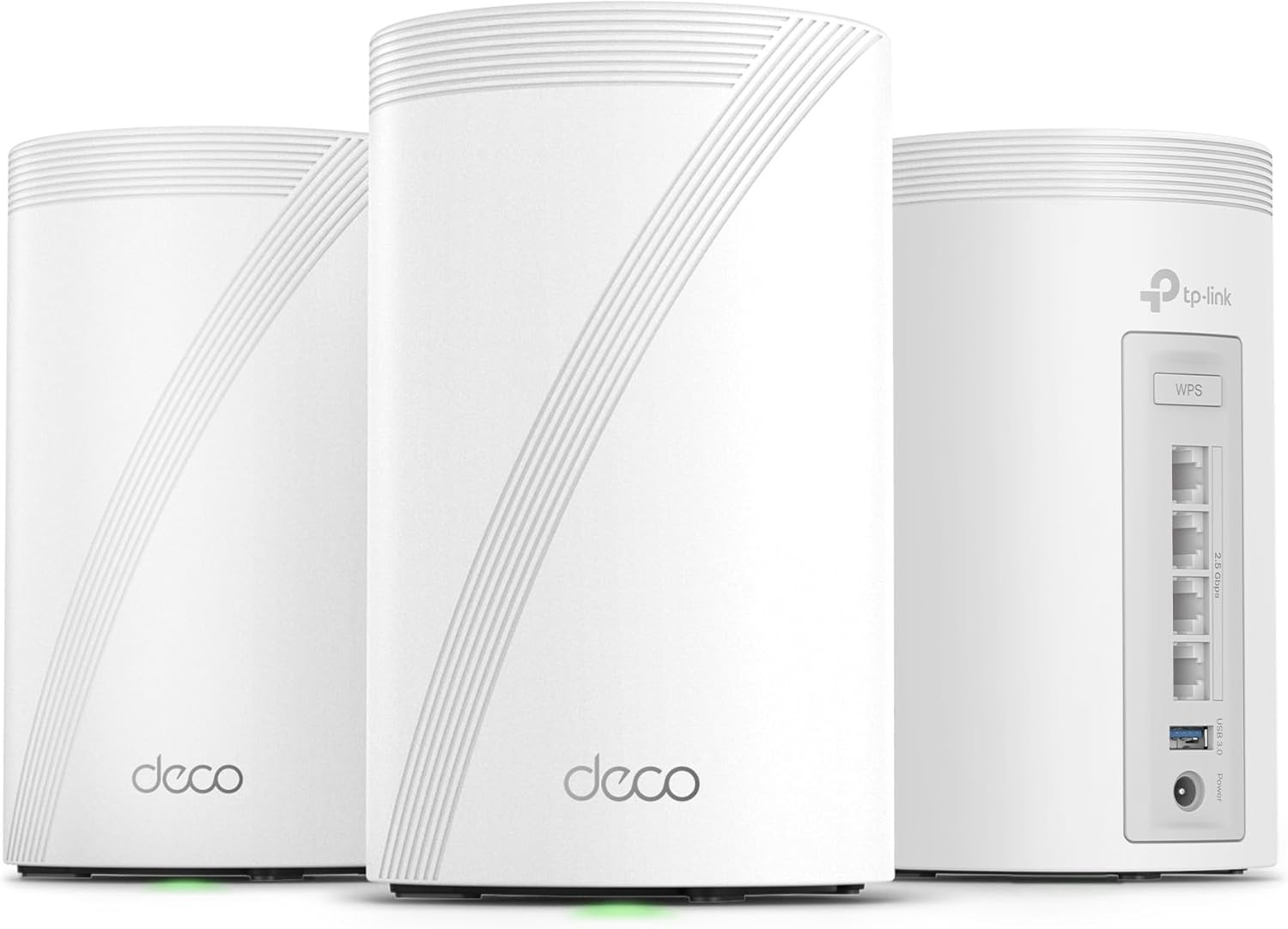
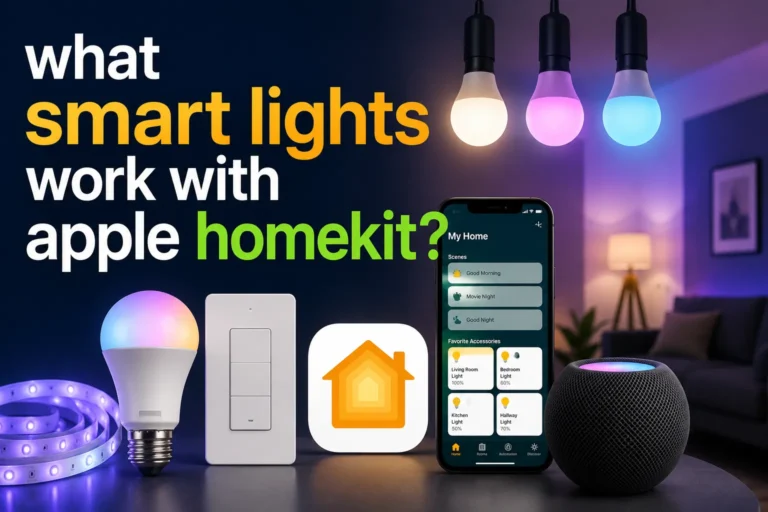
If your home uses mesh Wi-Fi, band steering, or separate SSIDs, confirm the plug is joining the correct network. For broader smart-home planning, our guides on smart light switches and smart lights can also help you think through where Wi-Fi reliability matters most.
Review app permissions, firmware status, and account login issues
Check that the Kasa app is signed into the correct account and has the permissions it needs on your phone. If the app is outdated, the plug firmware is behind, or your account session expired, the plug may appear offline even when the network is only partly at fault.
If only one device is offline, but other Kasa devices work, focus on that plug’s room assignment, firmware, and signal strength before changing the whole network.
Step-by-Step Fixes for Kasa Smart Plugs Offline
Work from least disruptive to most disruptive. That approach reduces the chance of creating new setup problems while you troubleshoot the original one.
Restart the plug, router, and mobile device in the right order
Remove power from the plug for a short moment, then plug it back in so it can reconnect cleanly.
Give the network time to come back fully before checking the device again.
This can clear app session glitches, cached network data, or permission prompts that block discovery.
Re-add the device in the Kasa app and refresh naming or room settings
If the plug still appears offline, remove it from the app and add it again using the official setup flow. After it reconnects, confirm the device name, room, and any schedules are still correct, because a re-add can sometimes reset how the app organizes the plug.
Update firmware and app versions to resolve known connectivity bugs
Firmware updates can improve stability, security, and router compatibility. Also update the Kasa app from the official app store, since older app versions may fail to detect newer firmware or may handle device discovery poorly.
Many smart-home connection problems come from router changes, not the device itself. A new password, new SSID, or a changed band setting can break a previously working plug.
Reset the plug safely when reconnecting fails
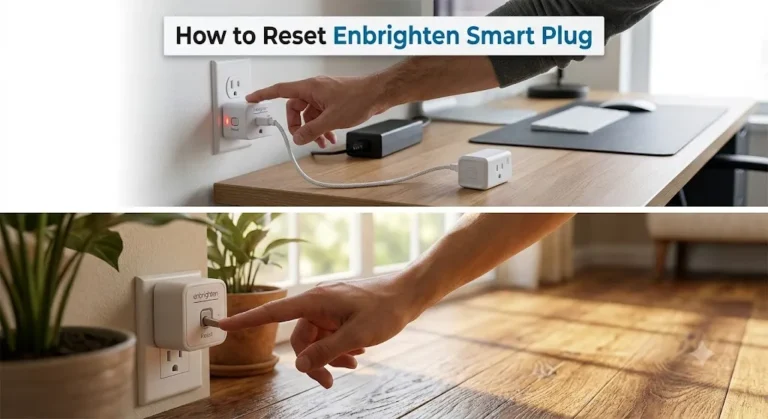
If the plug will not reconnect after basic troubleshooting, use the manufacturer’s reset or factory reset process for your exact model. Follow the manual carefully, because reset timing and indicator behavior can differ between versions.
Do not open the plug, modify wiring, or attempt internal repairs. If the device repeatedly disconnects, overheats, or behaves unpredictably, replace it and review the outlet and load it is controlling.
Setup Mistakes That Commonly Cause Offline Problems
Many “offline” complaints start during setup, especially when the network is more complicated than a single home router. A small configuration mismatch can keep the plug from joining reliably.
Using the wrong band, weak passwords, or mesh roaming settings
If the plug was added on the wrong Wi-Fi band, it may never complete pairing. Likewise, very long passwords, special character issues, or aggressive mesh roaming settings can cause intermittent disconnects on some routers and some firmware versions.
Overloading the plug beyond its rated wattage and amperage limits
Even if the plug stays connected, overloading it can create heat and instability. Always verify the manufacturer’s load limits for your exact model and avoid using the plug with devices that exceed those limits or draw high startup current.
Placing the plug too far from the router or behind interference sources
Distance matters more than many people expect. Thick walls, metal surfaces, aquariums, appliances, and crowded power strips can weaken the signal enough to cause repeated offline alerts.
- Test the plug near the router first to isolate signal issues.
- Keep smart plugs away from microwaves, large motors, and dense metal enclosures.
- Use the exact 2.4 GHz SSID recommended by your router or mesh system.
Safety, Load Limits, and Best Practices for Reliable Use
Reliability and safety go together. A smart plug that is electrically stressed is more likely to disconnect, run hot, or fail early.
Check wattage ratings, device type compatibility, and heat buildup
Match the plug to the device you want to control. Low-to-moderate loads such as lamps or fans are usually a better fit than appliances with heating elements, compressors, or large motors, which may exceed the plug’s electrical limits or create extra wear.
Avoid high-draw appliances and inspect cords, outlets, and adapters regularly
Inspect the wall outlet, extension cords, and any adapter you are using. Frayed cords, loose outlets, and worn adapters can cause intermittent power loss that looks like a network problem.
- Check compatibility, model number, app requirements, dimensions, wattage, and intended use
- Confirm safety guidance, warranty, return policy, privacy settings, and update support
Use proper ventilation, dry locations, and surge protection where appropriate
Smart plugs should be used in dry, ventilated locations and kept clear of curtains, bedding, and other heat-trapping materials. If your setup is sensitive to power interruptions, a quality surge protector may help protect the network gear around it, though it will not fix a Wi-Fi problem by itself.
Who Kasa Smart Plugs Fit Best in 2026
Kasa smart plugs are generally a good fit for people who want simple app-based control for everyday devices without building a complex automation system. They are most useful when the home Wi-Fi is stable and the load is within the plug’s rated limits.
Best use cases for lamps, fans, coffee makers, and low-to-moderate loads
They tend to work best with basic on/off devices where remote control or scheduling adds convenience. That includes lamps, small fans, holiday lights, and some countertop devices, as long as the manufacturer allows switch-style control and the electrical load is appropriate.
When a smart plug is not the right choice for your device or routine
A smart plug is not ideal for appliances that should not lose power unexpectedly, devices with sensitive electronics that need graceful shutdown, or equipment that exceeds the plug’s electrical rating. If you need dimming, variable speed, or more advanced automation, a different smart-home category may be a better fit.
How app requirements, voice assistant support, and home setup affect fit
Before buying, confirm that the plug works with your phone, router, and preferred voice assistant if you plan to use one. If your home already uses a platform like Alexa or Google Home, pairing stability may depend on account linking, app permissions, and the current support status listed by the manufacturer.
If you are comparing smart-home options more broadly, our guides to smart lights for home automation and smart lights for Google Home can help you decide whether a plug, bulb, or switch is the better control point.
Maintenance Tips, Long-Term Reliability, and Value
Most smart plugs do not need much care, but a little maintenance can prevent many offline issues. Think of them as small network devices as well as electrical accessories.
Cleaning, inspection, firmware upkeep, and storage guidance
Dust the plug exterior occasionally and keep the outlet area clean and dry. Check for discoloration, looseness, or heat damage during routine home maintenance, and update firmware when the manufacturer recommends it.
What to verify before buying: dimensions, warranty, and connectivity features
Before replacing a plug, verify its physical size so it will not block adjacent outlets. Also confirm warranty terms, app support, and whether the model supports only basic scheduling or also offers features like away mode, timers, or local control.
Comparing Kasa plugs with alternatives for stability, app quality, and price
When comparing alternatives, focus on connection stability, app reliability, and how well the device fits your router setup rather than only the sticker price. If your current plug keeps going offline despite correct setup, a different brand or a different smart-home approach may be more reliable in your home environment.
Users who want straightforward smart-home control for simple loads and can keep the plug on a stable 2.4 GHz network. If your home network is inconsistent or your device load is high, an alternative may be a safer and more dependable choice.
Final Recommendation: When to Keep, Replace, or Upgrade Your Smart Plug
If your Kasa smart plug only goes offline occasionally, keep it and focus on network stability, firmware updates, and better placement. If it disconnects often after a proper reset and clean re-setup, replacement is usually more practical than repeated troubleshooting.
Transparent verdict based on stability, safety, and everyday convenience
The right decision depends on whether the issue is environmental or device-related. A stable plug in a stable network is convenient and easy to live with, but repeated offline behavior, heat, or physical wear should push you toward a safer replacement.
Best next step for users with repeated offline issues
Start with the official manual, confirm load limits, and test the plug close to the router on a known-good 2.4 GHz network. If it still drops offline after a full reset and fresh setup, contact the manufacturer’s support resources or move to a more reliable smart-home option for your layout.
Frequently Asked Questions
It is usually caused by weak Wi-Fi, 2.4 GHz setup problems, router changes, or app/login issues. In some cases, firmware or a bad outlet connection is the real cause.
Restart the plug, router, and phone in that order, then confirm the plug is on a supported 2.4 GHz network. If needed, remove and re-add the device in the Kasa app.
Many Kasa smart plugs rely on 2.4 GHz Wi-Fi for setup and reliable operation. Check the exact model’s manual because support can vary by device and firmware.
Yes, some functions may still work locally even if the app shows the device as offline. Remote control, cloud features, and voice assistant actions usually depend on a healthy network connection.
Low-to-moderate loads such as lamps and small fans are usually better fits than high-draw appliances. Always verify the plug’s rated wattage and amperage in the manual before connecting anything.
Replace it if it keeps disconnecting after a proper reset, shows heat damage, feels loose, or behaves unpredictably. Repeated offline problems can also point to a poor fit for your router setup or device load.