Can I Use a 100w Charger for Macbook Air
Yes, a 100W charger is generally safe for a MacBook Air if it uses USB-C Power Delivery and a properly rated cable. The laptop will only draw the power it needs, so the bigger wattage does not force extra power into the battery.
Yes, you can usually use a 100W charger for a MacBook Air, and in normal use it is safe as long as the charger, cable, and port are compatible. The MacBook Air will only draw the power it needs, not the full 100W.
- Safety: A quality 100W charger is usually safe because the MacBook Air controls how much.
- Compatibility: USB-C Power Delivery and a rated cable matter more than wattage alone.
- Use case: 100W is especially useful for travel and charging multiple devices from one adapter.
- Limitations: A higher-watt charger will not fix bad cables, dirty ports, or overheating.
- Best practice: Check your exact MacBook Air model and follow Apple’s official charging guidance.
Can You Use a 100W Charger for a MacBook Air? Short Answer and Key Takeaway
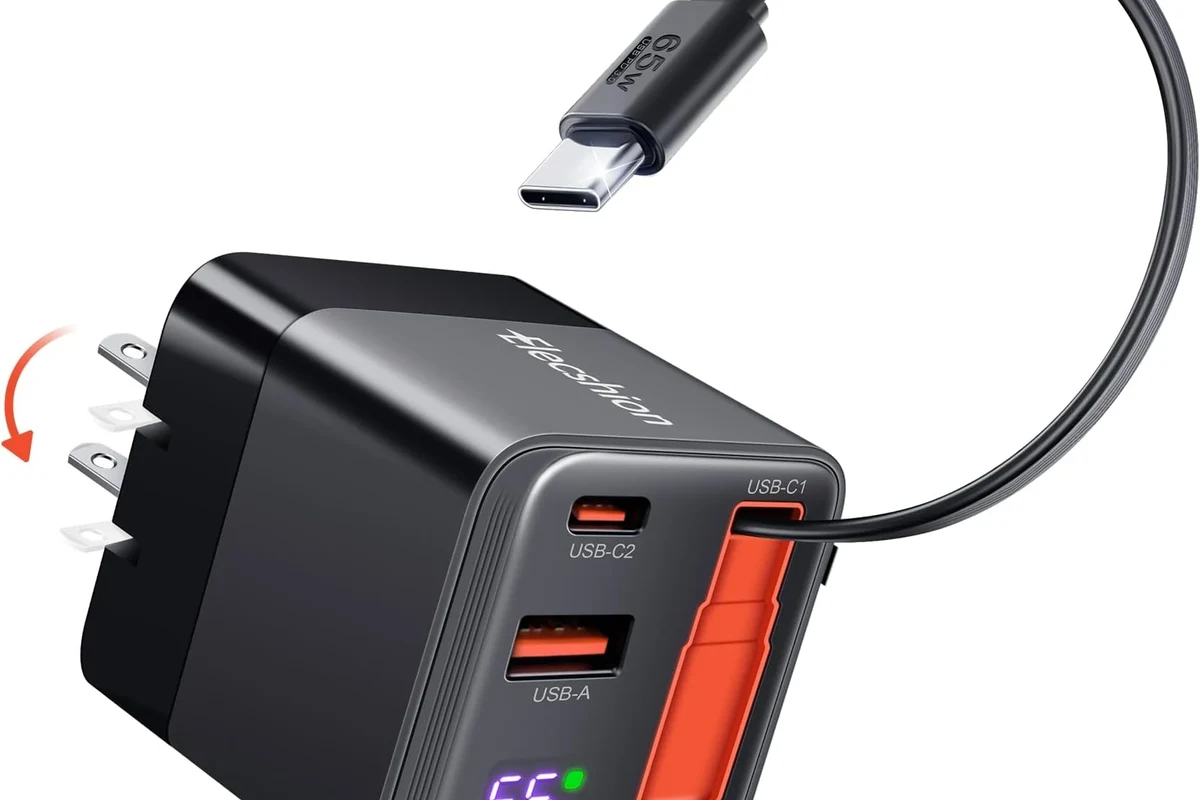
The short answer is yes: a properly made 100W USB-C charger is generally fine for a MacBook Air. The important detail is that the laptop negotiates power with the charger, so a higher-watt adapter does not force extra power into the battery.
For most buyers, the real question is not “will it work?” but “is it the right setup?” A good charger, a rated cable, and the correct port matter more than the number printed on the brick.
How MacBook Air Charging Works in 2026
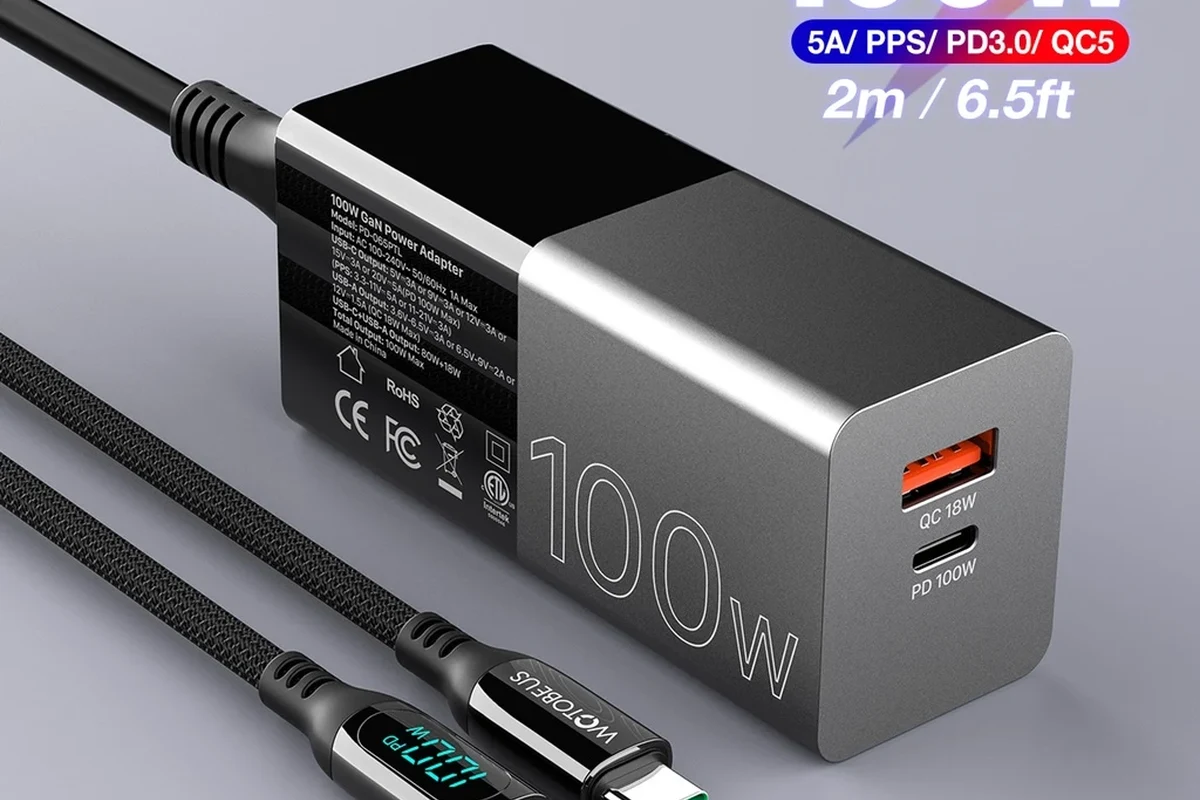
MacBook Air models use USB-C Power Delivery on most recent generations, while some versions also support MagSafe charging. In both cases, the laptop and charger communicate before power flows at full speed, which helps prevent overloading the device.
In 2026, this is still the basic rule: the charger can offer more wattage than the MacBook Air needs, but the laptop only requests what it can safely use. That is why a 100W adapter is often more about flexibility than raw charging force.
USB-C Power Delivery, Wattage Negotiation, and Why the Laptop Only Draws What It Needs
USB-C Power Delivery is the standard that allows devices and chargers to agree on voltage and current. If the charger can supply 100W, that does not mean the MacBook Air receives 100W all the time; it only takes the amount it is designed to accept at that moment.
This matters because charging speed changes with battery level, temperature, background activity, and the charger’s output profile. A MacBook Air may charge quickly when the battery is low, then slow down as it gets closer to full.
Higher-watt chargers are often used for multi-device setups, where one adapter can power a laptop, phone, and tablet through separate ports.
What the MacBook Air Typically Supports by Model and Generation
Support can vary by MacBook Air generation, chip, and charging port type. Some models charge through USB-C only, while newer versions may also support MagSafe, and the fastest charging behavior depends on the specific model and Apple’s current specifications.
Because MacBook Air configurations change over time, the safest approach is to check the official Apple tech specs for your exact model number. That is the best way to confirm whether your laptop supports fast charging, which cable is required, and whether any port limitations apply.
Model-specific charging support can vary by year, chip, and region. Always confirm the exact MacBook Air generation before buying a charger or cable.
Is a 100W Charger Safe for MacBook Air?
In normal conditions, yes. A quality 100W charger from a reputable brand is typically safe for a MacBook Air because the laptop controls how much power it accepts.
The main risks come from poor-quality accessories, damaged cables, overheating, or using uncertified parts that do not follow USB-C Power Delivery standards. Those issues can cause unreliable charging, excess heat, or premature wear.
Safety Basics: Heat, Battery Health, and Built-In Power Regulation
MacBook Air charging systems include internal power regulation, so the battery is not simply exposed to whatever the charger can output. That built-in control is one reason a higher-watt charger is usually acceptable.
Heat is still worth watching. Any charger, cable, or laptop that runs unusually hot should be inspected, because sustained heat can affect comfort, charging efficiency, and long-term battery health.
Stop using a charger or cable that shows frayed insulation, bent connectors, scorch marks, loose plugs, or repeated overheating. Follow the manufacturer’s guidance if the charger becomes unusually hot or unstable.
When Higher Wattage Is Fine vs. When It Becomes a Problem
Higher wattage is fine when the charger is well-made, the cable is properly rated, and the MacBook Air is compatible with the connection type. In that setup, the extra capacity simply gives the charger more headroom.
It becomes a problem when people assume wattage alone guarantees safety. A low-quality 100W charger can be worse than a good lower-watt model if it has poor thermal control, weak components, or unreliable USB-C negotiation.
What You Need for Reliable Charging: Charger, Cable, and Port Compatibility
Reliable charging depends on the whole chain: wall adapter, cable, laptop port, and sometimes the charging standard supported by each piece. If one link is weak, the entire setup can charge slowly or intermittently.
- Check your exact MacBook Air model and charging port type
- Confirm the charger supports USB-C Power Delivery
- Use a cable rated for the wattage you want to deliver
- Inspect the charger and cable for heat, wear, and damage
- Verify warranty, return policy, and manufacturer safety guidance
Why Cable Quality Matters More Than Many Buyers Realize
A charger can only perform as well as the cable allows. If the cable is under-rated, damaged, or poorly made, it may limit charging speed or create extra heat even if the adapter itself is powerful.
For a 100W setup, buyers should look for a cable that is explicitly rated for the intended power level and is compatible with USB-C Power Delivery. If that information is unclear, it is better to verify it before relying on the cable for daily use.
USB-C vs. MagSafe Considerations for MacBook Air Users
USB-C charging is widely compatible and convenient if you already use USB-C accessories. MagSafe, when supported by the specific MacBook Air model, can be a practical choice because it frees up USB-C ports and may disconnect more easily if the cable is tugged.
The right choice depends on your workflow. If you often use docks, external drives, and monitors, keeping a USB-C port open may matter more than the connector style.
Real-World Benefits of Using a 100W Charger
A 100W charger can be useful even if your MacBook Air does not draw anywhere near 100W all the time. The extra capacity can give you more flexibility, especially if you charge more than one device.
For many people, the biggest benefit is convenience rather than raw speed. One charger can often replace several lower-power bricks in a travel bag or desk setup.
Faster Top-Ups, Multi-Device Charging, and Travel Convenience
When the MacBook Air is low on battery, a capable charger may help it recover charge efficiently, though the exact speed depends on the model and the charger’s output profile. If the charger has multiple ports, it may also handle a phone, earbuds, or tablet at the same time.
That can be especially helpful on trips or in shared workspaces where outlets are limited. Instead of packing several adapters, you can often carry one higher-capacity charger and the right cables.
- Use one charger for your laptop and small devices when the port layout supports it
- Keep a spare cable in your bag so a worn lead does not interrupt charging
- Choose a compact adapter if you travel often and outlet space is tight
Who Benefits Most: Students, Remote Workers, and Frequent Travelers
Students often benefit because they move between classes, libraries, and dorms with limited time to charge. Remote workers may like the flexibility of a single adapter that can stay on a desk and also go into a laptop bag.
Frequent travelers may benefit most of all, especially if they want one charger that can handle a MacBook Air plus a phone and other USB-C accessories. In those cases, the extra wattage is less about speed and more about reducing clutter.
Limitations, Trade-Offs, and Common Mistakes to Avoid
A 100W charger is not automatically the best choice for everyone. If you only charge a MacBook Air and one small accessory, a lower-watt charger may be smaller, cheaper, and easier to pack.
Also, a stronger charger does not solve every charging problem. If the cable is bad, the port is dirty, or the outlet is unstable, the MacBook Air may still charge slowly or not at all.
Overpaying for Unneeded Wattage, Using Low-Grade Cables, and Ignoring Heat
One common mistake is buying the biggest wattage available without checking whether the rest of the setup supports it. Another is pairing a premium charger with a bargain cable that cannot safely handle the load.
Heat should not be ignored. If the adapter, cable, or MacBook Air becomes unusually warm during normal charging, it is smart to stop and inspect the setup before continuing.
What a 100W Charger Will Not Fix: Slow Charging from Bad Accessories or Ports
If a charger seems slow, the problem may be the cable, the wall outlet, a dock, or even dust in the port. A higher wattage brick will not override those issues.
For best results, test the simplest setup first: charger directly to the MacBook Air with a known-good cable. If charging improves, the extra accessory in the chain is likely the bottleneck.
If charging is intermittent, unplug everything and inspect the cable ends, the charger body, and the laptop port for dust, bent pins, or visible damage before using the setup again.
How to Choose the Best 100W Charger for a MacBook Air
The best 100W charger is not just the one with the highest number on the label. It is the one that matches your MacBook Air model, your cable, your travel habits, and your need for extra ports.
Before buying, compare the charger’s output profile, port count, size, and build quality. Those details matter more in daily life than the headline wattage alone.
Decision Criteria: Wattage Ratings, Port Count, Size, Portability, and Build Quality
Look for USB-C Power Delivery support, not just a watt number. If you plan to charge multiple devices, check how the wattage is shared across ports, because some chargers reduce output when several devices are connected.
Size also matters. A compact charger is easier to carry, but a slightly larger one may run cooler or offer better port options. Build quality, plug stability, and reputable safety information are all worth prioritizing.
Inspection Checklist: Certifications, Cable Rating, and Replacement Guidance
Before daily use, confirm that the charger and cable are meant for consumer electronics charging and have clear manufacturer documentation. If a product’s safety claims are vague or hard to verify, that is a reason to keep looking.
Replace the charger or cable if the plug loosens, the insulation cracks, the adapter smells burnt, or charging becomes inconsistent. Those are practical warning signs, not minor cosmetic issues.
Safe Use, Maintenance, and Storage Tips for Long-Term Value
A good charger lasts longer when it is kept clean, stored carefully, and used within its intended limits. That protects both the accessory and the MacBook Air.
Routine care also helps with reliability. Many charging problems come from wear, dust, or cable strain rather than from the wattage rating itself.
Keeping Connectors Clean, Managing Cable Wear, and Watching for Damage or Excess Heat
Keep connectors free of dust and lint, especially if the cable lives in a bag or gets used around a desk with food, pets, or fabric fibers nearby. Avoid sharp bends near the connector ends, since that is where cables often fail first.
If a charger or cable feels hot enough to be uncomfortable, disconnect it and let it cool. Brief warmth can be normal; persistent or extreme heat is not something to ignore.
- Flexible for MacBook Air and other USB-C devices
- Useful for travel and shared charging setups
- Usually safe when the charger and cable are quality-made
- May be larger or pricier than needed for one laptop
- Weak cables can reduce performance
- Does not fix port, outlet, or heat-related problems
When to Replace the Charger or Cable and What Signs Mean Stop Using It
Replace accessories when they show physical damage, repeated disconnects, charging instability, or unusual heat. If the charger trips outlets, sparks, or smells burnt, stop using it immediately and follow the manufacturer’s safety guidance.
It is also wise to replace a cable that has been bent heavily for months or shows visible wear near either end. Small cable problems often get worse over time.
Final Recommendation: Should You Buy or Use a 100W Charger with a MacBook Air?
For most MacBook Air users, a 100W charger is a smart and safe choice if it is from a reputable brand, uses USB-C Power Delivery, and is paired with a properly rated cable. It gives you flexibility for travel, multi-device charging, and future device upgrades without forcing extra power into the laptop.
If you only need to charge one MacBook Air at a desk, a smaller charger may be enough. But if you want a single adapter that can handle your laptop, phone, and accessories, a well-made 100W charger is often the more practical long-term option.
Use a 100W charger with a MacBook Air when you want flexibility, better travel utility, and room for other devices. Just make sure the charger, cable, and port are all compatible, and replace any accessory that runs hot or shows damage.
Frequently Asked Questions
Yes, a quality 100W USB-C charger is usually fine for daily use with a MacBook Air. The laptop draws only the power it needs, but the charger and cable should be compatible and in good condition.
Not always. Charging speed depends on your MacBook Air model, battery level, cable quality, and the charger’s power profile.
Use a cable that is rated for the wattage you plan to deliver and supports USB-C Power Delivery. A weak or damaged cable can slow charging or create extra heat.
Mild warmth can be normal, but excessive heat is not. If the charger, cable, or laptop becomes unusually hot, disconnect it and inspect the setup.
USB-C is enough for many MacBook Air users, but MagSafe may be useful on models that support it. The better choice depends on your exact model and whether you want to keep USB-C ports free.
Replace it if you see frayed insulation, loose connectors, scorch marks, repeated disconnects, or unusual heat. Stop using damaged accessories right away and follow the manufacturer’s guidance.