

Can a Thunderbolt Dock Work with a USB-C Laptop?
THE COMPATIBILITY CHECK
Can a Thunderbolt dock work with a USB-C laptop? Yes, some models can—but the dock must support a USB-C host connection. Your laptop’s port also determines whether you get video, charging and the features you need. A matching plug alone does not guarantee a working setup.
Quick answer
Look up both exact model numbers before buying. The dock’s manual should explicitly list non-Thunderbolt USB-C computers. The laptop’s specification should separately confirm USB data, DisplayPort over USB-C and USB Power Delivery charging. If any required feature is missing, choose a different connection or dock.
Examples: CalDigit lists USB-C host support for the TS4, with reduced functions. Its TS3 Plus does not support ordinary USB-C computers. Microsoft’s Surface Thunderbolt 4 Dock also supports certain USB-C Surface devices with a lower display ceiling than a Thunderbolt connection.
Disclosure: As an Amazon Associate, we earn from qualifying purchases. This guide uses manufacturer documentation; it is not a hands-on dock test. Compatibility varies by laptop, dock, cable and operating system.
Why the same USB-C plug can give different results
USB-C is the connector shape. Thunderbolt is a connection technology that uses that shape. Intel explains that Thunderbolt certification sets requirements for data, video and power, while a USB-C connection can offer a different mix of capabilities. See Intel’s explanation of Thunderbolt and USB-C.
That distinction matters when moving a dock between two laptops. A setup that drives your home computer’s displays may offer fewer features on your work computer. Start with the laptop’s technical specification rather than the number of ports on the dock. A long list of sockets cannot add a missing host capability.
Compatibility table: what to check first
| Laptop port | What a Thunderbolt dock needs | What to verify |
|---|---|---|
| Thunderbolt | Support for the host’s Thunderbolt version | Exact dock requirements, OS and supported displays |
| USB4 | Explicit support for your USB4 host | Dock compatibility notes and any device-specific limits |
| USB-C with USB data and DisplayPort Alt Mode | A documented USB-C fallback mode | Display limits, data speed, Ethernet and charging |
| USB-C with data but no video output | USB-C fallback for supported USB accessories | A normal native-video dock cannot add the missing video signal |
| USB-C with charging support only | A supported data connection is still required for docking | Use another port or a different connection |
This is a buying checklist, not a promise that every dock works with every port. Use the dock maker’s compatibility list as the final check.
Real examples: TS4, TS3 Plus and Surface
CalDigit TS4: USB-C fallback has limits
The TS4 manufacturer page lists USB-C computers among supported hosts. It also describes reduced functionality: its Windows USB-C guidance lists one external display, and its built-in 2.5Gb Ethernet requires a Thunderbolt-based host. Check the current manual for your exact setup.
Use this example to ask a better shopping question: which ports still work in USB-C mode? A product can be compatible while losing one feature that your desk depends on.
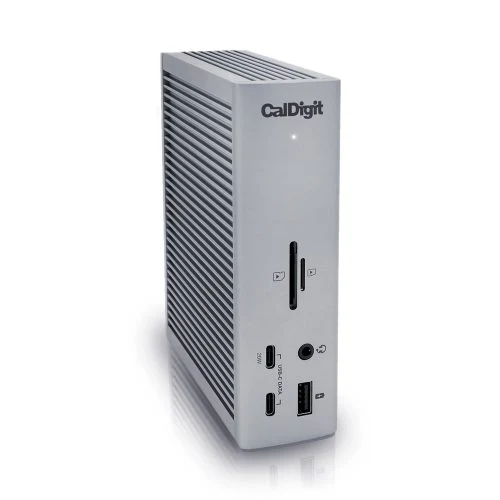
Considering the TS4?
It is worth comparing if you plan to use Thunderbolt later and its current USB-C limits fit your desk. If built-in wired networking is essential on an ordinary USB-C laptop, check alternatives before buying.
CalDigit TS3 Plus: do not assume fallback exists
CalDigit’s TS3 Plus product page states that ordinary USB-C computers and tablets are not compatible. This is why buying an older Thunderbolt dock based only on its USB-C-shaped cable can be a costly mistake.
Surface Thunderbolt 4 Dock: check the host list
Microsoft’s compatibility documentation lists supported USB-C Surface models and describes one external display up to 4K at 60Hz over USB-C/USB 3.2, when the device and display support it. The Thunderbolt connection has different display capabilities. Match the exact Surface model and connection type.
A five-minute check before you buy
- Find the full laptop model. Include its generation or model code. Two computers sold under one family name may have different ports.
- Read the port specification. Look for Thunderbolt, USB4, USB data speed, DisplayPort support and USB PD input. Do not infer everything from a charging symbol.
- Read the dock’s host requirements. Search its manual for USB-C host compatibility, fallback mode and feature restrictions.
- Write down your must-have features. Include display count, resolution, refresh rate, wired networking, storage and laptop charging.
- Check the supplied cable and power adapter. Use the manufacturer’s host cable for the first setup. Keep the packaging until you have tested your full desk.
For a shared home and work desk, repeat the check for each laptop. Save both specification pages so that you can compare them side by side.
Will the monitors and laptop charging work?
Treat video and charging as separate checks. A dock can connect USB accessories while the laptop lacks native USB-C video output. It can also send video while the laptop still needs its own charger.
For monitors, confirm the host’s external-display limit and the dock’s limits in the actual connection mode. Start with one display. Once that works, add the second. If you need help with the physical setup, follow our two-monitor docking guide.
For charging, compare the dock’s host power output with the laptop maker’s requirements. The number printed on a dock’s power brick is not necessarily the power delivered to the laptop. A demanding laptop may still need its original adapter. Our guide to charging a laptop through a dock covers that decision in more detail.
If the dock connects but something does not work
Test one function at a time. This makes it easier to distinguish a compatibility limit from a cable, display or software problem.
- Nothing responds: check dock power, the host/upstream socket and the supplied host cable. Connect directly to the laptop.
- Keyboard works but the screen stays blank: confirm the laptop port supports video and the dock supports video in USB-C mode. Check the monitor input and test a direct laptop-to-monitor connection.
- Only one display works: compare that result with the dock’s fallback display limit and the laptop’s own external-display support.
- Ethernet is missing: read the dock’s USB-C restrictions before installing drivers. Some functions may require a different host connection.
- Charging is slow or absent: test the laptop’s original charger, then compare its requirements with the dock’s host power rating.
Install updates from the laptop and dock makers when their support instructions recommend them. Software updates cannot add a physical port capability that the hardware lacks. If you suspect the cable, use our USB-C power, data and video checklist.
Should you buy a USB-C dock instead?
If your current laptop only has ordinary USB-C and you plan to keep it, a dock designed for that connection may be the better fit. Choose by the features that work on your laptop today. Paying for a faster host interface is useful only when your setup can use it or you have a clear upgrade plan.
If you already own a compatible Thunderbolt dock, try its documented fallback mode first. You may be able to keep using it with a simpler display setup. Before replacing hardware, list the single feature that is missing and compare the cost of solving that need.
Final verdict
A Thunderbolt dock can work with a USB-C laptop when the exact dock supports that host connection. Check video, charging, Ethernet and display count separately. Buy for the capabilities shared by your laptop and dock.
Frequently asked questions
Does every Thunderbolt dock support ordinary USB-C laptops?
No. USB-C fallback depends on the dock. CalDigit’s TS4 lists USB-C hosts, while its TS3 Plus excludes ordinary USB-C computers and tablets.
Will a Thunderbolt cable turn USB-C into Thunderbolt?
No. The laptop needs the required hardware and port support. A cable cannot upgrade the host connection.
Can I use two monitors in USB-C fallback mode?
Check the exact dock and laptop. Do not carry over the dock’s Thunderbolt display rating to its USB-C mode. The TS4 and Surface examples above document more limited USB-C display support.
Does USB4 mean I can use any Thunderbolt dock?
Check the dock’s USB4 host requirements and your laptop’s specifications. Connector shape and a broad technology label are not enough to confirm every function.
Should I replace a dock that only partly works?
First compare the observed behavior with its documented limits. Replace it if a required feature is unsupported and a different dock or direct connection better fits your laptop.
Sources and editorial notes
Manufacturer documentation checked October 29, 2026. This article answers the host-compatibility question; our separate buying guides cover product selection.




2 Comments