

CalDigit TS5 Plus Buying Guide: Is the Premium Dock Worth It?
PREMIUM THUNDERBOLT 5 DESK UPGRADE
CalDigit TS5 Plus: buy for the workflow you actually have
A compelling shortlist for a demanding permanent desk. Check your laptop, screens and network before choosing this flagship dock.
Affiliate disclosure: As an Amazon Associate I earn from qualifying purchases. We may also earn a commission through Walmart links, at no extra cost to you.
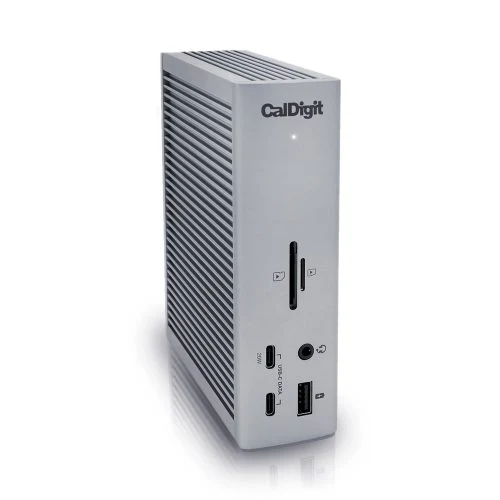
This CalDigit TS5 Plus buying guide helps you decide whether a premium dock deserves a place on your desk. Our recommendation is to shortlist it when you have a compatible computer, several wired accessories and a clear reason to want its extra connectivity. If your desk only needs a keyboard and one screen, start with a simpler option.
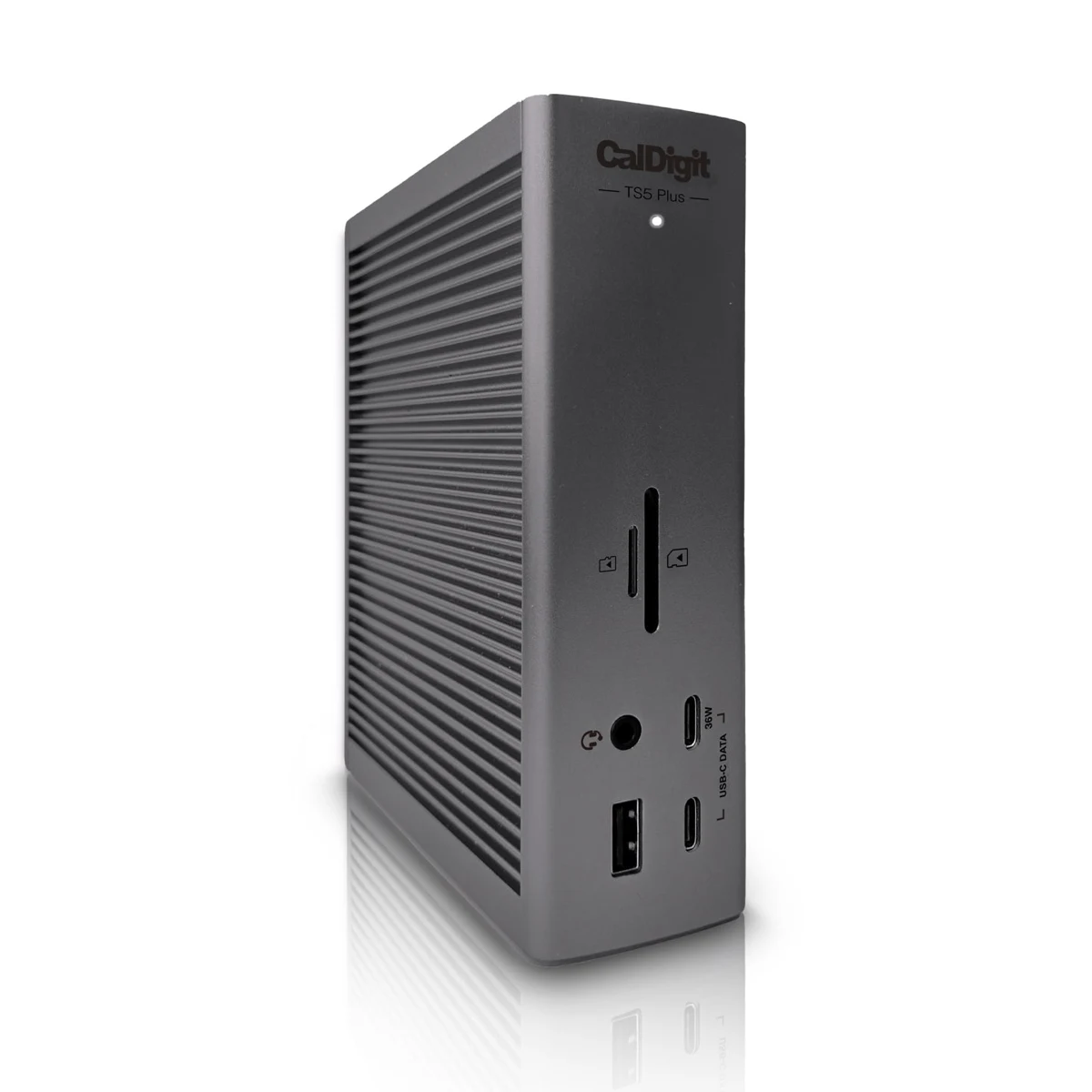
CalDigit TS5 Plus at a glance
| Manufacturer rating | Buying implication |
|---|---|
| 20 connections; Thunderbolt 5 | Plan the connections you need together, rather than shopping by port count alone. |
| Up to 140W host charging | Check what your exact laptop accepts through its docking port. |
| 10Gb Ethernet | Most relevant when the rest of your network can use the extra capacity. |
| Five USB-A and five USB-C data ports, rated 10Gb/s | Map your existing accessories before buying extra adapters. |
| DisplayPort 2.1 and two downstream Thunderbolt ports | Check each monitor’s input and the host’s display limits. |
| UHS-II SD and microSD readers | A useful convenience if removable cards are part of your routine. |
Source: CalDigit’s TS5 Plus specifications. These are published maximum ratings, not measured results from our testing.
The first check: is your laptop compatible?
The TS5 Plus is not intended for ordinary 5Gb/s or 10Gb/s USB-C host computers. CalDigit also excludes Thunderbolt 3 Windows PCs. Supported host families include Thunderbolt 4/5 PCs, Thunderbolt 3-or-newer Macs and suitable USB4 systems; USB4 requires PCIe tunneling. Check the full operating-system and firmware requirements on the official product listing.
Start with the laptop’s exact model and configuration. Find its specification sheet, then identify the port you will use. A matching plug shape is not enough evidence. If the documentation is vague, ask the laptop manufacturer to confirm the host connection and PCIe support before placing an order.
This matters most when shopping for a shared desk. A dock that suits one person’s workstation may be unsuitable for another person’s older notebook. List all computers that must use the desk and check them individually. For background, read our Thunderbolt dock and USB-C laptop guide.
Does 140W charging solve your desk problem?
The host connection is rated up to 140W. CalDigit also specifies 36W on each of the two downstream Thunderbolt ports and one front USB-C port. Those outputs serve different roles: the host port is the connection intended for your main laptop.
Before treating the dock as an adapter replacement, check the computer’s accepted USB-C power input. Keep its original adapter available while you evaluate your normal workload. A laptop that ships with a higher-power supply deserves a careful check, especially when demanding applications are central to your working day.
Think about convenience as well as wattage. If you move between meetings and a desk several times a day, reducing cable handling may be valuable. If the laptop stays connected all week, the benefit is more about organizing accessories. Neither situation automatically justifies the flagship model; the rest of the setup should make the case.
Do not buy this as a two-laptop charging station. For a desk whose main problem is powering two notebooks, compare the options in our two-laptop charger guide.
When is 10Gb Ethernet worth paying for?
Our view: the network connection is a strong reason to consider the Plus model when you already work with a fast wired storage or network setup. It is a weaker reason when you cannot identify a task that your present connection slows down.
Sketch the complete route from laptop to destination. Include the dock, network cable, switch, storage device and the storage drives themselves. A faster connection at one point does not guarantee a faster workflow across the whole route. Ask which part currently makes you wait, then spend money on that bottleneck first.
A useful purchase test is to name one recurring job you expect the new setup to improve. Moving a large project to shared storage is a clearer use case than simply wanting the largest number on a specification sheet. Without a specific need, compare a less expensive dock and keep the difference for storage or a better display.
Plan the monitor setup before ordering
The number of screens a dock can drive depends on the computer and the full connection path. Do not treat the highest advertised display count as a promise for every Mac or Windows laptop. Check your exact chip or GPU, resolution, refresh rate and cable arrangement against the manufacturer’s current compatibility chart.
Write the plan down as a shopping list: monitor model, intended input, required adapter and cable length. This turns an unclear compatibility question into something support can answer. It also prevents the dock price from hiding the cost of display adapters.
If you already have a stable desk setup, identify the specific change you need. A new high-refresh display, a different laptop or an extra screen can justify revisiting the dock. Replacing a working dock simply because the generation number increased is a much less convincing reason.
TS5 Plus, TS5 or TS4: choose the right tier
| Option | Reason to investigate | Question to resolve |
|---|---|---|
| TS5 Plus | A demanding desk with a specific need for the Plus feature set | Which extras will you use every week? |
| TS5 | A Thunderbolt 5 alternative to compare before paying for the flagship | Does its port selection cover your actual accessories? |
| TS4 | A previous-generation premium option for a compatible existing setup | Would it meet the same practical need at a better total cost? |
The shortlist should start with what stays connected: storage, network, displays, audio and input devices. Cross out features you would only use in a hypothetical future setup. Then compare the remaining requirements against each model.
Our CalDigit TS4 buying guide covers the older model’s buying checks. Compare the complete models carefully: similarly named docks are not interchangeable, and a bargain on the wrong model is still the wrong purchase.
Amazon vs Walmart: compare the complete offer
Open both listings before choosing
These buttons point to TS5 Plus product listings. We have not verified comparable live checkout prices, so we are not naming a cheaper store or quoting an unconfirmed discount.
| Store | Price status | Check before payment |
|---|---|---|
| Amazon | See current offer | Exact model, seller, condition and complete package |
| Walmart | See current offer | Marketplace seller, shipping, returns and package contents |
Compare the delivered total for the same condition and accessories. Include tax, shipping and any adapters needed for your displays. Read the seller-specific return terms; the retailer’s name at the top of a page does not tell you everything about the selected offer.
CalDigit lists a 330W power supply, power cord and 1m Thunderbolt 5 cable in the standard package. Confirm those items on the chosen offer, especially for open-box or used stock. A bare replacement dock should not be compared with a complete retail kit as though they were the same deal.
Set it up in stages during the return window
- Record the starting point. Note the laptop, operating system, displays and accessories you intend to use.
- Read the current support instructions. CalDigit provides firmware downloads and Windows Ethernet drivers. Follow the instructions for your exact system.
- Connect one display first. Confirm the intended resolution and refresh rate, then add the next device.
- Check your real workflow. Open your normal applications, use storage and network access, and try sleep and wake.
- Keep the packaging until the checks are complete. Record any issue clearly so you can describe it to support or the seller.
CalDigit’s download center lists required Windows driver information. Its Windows USB troubleshooting guide explains the connection requirements. Use those sources when diagnosing a specific problem; avoid changing unrelated system settings based on a generic forum fix.
Frequently asked questions
Is this a hands-on CalDigit TS5 Plus review?
No. This buying guide uses published documentation and purchasing criteria. We have not measured performance or long-term reliability.
Can I use it with an ordinary USB-C laptop?
CalDigit does not list ordinary 5Gb/s or 10Gb/s USB-C hosts as compatible. Verify Thunderbolt or suitable USB4 support for the exact laptop before buying.
Will every laptop receive 140W?
No. The rating is a maximum output. Your laptop must support the relevant power input, and your normal workload should be checked before retiring its original adapter.
Is Amazon or Walmart cheaper?
We have not verified comparable checkout totals. Open both listings and compare the same model, condition, accessories, shipping and return terms.
Should I replace a working TS4?
Only if you can identify a limitation that the proposed setup resolves. Start with the laptop, network and monitor requirements, then decide whether the upgrade earns its cost.



2 Comments