OWC Thunderbolt 5 Dock Buying Guide: Is It Right for Your Desk?
Affiliate disclosure: As an Amazon Associate I earn from qualifying purchases. We may also earn commissions from Walmart links, at no extra cost to you.
Quick verdict: Shortlist the OWC Thunderbolt 5 Dock for a compatible creator desk that needs several Thunderbolt accessories, memory-card access and wired networking. Verify your exact laptop and screens first. Keep a working dock if you cannot identify a task this upgrade will improve.
This OWC Thunderbolt 5 Dock buying guide focuses on the standard 11-port model, OWCTB5DOCK11P. The practical decision is whether its connection layout fits your desk. A premium dock can simplify daily setup, but an expensive mismatch still leaves you buying adapters.
How we assessed it: This is a research-based buying guide using OWC’s product information and support manual, checked November 1, 2026. We have not tested this dock or measured transfer speeds, charging, heat or reliability. Recommendations below are our assessment of its documented features. Matching retailer checkout totals have not been verified.
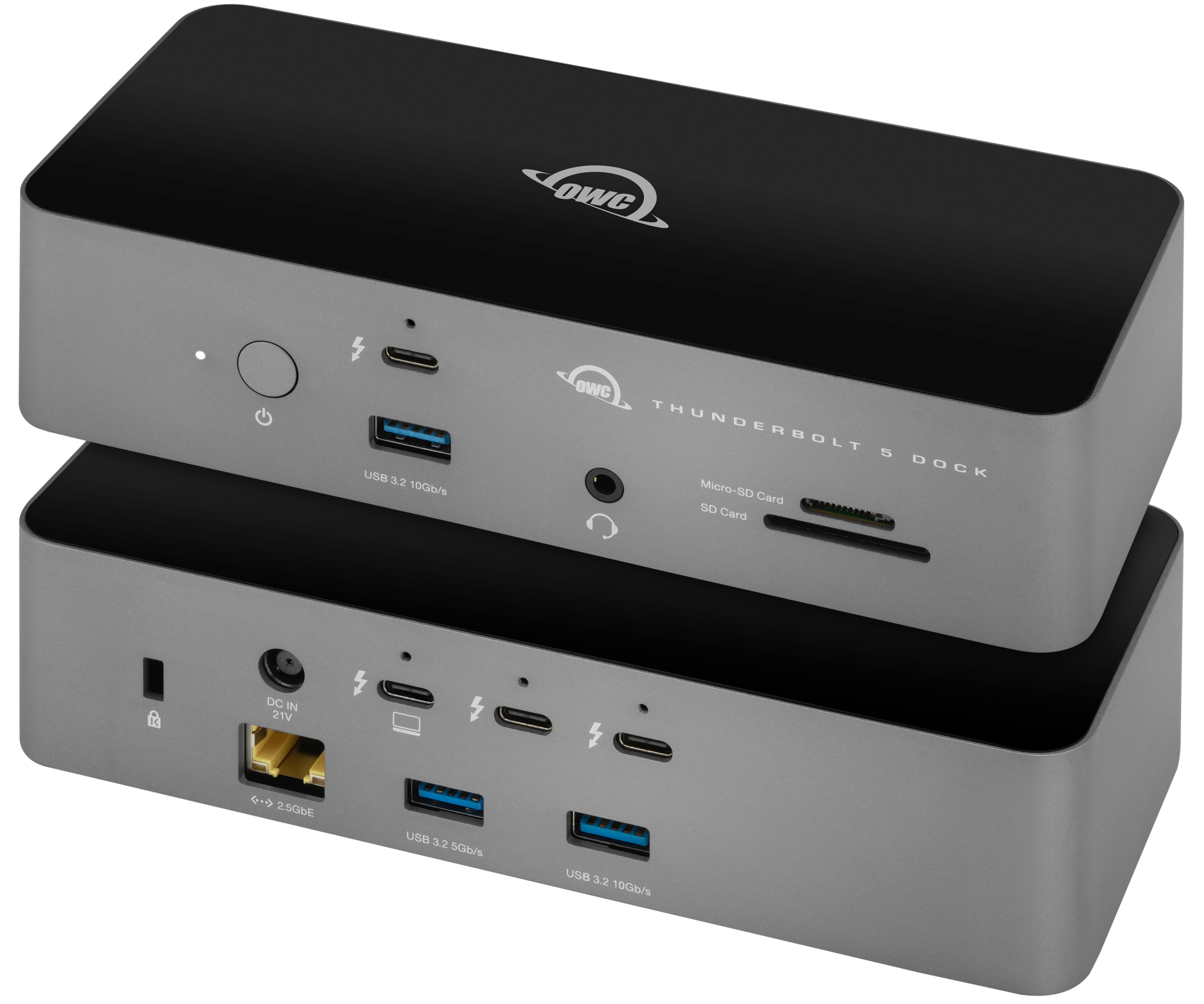
OWC Thunderbolt 5 Dock: the connections that matter
| Connection | Manufacturer specification | Buying implication |
|---|---|---|
| Host | Thunderbolt 5; up to 140W host charging | Check the laptop’s supported input |
| Downstream Thunderbolt | Three Thunderbolt 5 ports | Count display adapters against available ports |
| USB-A | Two 10Gb/s ports; one 5Gb/s port | Useful for existing USB accessories |
| Networking | 2.5Gb Ethernet | Faster network equipment is needed to use that rate |
| Cards and audio | SD and microSD UHS-II readers; 3.5mm combo audio | Can reduce separate desk adapters |
| Display connectors | No dedicated HDMI or DisplayPort socket | Plan the Thunderbolt/USB-C display path |
Source: OWC product page. Thunderbolt 5 supports up to 80Gb/s bidirectional bandwidth and up to 120Gb/s for display Bandwidth Boost. Those link ratings are not promised storage-transfer results.
Who should consider buying it?
Our strongest use case is a desk where connecting several accessories is a daily nuisance. Imagine a photographer who returns with memory cards, connects external storage, uses a wired network and works on an external screen. The first step is to draw that desk on paper and assign every device a port.
Then mark which devices must run together. An accessory that stays in a drawer should not drive the purchase. A frequently used drive or card reader deserves more weight than a theoretical future upgrade. This approach turns a long specification list into a practical shopping decision.
For a shared desk, make a separate connection plan for each laptop. Do not buy around the newest machine and assume the older one will behave identically. Ask OWC support to confirm any uncertain combination before ordering.
Laptop compatibility: check the exact port and operating system
OWC’s support manual lists Thunderbolt 5/4, Thunderbolt 3 Macs, USB4 and USB-C hosts, with platform requirements. Thunderbolt 3 Windows systems are explicitly unsupported. For Thunderbolt 5 operation it specifies macOS 15.3 or later, or Windows 11 or later. Older supported Macs have additional macOS requirements.
Treat compatibility as a set of functions to confirm: video output, charging, storage, Ethernet and sleep/wake behavior. A USB-C connector alone does not establish that the whole desk will work as intended. If your computer has ordinary USB-C, start with our Thunderbolt dock and USB-C laptop guide.
Monitors: plan adapters before comparing prices
The standard dock routes displays through its downstream Thunderbolt connections. A screen with HDMI or DisplayPort may need an appropriate adapter or cable. Record each monitor’s input, resolution and refresh rate, then ask for confirmation of that complete combination.
OWC advertises up to three 8K displays on suitable Windows systems or two 6K displays on suitable Macs. These are maximum configurations, not a promise for every notebook. Host display limits and the full signal path still matter. See the manufacturer’s display information.
Before ordering, count how many downstream ports remain after the screens are connected. If your proposed setup leaves no connection for a drive you regularly use, compare another layout. Include every required adapter in the purchase total.
Charging: will one cable actually be enough?
Up to 140W is the dock’s host-charging rating, not a guarantee that every laptop receives that amount. Check your notebook’s documented USB-C charging support. For a demanding workstation, confirm whether the dock can cover your normal workload or whether you will still need the original laptop adapter.
Our buying advice is to test the complete desk during the return window. Use the applications you normally run and the accessories you normally connect. A tidy idle desktop does not tell you whether the arrangement suits a long working session.
Amazon vs Walmart: compare the same complete kit
The buttons here open product listings, not live price guarantees. We are not naming a cheaper retailer because matching delivered totals were not verified. Check the selected seller, condition, delivery charge, tax and return terms at checkout.
| Store | Link destination | What to verify |
|---|---|---|
| Amazon | ASIN B0FC7L89C2 | Standard 11-port model and selected offer |
| Walmart | Product listing 17023464720 | Matching model, seller and complete package |
A separate Walmart listing we reviewed mixed the standard dock’s model number with Dual 10GbE Network Dock descriptions. That is a reason to verify the manufacturer part number and photos rather than relying on a listing title. This guide covers the standard model with a single 2.5Gb Ethernet port.
For the retail package, OWC lists the dock, a 1-meter Thunderbolt 5 cable, external power supply and power cable. Confirm those items on the actual offer. A bare replacement unit can look cheaper while requiring additional purchases.
When to compare a different dock
Choose by the desk you need to build. If you want a different balance of display connections, USB ports or networking, compare our CalDigit TS5 Plus buying guide. For an older premium alternative, read the CalDigit TS4 buying guide. These are alternatives to evaluate, not automatic upgrades.
If the goal is simply to add a keyboard, mouse and one screen, calculate the cost of a simpler compatible hub too. If your existing dock already supports the full desk reliably, keep using it until you have a specific unmet requirement.
Setup checks for the return window
Start with the supplied host cable and power supply. Add your display first, then storage and other accessories one at a time. Check reconnecting after sleep, audio selection and the wired network. Record the exact step if a device stops responding so support can reproduce it.
OWC’s manual calls for a Realtek network driver on Windows. It also documents software requirements for certain Apple USB accessories. Read the current instructions for your operating system rather than assuming every optional accessory is driver-free. Safely eject mounted drives before disconnecting the dock.
Frequently asked questions
Does it have HDMI?
No dedicated HDMI socket is shown in the standard model’s port layout. Plan a compatible display adapter or cable if your monitor requires HDMI.
Can it make any Mac run two external screens?
No. Confirm the exact Mac model and chip’s native external-display support, as well as the dock connection plan.
Is the Thunderbolt 5 Hub the same product?
No. Match the full product name and OWCTB5DOCK11P model number when shopping for this 11-port dock.
Should I buy it for a future laptop?
Our preference is to choose the laptop first. That lets you verify the ports, charging and display setup before committing to a premium dock.
Our buying recommendation
Shortlist the OWC Thunderbolt 5 Dock when you can map your present devices to its ports and confirm your laptop’s support. Compare the full kit and adapter costs across retailers. Buy the arrangement that removes a recurring desk problem; keep your current setup when it already meets the brief.
Sources: OWC product specifications; OWC support manual; OWC product and display overview. Reviewed November 1, 2026.