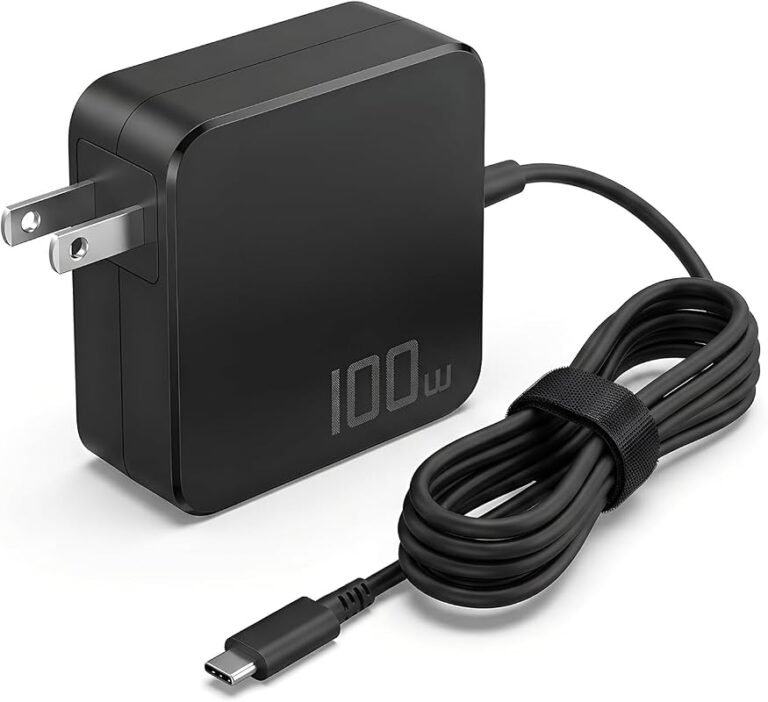
6 Best Docking Stations Under $100 for Computer and Laptop Accessories
Affiliate disclosure: As an Amazon Associate, Gadget Makers Blog may earn from qualifying purchases. This does not change the price you pay.
If you are shopping for a best docking station under $100, the tricky part is sorting out what actually matters for your desk setup. Some docks focus on dual monitors, others lean into extra USB ports, Ethernet, card readers, or stronger laptop charging support.
This guide compares six budget-friendly docking stations for computer and laptop accessories, with a focus on practical compatibility notes, display support, port selection, and value for everyday work-from-home, student, and office use.
The best docking station under $100 for most buyers is the HP USB-C Docking Station for its low price, triple-display support, and broad everyday accessory connectivity, but the right pick still depends on your laptop’s USB-C video support and monitor setup.
Quick Product Comparison
| Product | Image | Best For | Check Price |
|---|---|---|---|
| 1. HP USB-C Docking Station | 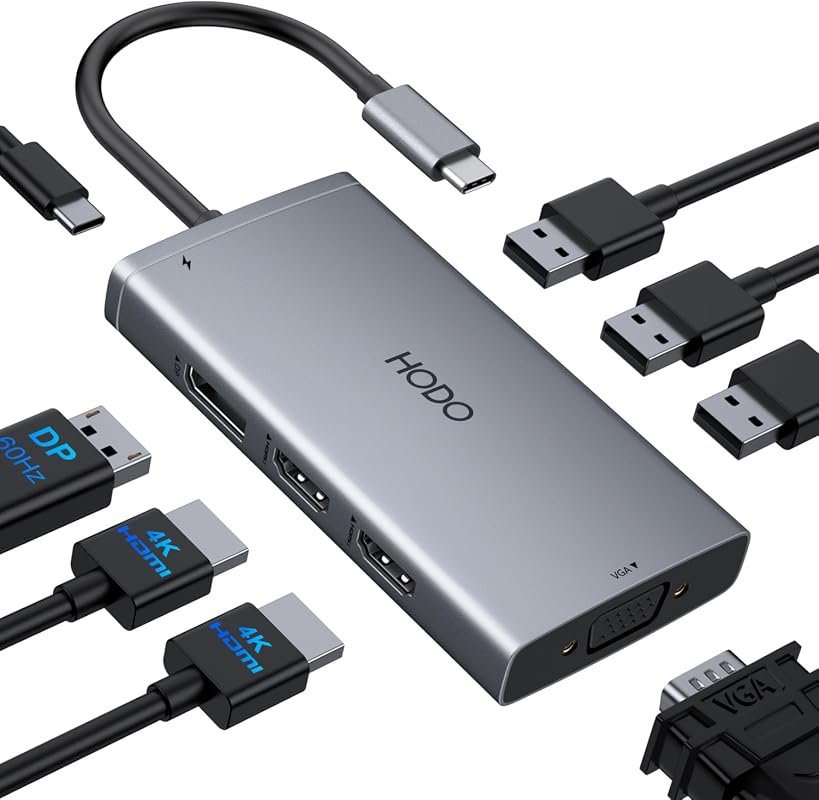 | Affordable triple-display desk setups | Check Price |
| 2. USB-C Laptop Docking Station | 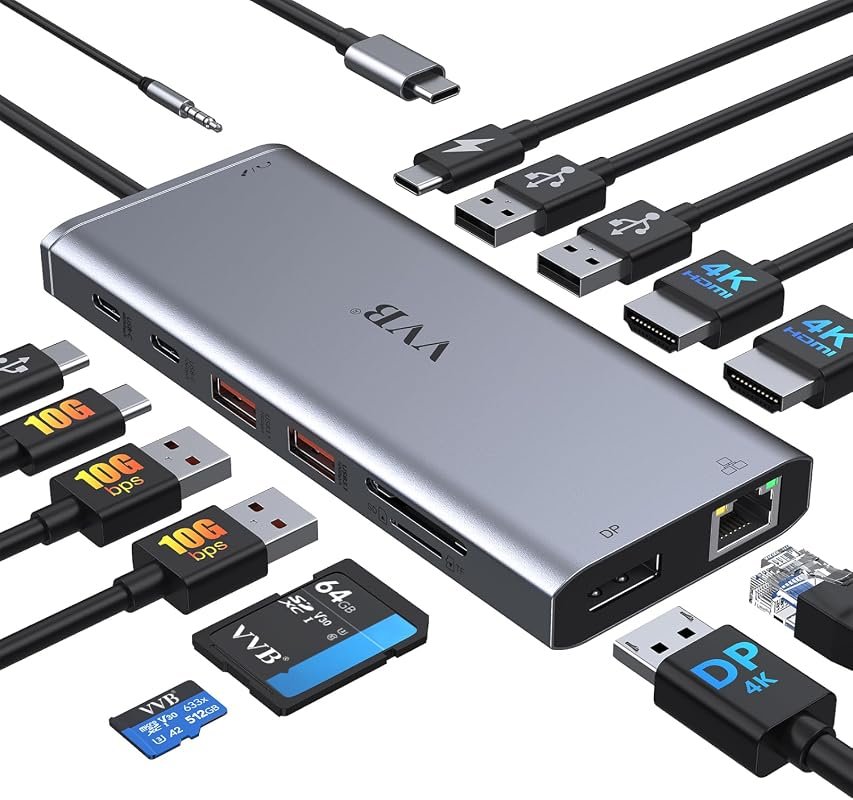 | Feature-rich dual-monitor workstations | Check Price |
| 3. Acer 13-in-1 Docking Station | 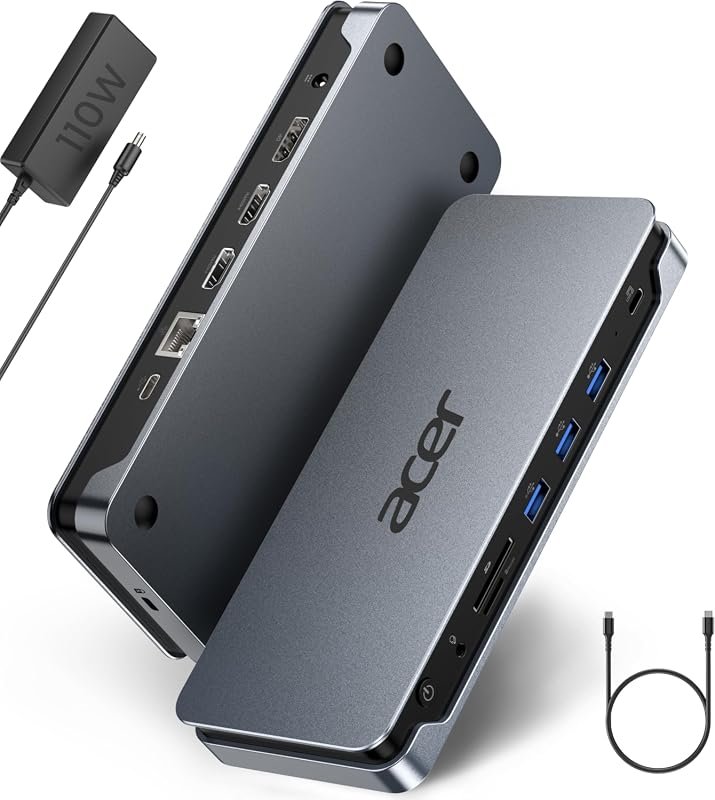 | Premium-leaning all-in-one expansion | Check Price |
| 4. USB-C Docking Station for Dual Monitors | 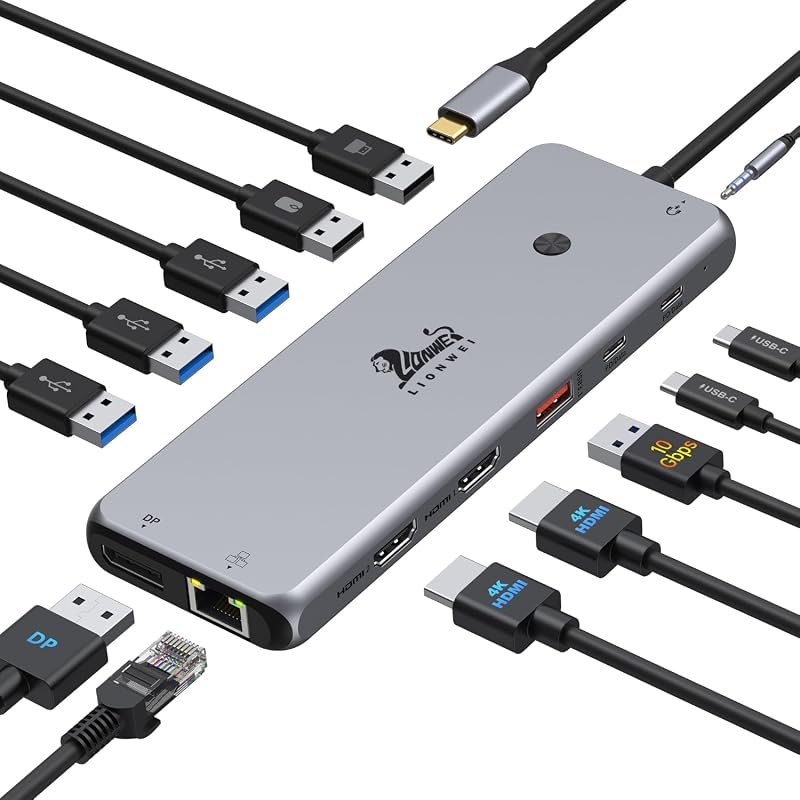 | High-port-count office setups | Check Price |
| 5. UGREEN USB-C Docking Station | 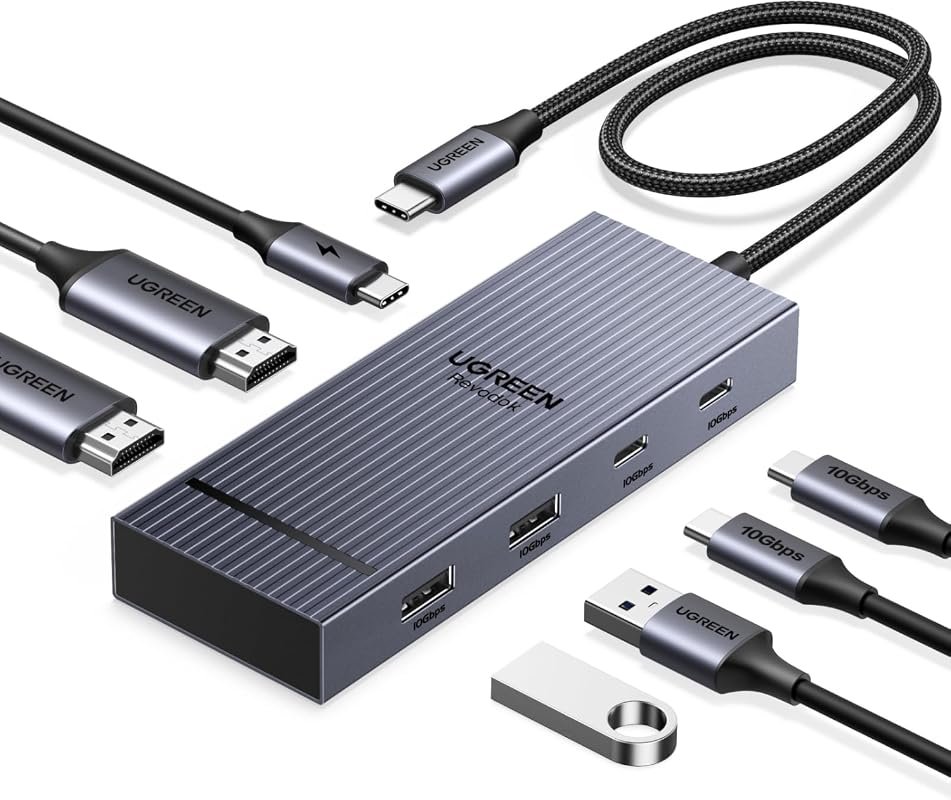 | Compact dual-4K setups | Check Price |
| 6. USB-C Docking Station for Dual Monitors | 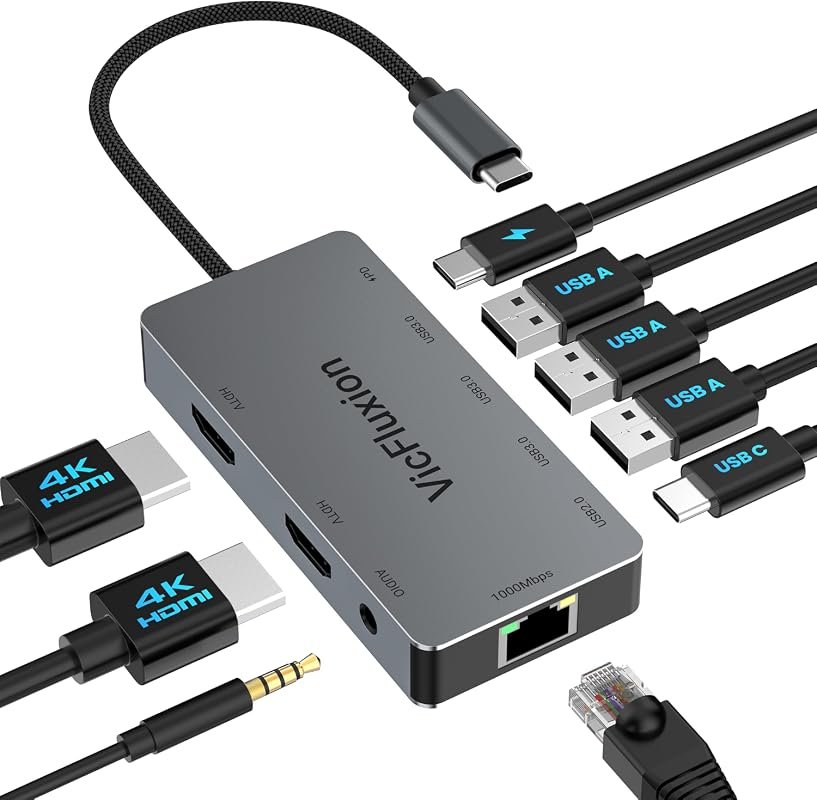 | Simple universal desktop expansion | Check Price |
What to Look for in the Best Docking Station Under $100
Display support that matches your laptop
Start with the monitor setup you actually need. Some docks support dual displays, while others add triple-display options, but the final result depends on your laptop’s USB-C video output support and operating system behavior.
Port mix for your accessories
Look for the ports you will use daily: USB-A for keyboard and mouse, USB-C for newer peripherals, Ethernet for a wired connection, and audio or card readers if your workflow needs them. More ports only help if they match your devices.
Charging support and power expectations
Many budget docks advertise USB-C Power Delivery, but the charger, cable, and laptop all need to support it. If you rely on dock charging, verify the required adapter wattage and whether the power brick is included.
Operating system limitations
Windows, macOS, ChromeOS, Linux, and Android can behave differently with external displays. Several of these docks note that macOS often mirrors displays or limits extended mode, so check that detail before buying.
Video standards and resolution claims
Monitor resolution depends on the dock, the laptop, the cable, and the source signal. If a listing mentions DP1.4 or MST, confirm your laptop supports it before expecting dual 4K or triple-screen output.
Desk setup and cable management
A dock should simplify your workspace, not add clutter. Aluminum bodies, integrated Ethernet, and a single-host connection can help keep a desk cleaner, especially for home office and student setups.
- Check your laptop’s exact USB-C port capabilities before ordering, especially whether it supports video output and power delivery.
- Match your monitor count to the dock’s supported display mode on your operating system, not just the number of video ports.
- Use the manufacturer’s recommended charger and cable when dock charging is part of your setup.
Our Top 6 Best Docking Station Under $100 Picks and Reviews
1. HP USB-C Docking Station for Dual Monitors, Triple Display Laptop Hub
This HP USB-C dock is one of the most affordable options in this roundup, and it combines multiple display outputs with everyday accessory ports. Its low price and broad feature set make it a strong starting point for budget desk setups.
Key Features That Stand Out
- 8-in-1 layout with dual HDMI, DisplayPort, VGA, three USB 2.0 ports, and a USB-C charging port.
- Supports dual or triple display output, with resolution notes that vary by port combination and laptop support.
- 100W USB-C PD charging port with a note that a 65W or higher adapter is recommended for charging use.
- USB 2.0 ports are positioned for keyboard, mouse, and flash drive connections.
- Compatibility depends on a full-featured USB-C port with DisplayPort Alternate Mode support.
Why It Stands Out
For shoppers who want a low-cost dock that still covers monitors, charging, and basic peripherals, this model offers a practical mix. It is especially appealing if you need a budget hub for office accessories and are willing to check compatibility carefully first.
Best For
Pros and Cons
- Very low price for a dock with multiple display outputs.
- Includes basic USB ports plus charging support.
- Useful for simple home office accessory setups.
- MacOS external display behavior is limited to mirrored screens.
- Compatibility depends on full-featured USB-C video support.
- Resolution can drop when VGA is used.
2. USB-C Laptop Docking Station for Dual Monitors, HDMI Multiport Hub Adapter
This 14-in-1 dock is built for users who want a more complete desktop hub. It adds dual HDMI, DisplayPort, Ethernet, card readers, audio, and multiple USB speeds, making it a versatile option for mixed accessory needs.
Key Features That Stand Out
- 14 ports including dual HDMI, DisplayPort, Ethernet, SD/Micro SD, audio, USB-A, and USB-C.
- Supports dual and triple display modes on Windows, with resolution behavior listed for each output combination.
- USB-A 3.1 ports are rated up to 10Gbps for faster file transfers.
- Includes a 100W USB-C Power Delivery port with safe output limited to 87W.
- Compatibility notes mention Thunderbolt 3/4/5 and USB-C devices with video output support.
Why It Stands Out
This is a strong pick if you want more than a basic monitor dock. The mix of video outputs, wired networking, storage access, and faster data ports makes it suitable for a busier workstation.
Best For
Pros and Cons
- Wide port selection for office accessories and storage.
- Useful wired Ethernet and audio support.
- Good fit for Windows dual-monitor setups.
- MacBook external monitor behavior is limited to the same image.
- Not every USB-C device is compatible with HDMI or DP output.
- Some users may not need all 14 ports.
3. Acer 13-in-1 USB-C Laptop Docking Station with 3-Display Support, 2 HDMI, 1 DP
At the top of the budget range, this Acer dock stands out because it bundles a power adapter and a wide spread of ports. That makes it appealing for buyers who want a more complete all-in-one setup without piecing together extra accessories.
Key Features That Stand Out
- 13-in-1 design with 2 HDMI ports, 1 DisplayPort, USB-C, USB-A, Ethernet, AUX, and SD/TF reader.
- Three-display support for Windows laptops via MST technology, with triple 4K @ 30Hz noted for compatible systems.
- Includes an original 110W power adapter.
- Rear USB-C port is data-only and does not support video output or monitor power supply.
- Aluminum body and integrated security slot are included for desk use.
Why It Stands Out
This dock is the most complete-feeling option in the group because it includes a power adapter and a broad port lineup. It is a sensible choice for buyers who want a single purchase to cover displays, data, audio, and networking.
Best For
Pros and Cons
- Includes a power adapter in the box.
- Strong variety of ports for a full workstation.
- Security slot may help with desk setups in shared spaces.
- Highest price in this roundup.
- Triple 4K depends on host GPU and DSC support.
- MacOS display behavior is limited to mirroring.
4. USB-C Docking Station for Dual Monitors, 4K HDMI 13-in-1 Hub for Laptop
This 13-in-1 dock is aimed at users who want lots of connectivity in one device. It combines dual HDMI, DisplayPort, high-speed USB, Ethernet, and audio in a setup that suits a busy desk or shared workstation.
Key Features That Stand Out
- 13-in-1 layout with 2 HDMI, DisplayPort, USB-C ports, USB-A ports, audio, and Ethernet.
- Dual and triple display support is listed for Windows systems, with macOS limited to one extended monitor.
- USB-C 3.1 ports support 10Gb/s data transfer and 100W PD charging input.
- Gigabit Ethernet and 3.5mm audio/mic jack support office and media use.
- 18-month warranty is listed by the brand.
Why It Stands Out
This model is a good fit for buyers who want a lot of connectivity without moving into a much higher price bracket. It is especially practical if you need multiple USB ports alongside monitor support.
Best For
Pros and Cons
- Large mix of ports for peripherals and displays.
- Good fit for Windows multi-monitor work.
- Includes a stated warranty period.
- MacOS extended display support is limited.
- Charging output is lower than the input rating after dock power use.
- Not the cheapest option in the list.
5. UGREEN USB-C Docking Station for Dual Monitors, 7-in-1 Aluminum Dock with 2 HDMI
The UGREEN dock keeps the design smaller while still offering dual HDMI and fast USB connectivity. It is a strong match for buyers who want a compact desk accessory rather than a larger full-size hub.
Key Features That Stand Out
- 7-in-1 layout with 2 HDMI, 2 USB-A 10Gbps ports, 2 USB-C 10Gbps ports, and 100W charging transfer.
- Dual HDMI supports 4K@60Hz output when the laptop supports DP1.4.
- USB ports are built for data transfer and peripheral use, not charging or video.
- PD 100W charging requires a 100W+ charger, which is not included.
- Windows supports extended dual-screen use; macOS is limited to mirror mode.
Why It Stands Out
This is a clean option for shoppers who want a simpler dock with strong dual-monitor support and faster USB ports. It trims the extras while keeping the features many desk users care about most.
Best For
Pros and Cons
- Compact feature set with dual HDMI and fast USB.
- Good choice for tidy desks and travel-friendly setups.
- Dual 4K output support is listed for compatible laptops.
- No charger is included.
- macOS external displays are mirrored only.
- DP1.4 support is required for full video behavior.
6. USB-C Docking Station for Dual Monitors, Multiport Adapter with 2 HDMI
This dock focuses on straightforward expansion with a practical port mix. It is a solid pick for buyers who want a simple dual-monitor adapter with Ethernet and multiple USB ports for everyday accessories.
Key Features That Stand Out
- 9-port expansion with 2 HDMI, Ethernet, 3 USB-A 3.0 ports, USB-C 2.0, audio, and PD input.
- Each HDMI output supports up to 4K@60Hz for a dual-monitor setup.
- Compatible with macOS, Windows, Linux, ChromeOS, and Android, with macOS mirror-mode limitations.
- Three USB-A 3.0 ports support peripherals and storage devices up to 5Gbps.
- Up to 100W USB-C PD input with up to 90W charging to the laptop, depending on usage.
Why It Stands Out
This is a practical choice for shoppers who want a broad compatibility claim and a simple set of essential ports. It is less complex than some larger hubs, which may appeal to users who do not need card readers or extra video outputs.
Best For
Pros and Cons
- Broad OS compatibility is listed.
- Good mix of core desk ports for office use.
- Simple design may suit clutter-free setups.
- No charger is included.
- macOS is limited to mirror mode for dual displays.
- Charging output may vary by connected device and workload.
If your laptop USB-C port does not support video output or power delivery, a dock may still connect accessories but may not drive external monitors or charge as expected. Verify your laptop’s port type, operating system behavior, and charger requirements before ordering.
Complete Roundup for Best Docking Station Under $100
Best for simple desk upgrades, with fewer ports and basic monitor support for buyers who mainly need core accessories and one or two displays.
Best for most home office users, balancing stronger port variety, dual-monitor support, Ethernet, and more reliable everyday connectivity.
Best for buyers wanting the fullest port mix, bundled power accessories, and broader workstation expansion while staying under the $100 ceiling.
- Match the dock to your laptop’s USB-C video and charging capabilities before you buy.
- Choose the display layout you actually need, not just the highest port count.
- Use the recommended power adapter and cable when the listing says one is required.
- Do not assume every USB-C port supports monitor output.
- Do not expect macOS to behave like Windows on multi-display docks.
- Do not rely on a dock for charging if the listing says the charger is not included.
- Check whether your monitor needs HDMI, DisplayPort, or both before choosing a dock.
- If you use Ethernet, pick a dock that clearly lists gigabit networking.
- For students and hybrid workers, a compact dock can be easier to move between desk and bag.
Before buying, verify your laptop model, operating system, and USB-C port features on the manufacturer page or manual. If your device does not support DisplayPort Alternate Mode or Power Delivery, dock behavior may be limited.
- HP USB-C Docking Station: best low-cost pick for basic multi-monitor desk expansion.
- USB-C Laptop Docking Station: best if you want more ports and stronger workstation flexibility.
- Acer 13-in-1 Docking Station: best value for buyers who want an included power adapter and broad expansion.
- USB-C Docking Station for Dual Monitors: best for a high-port-count office hub.
- UGREEN USB-C Docking Station: best compact option for dual 4K-style setups.
- USB-C Docking Station with 2 HDMI: best straightforward pick with broad OS compatibility.
- Reminder: confirm monitor support, charger needs, and macOS or Windows display behavior before you order.
Frequently Asked Questions About Best Docking Station Under $100
Check whether your laptop’s USB-C port supports video output and power delivery. That detail determines whether the dock can drive monitors and charge your device as expected.
Yes, several budget docks in this roundup support dual displays. The catch is that resolution and mirror or extend behavior depend on your laptop, operating system, and the dock’s video standard.
Some will, but macOS often has display limitations with multi-monitor docks. Several of these listings note mirror mode only or limited extended display support, so check the product page carefully.
Often yes. Some listings include a power adapter, while others require you to supply your own charger and cable, especially for Power Delivery use.
Not necessarily. A dock is only useful if the ports match your monitor, storage, networking, and peripheral needs, so a simpler model can be the better buy.
Verify the dock’s output limit, your laptop’s GPU and USB-C support, and the monitor cable you plan to use. The final resolution depends on the whole chain, not just the dock.
If you want the simplest recommendation, start with the HP USB-C Docking Station for value or the Acer 13-in-1 if you want a more complete workstation package. Both cover the core needs many shoppers look for in a budget dock, but they suit different budgets and desk setups.
For most people, the best docking station under $100 is the one that matches your laptop’s USB-C behavior, your monitor count, and your accessory list. If you verify those details first, you are much more likely to end up with a dock that fits your workspace instead of creating new compatibility issues.
This roundup is based only on the supplied product data: titles, price text, ratings, review counts, feature bullets, images, and affiliate links. Because no verified first-hand testing evidence is available, the recommendations use evidence-based editorial language and focus on visible specifications, compatibility notes, and value signals. When a technical detail was not supplied, readers should verify it on the current Amazon listing, manufacturer page, or product manual before purchasing.