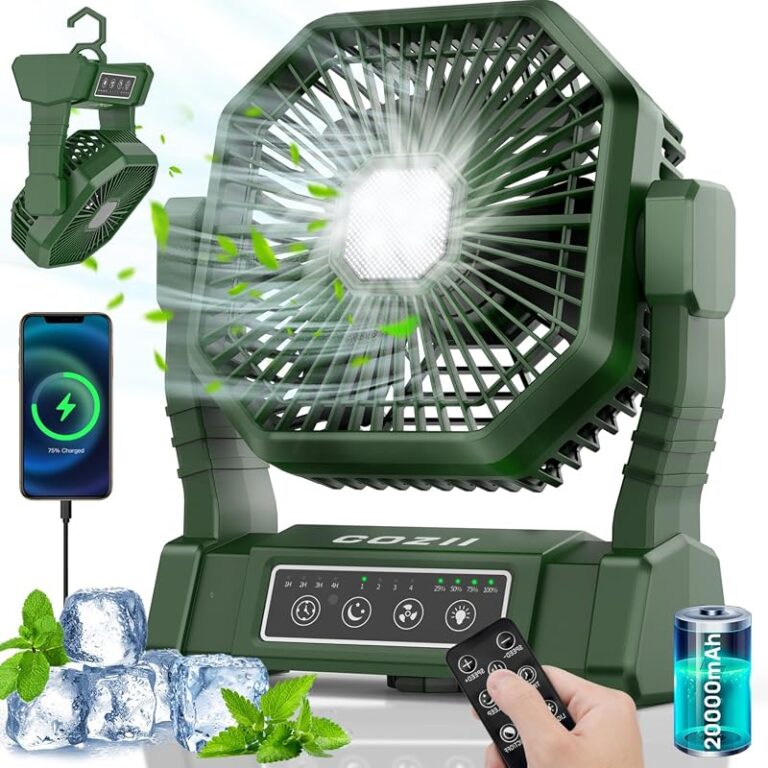
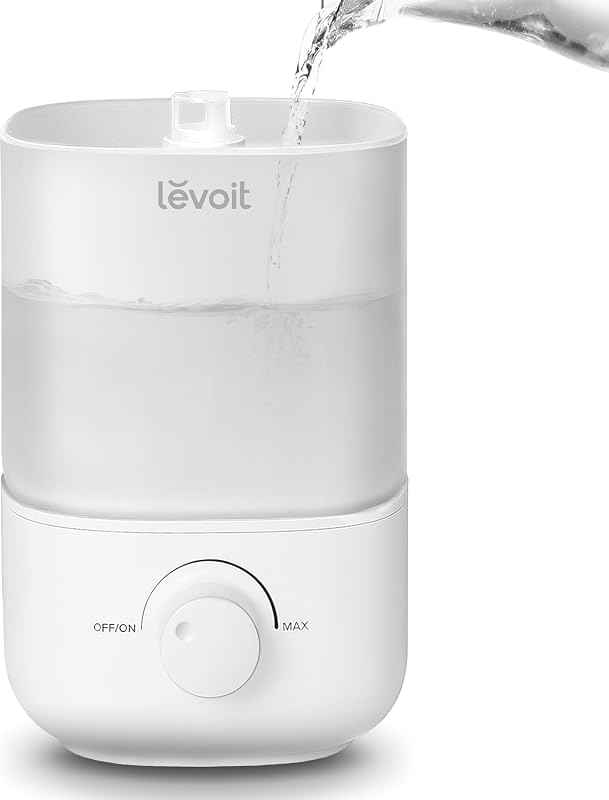
Best Computer Fan USB Adapter for Quiet Cooling
A computer fan USB adapter is best for small, 5V-compatible fans that need simple, quiet cooling from a USB source. It is not the right choice for high-power cooling systems or fans that need special control features.
A computer fan USB adapter is a simple way to power a small cooling fan from a USB port instead of a wall outlet or internal PC header. It makes the most sense when you want quiet, low-cost airflow for a desk setup, mini PC, router, or other compact electronics without adding a full cooling system.
- Match voltage first: A 5V USB source only works safely with fans designed for that power range.
- Check the connector: The adapter must fit both the fan side and the USB power side.
- Quiet cooling is placement-dependent: Mounting, cable routing, and vibration control matter as much as the adapter.
- Use a stable power source: A powered hub or wall charger is often more reliable than a computer port.
Best Computer Fan USB Adapter for Quiet Cooling: Quick Answer and What It Solves
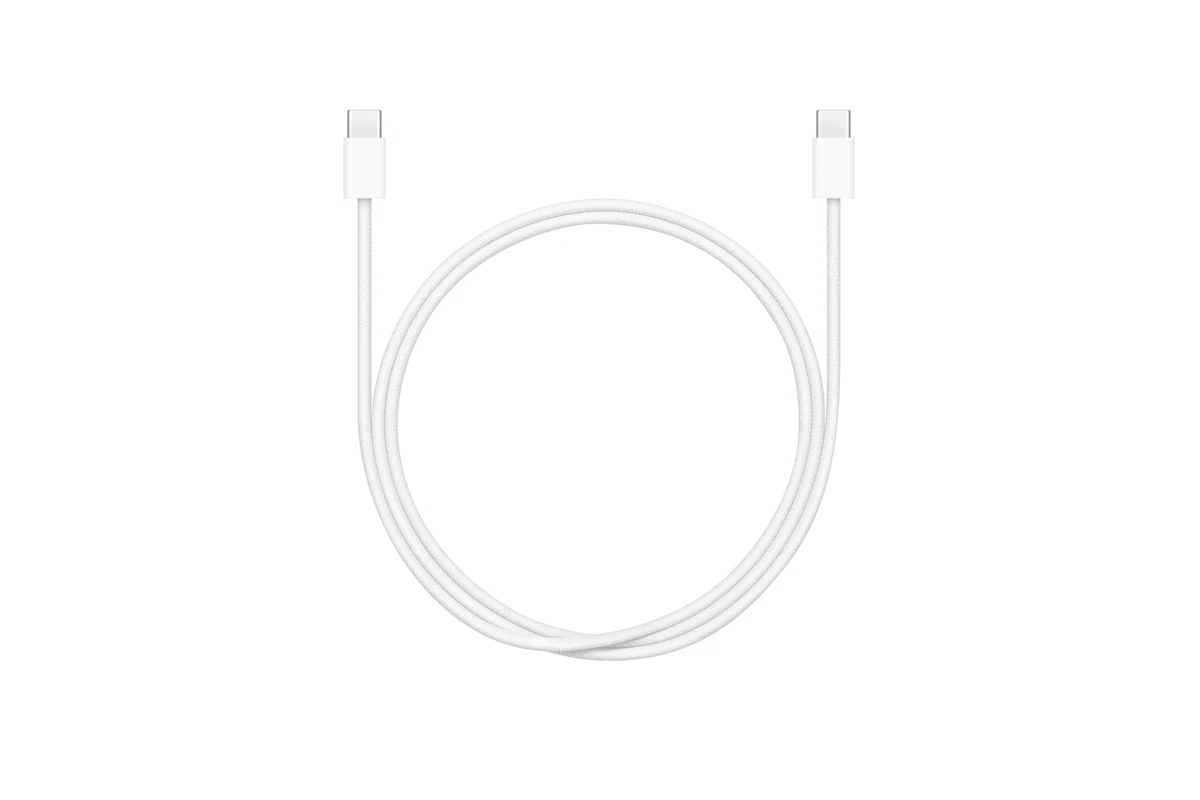
The best choice is usually a USB adapter that matches your fan’s voltage, current draw, and connector type without forcing the fan to run beyond its safe range. For most buyers, the goal is not maximum airflow; it is steady, quiet cooling with a cable that is long enough, durable enough, and simple enough to route cleanly.
This accessory solves a common problem: many small fans are sold with bare leads, header plugs, or mixed connector options, while many people only have USB power available nearby. A good adapter bridges that gap, but the right one depends on the fan’s electrical requirements and where you plan to place it.
How a Computer Fan USB Adapter Works and When It Makes Sense
At a basic level, the adapter converts USB power into a connection a fan can use. In practice, that means the adapter must supply the correct voltage and enough current while keeping the wiring simple and safe.
USB Power Basics, Voltage Match, and Fan Speed Limits
Most USB ports provide 5V power, which is why many small DC fans can be run from USB if they are rated for 5V. If a fan expects a different voltage, the adapter alone will not make it compatible, and forcing a mismatch can lead to weak airflow, unreliable startup, or damage.
Fan speed is also tied to voltage and current. A fan powered from USB may run more slowly than it would in a different setup, which can be a benefit if your main goal is quieter operation rather than maximum cooling.
Many low-noise cooling setups rely on lower fan speed rather than a more powerful motor, because slower airflow often reduces both vibration and audible blade noise.
What Types of Fans and Devices It Can Support
A USB adapter can work with many small DC fans, but only if the connector and electrical rating match. That includes some desk fans, case fans used in DIY projects, router cooling fans, and small enclosure fans, though exact compatibility varies by model.
It is less suitable for high-power cooling hardware or anything that requires precise motherboard control, temperature-based fan curves, or proprietary connectors. If your device depends on the computer’s internal fan header logic, a USB adapter may remove useful control features.
Who Should Buy a USB Adapter for a Computer Fan in 2026
This accessory is best for people who want a compact, flexible cooling option and already have a suitable fan. It is especially useful when a wall outlet is inconvenient, when you want to free up a power strip, or when the fan only needs modest power.
Best Use Cases for Desktops, Mini PCs, Routers, and DIY Cooling
Desktop users often choose USB-powered fans for spot cooling around a hot area, such as a desk shelf, external drive enclosure, or a cramped corner with limited airflow. Mini PC owners may use one to improve ventilation around a compact system that sits close to a wall or monitor stand.
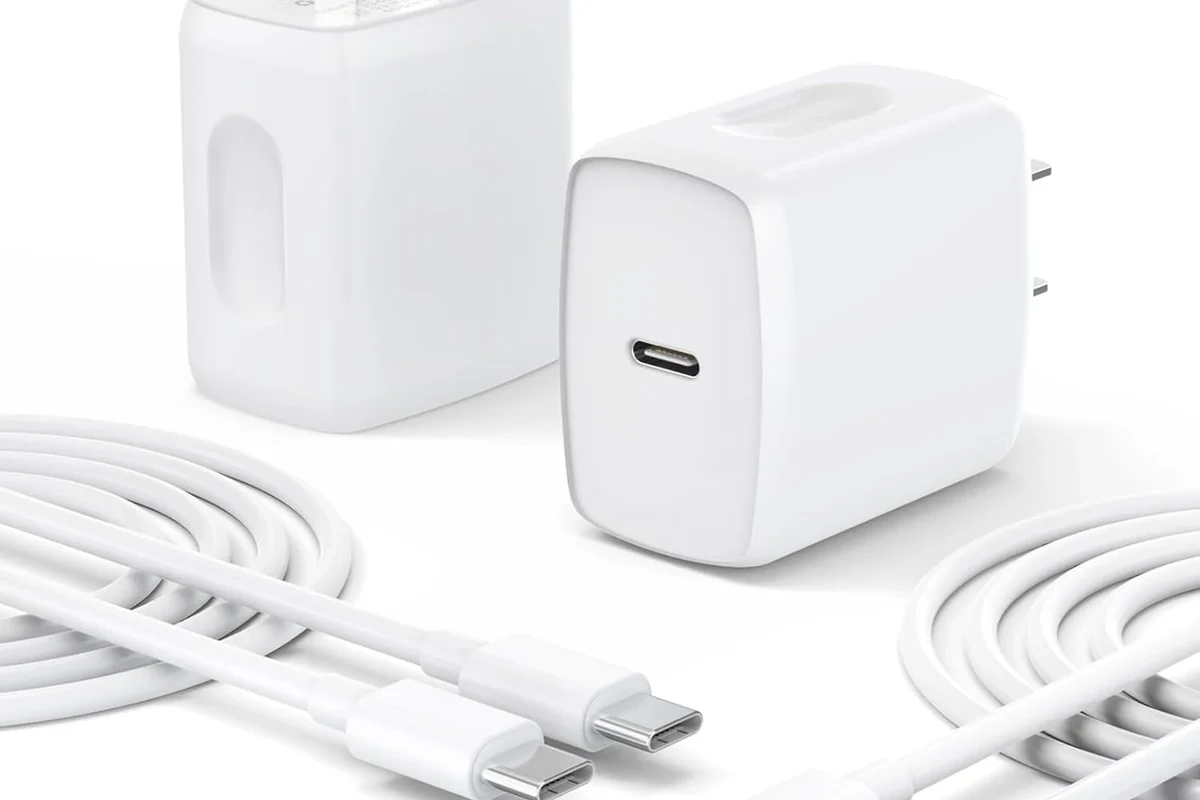
Router and networking gear can also benefit from gentle airflow, especially in warm rooms or enclosed cabinets. DIY users may like the simplicity of USB power because it makes temporary testing, portable cooling, and small enclosure projects easier to manage. If you are building a broader setup, it can help to pair the cooling plan with a reliable power source such as one of these USB-C wall chargers or a multi-port USB-C charger when the adapter supports the needed output.
Who Should Skip It and Consider a Different Cooling Option
If you need serious thermal control for a gaming PC, workstation, or high-heat appliance, a USB adapter is usually not the right tool. Those systems often need larger fans, better airflow management, or hardware designed specifically for the load.
You should also skip it if your fan requires a special connector, PWM control, or a voltage that USB cannot provide. In those cases, a direct replacement fan, a proper fan controller, or a purpose-built cooling accessory is the safer and more effective choice.
Key Specs to Compare Before You Buy
The most important comparison points are electrical compatibility, connector quality, and how the cable fits your space. Small differences in build and routing can make the difference between a clean, quiet setup and one that rattles, loosens, or underperforms.
Connector Type, Cable Length, Build Quality, and Port Compatibility
Check whether the adapter uses USB-A, USB-C, or another plug on the power side, and verify what fan connector it accepts on the other end. Some adapters are simple two-wire solutions, while others include inline switches, speed controls, or multiple connector options.
Cable length matters more than many buyers expect. Too short, and the fan ends up in a poor placement; too long, and you may need to manage extra slack. Look for strain relief, a flexible jacket, and a connector that fits securely without wobble.
USB-C ports and chargers can behave differently depending on the device, cable, and power profile. If you plan to use a USB-C power source, confirm that the port can supply steady 5V output and that the adapter is designed for it.
Rated Wattage, Current Draw, and Heat Safety
Fan adapters should be matched to the fan’s current draw, not guessed. If the fan demands more current than the USB source can supply, the fan may fail to start, run inconsistently, or cause the port or adapter to warm up more than expected.
Check the manufacturer’s specifications for the fan and the adapter, and keep an eye on heat during early use. Warm is one thing; hot, discolored, or unstable equipment is a reason to stop and inspect the setup.
Stop using any adapter, cable, or fan that shows fraying, melted plastic, bent pins, repeated disconnects, or unusual heat. Follow the manufacturer’s guidance and replace damaged parts instead of trying to force continued use.
Noise Level, Speed Control, and Mounting Fit
Quiet cooling depends on both the fan and the way it is mounted. A soft vibration pad, stable bracket, or proper enclosure fit can reduce rattling more effectively than a more expensive adapter alone.
If the adapter includes speed control, that can help tune noise, but only if the fan remains stable at lower settings. Some fans stall when underpowered, so lower speed is not always better if it compromises airflow or startup reliability.
How to Choose the Right Computer Fan USB Adapter for Your Setup
The right pick is the one that matches your fan’s power needs, your cable-routing limits, and your preferred source of USB power. A little planning here prevents most of the common problems people run into after purchase.
Matching 5V USB Power to Fan Requirements
Start with the fan label or product page and confirm the rated voltage and amperage. If it is a 5V fan, a USB adapter is often a straightforward fit; if it is not, you should look for a different power method.
When the fan has a wide operating range, check whether the adapter supports stable output under load. That is especially relevant for long cables, hubs, or shared charging stations where power delivery may vary.
- Check the fan’s voltage, amperage, and connector type
- Confirm USB-A or USB-C compatibility on the power side
- Verify cable length, strain relief, and mounting fit
- Review warranty terms, return policy, and any safety notes from the manufacturer
Checking Cable Quality, Strain Relief, and Reversible Plugs
Good cable quality matters because fan setups often sit in one place for long periods. A weak cable can loosen at the connector, pick up noise from movement, or wear out faster if it is bent sharply behind a desk or cabinet.
Reversible USB-C plugs can make setup easier in tight spaces, but only if the adapter is truly designed for the port and power level you need. For general charging and power planning around your desk, it can also help to compare a few budget USB-C charger options if you want a simple, low-cost power source.
When a USB Hub, Wall Adapter, or Powered Port Is Better
A powered USB hub can be useful when you want several small accessories running from one station, but it should be properly rated and from a reputable source. A wall adapter may be the better choice if the fan will run continuously and you want to keep laptop or monitor ports free.
If you are using a computer port, remember that some ports can sleep, shut off, or limit output depending on the device and power settings. For uninterrupted cooling, a dedicated wall-powered source is often more dependable than a port that may turn off with the host system.
Setup Guide: Installing a USB Adapter for Quiet Cooling
Installation is usually simple, but placement and cable routing matter as much as the connection itself. The goal is to create steady airflow without adding rattles, blocked intake, or unnecessary cable strain.
Step-by-Step Connection and Placement Tips
Check the fan label or manual for voltage and current before connecting anything.
Use a USB port or charger that can provide the needed power without strain.
Aim for unobstructed intake and exhaust, and avoid pressing the fan directly against soft surfaces.
Route the cord so it does not tug on the connector or sit where it can be pinched.
Common Setup Mistakes That Cause Weak Cooling or Extra Noise
One common mistake is using a fan that is too powerful for the USB source, which can lead to poor startup or unstable operation. Another is mounting the fan in a way that blocks airflow or causes the housing to vibrate against a shelf, case, or wall.
Loose connectors can also create intermittent operation that sounds like the fan is failing when the real problem is the connection. If the fan hums, clicks, or cuts in and out, inspect the cable path and power source before assuming the fan itself is bad.
Safety, Maintenance, and Troubleshooting
USB fan adapters are low-risk compared with larger electrical gear, but they still deserve basic inspection and care. Small cooling accessories often run for long hours, so wear, dust, and poor power matching can show up gradually.
Safe Use Limits, Overheating Checks, and Inspection Guidance
Use only the power level the fan and adapter are designed for, and do not stack questionable extension cables or adapters just to reach a farther outlet. If the fan or cable becomes unusually warm, unplug it and check the specifications before trying again.
Stop using damaged electronics, frayed cables, swollen battery packs, overheating chargers, or unstable mounting hardware and follow the manufacturer’s guidance.
Cleaning, Storage, Replacement Signs, and Cable Care
Dust buildup can reduce airflow and increase noise, so clean the fan blades and grille according to the manufacturer’s instructions. If the adapter is stored between uses, coil the cable loosely rather than wrapping it tightly around the plug.
Replacement is worth considering when the connector feels loose, the cable jacket cracks, or the fan starts needing repeated nudges to spin up. Those are signs that the setup is no longer dependable for long-term use.
Fixing Loose Connections, Underpowered Fans, and Intermittent Operation
If a fan runs weakly, first verify the power source and the fan’s current requirement. A weak port, overloaded hub, or underpowered charger may be the real issue rather than the adapter itself.
For intermittent operation, check both ends of the cable and try a different verified USB source. If the fan still cuts out, the problem may be the fan motor, the connector, or a cable with internal wear.
Final Recommendation: Best Value vs Best Reliability for 2026 Buyers
The best value is a simple, well-matched USB adapter from a reputable seller that clearly lists voltage, current, connector type, and cable length. The best reliability usually comes from the same kind of adapter, but paired with a stable power source and a fan that is comfortably within the adapter’s rated limits.
Transparent Verdict, Trade-Offs, and the Ideal Buyer Profile
If you want quiet, flexible cooling for a small desktop area, router shelf, mini PC, or DIY enclosure, a computer fan USB adapter is a practical buy. If you need high airflow, precise fan control, or long-term cooling for a demanding system, choose a purpose-built cooling solution instead.
Buyers who want simple, low-noise, low-power cooling and can verify that the fan, cable, and USB source are fully compatible.
A computer fan USB adapter is a smart, low-cost accessory when the fan is 5V-compatible and the setup is meant for gentle cooling rather than heavy thermal management. Choose a different option if the fan’s power needs, connector type, or airflow demands do not line up cleanly with USB power.
Frequently Asked Questions
It lets a compatible small fan run from USB power instead of an internal header or wall outlet. It is best for light cooling, desk setups, routers, and DIY projects.
Check the fan’s voltage, current draw, and connector type in the manual or product listing. A 5V fan is the most likely to work, but you should still verify the exact specs.
It can, if the fan runs at a lower speed or in a gentler cooling setup. The adapter itself does not reduce noise much; the fan design, mounting, and airflow path matter more.
It can be safe when the fan and adapter are correctly matched and the USB source can supply enough power. Stop using the setup if the cable, adapter, or fan becomes unusually hot or unstable.
A wall charger or powered hub is often better for continuous use because it can provide steadier power. A computer port may sleep or shut off depending on the device settings.
Confirm the fan’s voltage and current, the adapter’s connector type, cable length, and whether the USB source is compatible. Also check warranty terms, return policy, and any safety notes from the manufacturer.