Does Amazon Smart Plug Have a Mac Address Explained
If you’re asking, “does Amazon smart plug have a MAC address,” the short answer is yes: like most Wi‑Fi devices, it uses a MAC address for network identification. You usually won’t need it for everyday Alexa control, but it can matter for router setup, device filtering, and troubleshooting.
- Network ID: The MAC address identifies the plug on your Wi‑Fi network.
- Where to look: Check the label, box, or Alexa app device details first.
- Setup note: Many smart plugs rely on 2.4 GHz Wi‑Fi, so verify router compatibility.
- Best use: It fits simple appliances like lamps and fans better than advanced smart-home needs.
- Safety first: Stop using any plug that shows heat, damage, or unstable power behavior.
Does Amazon Smart Plug Have a MAC Address? Quick Answer and What It Means
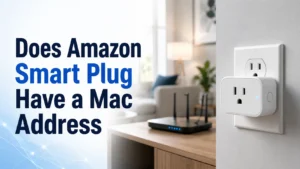
The Amazon Smart Plug is a Wi‑Fi device, and Wi‑Fi devices are identified on a network by a MAC address. That address is a unique hardware identifier used by your router and other network tools to recognize the plug separately from your phone, speaker, or laptop.
For most people, the MAC address stays in the background. You may only need it if you are naming devices in your router, checking which device connected to your network, assigning a reserved IP address, or diagnosing a setup issue.
How the Amazon Smart Plug Works on Wi-Fi and Alexa
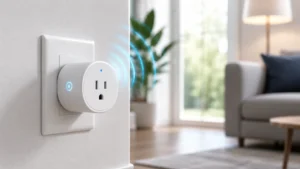
The Amazon Smart Plug connects to your home Wi‑Fi and then links to the Alexa app, which lets you control it with voice commands, schedules, and routines. In normal use, the plug acts like a remote on/off switch for a lamp, fan, coffee maker, or another supported appliance.
Because it is a networked device, your router sees it as its own client on the network. That is where the MAC address comes in: it helps the router distinguish the plug from every other connected device, even if the plug’s name changes in the Alexa app.
Why a MAC Address Matters for Setup, Network Identification, and Troubleshooting
A MAC address can be useful in a few practical situations. If your router supports device lists, parental controls, guest network rules, or DHCP reservations, the MAC address helps you identify the plug and keep its network settings consistent.
It also helps when a setup problem is caused by the router rather than the plug. For example, if the device appears in the Alexa app but not in your router list, or if it keeps dropping offline, the MAC address can help you confirm whether the plug is actually connected to the correct network.
Where to Find the MAC Address on an Amazon Smart Plug
The exact location can vary by packaging, retailer, and firmware version, so the MAC address may not always be printed in the same place. If you need it, start with the device label, then check the box and the Alexa app.
Check the Device Label, Packaging, or Alexa App Device Details
Many smart home devices include a sticker with identifiers on the plug itself or on the packaging. Look for a label that lists serial information, a model number, or a MAC-like hardware address. If the physical label is unclear, open the Alexa app and check the device details page, where some network and device information may appear depending on the app version and region.
If you are setting up a new plug, keep the box and paperwork until the device is fully connected. That makes it easier to find identifiers later if your router or smart home app asks for them.
What to Do If the MAC Address Is Not Visible
If the MAC address is not printed anywhere obvious, do not try to open the plug or modify it. Use the Alexa app, your router’s connected-device list, or the official support documentation instead.
In some cases, a router will still show the plug under a generic name like an unknown Wi‑Fi client. If that happens, you may be able to match it by temporarily unplugging the device and seeing which entry disappears, then reconnecting it and confirming the match.
Amazon Smart Plug Specs That Matter in 2026
Smart plug specifications can vary by region and product revision, so confirm the current listing before buying or replacing one. The most important details are the power rating, Wi‑Fi requirements, app compatibility, and whether the plug physically fits the outlet and nearby devices.
Dimensions, Power Rating, Connectivity Requirements, and App Compatibility
For a smart plug, footprint matters as much as features. A bulky design can block the second outlet on a duplex receptacle, especially in tight spaces behind furniture, so check the plug’s size and orientation before relying on it in a crowded outlet strip or wall socket.
Connectivity is also important. Amazon Smart Plug models are designed for 2.4 GHz Wi‑Fi and Alexa app integration, which means they may not work the way you expect if your router is set up in a way that hides or restricts 2.4 GHz devices. If you use a mesh system or a combined network name, verify that the plug can join the network reliably before installing it in a hard-to-reach spot.
Warranty, Supported Routers, and Smart Home Ecosystem Limits to Verify
Warranty terms, router support, and ecosystem features can change, so it is smart to check the current Amazon product page and support documentation before you buy. If you rely on Google Home, Apple Home, or another platform, verify whether the plug’s current firmware and integrations meet your needs rather than assuming every Alexa accessory works the same way everywhere.
For buyers comparing smart home devices, it can also help to read related compatibility guides such as smart lights with Google Home and smart lights for home to understand how platform support can differ by device type.
Who the Amazon Smart Plug Fits Best
This plug is best for people who want simple on/off control without a complicated setup. It is especially appealing if your home already uses Alexa and you want one app, one voice assistant, and basic scheduling in the same place.
Best Use Cases for Lamps, Fans, Coffee Makers, and Other Simple Appliances
Amazon Smart Plug works best with devices that simply turn on when power is supplied and turn off when power is cut. Lamps, small fans, holiday lighting, and some coffee makers are common examples, as long as the appliance’s power draw stays within the manufacturer’s limits and the appliance is safe to control this way.
It is also a practical fit for renters, students, and remote workers who want a low-friction way to automate everyday routines. A bedside lamp, desk light, or morning coffee schedule can be easier to manage when the plug is tied to Alexa routines.
When a Different Smart Plug Is the Better Choice
Choose a different smart plug if you need advanced energy monitoring, broader smart home compatibility, or a more compact shape for crowded outlets. Some third-party plugs also offer more flexible platform support, local automation options, or detailed usage data that Amazon’s simpler approach may not provide.
If you are comparing smart-home purchases more broadly, a buying mindset similar to choosing a phone accessory applies: verify the exact fit, platform support, and feature set instead of assuming every model is interchangeable. That same logic comes up in topics like whether an iPhone 11 has wireless charging and other compatibility checks.
Benefits, Limitations, and Common Setup Mistakes
The main appeal of the Amazon Smart Plug is convenience. The main downside is that simple convenience can be limited by network setup, outlet space, and the type of appliance you want to control.
Easy Voice Control, Scheduling, and Remote Access
With Alexa, you can turn the plug on or off by voice, set schedules, and build routines around time of day or other Alexa triggers. That makes it useful for lights, seasonal decorations, and other repetitive tasks where you want predictable control without reaching for a switch.
Remote access is another advantage. If the plug stays connected to Wi‑Fi and the Alexa app, you can check or change its status when you are away from home, which is handy for routine control and peace of mind.
Common Problems: 2.4 GHz Wi-Fi, Outlet Clearance, and Device Compatibility
One of the most common setup issues is Wi‑Fi band mismatch. Many smart plugs require 2.4 GHz networks, so a router that pushes devices to 5 GHz only, hides the 2.4 GHz name, or uses strict band steering can create setup problems.
Another frequent issue is physical clearance. A smart plug may cover a second outlet or collide with a power strip, wall plate, or nearby cable. Finally, not every appliance is suitable for smart-plug control, especially devices that need constant power, have sensitive electronics, or should not be switched off remotely.
- Set up the plug close to your router first, then move it to its final location after it connects reliably.
- Use clear device names in Alexa so voice commands are easy to understand.
- Check your router’s connected-device list if the plug seems offline in the app.
- Leave space around the outlet for ventilation and cord routing.
Safe Use, Maintenance, and Long-Term Reliability
Smart plugs are simple devices, but they still need basic care to stay reliable. Heat, dust, loose outlets, and overloaded appliances can all shorten the life of the plug or create safety problems.
Heat, Load Limits, Inspection, Cleaning, and Replacement Guidance
Always follow the official load limits and usage instructions for the exact model you own. If the plug feels unusually warm, the outlet is loose, or the connected device causes flickering or intermittent power, stop using it and inspect the setup before continuing.
Cleaning should stay gentle and dry. Unplug the device first, wipe the exterior with a dry or slightly damp cloth if the manufacturer allows it, and never expose the plug to water, spray, or cleaning fluids that could enter the housing.
Storage Tips and When to Stop Using the Plug
If you store the plug seasonally, keep it in a dry place with the cord and connected appliance removed. Avoid wrapping cords tightly around the device, and keep the original packaging or manual if you want an easy reference for setup later.
Stop using the plug if you notice cracking, burn marks, persistent disconnects, bent prongs, or any sign that the device is no longer switching power cleanly. Replacing a questionable smart plug is safer than trying to keep it in service.
Final Verdict: Is the Amazon Smart Plug Worth It for Your Smart Home?
For most Alexa users, the Amazon Smart Plug is worth considering because it is easy to set up, simple to control, and practical for everyday appliances. The MAC address is there for network identification, but it is usually a background detail unless you are managing router settings or troubleshooting a connection problem.
If you want a straightforward smart plug for lamps, fans, and routine automation, it is a sensible choice. If you need more advanced energy monitoring, more platform flexibility, or a tighter fit in crowded outlets, compare it with other smart plugs before deciding.
Choose the Amazon Smart Plug if you want a simple Alexa-first device and do not need advanced networking features beyond basic device identification. Consider an alternative if your router setup is unusual, your outlet space is tight, or you need broader smart home compatibility.
Frequently Asked Questions
Yes. Like other Wi‑Fi devices, the Amazon Smart Plug uses a MAC address for network identification. You usually only need it for router management or troubleshooting.
Check the device label, packaging, or the Alexa app’s device details page. The exact location can vary by model, firmware, and app version.
It can help with router device lists, DHCP reservations, and identifying which device is connected. It is also useful when troubleshooting a setup or connection issue.
Use the Alexa app, router client list, or the official setup guide instead of opening or modifying the device. If needed, contact Amazon support for model-specific help.
Many smart plugs, including Amazon Smart Plug models, are designed for 2.4 GHz Wi‑Fi. Always confirm the current official specifications before setup.
It is best for simple on/off devices such as lamps, fans, and some coffee makers, as long as they meet the plug’s rated load and safety guidance. Avoid using it with devices that should not lose power unexpectedly.