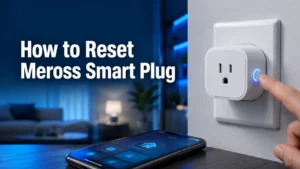
How to Reset Meross Smart Plug in Easy Steps
How to Reset a Meross Smart Plug
Reset your Meross plug safely, reconnect it to 2.4 GHz Wi-Fi, and fix common pairing problems with this clear step-by-step guide.
Press & HoldReset method
2.4 GHzSetup network
Re-addIn Meross app
StopIf heat damaged
Quick AnswerHold the Meross smart plug’s button until the indicator enters reset or pairing mode, then add it again in the Meross app. If it still will not connect, check the Wi‑Fi band, router settings, and the plug’s safety condition before trying again.
If you need to learn how to reset a Meross smart plug, the fastest method is usually a button press-and-hold until the indicator starts blinking in the reset pattern shown in the manual. After that, you can add the plug back in the Meross app and reconnect it to your home Wi‑Fi or voice assistant.Key Takeaways
- Reset first: Use the physical button and watch for the model’s pairing blink pattern.
- Check Wi‑Fi: Many setups require a stable 2.4 GHz network during pairing.
- Re-add in app: Resetting only works if you complete setup again in the Meross app.
- Watch for damage: Heat, cracks, or burning smells mean stop using the plug.
How to Reset a Meross Smart Plug: Quick Answer and When You Need It
Source: static.vecteezy.com
Most important decision pointUse a reset when the plug must be re-paired; use a power cycle only for temporary glitches.
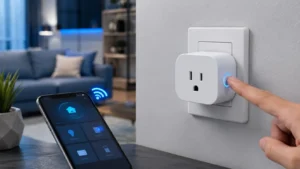
Meross Smart Plug Basics: How the Reset Process Works
Source: static.vecteezy.com
Soft Reset vs. Factory Reset
A soft reset is often just a restart or power cycle. It can help if the plug is frozen or briefly unresponsive, but it usually does not erase the saved Wi‑Fi setup.A factory reset, by contrast, removes the plug’s pairing information so you can add it again as a new device. If the plug is being transferred to another household, a factory reset is the safer choice because it disconnects your account-based setup from the device.What the Indicator Light Tells You
The LED indicator is one of the easiest ways to confirm what the plug is doing. On many smart plugs, a steady light means the device has power, while a blinking pattern often means setup mode, pairing mode, or a connection problem.Did You Know?Many smart plugs use the LED to communicate status because it is the fastest way to confirm whether the device is waiting for Wi‑Fi setup or already connected.
Before You Reset: App, Wi‑Fi, and Safety Checks
Before you start pressing buttons, make sure you have the right app access and the right network conditions. That can save time and prevent repeated setup failures.Before You Reset or Re-Pair
- Confirm the exact Meross model and check the manual for its reset method
- Make sure you can sign in to the Meross app account linked to the device
- Verify your Wi‑Fi is 2.4 GHz if the model requires it
- Keep the plug plugged into a safe, dry indoor outlet
- Have your router password ready before starting setup again
Meross App Requirements and Account Access
Most Meross plugs are managed through the Meross app, so you need access to the same account that originally set up the device if you want to keep the existing smart-home connections organized. If you no longer have access to that account, you may need to remove the device from the old account first or follow the manufacturer’s account recovery guidance.Also check that your phone’s operating system and the app version are current enough for setup. App behavior can vary by version, so if pairing menus look different from a tutorial, trust the current in-app prompts and the official support instructions.2.4 GHz Wi‑Fi, Router Settings, and Power Safety
Many smart plugs, including a lot of Meross models, rely on 2.4 GHz Wi‑Fi during setup. If your router combines 2.4 GHz and 5 GHz under one network name, the plug may still work, but some households need to separate the bands temporarily during pairing.Router features such as guest networks, hidden SSIDs, strict firewall rules, or MAC filtering can also interfere with setup. If the plug keeps failing to connect, confirm that the router is broadcasting normally and that the device is being added to the correct home network.Safety NoteOnly reset the plug in a dry indoor location and only within its rated use conditions. If the plug, outlet, cord, or connected appliance shows heat damage, fraying, melting, or burning smells, stop using it and follow the manufacturer’s safety guidance.
Step-by-Step Guide to Resetting a Meross Smart Plug
The exact reset sequence can vary by model, but the general process is similar across many Meross smart plugs. If your unit has a single control button, that button is usually the one used for reset and pairing.1
Keep the plug connected to powerLeave the plug inserted into a working outlet so the status light can show the reset state.
2
Press and hold the control buttonHold the button until the indicator changes to the reset or pairing blink pattern described in your manual.
3
Release and wait for the new statusOnce the light starts blinking as expected, let go and give the plug a moment to finish entering setup mode.
4
Add the plug again in the appOpen the Meross app and follow the pairing prompts to reconnect the device to Wi‑Fi.
Standard Button Reset Method
For most users, the standard method is the best place to start because it is simple and does not require special tools. Press and hold the button long enough for the indicator to switch into pairing mode, then wait for the app to detect it again.If the plug is still linked to your account but not responding, you may need to remove it from the app before re-adding it. That helps avoid duplicate device entries and confusion when you later reconnect Alexa or Google Home.When the Plug Is Unresponsive or Offline
If the plug seems frozen, first unplug the appliance connected to it and make sure the outlet itself works. Then try a full power cycle by removing the plug from the wall for a short period and reconnecting it before attempting the reset again.If it still does not respond, the issue may be network-related rather than device-related. In that case, check the router, verify the app login, and confirm you are using the correct device model instructions rather than a generic smart plug guide.How to Set Up the Plug Again After Reset
Once the plug is back in pairing mode, setup is usually straightforward. The goal is to reconnect it to Wi‑Fi first, then restore any voice assistant or automation links you want to keep using.Pairing in the Meross App
Open the Meross app, choose the option to add a new device, and follow the on-screen prompts. You will usually need to select your home Wi‑Fi network and enter the password so the plug can join the network again.Keep the phone close to the plug and router during setup. If pairing stalls, move closer to the router, confirm you are on the correct 2.4 GHz network, and retry once before changing more settings.Connecting to Alexa, Google Home, or Apple Home
After the plug is reconnected in the Meross app, you can relink it to your preferred smart-home platform if the model supports that ecosystem. If the assistant still shows the old offline device, remove the stale entry and rediscover the plug.For broader smart-home planning, it helps to review compatible device categories before you build routines. If you are expanding your setup, our guides on smart lights for home automation and Alexa-compatible lighting setups can help you think through platform compatibility.Common Problems After Reset and How to Fix Them
Most post-reset issues come from setup conditions, not the reset itself. The most common fixes are usually simple: verify the Wi‑Fi band, restart the router, and make sure the app is current.Pairing Failures, Wrong Wi‑Fi Band, and App Sync Issues
If pairing fails repeatedly, confirm that the phone is on the same home network you want the plug to join. Some routers make this confusing by showing multiple network names or by steering devices between bands automatically.App sync issues can happen when the plug is added successfully but the smart-home platform has not refreshed yet. In that case, wait a few minutes, refresh the app, and then try rediscovery in the assistant app.Practical TipIf a smart plug keeps failing to pair, temporarily disable VPNs, hotspot mode, and guest network features on the phone or router during setup. Those settings often interfere with local device discovery.
Power Cycling, Firmware, and Router Interference
A simple restart of the plug, router, and phone can solve temporary discovery problems. If the device still will not connect, check whether a firmware update is available in the Meross app once the plug is online again.Router interference may also come from weak signal strength, heavy network congestion, or placement near thick walls and metal surfaces. Smart plugs usually do best when the router signal is stable and the device is not tucked behind dense furniture or electrical noise sources.For related power and device-safety reading, see our guide on whether budget chargers are safe to use and our explanation of multi-port charger safety if you are organizing a larger connected-home setup with shared outlets.Who a Meross Smart Plug Fits Best in 2026
Meross smart plugs generally make sense for people who want straightforward app control, scheduling, and voice-assistant convenience without a complicated installation. They are especially useful in apartments, dorm rooms, home offices, and small homes where you want to automate lamps, fans, coffee makers, or seasonal decor within the plug’s rated limits.Ideal Use Cases for Smart Home Automation
These plugs are a practical fit for remote workers who want to schedule desk lamps, travelers who want timed lighting, and pet owners who want to automate safe, low-power devices. They can also help with energy-saving routines by turning off equipment that does not need to run all day.That said, smart plugs are best for simple on/off control. They are not a substitute for advanced power monitoring, dedicated appliance safety features, or a hardwired solution when the device requires one.Key Specs, Load Limits, and Compatibility to Verify
Before using any smart plug, verify the model’s supported voltage, maximum load, indoor/outdoor rating, and app compatibility in the current product listing or manual. Those details vary by model and region, and they matter for safety as much as convenience.Key Specs to Verify
If you are comparing smart-home gear beyond plugs, our guides to smart lights that work with Google Home and smart lights for Apple Home show how platform compatibility can shape the rest of your setup.Wi‑Fi bandCheck whether setup requires 2.4 GHz only
Load ratingConfirm the plug’s maximum supported wattage or amperage in the manual
Platform supportVerify Alexa, Google Home, or Apple Home support for your exact model
Use locationIndoor-only or weather-resistant rating, depending on the model
Maintenance, Safe Use, and Final Verdict
After you reset and reconnect the plug, the best way to avoid repeat problems is simple maintenance: keep the app updated, check the outlet occasionally, and avoid overloading the device. Dust, heat, and loose plugs can all shorten the life of small smart-home electronics.Care, Storage, Warranty Checks, and When to Replace the Plug
Store the plug in a dry place if you are not using it for a while, and avoid wrapping cords tightly around it. If the casing is cracked, the button feels unreliable, the plug overheats, or it disconnects constantly even after a proper reset, it may be time to replace it rather than keep troubleshooting.Warranty terms vary by region and seller, so check the manufacturer’s current support page and your purchase record before assuming you are covered. If the plug is still in warranty, follow the official return or replacement process instead of opening the device.Limitations, Value, and Recommendation
A Meross smart plug is a good value for users who want simple automation and app-based control, but only if they verify the exact model’s compatibility and power limits first. The reset process is usually easy, yet the most common problems come from Wi‑Fi setup, not from the plug itself.Final Verdict
If your Meross smart plug is offline, resetting it is usually the right next step before replacing it. Choose the reset-and-repair path if the hardware looks healthy; choose a replacement or manufacturer support if the plug shows heat damage, repeated disconnects, or failed pairing across multiple networks.
Best Upgrades After Meross Troubleshooting
| Product | Best for | Main advantage | Check availability |
|---|---|---|---|
| eero Max 7 | Weak or unstable Wi-Fi | Premium whole-home mesh coverage | Amazon |
| Echo Show 21 | Alexa smart homes | Large central control display | Amazon |
| Meross Power Strip | Replacing one failed plug | Multiple outlets plus USB-C | Amazon |
Frequently Asked Questions
How do I know my Meross smart plug is in reset mode?
The indicator light usually changes to a blinking pattern that signals pairing or setup mode. Check your exact model’s manual because the light behavior can vary.
Do I need the Meross app to reset the plug?
You can usually reset the plug with the physical button, but you will need the Meross app to set it up again. App access is also useful for removing old device entries and reconnecting smart-home services.
Why won’t my Meross plug connect after a reset?
The most common causes are using the wrong Wi‑Fi band, entering the wrong password, or having router settings that block setup. A router restart and a fresh pairing attempt often help.
Can I reset a Meross smart plug without losing my account?
A reset clears the plug’s pairing, not necessarily your Meross account. You may still need to sign in again or remove the old device entry from the app.
What should I check before resetting the plug?
Confirm the model number, app access, Wi‑Fi band, and safety condition of the plug and outlet. If the device shows heat damage, frayed parts, or a burning smell, stop using it.
When should I replace the plug instead of resetting it again?
Replace it if the plug repeatedly fails to pair, overheats, or disconnects even after a proper reset and router check. Repeated failures can indicate a hardware issue rather than a setup problem.