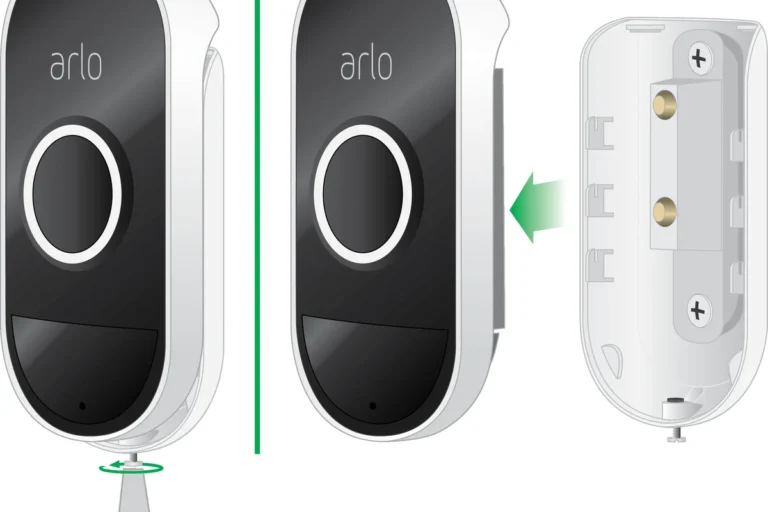
Security Camera Maintenance Tips for Better Protection
Security camera maintenance keeps your footage clearer, your alerts more reliable, and your hardware working longer. The safest routine is to inspect, clean, test, and update the camera on a regular schedule.
Security camera maintenance is mostly about keeping the lens clean, the connection stable, the power source healthy, and the app settings up to date. A simple routine can improve image quality, reduce false alerts, and help your camera stay reliable for longer.
- Clean gently: Use a microfiber cloth and the manufacturer’s approved method for the lens and housing.
- Check power and connection: Weak Wi‑Fi, low batteries, and damaged cables often cause the biggest problems.
- Test the full system: Confirm live view, motion alerts, night vision, and playback after maintenance.
- Match care to location: Outdoor cameras need weather and seal checks; indoor cameras need dust and glare control.
- Replace when needed: Swollen batteries, water damage, or repeated failures mean repair may not be worth it.
Security Camera Maintenance Tips for Better Protection: What to Do First
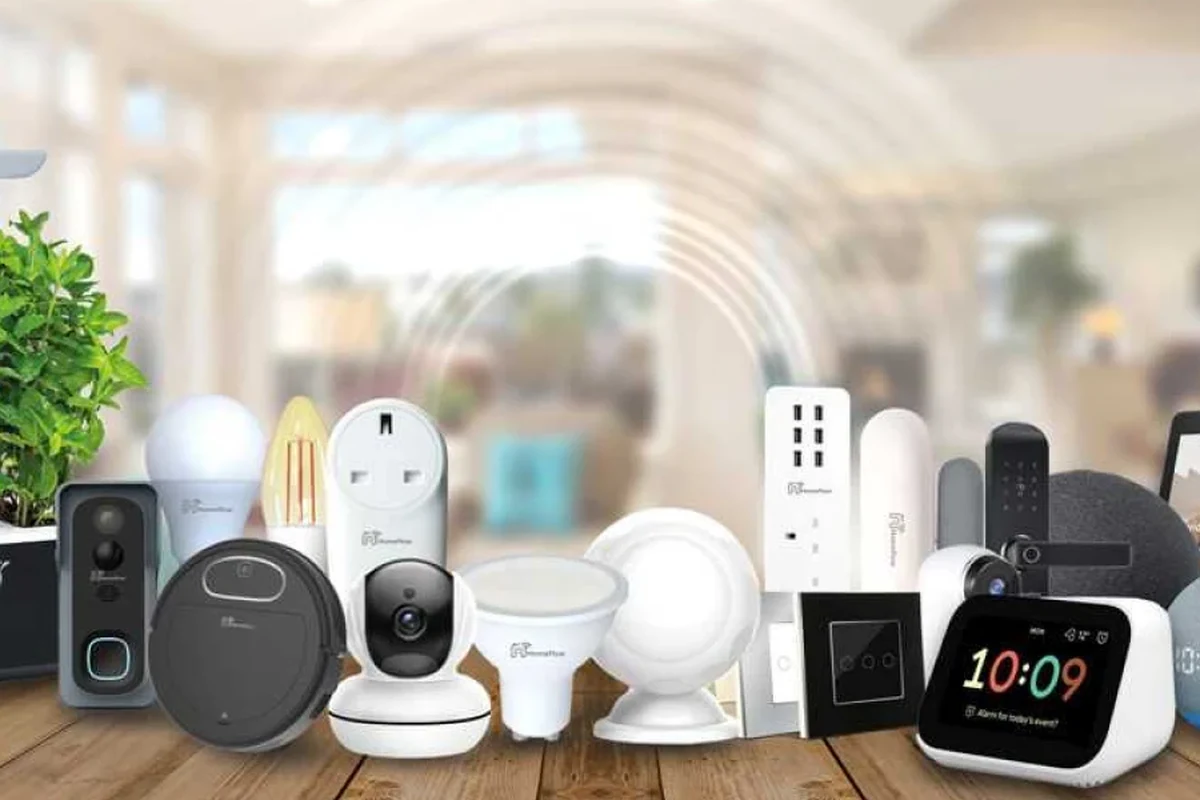
The fastest way to protect your system is to check the camera’s visibility, power, and alerts before you worry about deeper troubleshooting. If the feed looks blurry, notifications are inconsistent, or the unit is exposed to weather, start with inspection and cleaning rather than replacing the camera right away.
Quick answer: the core maintenance routine that keeps cameras reliable
Use a short cycle: inspect the camera, clean the lens and housing, confirm power and network strength, review storage, and test live view plus motion alerts. After that, update firmware and app permissions so the camera can keep recording and notifying as expected.
Who this guide is for in 2026: indoor, outdoor, wired, and wireless smart home cameras
This guide is for homeowners, renters, remote workers, pet owners, and anyone using smart home cameras for entryways, nurseries, garages, yards, or home offices. The maintenance basics are similar across models, but the exact steps vary by mounting style, battery design, app, and weather rating.
How Security Camera Maintenance Works and Why It Matters
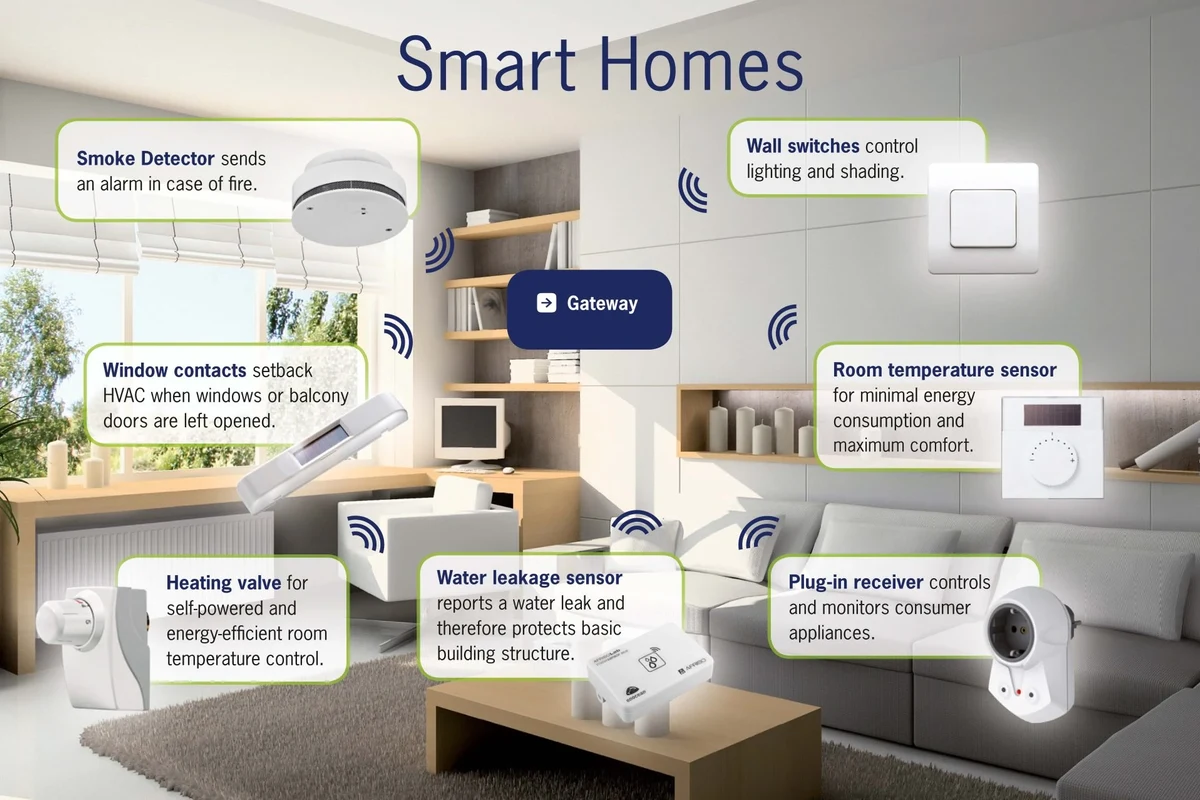
Security cameras fail in small ways first. Dust softens the image, weather can stain the housing, weak Wi‑Fi can delay alerts, storage can fill up, and outdated firmware can cause app or recording issues.
How dust, weather, Wi‑Fi, storage, and firmware affect performance
Dust and pollen can collect on the lens and around vents, which may reduce clarity or contribute to heat buildup. Outdoor units also face rain, UV exposure, insects, and temperature swings, while wireless models depend on battery health and a stable connection; if any of these weak points slip, the camera may still power on but perform poorly.
Real-world benefits: clearer footage, fewer false alerts, longer hardware life
Regular upkeep helps the camera see more clearly, especially at night when glare or grime can be more noticeable. It also reduces nuisance alerts from loose mounts, drifting motion zones, or unstable Wi‑Fi, and it can help the device last longer by limiting strain from heat, corrosion, and poor charging habits.
Limits of maintenance: when cleaning is not enough and replacement is smarter
Maintenance cannot fix a failing sensor, water damage, cracked housing, swollen battery, or a model that no longer receives updates. If the camera repeatedly drops offline, overheats, or produces unusable footage after basic care, replacement may be the safer and more cost-effective option.
Key Specs and Setup Details to Check Before You Maintain a Camera
Before cleaning or servicing a camera, check the model information and setup details so you do not damage seals, mounts, or electronics. This matters most for outdoor cameras, PoE systems, and battery-powered models with removable parts.
Dimensions, mounting height, and access points for safe cleaning
Know where the camera sits, how it is mounted, and whether the lens or housing can be reached safely from a ladder or step stool. If the camera is high, awkwardly angled, or mounted near sharp edges, plan a safer access method and avoid forcing the bracket.
Power source, rated wattage, cable quality, and weather resistance for powered models
For wired cameras, confirm the power source and use only the adapter or PoE setup recommended by the manufacturer. Check cable condition, connector fit, and any weather resistance claims before exposing the system to cleaning moisture or outdoor handling.
App requirements, connectivity type, storage method, and compatibility notes
Some cameras depend on a specific app, cloud plan, microSD card, NVR, or smart home platform. Before maintenance, verify how your model records video, what connection type it uses, and whether a firmware update or permission change could affect alerts or playback.
Warranty details and what maintenance actions may affect coverage
Warranty terms vary by brand and region, so review the manual before opening compartments or removing seals. Basic cleaning and routine inspection are usually fine, but water intrusion, unauthorized repairs, or non-approved accessories may affect coverage.
- Check the model number, app requirements, mounting style, storage method, and power source
- Confirm cleaning guidance, warranty limits, weather resistance, and update support
Step-by-Step Security Camera Maintenance Routine
A simple routine works better than occasional deep cleaning. Treat the camera like any other smart home device: inspect it, clean it carefully, test it, and then verify the software side.
Safe power-down and inspection before touching the device
Whenever possible, power down the camera through the app or disconnect it according to the manual before cleaning. Look for cracks, moisture, loose mounts, frayed cables, swollen batteries, or signs of overheating before you touch anything else.
Do not clean a powered camera with liquid, do not use damaged charging gear, and do not continue using a unit that shows swelling, burning smells, exposed wires, or visible water damage.
Cleaning the lens, housing, vents, and mounting bracket
Use a soft microfiber cloth for the lens and a dry or slightly damp cloth for the housing, following the manufacturer’s instructions. Avoid abrasive pads, strong solvents, and sprays that can leave residue on the lens or seep into seals and vents.
Clean from the top down so dust does not fall back onto the lens, and finish by checking that the camera angle has not shifted.
Checking cables, connectors, batteries, and charging hardware
Inspect power cords, Ethernet cables, charging ports, and battery contacts for wear or corrosion. Wireless models should be recharged before the battery drops too low for reliable recording, while wired units should have secure connectors and no pinched cable runs.
Testing motion alerts, live view, night vision, and recording playback
After cleaning, open the app and confirm that live view loads normally, motion alerts arrive on time, and recorded clips play back correctly. Test night vision in low light if the model includes it, because grime, glare, or a shifted angle can affect how well the camera sees after dark.
Updating firmware, app settings, and network permissions
Check for firmware updates in the official app and review notification permissions on your phone or tablet. If the camera is missing alerts or showing unstable video, confirm Wi‑Fi access, router placement, and any privacy settings that may block the feed.
Many camera issues that look like hardware failure are caused by weak Wi‑Fi, outdated app permissions, or a full storage card rather than a broken sensor.
Outdoor vs Indoor Camera Care: What Changes by Location
Where the camera lives changes what it needs. Outdoor units need weather and corrosion checks, while indoor cameras need dust control, glare management, and privacy-aware placement.
Outdoor maintenance for rain, heat, pollen, insects, and UV exposure
Outdoor cameras should be checked more often for dirt, spider webs, insect nests, and sun-faded housings. Make sure the mount is tight, the seals look intact, and the cable path does not collect water or hang where it can be pulled loose.
Indoor maintenance for dust buildup, glare, and privacy positioning
Indoor cameras usually need less weather-related care, but they still collect dust and can be affected by windows, lamps, mirrors, or moving curtains. Recheck the angle after cleaning so the camera captures the area you want without pointing at private spaces unnecessarily.
Wireless camera battery care, recharge timing, and safe replacement guidance
Battery-powered cameras work best when they are recharged before the battery runs critically low. Use only the recommended charger or replacement battery for your exact model, and stop using any battery that is swollen, damaged, or unusually hot.
Wired camera cable inspection and limits of safe use
Wired cameras need periodic inspection of the cable jacket, connectors, and strain relief points. If a cable is frayed, crushed, or repeatedly disconnecting, replace it with a compatible part instead of taping over the damage or forcing the connection.
- Outdoor cameras benefit from more frequent visual checks after storms, heavy pollen, or extreme heat.
- Indoor cameras should be re-aimed after furniture moves, seasonal lighting changes, or room rearrangements.
- Battery cameras last longer when they are not allowed to sit empty for long periods.
Common Mistakes That Reduce Security Camera Performance
Most camera problems come from small maintenance mistakes rather than major defects. Avoiding a few common errors can keep the system more dependable.
Using the wrong cleaning products or abrasive cloths
Glass cleaners, alcohol-heavy sprays, paper towels, and rough cloths can damage coatings or leave streaks on the lens. Stick to the cleaning method listed in the manual, and when in doubt, use the gentlest dry method first.
Ignoring weak Wi‑Fi, low battery warnings, and storage full alerts
A camera that is technically on but constantly buffering or missing clips is not protecting the home well. Pay attention to battery warnings, storage alerts, and connection drops so you can correct the issue before it affects an important event.
Overlooking loose mounts, corrosion, or heat buildup
A slightly loose mount can change the field of view enough to miss a doorway or driveway. Corrosion around connectors and heat trapped in a dirty housing can also shorten hardware life, especially in outdoor or enclosed installations.
Forgetting to verify night vision, timestamps, and notification settings
Night vision can look fine in daylight but fail when you need it most if the lens is dirty or the angle is off. Also confirm timestamps, motion zones, and notification settings after app updates so clips remain useful and easy to review.
Stop using damaged electronics, swollen batteries, frayed cables, overheating chargers, or unstable mounts and follow the manufacturer’s guidance.
Maintenance Schedule, Storage Tips, and When to Replace Parts
The best schedule is the one you can keep up with. A light weekly check, a deeper monthly review, and a seasonal outdoor inspection cover most smart home camera setups well.
Weekly, monthly, and seasonal checklists for smart home cameras
Weekly, glance at the live feed and notifications. Monthly, clean the lens and inspect mounts, power, and storage. Seasonally, check weather seals, cable routing, battery health, and app updates, especially after major temperature changes or storms.
- Weekly checks catch connection and alert problems early.
- Monthly cleaning keeps footage clearer and mounts more secure.
- Seasonal inspections help outdoor cameras survive weather and wear.
Safe storage for spare batteries, chargers, memory cards, and accessories
Store spare batteries and chargers in a cool, dry place away from direct sunlight and anything that could crush or puncture them. Keep memory cards and small accessories labeled so you can match them to the correct camera model later.
When to replace cables, mounts, batteries, or the entire camera
Replace accessories when they show wear, corrosion, instability, or repeated connection failures. If the camera no longer supports current app updates, cannot hold a charge, or has recurring image or recording problems after basic maintenance, replacement may be the better choice.
Signs that repair is no longer cost-effective
If repair requires special parts, expensive labor, or a workaround that still leaves the camera unreliable, it may not be worth continuing. That is especially true for older models that lack current security updates or have a mounting design that no longer fits your space.
| Maintenance Task | Best Time | Main Benefit |
|---|---|---|
| Quick visual check | Weekly | Catches alert, power, and angle issues early |
| Lens and housing cleaning | Monthly | Improves image clarity and reduces buildup |
| Outdoor seal and cable review | Seasonally | Helps prevent weather-related failures |
Best Value Advice and Final Recommendation for 2026 Buyers
Routine maintenance gives the best return for people who rely on cameras for entrances, deliveries, pets, kids, remote work, or general home monitoring. It is one of the simplest ways to improve reliability without replacing equipment too soon.
Which users benefit most from routine maintenance
Anyone who depends on clear footage and timely alerts benefits, but the impact is greatest for outdoor camera owners, battery-camera users, and households with multiple devices. These setups have more points of failure, so small checks make a bigger difference.
How maintenance affects long-term value, reliability, and peace of mind
Well-maintained cameras are more likely to deliver usable clips when you need them and less likely to fail because of avoidable issues like dirt, weak power, or bad settings. That makes the system feel more dependable without adding much time to your routine.
Final recommendation: the simplest upkeep plan for better protection
Keep it simple: inspect the camera, clean it gently, verify power and connectivity, test alerts and playback, and update the app and firmware on a regular schedule. For most smart home users, that routine is enough to keep security camera maintenance practical, safe, and effective.
Frequently Asked Questions
Check the live view and alerts weekly, clean the lens and inspect the mount monthly, and do a deeper outdoor review seasonally. Cameras exposed to weather, dust, or heavy use may need more frequent attention.
Power the camera down if the manual recommends it, then use a soft microfiber cloth and the cleaning method approved by the manufacturer. Avoid abrasive cloths, harsh sprays, and anything that could push liquid into seals or ports.
Missed alerts can come from weak Wi‑Fi, low battery, full storage, motion zones, or notification permissions in the app. Check those settings first before assuming the camera is failing.
Yes. Outdoor cameras need extra checks for weather seals, insects, corrosion, UV exposure, and cable routing, while indoor cameras usually need more dust control and glare management.
Replace it if the camera has a swollen battery, repeated overheating, water damage, a cracked housing, or recurring failures after basic maintenance. It is also worth replacing older models that no longer receive updates or cannot stay compatible with your app.
Confirm the model number, power source, storage method, app requirements, and warranty terms in the manual or official product page. That helps you avoid using the wrong charger, damaging seals, or voiding coverage.