

Best Charger for Two Laptops at Once: 4 Picks
Buy for the power split, not the headline
Start with a charger that documents enough output for both laptops at the same time. Compare the Anker Prime 200W at Amazon and Walmart below.
Affiliate disclosure: As an Amazon Associate I earn from qualifying purchases. We may also earn a commission from Walmart purchases through our links, at no additional cost to you.
The best charger for two laptops at once is one that meets both computers’ USB-C charging requirements simultaneously. A charger marked 100W may give that power to just one device. A model marked 200W may still limit individual ports or change its allocation when you connect a phone.
Our first shortlist choice is the Anker Prime 200W A2683 for two compatible laptops needing up to 100W each. The UGREEN 200W four-port model is another dual-100W option. The Anker Prime 250W adds a higher-power primary port, while the Satechi 165W fits a different requirement: up to 100W plus 60W.
Both laptops must support the charging connection.
Use the two-port allocation, not the single-port maximum.
Each connection has its own cable requirement.
Match model, condition and included accessories.
Quick comparison: four relevant choices
| Charger | Published power information | Who should compare it? | Buying choices |
|---|---|---|---|
| Anker Prime 200W, 6 Ports (A2683) | Two USB-C ports, up to 100W each; 200W total | Two laptops that each accept up to 100W USB-C PD | Check Amazon priceCheck Walmart price |
| UGREEN 200W 4-Port Laptop Charger | Manufacturer states 100W + 100W for two laptops | A four-port alternative with a documented dual-laptop claim | Search Amazon offersSearch Walmart offers |
| Anker Prime 250W, 6 Ports (A2345) | Up to 240W across two ports; C1 up to 140W, others up to 100W | An asymmetric setup needing a higher-power primary port | Check Amazon priceSearch Walmart offers |
| Satechi 165W USB-C 4-Port PD GaN Charger | Two-port allocation: up to 100W + 60W | One higher-power laptop plus a notebook comfortable with 60W | Check Amazon priceSearch Walmart offers |
Published maxima describe the manufacturer’s stated conditions. Check the exact port combination, operating mode and laptop input before buying. The Anker 200W Walmart button opens a verified product listing; the other Walmart buttons open searches.
Amazon vs Walmart: Anker Prime 200W price choice
Use model A2683 for the cross-store comparison. Avoid confusing it with an Anker 200W power bank, a 100W wall charger or the 250W station: similar brand names do not make them the same product.
| Store | Price and offer status | Open offer |
|---|---|---|
| Amazon | Current price not verified. Check the listing and selected seller. | Check Amazon price |
| Walmart | $69.99 USD Observed October 22, 2026 (Bangladesh time). Sold and shipped by AnkerDirect at the time checked. | Check Walmart price |
This is a dated Walmart price snapshot, not a live price feed. Prices, sellers, inventory and shipping can change. Confirm the final amount at checkout. We cannot name a lower-price winner without a comparable current Amazon offer.
How to make the price choice
Open both offers and confirm the model number, new or refurbished condition, seller, included power cord and return terms. Compare the total after shipping and any applicable tax. A coupon, membership benefit or delivery estimate can differ between shoppers. Use the offer shown to you, not a price from an old search result.
A charger-only offer can cost less than a cable bundle while costing more to finish your setup. List the cables you already own before comparing baskets. If you need two new laptop cables, include both. If one offer includes only a single cable, the second laptop still needs its own connection.
Choose the lower delivered price when the product and terms are genuinely comparable. If totals are close, an earlier usable delivery date or clearer return policy may matter more than a small difference. Do not choose a weaker charger simply to save a few dollars if its published split cannot cover your two laptops.
Our four charger picks
1. Anker Prime 200W, 6 Ports (A2683)

The Anker Prime A2683 is our first shortlist choice for a shared desk. Anker specifies 200W total output, four USB-C ports and two USB-A ports. Its support documentation lists up to 200W with two ports in use; the matching retailer listing describes two USB-C outputs at up to 100W each.
Best fit: two compatible USB-C notebooks with power requirements within that allocation. Tradeoff: adding more devices means sharing the same total budget, so check the port chart for the complete setup. Its single USB-C ceiling is 100W, which matters if a laptop needs more.
Compare model A2683 at both stores. The manufacturer page was sold out when checked, but that does not establish retailer stock. Use the store listing to confirm availability.
2. UGREEN 200W 4-Port Laptop Charger

UGREEN explicitly describes this four-port model as capable of powering two laptops at up to 100W per USB-C connection. It has three USB-C ports and one USB-A port, with a 200W combined ceiling. The separate 140W headline applies to single-port charging; do not read it as 140W for each laptop simultaneously.
Best fit: buyers seeking a four-port alternative to a larger desktop station. Tradeoff: UGREEN sells several products labeled 200W, so verify the four-port configuration and allocation chart. A six-port desktop unit or power bank is a different model.
Our retailer links here open product searches. Matching availability and a current retailer price have not been verified. Check the selected listing against the official product page before comparing offers.
3. Anker Prime 250W, 6 Ports (A2345)
The A2345 belongs on the shortlist when one laptop needs a higher-power primary connection. Anker lists USB-C1 at up to 140W and USB-C2, C3 and C4 at up to 100W individually. Its documentation specifies a two-port maximum of 240W and a total ceiling of 250W.
Best fit: a mixed-power workstation, after checking the exact port combination and power mode. Tradeoff: the 250W total is not a promise that any two selected ports each deliver 125W. The first USB-C port has a different ceiling from the others.
The model also has a display and charging controls. Those features can help you inspect the setup, but they do not increase a laptop’s supported input. The Walmart link opens a search; a matching current offer has not been confirmed.
4. Satechi 165W USB-C 4-Port PD GaN Charger
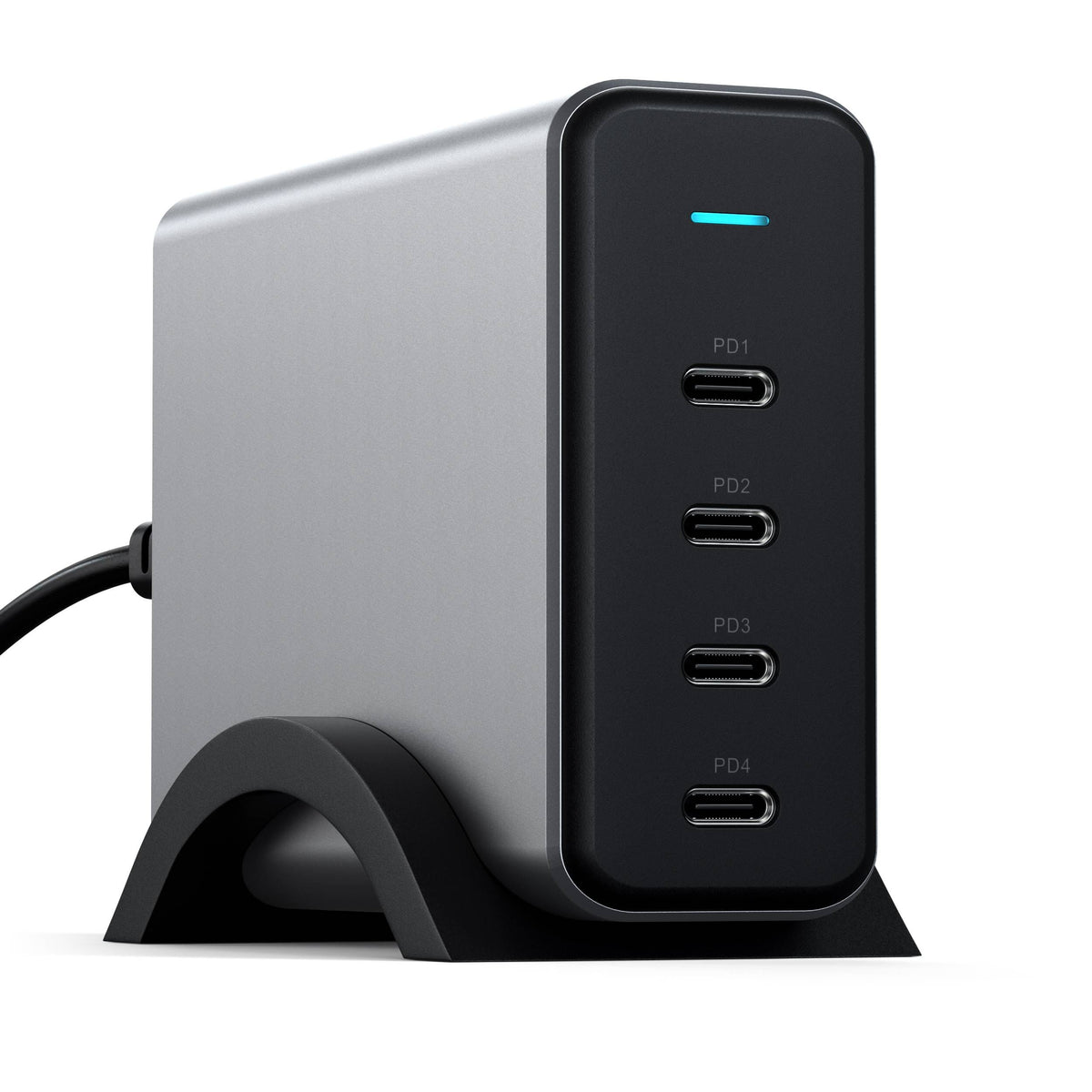
Satechi publishes a useful, specific two-device allocation: up to 100W plus 60W. This makes its four-USB-C-port charger a conditional choice for two laptops, rather than an equal substitute for dual 100W charging. The maximum total is 165W.
Best fit: a higher-demand notebook paired with a second laptop that works within 60W. Tradeoff: connecting three or four devices changes the distribution. Satechi lists 60W/60W/45W or 100W/30W/30W with three ports, and 60W/45W/30W/30W with four.
USB-C charging cables are sold separately. The manufacturer’s US option was marked sold out when checked, so verify current retailer availability. Do not pay for this model expecting 100W on both laptops simultaneously. The Walmart link is a search, not a verified matching offer.
How much power do two laptops need?
Start with the power information for each exact laptop model. Read the original adapter label and the laptop manufacturer’s charging guidance. Record whether the computer accepts USB-C Power Delivery, its recommended adapter wattage, and which ports accept power. A USB-C socket used for accessories does not, by itself, prove the laptop supports charging through it.
Then write down what you will do while the laptops are connected. Charging two closed notebooks overnight is a different requirement from running two active workstations throughout the day. Avoid assuming that a setup which slowly adds battery while idle will also keep up with a demanding workload. Use the manufacturer’s recommended power as your starting point rather than planning around the lightest possible task.
| Illustrative requirement | Combined budget | What to verify |
|---|---|---|
| 45W + 45W | 90W | A documented split meeting both 45W inputs |
| 65W + 65W | 130W | At least 65W available to each selected port |
| 100W + 60W | 160W | An asymmetric split with the correct laptop on each port |
| 100W + 100W | 200W | Dual 100W support, with no assumed extra budget for accessories |
| 140W + 100W | 240W | Matching high-power port, cable and two-device allocation |
These sums are planning examples, not measurements of the chargers above. They show why two 65W laptops can exceed the budget of a 100W charger, even when both devices have USB-C connections. Likewise, a total budget alone does not establish a working setup: the charger must distribute enough power to each laptop, through an output profile that the laptop supports.
Leave the phone out of your initial comparison. First establish a suitable two-laptop arrangement, then inspect the allocation when a third device is connected. If the laptops already use the whole documented budget, a spare physical port does not create additional power. Keeping a small separate phone charger may be the more practical choice for that desk.
Read a multiport power chart correctly
Single-port output answers only one question
The largest number beside a USB-C port usually describes a particular operating condition. It tells you what that port can offer under that condition, not what every connection gets when the charger is full. Find the section specifically showing two ports in use. Match its port labels to the physical labels on the charger.
If the chart specifies C1 plus C2, do not quietly substitute C2 plus C3. Some chargers have different limits or shared groups. If a listing only repeats a total wattage and a device count, look for the manual or manufacturer specification. A clear power chart is more useful for this purchase than a long list of supported phone names.
Follow the allocation when the desk changes
Picture your busiest normal setup: two laptops, perhaps a tablet and a phone. Inspect that combination as well as the two-laptop combination. The right product for a clean desk is the one whose documented layout fits the devices you actually connect. Buying more ports than you need can be convenient, but the extra connections must still share the available power.
Some chargers adjust output as devices are attached or removed. If the documentation describes a brief renegotiation, connect your normal set before judging steady charging behavior. A charging icon alone is not enough evidence of performance. Check that each computer reports an appropriate power source and maintains charge during the kind of work you bought the charger to support.
Which setup matches your workday?
Two everyday work laptops
For two office notebooks, make the purchase around their individual charging requirements and their simultaneous port allocation. Do not pay extra simply because a product has the largest total number in the shop. If a less expensive model provides the documented split your computers require, the extra budget may be better spent on suitable cables and a useful return window.
Put a small label on the two laptop cables once the setup is working. That makes it easier to reconnect to the intended ports after cleaning the desk or returning from a trip. It also helps someone sharing the station avoid moving a demanding laptop onto a lower-power output. A repeatable arrangement is easier to diagnose than an ever-changing collection of cables.
One demanding laptop and one smaller notebook
An asymmetric allocation can make sense when the two machines have different needs. Assign the higher-demand computer to the output intended for it and confirm that the second allocation still meets the other computer’s requirements. The smaller notebook should not be treated as an afterthought; it needs enough input for its actual workload, not just a spare connector.
If the larger laptop needs its original proprietary adapter for full performance, keep that limitation in the decision. A USB-C charger may serve as an alternative for supported use without replacing every capability of the original power supply. Confirm that distinction in the laptop documentation before buying a single charger for an intensive workstation.
A shared home desk
For two people sharing a desk, cable reach and access matter alongside wattage. Plan where both laptops sit, where the charger sits, and how the power cord reaches the wall. Avoid a layout where one short cable pulls on a computer’s port or a charger hangs from its connections. Measure the useful route instead of judging length from a product photo.
If people often plug in phones or tablets, agree which ports belong to the laptops. A charger with plenty of physical sockets can still reduce the available laptop power when extra devices are added. Keep the allocation chart somewhere accessible, especially during the return period, so you can confirm that the purchase fits the shared routine.
Travel with two computers
A smaller charger is appealing for travel, but include the complete kit when judging portability: two USB-C cables, any AC cord and any destination plug adapter. A compact charger with awkward cabling may be less convenient than a slightly larger unit that packs neatly. Check the input and destination plug requirements in the manufacturer’s documentation before the trip.
Keep access to a known-working backup arrangement until the new setup has been checked with both laptops. Test before leaving home, using your intended cables and normal applications. Discovering a power-sharing limitation at the airport is more disruptive than making the same discovery at your desk while the old chargers are still available.
Choose the two USB-C cables carefully
Each laptop needs its own suitable cable. Match the cable’s rated charging capability to the power required on that connection, and follow the charger and laptop manufacturers’ guidance. Do not infer charging capability from a cable’s thickness, connector color or data-speed advertising. Read the specification for that particular cable rather than assuming every USB-C cable is interchangeable.
For higher-power laptop connections, check the stated wattage and any electronic marking requirements in the documentation. A cable that works well for a phone may limit the laptop setup you are building. Buying a larger charger cannot compensate for an unsuitable cable between the charger and the computer. Treat the two cable choices as part of the charger purchase.
Consider length, connector clearance and how the cable rests on the desk. Very long cables are not automatically more convenient if they leave loops across a shared workspace. Conversely, a cable that only just reaches may pull when you move the laptop. Choose enough comfortable reach for each machine and avoid placing sharp bends directly beside its charging port.
Check the setup before the return window ends
- Keep the packaging and order details. Record the exact charger model, seller and included items so you can compare the shipment with the offer you bought.
- Inspect the physical condition. Check the power cord, case, connectors and cables before use. Follow the manufacturer’s instructions if anything appears damaged.
- Connect one laptop. Use an intended laptop port and suitable cable. Confirm the computer recognizes the power connection.
- Add the second laptop. Use the documented pair of charger ports, then check both computers again.
- Run your normal work. Observe whether each battery behaves as expected during the tasks you actually do, rather than checking only an idle desktop.
- Add accessories deliberately. If phones or tablets belong in the routine, inspect the relevant multi-device allocation and check the complete setup.
- Compare with the original adapters if needed. A known-working charger and cable help separate a laptop issue from a new-charger or cable issue.
This is a practical buyer check, not a laboratory benchmark. Battery percentages alone cannot prove the precise watts delivered, because the laptops’ own workloads and charging behavior can change. If you need a measured result, use appropriate measurement equipment and understand its limits. For most buyers, the immediate question is whether the purchased setup supports normal work reliably.
Common mistakes that lead to the wrong purchase
Buying a one-output replacement brick
A high-wattage replacement adapter designed for one specific laptop is not a dual-laptop charger. Check the output connectors and supported use, not just the number printed on the label. Likewise, a USB-C replacement supply with a single charging cable still provides only one direct laptop connection. It can be the right replacement without being the right shared-desk solution.
Calling a phone charger a two-laptop solution
A small multiport charger may be excellent for a laptop and a phone while failing your two-laptop requirement. Two devices are not necessarily two notebooks. Read the actual allocation instead of accepting a broad compatibility list as proof. If the product’s documentation does not establish enough power for both computers, exclude it from this shortlist.
Using the cheapest search result as a match
Retail searches can mix wall chargers, power banks, docks, renewed products and cable bundles. Similar titles are particularly easy to confuse when the same brand sells several wattage classes. Open the listing and compare the model number and port layout. A low price for a different product is not a discount on the charger you intended to buy.
Expecting a charger to act as a dock
A charging station does not automatically provide monitor output, file transfer or a shared keyboard connection. Those are separate functions that require suitable hardware. If your desk also needs docking features, evaluate the dock’s laptop power delivery separately. Do not count a dock’s input wattage as proof of what reaches a laptop after the dock uses power itself.
If one laptop charges slowly
Start with the simplest checks: a working wall outlet, the correct charger ports, secure connections and cables suited to the required output. Disconnect the extra devices and check the laptop alone. Then add the second computer using the documented combination. This helps identify whether the limitation follows a cable, a port, the power allocation or one computer.
Use the laptop manufacturer’s troubleshooting guidance for that model. For Macs, Apple’s USB-C power adapter troubleshooting guide covers checking the power source, cable and adapter. Avoid diagnosing a failed battery or faulty charger from one slow session. If the problem remains with a known-working setup, seek support for the affected device.
If only the full multi-device arrangement falls short, revisit the allocation before buying another accessory. Your charger may be operating within its documented limits while the desk demands more than the chosen combination provides. The useful fix may be a different port assignment, a suitable cable, fewer simultaneous accessories or a charger with the required distribution.
How we selected these chargers
This is a specification-based buying guide. We checked official manufacturer product or support pages for the shortlisted configurations and reviewed retailer listing identity where available. We did not personally test, own, benchmark or measure the chargers. The recommendations describe which published configurations are worth comparing for particular laptop requirements; they are not a claim that every laptop will achieve a particular charging speed.
We prioritized an identifiable model, a relevant multiport allocation and a clear explanation of its limits. We removed single-laptop replacement adapters from the recommendations because they do not satisfy the central use case. We also separated the Walmart product listing we verified from search links whose matching stock and price were not confirmed.
The price comparison uses the observed Walmart offer for the Anker A2683. Amazon’s current price was not verified, so there is no claimed cheapest-store winner, estimated saving or invented discount. Recheck the actual retailer offers when you order. Official specifications and retailer availability can change independently, particularly when a manufacturer store marks an item sold out but another retailer has a listing.
Frequently asked questions
Can one charger charge two laptops at once?
Yes, when both laptops support the available charging connection and the charger documents enough power for both selected ports simultaneously. Check each laptop’s input requirements, the two-port allocation and both cables. A single-output adapter does not become a two-laptop charger because it has a high wattage rating.
Is a 100W charger enough for two laptops?
It depends on their requirements and the shared output. Two laptops each needing 65W represent a 130W planning requirement, which exceeds a 100W combined budget. Some lower-demand setups may fit a smaller allocation, but do not assume that two USB-C sockets mean two full-power laptop outputs.
Does a 200W charger always give each laptop 100W?
No. The total rating does not prove the allocation for every pair of ports. Choose a model and port combination that explicitly support the distribution you need. Adding phones or other devices can change the arrangement, so inspect the complete connected-device chart rather than only the product headline.
What if one laptop uses a barrel connector?
Check that laptop’s official charging options. If it does not accept suitable USB-C Power Delivery, this USB-C shortlist may not replace its original adapter. Do not assume a passive cable or connector adapter makes two different charging systems interchangeable. Keep the original supported power arrangement where required.
Should I buy the Anker Prime 200W or 250W?
Compare the documented output with your two laptops first. The A2683 has a 100W per-USB-C ceiling, while the A2345 has a higher-power C1 port and a different two-port budget. The larger headline is useful only when its actual allocation meets a need your computers have.
Are Amazon and Walmart prices compared live?
No. The Walmart Anker A2683 price is an observed, dated snapshot. Amazon’s current price was not verified. Open both listings, match model and condition, and compare the delivered totals. Search buttons for other products do not guarantee a matching listing, price or availability.
Can I leave two laptops connected while working?
Follow the charger and laptop manufacturers’ operating instructions, use suitable cables and keep the charger in its intended environment. Check both computers during your normal workload. If an unusual symptom appears or a component is damaged, stop using that component and follow the relevant manufacturer’s support guidance.
Do I need a charging station with more ports?
Only if those additional connections help your real setup and the power chart still meets both laptop requirements. A free port is not unused power when the connected devices already consume the documented budget. Two original adapters can also remain a reasonable choice when a shared station adds little practical benefit.
Make the final choice around your two laptops
For two compatible USB-C laptops needing up to 100W each, begin by comparing the Anker Prime 200W and UGREEN 200W four-port configurations. For an uneven requirement, compare the higher-power primary port on the Anker 250W with the 100W/60W allocation on the Satechi 165W. Confirm the exact combination before ordering.
Buy only after you know the laptop requirements, the port assignment, the two cables you will use and the delivered price. That short checklist is more useful than selecting the highest number on the shelf. If your existing adapters already work well, a shared charger should earn its place through a better fit for your desk or bag.
Check Amazon priceCheck Walmart price
For related desk-power planning, see our USB-C power strip comparison. A power strip adds AC access; it is a different purchase from a charger that shares USB-C output between two notebooks.




2 Comments