7 Best Docking Stations for Dual Monitors: Top Picks for Laptops
Affiliate disclosure: As an Amazon Associate, Gadget Makers Blog may earn from qualifying purchases. This does not change the price you pay.
If you’re trying to turn a laptop into a cleaner, more productive desk setup, the right dock can make a big difference. The challenge is finding the best docking station for dual monitors without ending up with the wrong video outputs, power delivery limits, or OS compatibility issues.
This guide compares seven laptop docking stations for dual-monitor use in the 2026 market, with a focus on computer and laptop accessories. It highlights the key features shoppers should verify before buying, then breaks down which models make the most sense for home office work, office setups, and multi-display productivity.
The best docking station for dual monitors depends on your laptop, operating system, and display needs, but the WAVLINK Laptop Docking Station stands out for its low price, dual HDMI support, and 100W PD input. If you want a more established all-round option with broad port coverage, the 13-in-1 USB C Docking Station for Laptop and MacBook is the strongest value-style pick in this roundup.
Quick Product Comparison
| Product | Image | Best For | Check Price |
|---|---|---|---|
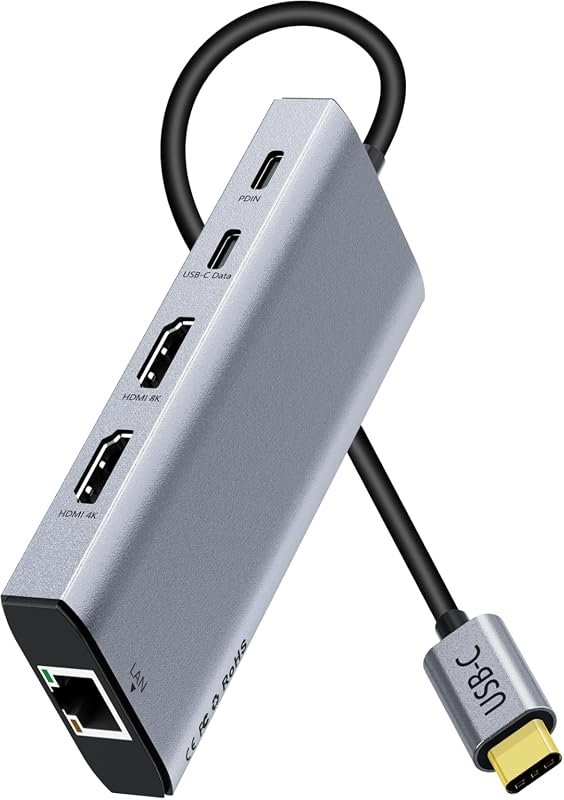
| 1. WAVLINK Laptop Docking Station | 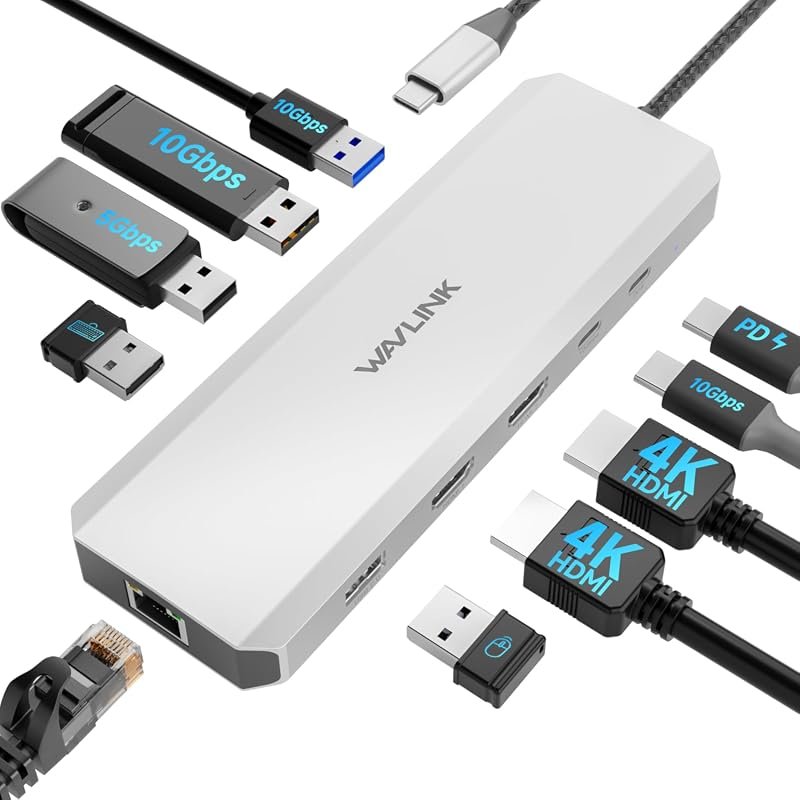 | Budget dual-monitor Windows setups | Check Price |
| 2. USB C Docking Station | 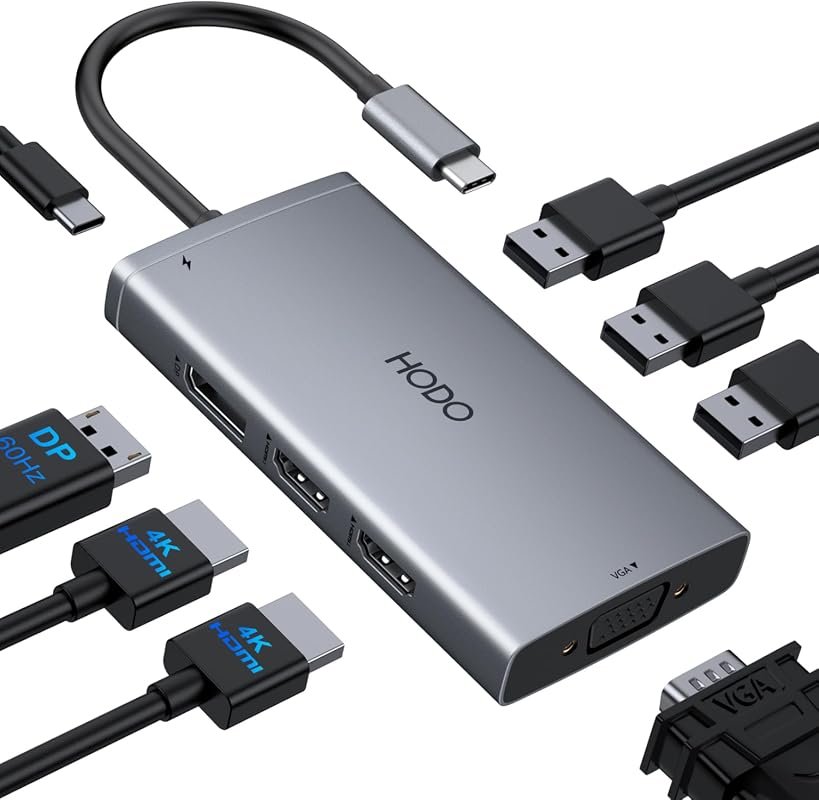 | HP and Dell laptop users needing multiple video ports | Check Price |
| 3. 13-in-1 USB C Docking Station | 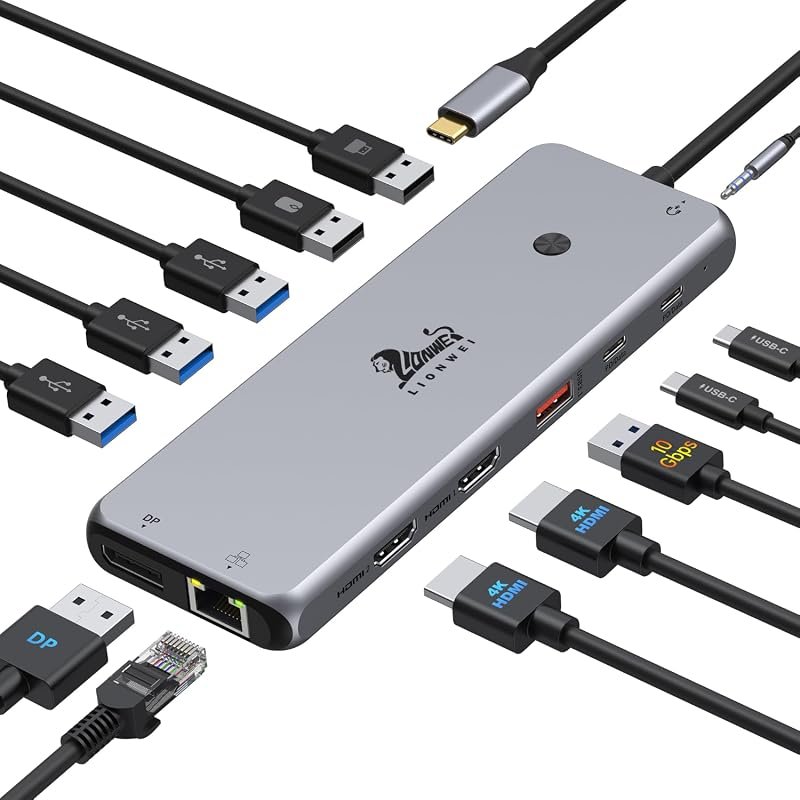 | Feature-rich dual or triple-display workstations | Check Price |
| 4. Dell Pro WD25 Docking Station | 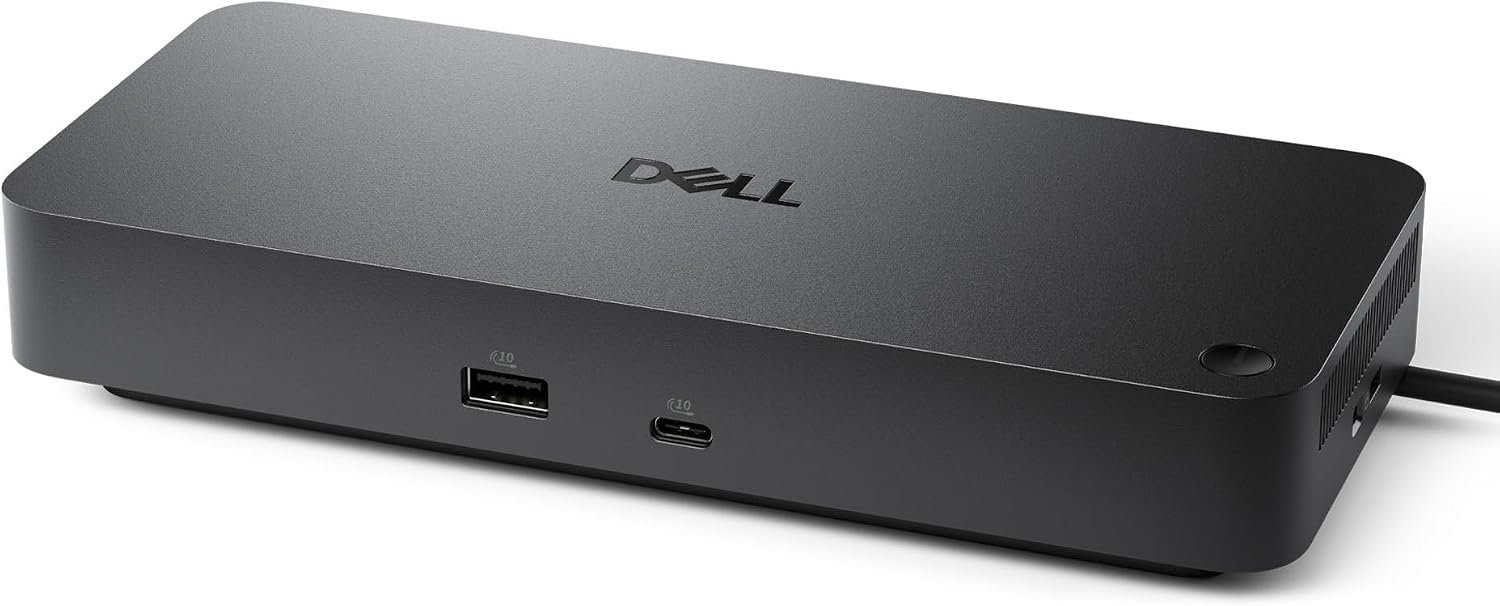 | Commercial Dell and mixed-PC office fleets | Check Price |
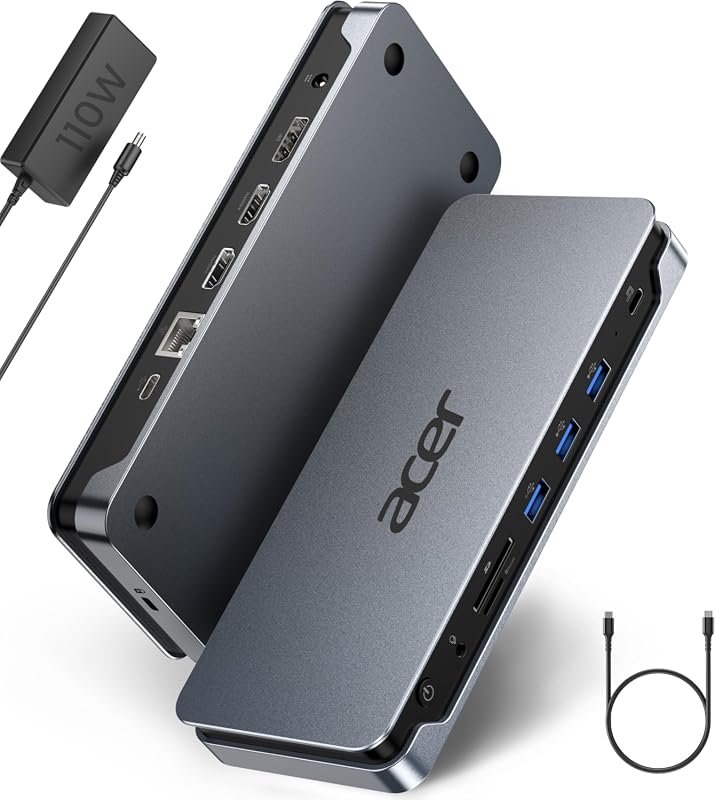
| 5. Acer 13-in-1 Docking Station | 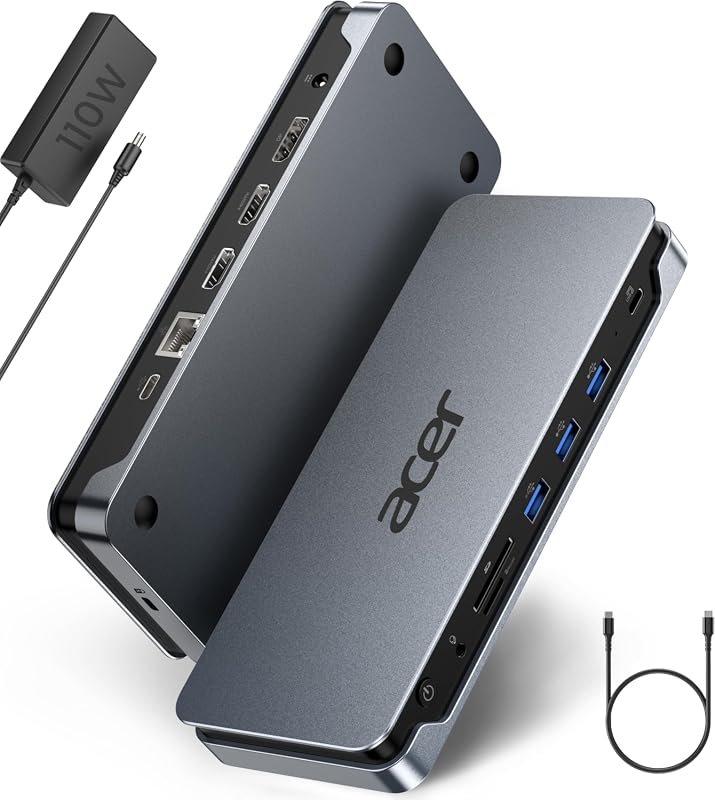 | Triple-display desk setups with included power adapter | Check Price |
| 6. USB C Laptop Docking Station | 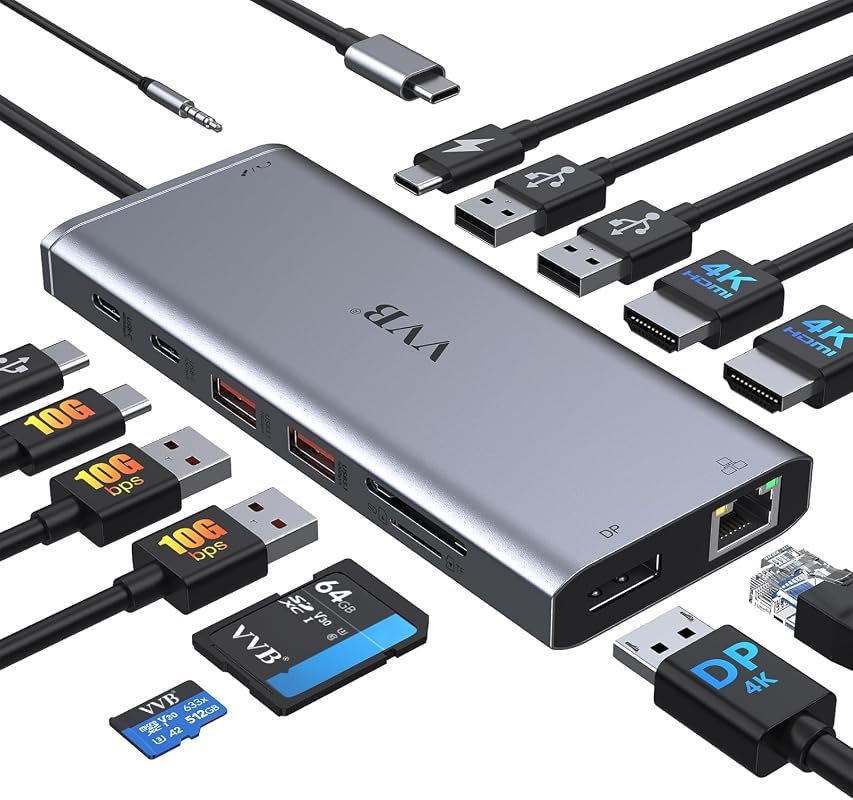 | All-around expansion for Windows laptop users | Check Price |
| 7. TobenONE 19-in-1 Docking Station | 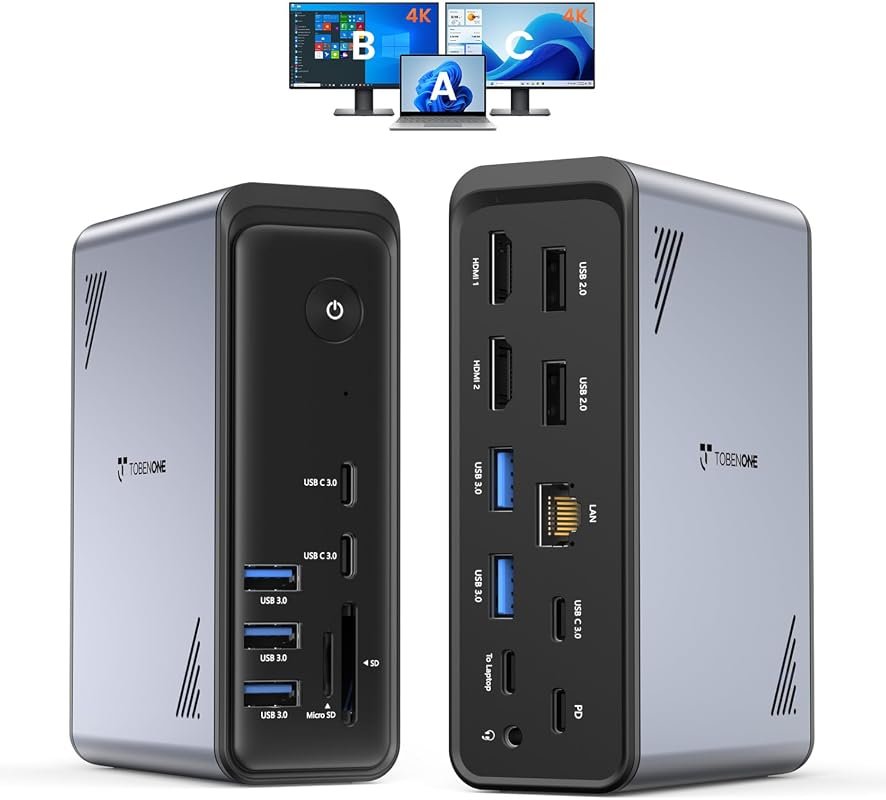 | Heavy peripheral users who need many USB ports | Check Price |
What to Look for in the Best Docking Station for Dual Monitors
Video output support
Start with the monitor outputs your laptop and dock actually support. Dual HDMI, HDMI plus DisplayPort, or HDMI plus VGA can all work, but the right choice depends on your laptop’s USB-C video capability and the monitor inputs you already own.
Operating system compatibility
Many docks in this roundup are Windows-focused for extended dual-display use, while several note MacOS limitations. If you use a MacBook, verify whether the dock supports only mirroring or a true extended desktop before you buy.
Power delivery needs
Check the dock’s PD rating and your laptop’s charging requirement. A dock may advertise 100W input or pass-through, but the usable output can be lower, and some models require a separate power adapter that is not included.
Port mix for daily work
Beyond monitor support, look at USB-A, USB-C, Ethernet, audio, and card reader ports. A better port mix can reduce cable swapping and help the dock serve as a real desk hub instead of just a video adapter.
Host port requirements
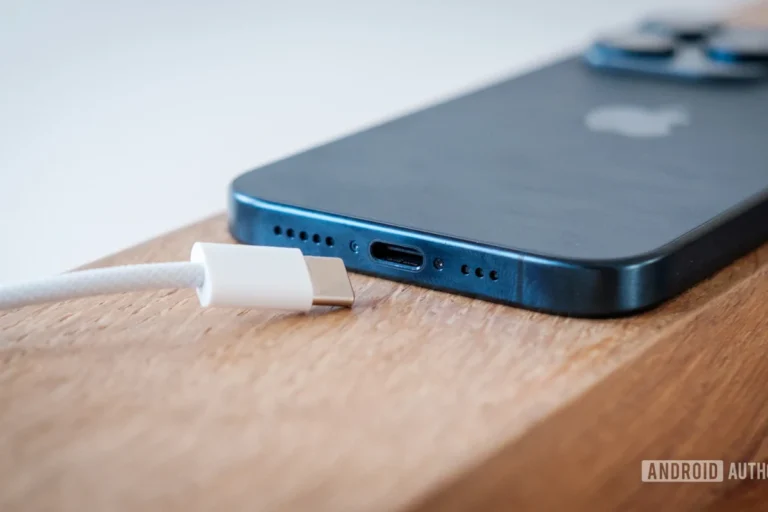
Some docks need a full-featured USB-C or Thunderbolt port with DisplayPort Alt Mode. If your laptop’s USB-C port is data-only, video output may not work, so confirm the host port specification on the laptop listing or manual.
Desk setup and device count
Think about whether you are building a light home-office setup or a full workstation with external storage, wired internet, headset support, and multiple peripherals. Higher-port-count docks make more sense when you have several devices staying connected all day.
- Before ordering, match your laptop model, operating system, and monitor inputs to the dock’s listed output modes so you avoid returns caused by compatibility mismatches.
Our Top 7 Best Docking Station for Dual Monitors Picks and Reviews
1. WAVLINK Laptop Docking Station for Dual Monitors, HDMI, USB-C Hub for Laptops
This WAVLINK dock is positioned as an affordable 10-in-1 option for dual-monitor Windows setups. It combines dual HDMI, fast data ports, Ethernet, and 100W PD input in a compact desk-friendly package.
Key Features That Stand Out
- Dual HDMI output with 4K@60Hz + 4K@30Hz support for Windows dual-display use.
- 10Gbps USB-A and USB-C ports for faster data transfer.
- 100W PD IN with up to 85W laptop charging support.
- Gigabit Ethernet for a wired network connection.
- 10-in-1 layout that also includes USB 3.0 and USB 2.0 ports.
Why It Stands Out
For shoppers who want the lowest-cost path into a dual-monitor desk setup, this dock covers the essentials without adding unnecessary extras. The main tradeoff is that it is Windows-only for the dual HDMI display mode and is not compatible with MacOS computers.
Best For
Pros and Cons
- Low price for a dual-monitor dock.
- Includes 10Gbps USB ports and Gigabit Ethernet.
- Supports laptop charging through USB-C PD input.
- Windows-only for the dual HDMI display mode.
- Not compatible with MacOS computers.
- Requires checking host port and charger requirements carefully.
2. USB C Docking Station for HP Laptops, Dual Monitor Support, 3-Display Hub
This HoDo dock is built around broad video output flexibility, with dual HDMI, DisplayPort, and VGA in one unit. It is a strong fit for users who want multiple monitor connection options and a straightforward USB-C hub layout.
Key Features That Stand Out
- Dual HDMI plus DisplayPort and VGA for flexible monitor connections.
- 100W USB-C PD charging port with up to 87W safe output.
- Three USB 2.0 ports for keyboard, mouse, and basic peripherals.
- Supports up to 4K dual or triple display video output, depending on setup.
- Designed for full-featured USB-C ports with DisplayPort Alt Mode.
Why It Stands Out
This model makes sense if you want more than one way to connect displays, especially in mixed-monitor environments. The broad compatibility notes matter, though, because it will not work with USB-C ports that lack video output support.
Best For
Pros and Cons
- Multiple display output types in one dock.
- Includes PD charging support up to 100W input.
- Large review base compared with some newer options.
- Compatibility depends on a full-featured USB-C host port.
- VGA use can reduce overall display resolution.
- MacOS external display behavior is limited to mirroring.
3. 13-in-1 USB C Docking Station for Laptop and MacBook, Dual 4K HDMI, Multiport Hub
This LIONWEI dock offers a broad feature set for users who want dual-display support plus lots of extra I/O. It stands out for combining dual HDMI, DisplayPort, multiple USB ports, Ethernet, and audio in one hub.
Key Features That Stand Out
- 2 HDMI ports and a DisplayPort for multi-display setups.
- Two USB-C ports that support 100W PD and 10Gbps data transfer.
- USB 3.1 at 10Gbps plus three USB 3.0 and two USB 2.0 ports.
- Gigabit Ethernet and a 3.5mm audio/mic jack.
- Windows supports MST and SST; MacOS can extend only one monitor.
Why It Stands Out
Among the options here, this one offers one of the most complete port mixes for the money. It is especially appealing if you want a dock that can handle displays, peripherals, networking, and audio without needing separate adapters.
Best For
Pros and Cons
- Very broad port selection.
- Useful for both workstation and accessory-heavy setups.
- Strong review count for this roundup.
- MacOS external display support is limited.
- Only 87W is available for laptop charging after dock power use.
- Best results depend on a compatible USB-C host port.
4. Dell Pro WD25 USB-C Laptop Docking Station, 100W Charging, DisplayPort, HDMI
The Dell Pro WD25 is aimed at users who want a business-focused dock with modern manageability and broad display support. Its higher price reflects a more commercial design and stronger emphasis on workplace deployment.
Key Features That Stand Out
- Enhanced compatibility with Dell AI PCs and non-Dell PCs.
- Up to 100W of power delivery to supported laptops.
- Native support for up to four high-resolution displays.
- Ambidextrous USB-C cable routing for cleaner desk layouts.
- Built with recycled materials and reduced standby power consumption.
Why It Stands Out
This is the most office-oriented option in the roundup, especially if IT manageability and long-term desk deployment matter. It is less about low-cost expansion and more about a polished commercial dock experience.
Best For
Pros and Cons
- Commercial-grade feature set for workplace use.
- Supports multiple high-resolution displays.
- Clean cable routing and strong power delivery support.
- Pricier than most other picks.
- Detailed port-by-port display behavior should be verified on the listing.
- May be more dock than casual users need.
5. Acer 13-in-1 USB-C Laptop Docking Station, Triple Display Support, 2 HDMI, 1 DP
This Acer dock is built for users who want triple-display flexibility and an included power adapter. It combines a broad port selection with a more complete out-of-box package than many docks that rely on separate chargers.
Key Features That Stand Out
- 2 HDMI ports and 1 DisplayPort for triple-display expansion.
- Includes an original 110W power adapter.
- Gigabit Ethernet, 3.5mm AUX, and SD/TF reader support.
- USB-C and USB-A connectivity for extra peripherals.
- Windows triple-display support via MST; MacOS is mirror-only across multiple displays.
Why It Stands Out
This model is a practical fit if you want a dock that arrives with its own power adapter and supports a more complex monitor layout. The tradeoff is that triple-4K behavior depends on host hardware support, so buyers should confirm laptop capability before ordering.
Best For
Pros and Cons
- Includes a power adapter in the box.
- Strong port mix for office workflows.
- Useful for multi-monitor productivity desks.
- Triple-display performance depends on laptop GPU and DSC support.
- MacOS extended desktop support is limited.
- Rear USB-C port is data-only, not video output.
6. USB C Laptop Docking Station with Dual HDMI, Multiport Adapter, USB-C Hub
This 14-in-1 dock is a versatile middle-ground choice for users who want dual-display support plus a large mix of common laptop ports. It is especially useful when you need storage, networking, and input device connections in one hub.
Key Features That Stand Out
- Two HDMI ports plus a DisplayPort for monitor expansion.
- 100W USB-C Power Delivery input with up to 87W safe charging output.
- USB-C and USB-A ports with 10Gbps transfer support.
- SD/Micro SD card reader and 3.5mm mic/audio jack.
- Works with Thunderbolt 3/4/5 and USB-C hosts that support video output.
Why It Stands Out
This dock covers the everyday needs of many laptop users without feeling stripped down. It is a good fit for people who want dual monitors, wired internet, card access, and several USB ports while staying in a moderate price range.
Best For
Pros and Cons
- Strong all-around port selection.
- Good fit for mixed accessory setups.
- Supports a wide range of USB-C and Thunderbolt hosts.
- Some features depend on host compatibility.
- MacBook external display behavior is limited.
- Charging accessories are not included.
7. TobenONE 19-in-1 Laptop Docking Station, Dual 4K HDMI, 10 USB Ports
The TobenONE dock is aimed at users with a lot of peripherals. With ten USB ports and dual 4K HDMI outputs, it is built for desks where nearly everything stays plugged in all the time.
Key Features That Stand Out
- 19-in-1 layout with 10 USB ports, dual HDMI, Ethernet, SD/MicroSD, and audio.
- Dual 4K HDMI support for expanded workspace use.
- 100W passthrough charging with a 65W or higher adapter requirement.
- 5Gbps file transfer rates on USB ports.
- Designed for Windows and Chrome OS laptops with full-featured USB-C ports.
Why It Stands Out
This is the most port-dense option in the lineup, which makes it a strong pick for users who hate swapping accessories. It is less about portability and more about creating a fixed workstation with plenty of room for gear.
Best For
Pros and Cons
- Very high USB port count.
- Good for crowded desk setups.
- Dual HDMI and Ethernet in one hub.
- Not recommended for Mac users.
- Requires a separate 65W or higher adapter.
- Best suited to a stationary desk setup.
Before buying, confirm that your laptop’s USB-C port supports video output and that your monitors accept the dock’s available connections. Several models here also require separate power adapters or have OS-specific limitations, especially on MacOS.
Complete Roundup for the Best Docking Station for Dual Monitors
Best for basic dual-monitor desk setups, with essential video output, USB expansion, and fewer extra ports to manage.
Best for buyers who want more display flexibility, faster USB ports, Ethernet, and a stronger balance of features.
Best for office or power users needing more ports, higher display support, or commercial manageability features.
- Match the dock to your laptop’s USB-C or Thunderbolt video support before ordering.
- Check whether you need Windows extended displays or MacOS mirroring only.
- Do not assume every USB-C port can carry video.
- Do not ignore separate adapter requirements or laptop charging limits.
- Use the dock’s listed power input and a quality charger or adapter that meets the manufacturer’s requirement.
- If you plan to run two monitors, verify the exact resolution and refresh-rate combination supported by your laptop and dock together.
- For office desks, prioritize Ethernet and enough USB ports to avoid relying on extra hubs later.
Confirm four things before purchase: your laptop’s operating system, whether the USB-C port supports video output, the monitor inputs you need, and the dock’s charging requirements. If any of those do not line up, the dock may work only partially or not at all.
- WAVLINK is the most affordable dual-HDMI option here.
- HoDo offers flexible monitor inputs for mixed office setups.
- LIONWEI gives you the broadest feature set for the price.
- Dell Pro WD25 is the most workplace-focused choice.
- Acer is a strong pick for triple-display desks with included power.
- The 14-in-1 USB C Laptop Docking Station balances ports and usability well.
- TobenONE is best when you need a lot of USB connections in one place.
- Always verify MacOS and USB-C video compatibility before buying.
Frequently Asked Questions About Best Docking Station For Dual Monitors
No. Dual-monitor support depends on the dock, the laptop’s USB-C or Thunderbolt port, and the operating system. Always check for video output support and whether the dock is Windows-only or has MacOS limits.
They are simply different display connections, and many monitors support one or both. The best choice is usually the one that matches your monitors without needing extra adapters.
Sometimes, but many docks in this roundup note MacOS display limitations. Several support only mirrored external displays or reduced extended-display behavior, so verify that before buying.
Some models include a power adapter, while others require one separately or use pass-through charging. Check the listing carefully so you know whether the dock ships with the needed power equipment.
That usually comes down to the dock, the laptop, or the operating system. Windows often supports more extended-display options, while MacOS can be more limited depending on the dock’s design.
Check your laptop’s USB-C video support, your monitor inputs, the dock’s charging requirements, and the display modes listed by the manufacturer. Those four checks solve most setup problems before they start.
If you want the simplest budget-friendly route, the WAVLINK dock is a strong place to start, especially for Windows users who only need dual HDMI and a few extra ports. If you want a more feature-heavy desk hub, the LIONWEI and Acer options offer more flexibility for multi-device work.
For most shoppers, the best choice comes down to one thing: compatibility. Once you match your laptop, operating system, and monitor inputs to the dock’s listed support, it becomes much easier to pick a model that fits your desk instead of fighting it.
This roundup is based on the supplied product titles, feature bullets, ratings, review counts, prices, and compatibility notes only. Because no verified first-hand testing evidence is available, the recommendations use evidence-based editorial judgment and careful comparison of listed features, OS limitations, power delivery details, and port selection. When a technical detail was not supplied, readers are advised to verify it on the current Amazon listing, manufacturer page, or product manual before purchasing.