

Does a Usb-c Hub Slow Down Charging
Yes, a USB-C hub can slow down charging if its power delivery, cable, or connected devices create a bottleneck. A well-matched hub with enough passthrough wattage may charge almost like a direct connection.
A USB-C hub can slow down charging, but only when its power path, wattage limit, cable quality, or connected devices create a bottleneck. In many setups, a good hub still delivers enough power for normal charging, while a poorly matched one may charge slowly, stop at a lower percentage under load, or fail to keep up during heavy use.
- Passthrough matters: A hub only charges well if its power input and output ratings are high.
- Accessories use power: Drives, displays, and other peripherals can reduce what is left for charging.
- Cable quality counts: A weak or low-rated USB-C cable can slow charging even when the hub is.
- Heat can reduce performance: Warm hubs and chargers may become less efficient during heavy use.
- Direct charging is faster: If speed is the priority, plug the charger directly into the device when possible.
For charging through a larger dock, see when a docking station can charge a laptop. If the hub also drops its connection, follow the USB-C hub disconnection checks before shopping for a replacement.
Does a USB-C Hub Slow Down Charging? Quick Answer and What Actually Happens
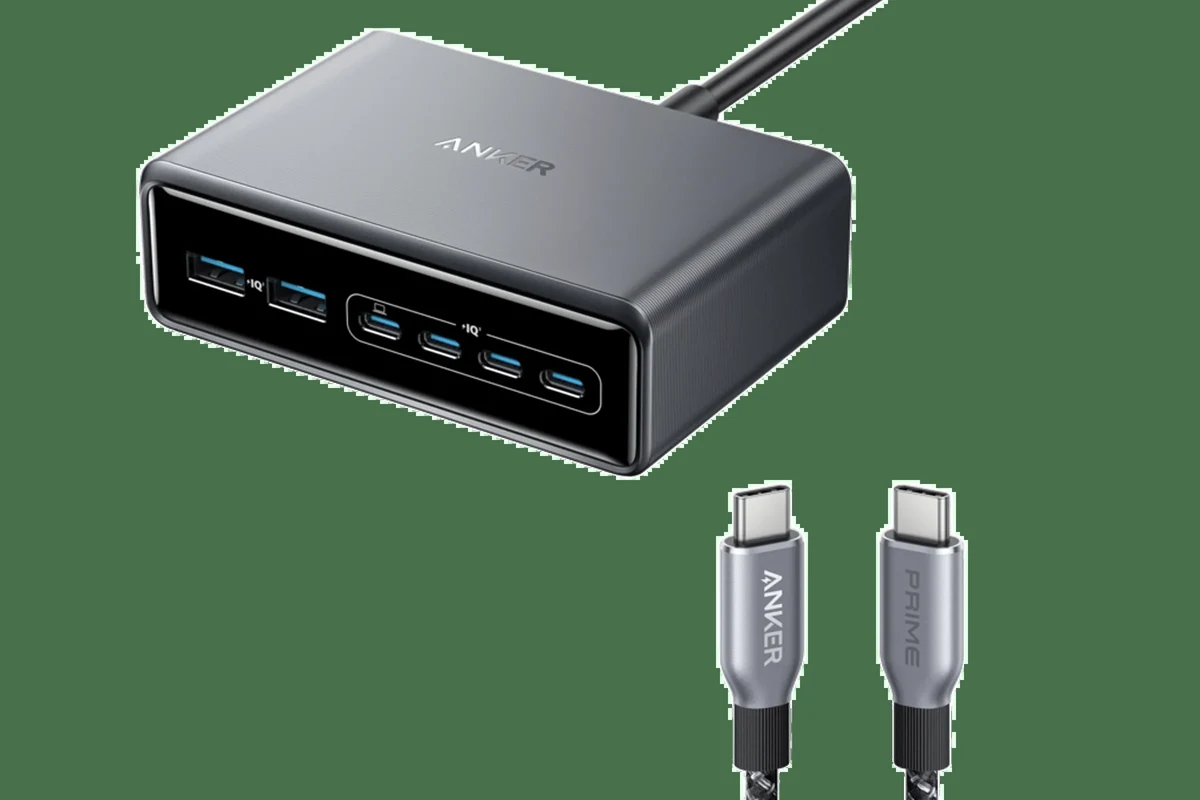
The short answer is: sometimes, yes. A USB-C hub does not automatically reduce charging speed, but it can if the hub’s power delivery support is limited, the charger is underpowered, or the laptop, tablet, or phone is drawing a lot of power at the same time.
For everyday users, the key idea is simple: charging through a hub is a trade-off between convenience and power overhead. If the hub is built for passthrough charging and your charger is strong enough, the slowdown may be negligible. If the hub is overloaded or poorly designed, the device may charge much more slowly than it would from a direct charger.
How USB-C Charging Through a Hub Works in 2026
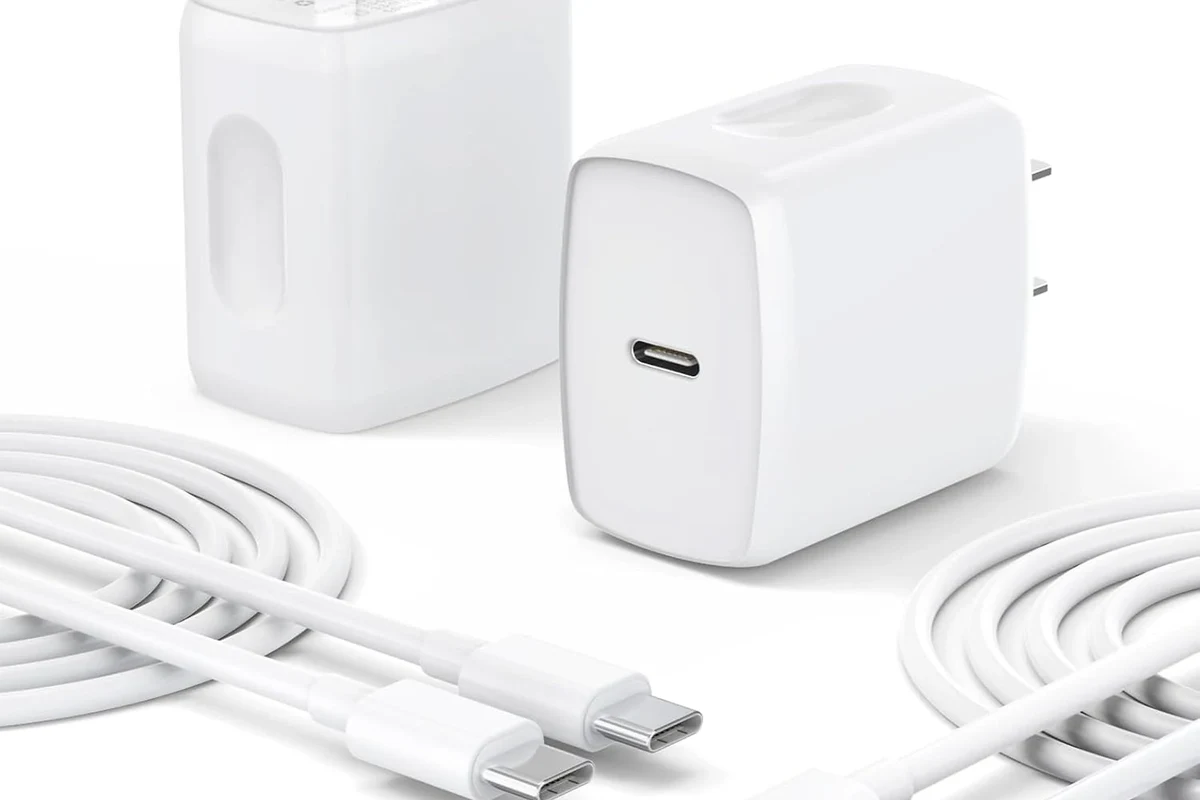
USB-C charging through a hub usually depends on USB Power Delivery, often shortened to USB PD. The charger sends power to the hub, and the hub passes some of that power to your device while reserving a portion for its own electronics and any connected accessories.
Power delivery basics: passthrough charging, negotiation, and shared bandwidth
When you plug a USB-C charger into a hub, the charger and device negotiate how much power should flow. That negotiation is not just about watts; it also depends on the cable, the hub’s internal power design, and whether the hub supports charging while using data, video, or storage peripherals.
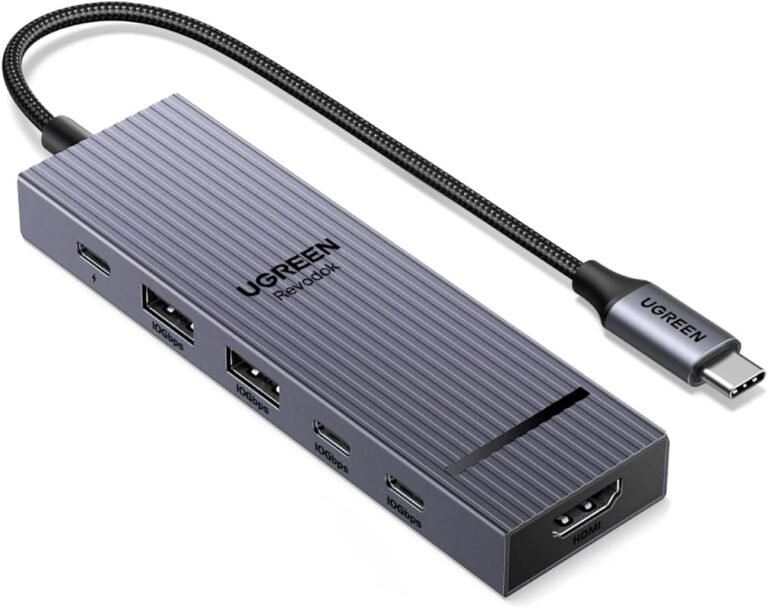
Passthrough charging means the hub can accept power from one USB-C port and forward it to the host device. In a well-designed hub, this should feel close to direct charging for low- to moderate-demand use. But “shared bandwidth” matters because the hub is also handling data, display output, and sometimes Ethernet or card readers, all while managing heat and power routing.
Some hubs advertise high wattage input, but the usable wattage for the laptop can be lower after the hub reserves power for itself and attached accessories.
Why some hubs reduce charging speed while others do not
Not all hubs are engineered the same way. A basic hub may pass enough power for a tablet or small laptop, but struggle when you connect external drives, a monitor, and a high-demand notebook at the same time. Better hubs usually have clearer wattage ratings and more stable power handling, which helps keep charging speed more consistent.
Charging behavior can vary by model, firmware, operating system, and even the charger you plug into the hub. Always confirm the manufacturer’s compatibility notes before assuming full-speed passthrough.
Key Factors That Decide Charging Speed on a USB-C Hub
Three things matter most: the hub’s power input rating, the device’s charging profile, and how much power the connected peripherals consume. If any one of those is weak or mismatched, charging can slow down.
Hub power input rating and passthrough wattage limits
Every hub has a power ceiling. Some are designed mainly for light accessories and modest charging, while others are built to support laptops that need much more power. The number printed on the box or spec sheet is important, but it is only useful if it clearly states the input rating, passthrough output, and whether part of that power is reserved for hub operation.
Device charging profile, cable quality, and USB-C Power Delivery support
Your device decides a lot of the final result. A phone, tablet, handheld gaming device, and laptop may all support different charging profiles, so the same hub can feel fast for one device and slow for another. Cable quality matters too, because a weak or noncompliant cable can limit current, interfere with negotiation, or create extra resistance that reduces charging efficiency.
Use the shortest certified cable that comfortably fits your setup, and check that both the hub and the charger support the same USB PD standard your device expects.
How connected peripherals affect available power and heat
External SSDs, flash drives, webcams, Ethernet adapters, audio interfaces, and displays all consume power. The more accessories you connect, the less power may be left for charging the host device. Heat also matters, because some hubs reduce performance or become less efficient when they are warm, especially in compact travel setups or under a laptop stand with little airflow.
If a hub, cable, or charger becomes unusually hot, smells burnt, disconnects repeatedly, or shows physical damage, stop using it and follow the manufacturer’s safety guidance.
Who Benefits Most From a USB-C Hub Setup
A USB-C hub is most useful when you need one cable to handle charging, displays, storage, and peripherals at once. That convenience is especially attractive for desk setups, travel kits, and lightweight workstations.
Best fit for laptops, tablets, handheld gaming devices, and mobile workstations
Laptops are the most obvious fit because they often need charging plus multiple accessories. Tablets, handheld gaming devices, and portable productivity rigs can also benefit, especially when you want to connect a keyboard, mouse, SD card, or monitor while keeping the device powered. For creators and remote workers, the hub can simplify cable management and reduce the number of adapters on the desk.
Users who want one-cable convenience and can verify that the hub’s wattage and port layout match their device’s power needs. The main limitation is that heavy accessory use can reduce the power left for charging.
When direct charging is the better choice
Direct charging is better when you need the fastest possible charge, your device is already low on battery, or your laptop is under a heavy workload. It is also the safer choice if you are unsure about the hub’s wattage rating, if the hub gets warm, or if you are using a device that is picky about charging accessories.
What to Check Before Buying a USB-C Hub for Charging
Before you buy, treat the hub like a power accessory first and a convenience accessory second. A stylish port layout is not enough if the hub cannot reliably pass the wattage your device needs.
Wattage rating, PD version, and port layout
Look for a hub that clearly states its USB-C Power Delivery input and output ratings. Also check the PD version and whether the hub can charge while using video output, data ports, and Ethernet at the same time. Port layout matters because a crowded design can make cable routing awkward, especially on laptops with ports on both sides or on travel-friendly desk stands.
- Check compatibility, model number, app requirements, dimensions, ports, wattage, and intended use
- Confirm safety guidance, warranty, return policy, privacy settings, and update support
Compatibility with your laptop, phone, tablet, or travel gear
Compatibility is not just about the connector shape. Some laptops require more power than others, some phones charge at different rates depending on the charger profile, and some tablets limit charging when certain accessories are attached. If you use a dock with a monitor, confirm whether your device supports the video mode the hub uses, since display output and charging can compete for resources.
Portability, build quality, and cable length trade-offs
Smaller hubs are easier to pack, but they may run warmer or offer fewer full-power options. Larger hubs often provide better port selection and more stable power handling, but they can be less travel-friendly. Cable length also matters: a short captive cable is tidy, while a longer one can improve flexibility but may be more prone to wear if it is bent, twisted, or packed carelessly.
Real-World Advantages and Limitations of Charging Through a Hub
Charging through a hub is popular because it makes a workspace simpler. The same setup can also introduce power loss, heat, and compatibility issues that do not happen with direct charging.
Convenience, desk cleanup, and fewer adapters
The biggest advantage is convenience. One hub can connect a monitor, keyboard, mouse, storage drive, and charger through a single USB-C port, which reduces clutter and makes docking faster. This is especially helpful in home offices, dorm rooms, shared workspaces, and travel setups where carrying multiple chargers is inconvenient.
- Keep the hub on a hard, ventilated surface instead of burying it under papers or fabric.
- Use the charger recommended by the hub or device maker when possible.
- Label cables if you swap between work, travel, and gaming setups often.
Common slow-charging causes, power loss, and thermal throttling
Slow charging through a hub often comes from one of four causes: the charger is too weak, the hub reserves too much power for itself, the connected devices draw too much power, or the cable cannot carry the expected load. Heat can add another layer, because some hubs and chargers become less efficient as temperature rises, which may reduce charging speed during long sessions.
Evidence limits: why results vary by device and workload
There is no single charging result that applies to every hub and every device. Manufacturer specs, firmware, laptop power management, battery condition, and active workload all affect the final outcome. That is why two people can buy what looks like the same hub and report very different charging experiences.
Stop using damaged electronics, swollen batteries, frayed cables, overheating chargers, or unstable appliances and follow the manufacturer’s guidance.
Safe Use, Maintenance, and Troubleshooting Tips
Good maintenance helps a USB-C hub charge more consistently and last longer. It also lowers the chance of intermittent power, loose connections, or heat-related issues.
How to inspect cables, connectors, and hub housing for wear or overheating
Look for bent pins, loose ports, cracked plastic, discoloration, or frayed cable jackets. If the hub housing feels excessively hot during normal use, give it better airflow and check whether the connected devices are drawing too much power. Dust buildup can also make a compact hub run warmer, so occasional cleaning with a dry, gentle method can help.
When to replace a cable or hub, and signs of unsafe operation
Replace a cable if it is visibly damaged, if it disconnects when moved, or if it no longer supports the charging speed you need. Replace the hub if ports become unreliable, it frequently drops power, or the manufacturer warns of a defect or recall. If a charger or hub shows melting, sparking, abnormal smell, or repeated shutdowns, stop using it immediately.
Simple fixes for slow charging, disconnects, and intermittent power
Charge the device without the hub to see whether the slowdown comes from the hub or from the charger, cable, or device itself.
Disconnect external drives, displays, or high-draw accessories and check whether charging improves.
Use a known-good cable that matches the hub’s power rating and the device’s charging requirements.
Review the hub and device manuals, firmware notes, and compatibility lists for known charging limits or port behavior.
Final Recommendation: Is a USB-C Hub Worth It for Charging?
A USB-C hub is worth it when you want a cleaner, more flexible setup and you can verify that the hub’s power delivery matches your device. It is less ideal when you need the fastest possible charge, when your device already runs hot, or when you plan to run several power-hungry accessories at the same time.
Best-case scenarios, drawbacks, and transparent verdict for 2026 buyers
For most readers, the best-case scenario is a well-specified hub with enough passthrough wattage, a certified cable, and a charger that exceeds the device’s needs. The biggest drawback is that charging speed can drop once the hub starts sharing power with displays and peripherals. If you want reliability, check the manual, confirm the wattage, and choose direct charging whenever speed or safety matters more than convenience.
Frequently Asked Questions
Sometimes, if the hub supports enough passthrough wattage and your charger is powerful enough. Heavy accessory use or a weak cable can still reduce charging speed.
Look for a hub with clear USB Power Delivery input and output ratings that meet your device’s needs. If the hub does not state those numbers clearly, confirm them in the manual before buying.
No. Cable quality, length, and power rating can all affect how much power reaches the device through the hub.
The hub may be reserving power for itself, the charger may be underpowered, or connected accessories may be using too much energy. Heat and a poor cable can also contribute.
Stop using it if it gets unusually hot, smells burnt, disconnects often, or shows physical damage. Also stop using damaged cables or swollen batteries connected to the setup.
Test direct charging first, remove extra peripherals, and try a verified cable and charger. Then check the hub and device manuals for power limits and compatibility notes.

3 Comments