

Why Is My Usb-c Hub Not Detecting Monitor
Your USB-C hub usually is not detecting a monitor because the USB-C port lacks video support, the cable is not video-capable, or the hub is hitting power or bandwidth limits. Start by checking the device manual, then test the monitor, cable, and hub one at a time.
If your USB-C hub is not detecting a monitor, the most common causes are missing display support on the USB-C port, a power or bandwidth limit, or a cable/input mismatch. The fastest fix is to verify that your laptop or tablet can output video over USB-C, then test the monitor, hub, and cable one piece at a time.
- Check the port first: The USB-C port must support DisplayPort Alt Mode, Thunderbolt, or USB4 video output.
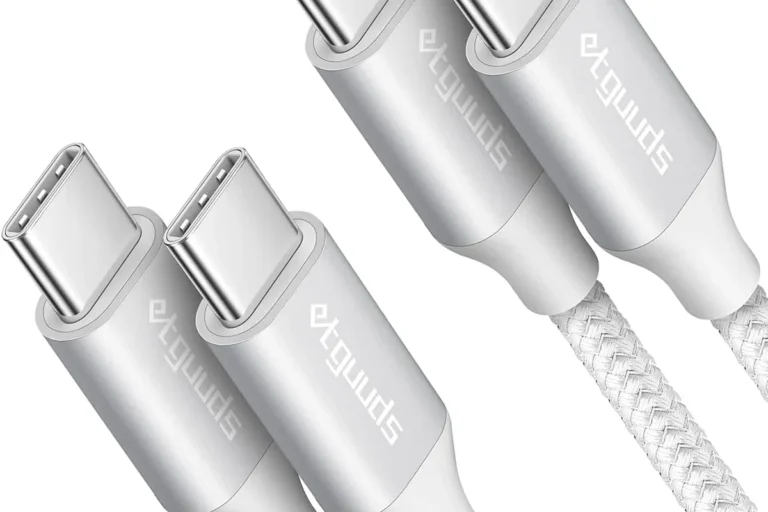
- Verify the cable: A charge-only USB-C cable can prevent monitor detection even when the connector fits.
- Watch power limits: Some hubs need external power or better pass-through charging to stay stable.
- Test the simplest path: Direct monitor connection, correct input selection, and lower resolution settings can isolate the issue.
If both displays need to work together, start with the two-monitor compatibility checks and then follow the laptop docking station dual-monitor setup guide. For a connection that drops after working initially, see USB-C hub disconnection troubleshooting.
Why Is My USB-C Hub Not Detecting Monitor? Start With the Most Likely Causes
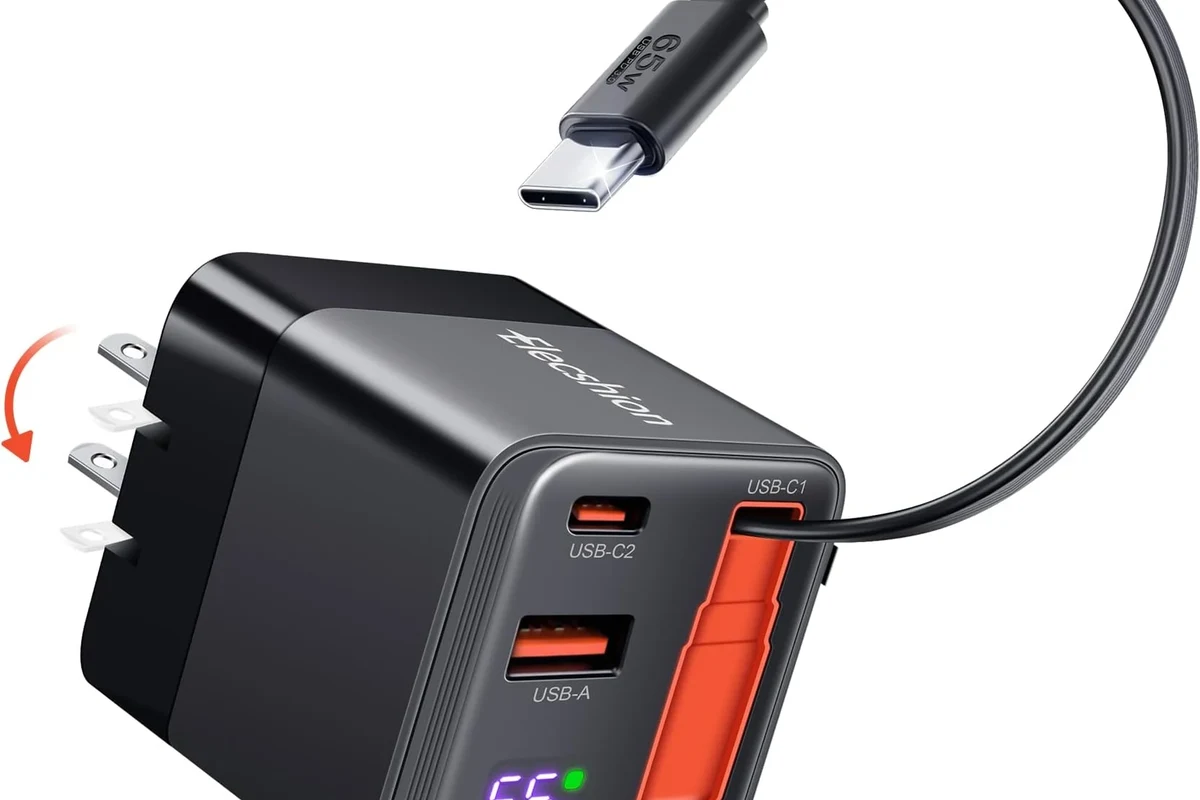
Before you assume the hub is broken, check the three issues that cause most no-display problems: the host device may not support video output through that USB-C port, the hub may not have enough power or video bandwidth, or the cable/input path may be wrong. In many cases, the monitor is fine and the issue comes down to compatibility rather than hardware failure.
DisplayPort Alt Mode or Thunderbolt support missing on the USB-C port
Not every USB-C port can send video. Some ports handle data and charging only, while others support DisplayPort Alt Mode, Thunderbolt, or USB4 display output. If the laptop, tablet, or handheld does not support one of those video-capable standards on that specific port, the hub cannot make a monitor appear.
Check the exact device model, not just the connector shape. Two laptops that both have USB-C ports can behave very differently depending on the motherboard, chipset, and port wiring.
Insufficient power delivery or an underpowered hub
Some hubs need more power than the host can provide, especially when they are also charging a laptop, driving a monitor, and powering storage or accessories at the same time. If the hub is bus-powered and the laptop is already low on power, the video output may fail, flicker, or disconnect.
Use only the manufacturer-recommended power adapter and rated cables. If a hub, charger, or cable feels unusually hot, shows damage, or disconnects repeatedly, stop using it until it is inspected or replaced.
Bad cable, loose connection, or incompatible monitor input
A USB-C cable that charges well may still fail at video. Loose seating, a worn connector, a passive adapter that does not match the signal type, or a monitor set to the wrong input can all make it look like the hub is the problem. Start by reseating every connection and confirming the monitor is on the correct HDMI or DisplayPort input.
How USB-C Hubs Send Video to a Monitor in 2026
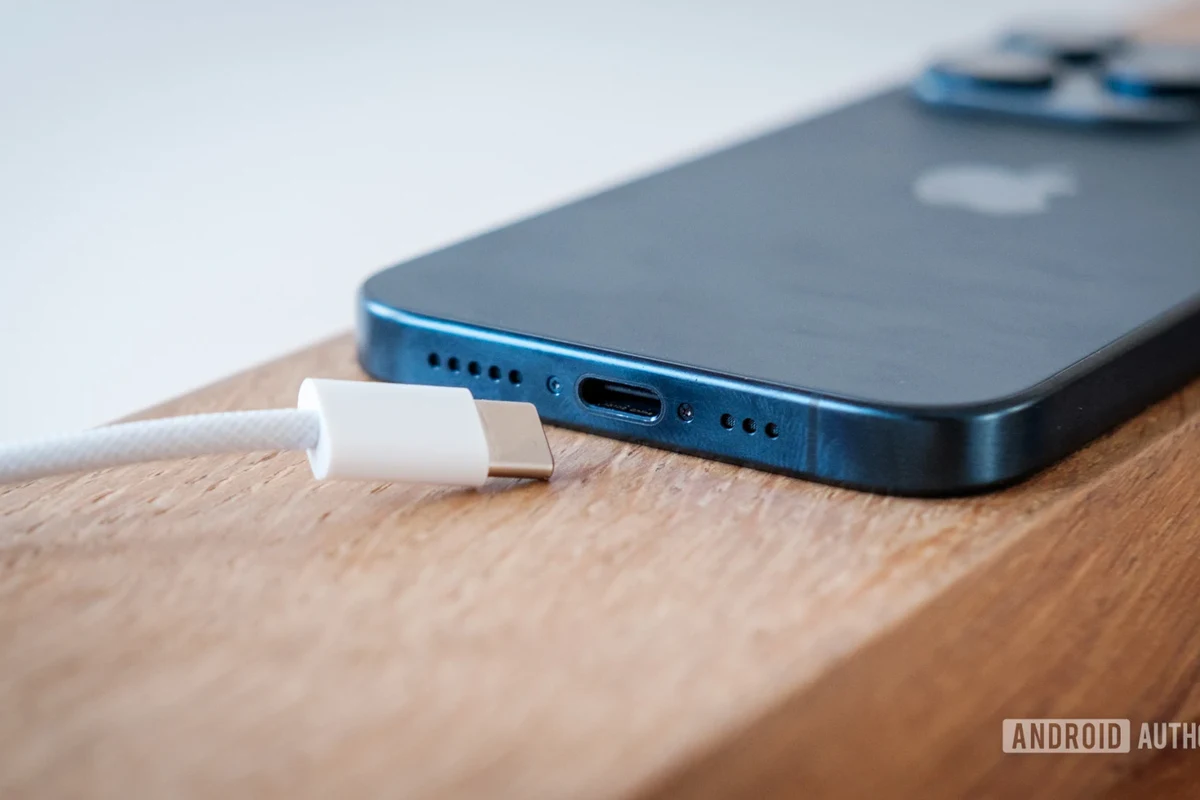
USB-C is a connector shape, not a guarantee of video support. To understand why a hub does or does not detect a monitor, it helps to know how the video signal actually travels from your device to the display.
USB-C video standards: DisplayPort Alt Mode, Thunderbolt, and USB4
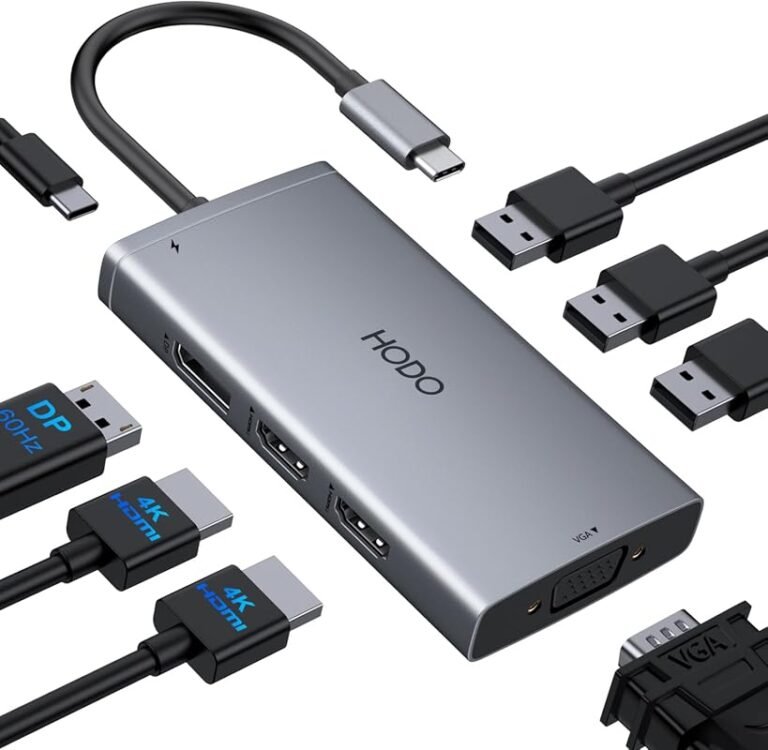
Most USB-C hubs that support external displays rely on DisplayPort Alt Mode, Thunderbolt, or USB4 display tunneling. These standards allow the computer to send display data through the USB-C port and into the hub, which then converts it to HDMI or DisplayPort for the monitor.
Support varies by device and by hub. A hub may advertise 4K output, but that only works if the host device, cable, and monitor all support the needed mode and bandwidth.
Why not every USB-C port can output display signal
Many people assume any USB-C port can drive a monitor because the connector looks modern and universal. In reality, manufacturers can configure USB-C ports for charging, data transfer, display output, or a mix of those functions. That is why one side of a laptop may support a dock while another side does not.
Some devices support video only from a specific USB-C port, even when multiple ports look identical. The manual or official spec sheet is the best place to confirm that detail.
How hub chipset, firmware, and monitor input handshake affect detection
Even when the hardware is compatible, the devices still need to “handshake” correctly. The hub chipset has to negotiate the signal with the computer and then with the monitor, and that process can be affected by firmware, sleep states, refresh rate limits, or input switching behavior on the display.
If the monitor wakes up slowly, is set to the wrong input, or expects a resolution the hub cannot provide, the connection may fail until you reset the chain. This is especially common with multiport hubs, high-resolution displays, and older monitors that are less forgiving about signal negotiation.
Compatibility Checklist: What Your Laptop, Hub, and Monitor Must Support
Compatibility is the main theme behind most USB-C monitor issues. Before troubleshooting deeply, verify that each part of the chain can support the same signal type and resolution.
Device-side requirements to verify before troubleshooting
Check your laptop, tablet, or handheld for three things: whether the USB-C port supports video output, whether the operating system supports external displays as expected, and whether any vendor utility or firmware update is required. Some devices also limit display output when running on battery, in low-power mode, or through certain adapters.
- Confirm the exact device model supports external display output over the USB-C port you are using
- Check whether DisplayPort Alt Mode, Thunderbolt, or USB4 is required
- Review the official manual, firmware notes, and operating system support pages
Monitor-side requirements: HDMI, DisplayPort, and resolution limits
Your monitor must accept the signal the hub sends. If the hub outputs HDMI, the monitor must be on the correct HDMI input and support the chosen resolution and refresh rate. Some monitors also behave differently with adapters, older HDMI versions, or ultra-wide modes, so the highest advertised resolution is not always the easiest setting to use.
Portability and setup trade-offs for laptops, tablets, and 2-in-1 devices
Laptops usually offer the broadest hub compatibility, but tablets and 2-in-1 devices can be more limited. Some tablets support only mirrored displays, some limit resolution, and some require a specific dock or operating system version. If you move between a desk, a travel setup, and a classroom or office, a simpler hub may be more reliable than a feature-heavy dock that depends on exact compatibility.
Step-by-Step Troubleshooting Guide for a USB-C Hub Not Detecting a Monitor
Work through the connection in the same order the signal travels. That makes it easier to identify whether the problem is the monitor, the cable, the hub, or the host device.
Test the monitor and cable directly
If the monitor works without the hub, the display itself is likely fine and the issue is between the hub and the host device.
Use a known-good HDMI or DisplayPort cable that is rated for the resolution you want. A charging-only or low-quality cable can prevent detection even if it fits physically.
Swap ports, inputs, and adapters to isolate the failure
Move the hub to a different USB-C port on the computer if your device has more than one. Then switch the monitor to each available input manually, because many displays do not auto-detect reliably. If you are using an adapter chain, remove extra adapters temporarily and test the simplest path possible.
Check power, restart devices, and update drivers or firmware
Unplug the hub, shut down or restart the computer, and reconnect the display after everything is fully powered back on. If the hub supports external power, connect it according to the manual before adding other peripherals. Then check for graphics drivers, operating system updates, hub firmware updates, and monitor firmware updates when the manufacturer provides them.
If the display works only after a reboot, the issue may be a sleep-state or handshake problem rather than a dead hub. Updating firmware and using the correct power adapter often helps more than repeatedly reconnecting the cable.
Use lower resolutions or refresh rates to rule out bandwidth limits
If the monitor is detected but shows a blank screen, lower the resolution or refresh rate in your display settings. Some hubs and cables can handle 1080p easily but struggle with 4K at higher refresh rates, especially when other accessories are connected. Reducing the signal demand is a practical way to confirm whether bandwidth is the bottleneck.
Key Specifications That Matter When Choosing a USB-C Hub for External Displays
If you are shopping for a replacement, the right hub is the one that matches your actual setup rather than the one with the longest feature list. Focus on display limits, charging support, cable quality, and how the hub will fit into your workspace.
Video output limits: 1080p, 4K, 60Hz, or higher
Check the maximum resolution and refresh rate the hub supports on each output, not just the headline number on the box. A hub may support 4K, but only at 30Hz on one port or only when the second display is disconnected. For office work, 1080p or 4K at a stable refresh rate may matter more than chasing the highest spec.
Power delivery wattage and why pass-through charging matters
Pass-through charging can keep a laptop powered while the hub handles a monitor, keyboard, mouse, and storage device. The important number is the wattage the hub can pass through and the amount your laptop actually needs. If the hub cannot supply enough power, you may see battery drain, disconnects, or reduced performance under load.
Cable quality, hub build, heat, and port layout
Short, well-made cables often improve reliability, especially for higher-resolution displays. Heat also matters because compact hubs can get warm when charging and outputting video at the same time. Port layout is worth checking too: if the HDMI port, USB-A ports, and power input are crowded together, the hub may be awkward on a desk or in a bag.
Who each hub type fits best: casual users, creators, and office setups
Casual users usually need a simple hub with one reliable display output and pass-through charging. Creators and multi-monitor workers often benefit from a dock or Thunderbolt solution with clearer display support and more consistent bandwidth. Office setups may prioritize stability, cable management, and predictable wake behavior over portability.
Common Mistakes That Cause a No-Display Problem
Many monitor issues come from small setup mistakes rather than faulty hardware. If you avoid these, you can save a lot of time and unnecessary replacement purchases.
Assuming every USB-C cable supports video
One of the most common mistakes is using a USB-C cable that only supports charging or basic data. The cable must be rated for the video standard and the bandwidth your setup requires. If a cable came with a phone charger or low-cost accessory, do not assume it can carry display signal.
Using a charging-only hub or docking station
Some USB-C accessories are built for charging, storage, or Ethernet, but not display output. Others support display only through a specific port or only when the host device is compatible with Alt Mode or Thunderbolt. Reading the official spec sheet is more reliable than judging by port count alone.
Overloading the hub with too many devices
A hub that is trying to power a monitor, external drive, keyboard, mouse, webcam, and phone at once may run into power or bandwidth limits. If the screen drops out when you plug in another accessory, remove the extra device and test again. That helps separate a true display issue from a load issue.
Ignoring monitor settings, firmware updates, and adapter limitations
Monitors sometimes need the correct input selected manually, and some models benefit from firmware updates. Adapter chains can also introduce compatibility issues, especially when converting between formats. If the setup is complicated, simplify it first and add each piece back one at a time.
Safe Use, Care, and Storage Tips for USB-C Hubs and Docking Stations
USB-C hubs are small, but they still deserve basic care. Good handling improves reliability and helps you spot damage before it causes connection problems or heat-related failure.
Heat management and inspection for wear or damage
Keep the hub on a hard surface with some airflow instead of burying it under papers or soft materials. Check cables and connectors for bent tips, fraying, loose ends, or discoloration. If the hub becomes unusually hot during normal use, stop and review the power and load requirements in the manual.
Stop using damaged electronics, swollen batteries, frayed cables, overheating chargers, or unstable appliances and follow the manufacturer’s guidance.
Unplugging, storage, and cable handling best practices
Unplug by holding the connector, not yanking the cable. When storing the hub, coil cables loosely and avoid tight bends that can damage the internal wiring. If you travel with the hub, keep it away from liquids, heavy items, and sharp objects in the bag.
When to replace the hub, cable, or power adapter
Replace the cable first if the setup works intermittently or only at lower resolutions. Replace the hub if multiple known-good cables and displays still fail, or if the unit overheats, disconnects, or shows physical damage. Replace the power adapter if the hub depends on external power and the adapter no longer supplies stable output according to the manufacturer’s guidance.
Which USB-C Hub Is Worth It? Final Recommendation by Use Case
The best choice depends on how much display support you need and how portable the setup must be. For a basic desk or travel setup, prioritize verified video compatibility and stable charging over extra ports you may never use.
Best value for basic monitor mirroring
A simple USB-C hub with one verified HDMI or DisplayPort output is usually the best value for everyday users who only need one external screen. Look for clear support for your laptop’s video standard, enough pass-through charging for your device, and a cable that is explicitly rated for display use.
Best choice for dual-display or high-resolution work
If you need two monitors, 4K output, or a more demanding workstation, a more capable dock or Thunderbolt-based solution is often the safer route. These options usually provide better bandwidth headroom and fewer compatibility surprises, though they may cost more and be less portable.
When to skip a hub and buy a dock or Thunderbolt solution instead
Skip a basic hub if your work depends on stable dual displays, high refresh rates, or a laptop that is picky about USB-C video. A dock is often the better long-term choice when you want fewer disconnects, cleaner cable management, and stronger support for a fixed office setup. If your current hub is not detecting a monitor after the compatibility checks above, that is a strong sign the device class itself may be the limitation rather than the individual unit.
—
Frequently Asked Questions
The most common causes are missing video support on the USB-C port, a cable that does not carry display signal, or a monitor set to the wrong input. Power limits, firmware issues, and incompatible adapters can also stop detection.
Check the official specs or manual for DisplayPort Alt Mode, Thunderbolt, or USB4 display support. If the documentation only mentions charging or data, that port may not output video.
Yes. Some USB-C cables support charging or data only and cannot carry display signal reliably. Use a cable that is explicitly rated for video output and the resolution you want.
That usually points to a hub compatibility, power, or bandwidth issue. The hub may not support your resolution, may need external power, or may not match the host device’s video standard.
Yes, if the monitor is partially detected or shows a blank screen. Lowering resolution or refresh rate can help rule out bandwidth limits on the hub or cable.
Replace the hub if multiple known-good cables and monitors still fail, or if the hub overheats, disconnects repeatedly, or has physical damage. If your device does not support USB-C video output, a different dock or adapter class may be needed instead.

One Comment