Thunderbolt Dock Not Charging Laptop? 7 Checks Before You Replace It
LAPTOP CHARGING GUIDE
Get your dock charging again
Check the power path before replacing expensive hardware.
A Thunderbolt dock not charging your laptop does not automatically mean the dock is broken. The wrong host port, a mismatched cable, insufficient power delivery, or a battery charge limit can produce similar symptoms. Start by testing your laptop with its original charger, then isolate the dock, cable, and accessories one at a time.
Quick answer: Connect the dock’s correct power supply, use its computer-facing host port, and connect directly to a laptop port that accepts charging. Test with the supplied host cable. Compare the dock’s laptop charging output with your computer’s requirements—not the wattage printed on the dock’s power brick.
This is a troubleshooting guide based on manufacturer documentation, not a hands-on test of every dock. Follow the instructions for your exact laptop and dock model.
Match the symptom to the first check
| What you see | Check first | What the result suggests |
|---|---|---|
| No dock power light or connected devices | Outlet, supplied adapter, and power connections | The dock may not be receiving power |
| Monitor works but laptop does not charge | Host port and laptop charging support | Working video does not prove charging compatibility |
| Slow-charger warning or battery drains under load | Host charging output and cable rating | Available power may be below the laptop’s needs |
| Charging pauses near a set percentage | Battery health settings | A charge limit may be operating normally |
| Charging changes when the cable moves | Cable and connector condition | A loose or damaged connection needs attention |
1. Test the original laptop charger first
Disconnect the dock and connect the laptop’s manufacturer-recommended charger directly. Use a known-working wall outlet and inspect the cable for damage before testing. Note whether the operating system recognizes external power and whether the battery percentage increases during light use.
If direct charging also fails, investigate the laptop, charging port, charger, and battery before buying another dock. If direct charging works, you have a useful baseline: the problem is more likely somewhere in the dock’s power path or its compatibility with your laptop.
2. Confirm that the laptop port accepts charging
A USB-C connector’s shape does not tell you everything it supports. Check your laptop’s manual for the charging-capable port and its supported power requirements. Some computers depend on a proprietary power connector or accept limited USB-C power.
Use the laptop’s designated charging-capable port, connected directly to the dock. Remove intermediate hubs and adapters while testing. If you are unsure about the connection standard, read our Thunderbolt dock and USB-C laptop compatibility guide.
3. Use the dock’s host port and correct power supply
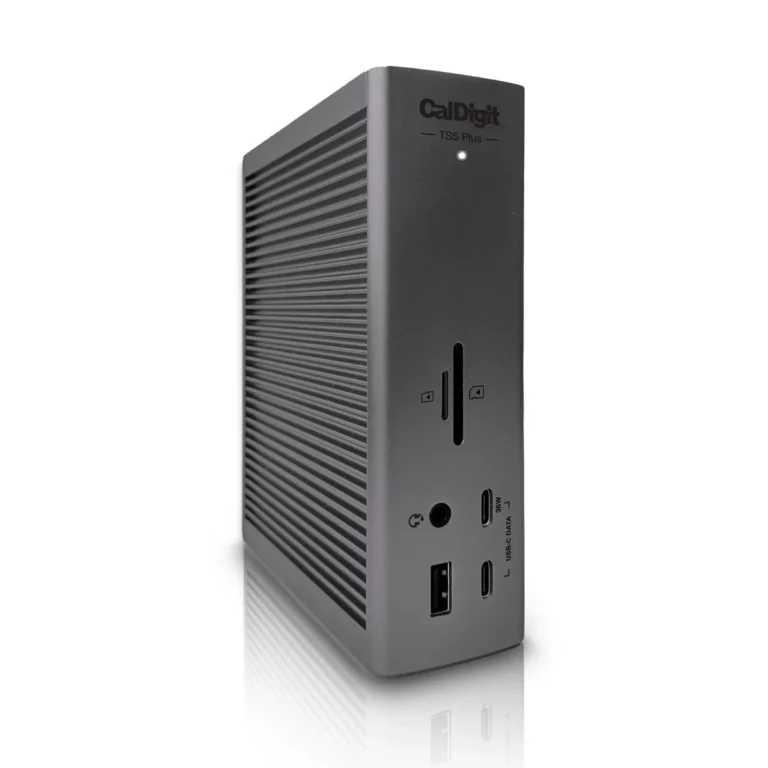
Find the dock port labeled for the computer, host, or upstream connection. Other USB-C or Thunderbolt ports may serve accessories and provide much less charging power. Do not assume every socket on the dock can charge your laptop at the advertised host wattage.
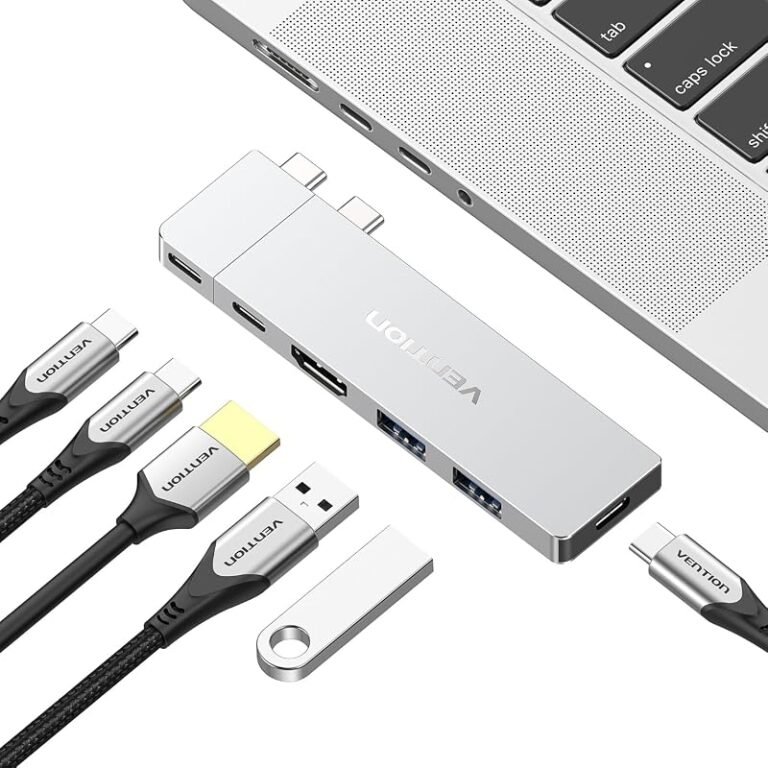
Check that the dock’s supplied power adapter is fully connected at the wall, brick, and dock. A portable pass-through hub may need a separate USB-C charger connected to its power-input port. Its input rating is not necessarily the power available to the laptop because the hub and attached devices also need power.
CalDigit’s SOHO Dock documentation explains this shared power arrangement and the need for a laptop that supports charging through the selected port. Do not substitute a barrel adapter just because the plug fits; use the dock manufacturer’s approved supply.
4. Compare host power delivery with laptop requirements
Look for the specification labeled laptop charging, host charging, or upstream Power Delivery. A dock can have a large power supply while reserving part of that capacity for itself and connected equipment.
For example, a hypothetical dock supplying 65W to the host may be a poor match for a laptop that requires substantially more power during demanding work. It might charge slowly at idle yet lose battery during a heavy workload. The exact behavior depends on the laptop and the power modes it accepts.
Microsoft’s charging guidance identifies incompatible chargers, inadequate power, the wrong charging port, and cables that do not meet power requirements as possible causes. For a power-hungry laptop, keeping the original charger connected may be the supported solution.
5. Swap the host cable before replacing the dock
Start with the cable supplied with the dock. If you need a replacement, choose one approved for the connection standard and power level your setup requires. A cable’s charging rating alone does not establish its data or display capabilities.
Remove extension cables and small adapters for the test. Inspect connectors for bent parts, debris, looseness, or discoloration without inserting metal objects into the port. Stop using visibly damaged cables. If one known-good compatible cable fixes charging, replace the suspect cable rather than the entire dock.
6. Check battery limits and workload
A battery that stops at a configured limit is different from a laptop that receives no power. Check your operating system’s battery message and any manufacturer charging settings before changing hardware.
Apple explains that a Mac can show “Not Charging” when charging is temporarily paused, the power source is insufficient, or a demanding workload consumes more power than the source provides. Its battery charging documentation also describes optimized charging behavior.
Test during light use with unnecessary accessories disconnected. If charging improves only after a game or video export ends, insufficient available power is worth investigating. Avoid disabling battery health features permanently just to remove a message.
7. Reconnect cleanly and check model-specific updates
Save your work and safely eject external drives before disconnecting them. Follow the dock manufacturer’s power-cycle instructions, then reconnect the power supply and laptop with only the essential host connection. Reintroduce accessories individually after charging is stable.
If the problem remains, check official support pages for your exact dock and laptop. Install only applicable firmware or driver updates, and follow their power and connection requirements. A random driver utility is not a substitute for model-specific support.
When does replacing the dock make sense?
Replace hardware after identifying the limitation. A higher-rated cable will not add charging support to a laptop port that lacks it, and a newer Thunderbolt generation alone does not guarantee enough host power.
- Keep the dock: the issue is a cable, wrong port, charge limit, or missing power input.
- Use separate laptop power: your laptop needs more power than its supported dock connection can supply.
- Consider a different dock: its documented host output or compatibility cannot meet your laptop’s requirements.
- Contact support: a compatible setup still fails after a known-good cable and approved power supply have been tested.
If a replacement is justified, compare host charging, laptop compatibility, and monitor support in our CalDigit TS4 vs TS5 Plus guide and OWC Thunderbolt 5 Dock buying guide. Read the compatibility checks before purchasing.
Frequently asked questions
Why does my monitor work while the laptop battery drains?
Video output and laptop charging have different requirements. Check the host port, cable, and power delivery rating. A working monitor does not confirm that enough power reaches the laptop.
Can a more powerful USB-C charger fix a dock charging problem?
It can help a pass-through dock only if the dock supports that charger and can deliver enough power to the laptop. It cannot increase the dock’s rated host output or change laptop compatibility.
Does a Thunderbolt 5 dock always charge faster than Thunderbolt 4?
No. Compare the dock’s stated host charging output with the laptop’s accepted power modes and cable requirements. The Thunderbolt version alone is not a charging-speed guarantee.
What should I tell support?
Provide the laptop and dock model, operating system version, power adapter model, host cable details, exact battery message, and whether the original charger works directly. Include the results of the isolated dock test.
Best next step: Establish direct charging first, then test the powered dock with its supplied host cable and no extra accessories. Change one component at a time so you can identify what actually fixes the problem.