

Thunderbolt 4 vs Thunderbolt 5 Cable: Which Do You Need?
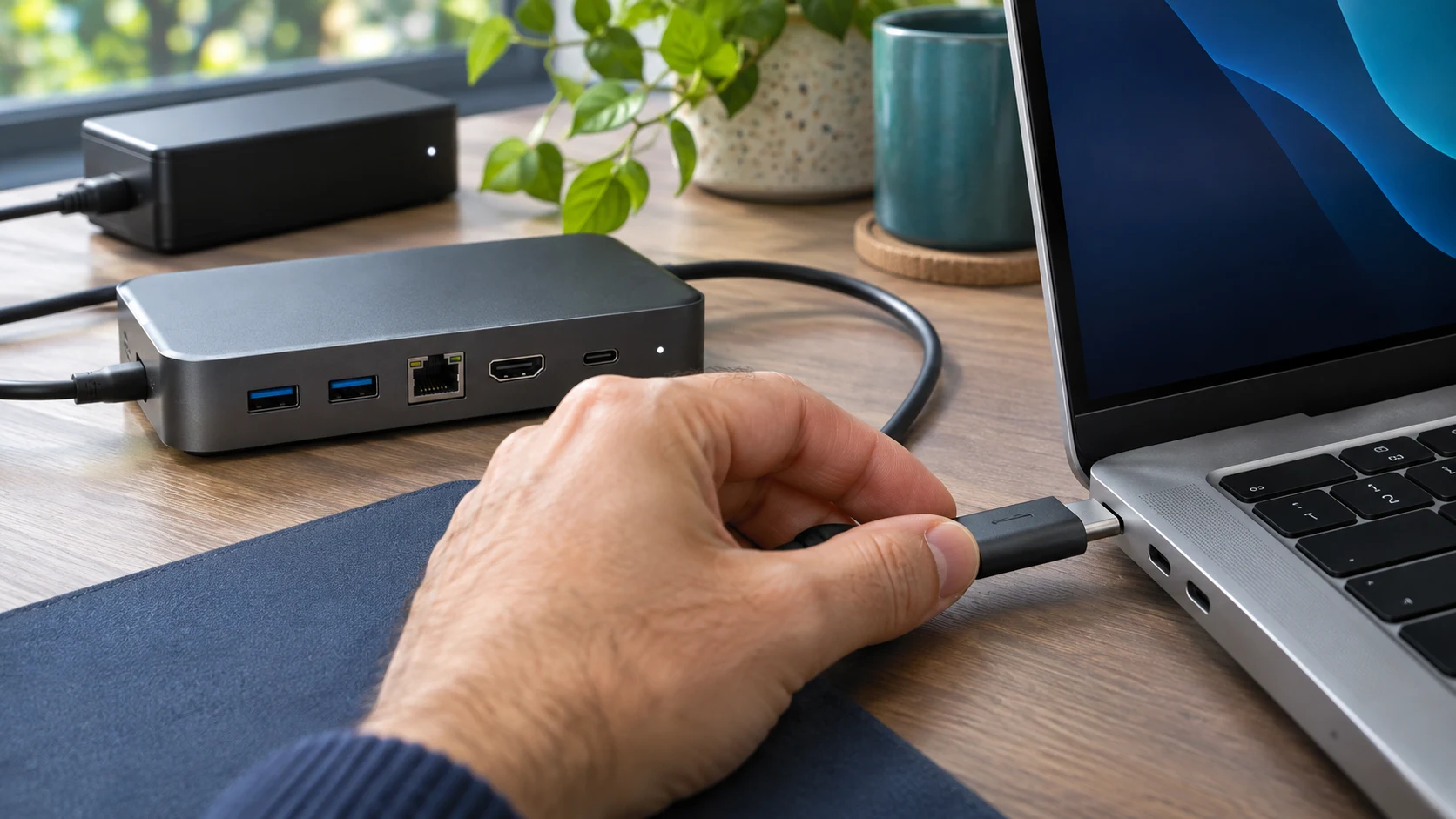
Thunderbolt 4 vs Thunderbolt 5 cable: keep a reliable Thunderbolt 4 cable for your existing Thunderbolt 4 desk. Choose a certified Thunderbolt 5 cable when you need the higher bandwidth of a compatible Thunderbolt 5 laptop, dock or storage device. A newer cable alone cannot upgrade an older port.
By Ethan Walker · GadgetMakersBlog
Disclosure: As an Amazon Associate I earn from qualifying purchases. We may also earn a commission from other retailer links.
Quick choice: which cable belongs on your desk?
- Your current Thunderbolt 4 setup works: keep its cable unless you need a different length, higher supported charging wattage or a replacement.
- You are buying a Thunderbolt 5 dock or SSD: use the supplied cable first. If you need another, choose a certified Thunderbolt 5 model at the required length.
- You only charge a phone or laptop: compare USB-C charging cables before paying for Thunderbolt bandwidth you will not use.
- You have display problems: check your laptop’s display limits and dock compatibility before ordering a cable.
Short Thunderbolt 5 option to compare: Plugable TBT5-240W1M is a 1-meter cable with published 80Gbps bidirectional bandwidth and up to 240W USB Power Delivery support. Check your exact host and accessory compatibility before purchase.
Plugable Thunderbolt 5 · 1 m
Paid links
Which store should you choose? Match the TBT5-240W1M model and 1-meter length on both listings. Compare the total with shipping and tax for your ZIP code. If the totals are close, choose the seller with the delivery date and return window that work better for you.
Thunderbolt 4 vs Thunderbolt 5 cable comparison
| What to compare | Thunderbolt 4 cable | Thunderbolt 5 cable |
|---|---|---|
| Headline link bandwidth | Up to 40Gbps for Thunderbolt 4 operation | Up to 80Gbps bidirectional; up to 120Gbps in Bandwidth Boost mode |
| Where it makes sense | Existing Thunderbolt 4 docks and accessories | Compatible Thunderbolt 5 docks, storage and demanding display setups |
| Charging rating | Read the exact model: 100W and 240W examples exist | Read the exact model; the options discussed here support up to 240W |
| Older computers | Match the host and accessory specifications | Backward compatible operation does not raise an older port’s capability |
| Cable length | Buy the certified model and length you actually need | Check the specific length’s certification and performance claim |
Intel describes Thunderbolt 5 as an 80Gbps bidirectional connection with a display-oriented Bandwidth Boost mode. The 120Gbps figure is not a promise of 120Gbps file transfers to an SSD. Storage performance also depends on the host, enclosure, drive and workload. Source: Intel’s Thunderbolt technology comparison.
Will a Thunderbolt 5 cable make a Thunderbolt 4 dock faster?
Do not buy it for that reason alone. Your laptop, cable and dock must support the connection you want to use. Replacing a suitable cable does not turn a Thunderbolt 4 controller into Thunderbolt 5 hardware.
For example, if your current dock already connects reliably at its supported speed, a cable replacement may change routing or charging capability but does not create a faster controller. If you are upgrading the laptop and dock together, a certified Thunderbolt 5 cable becomes a more useful purchase.
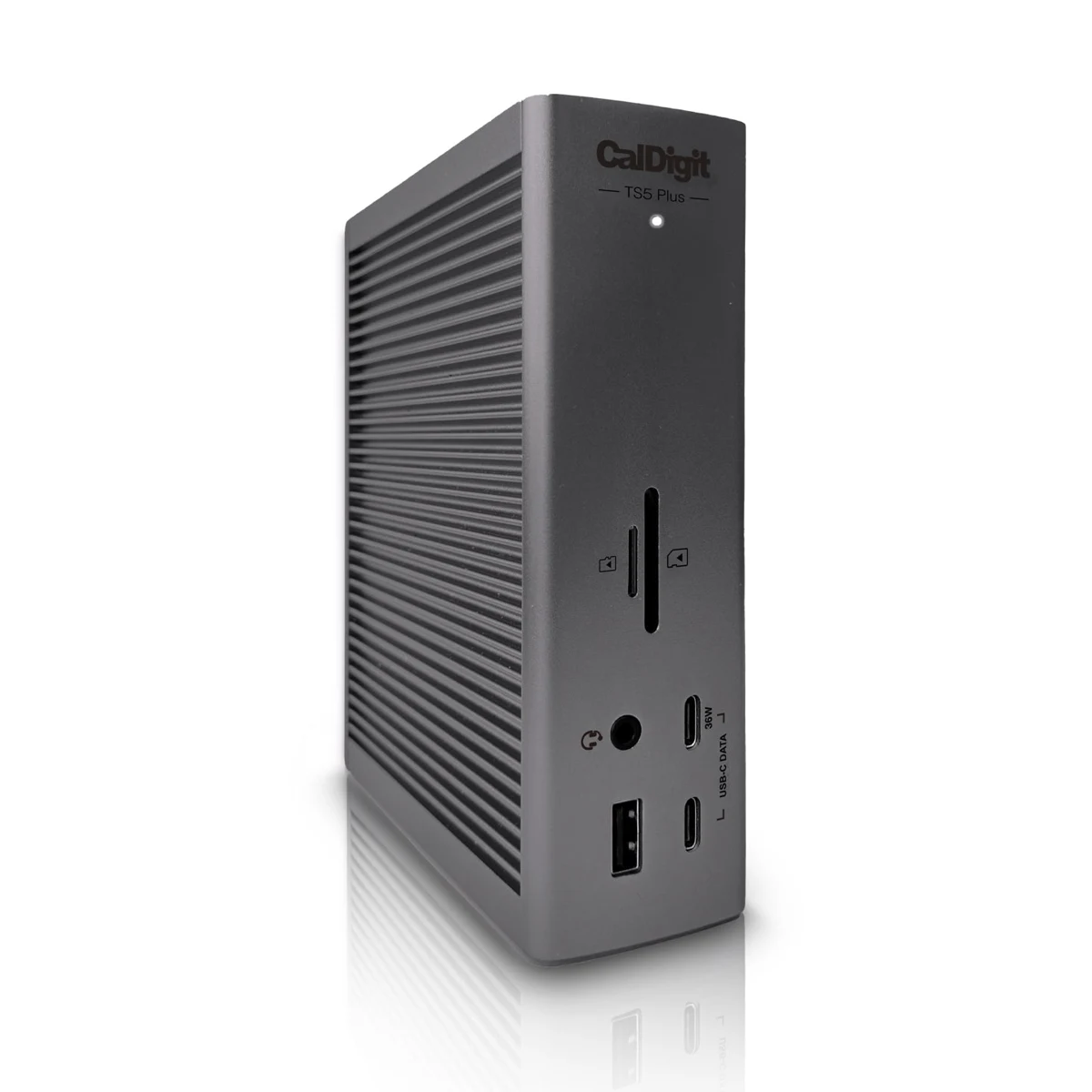
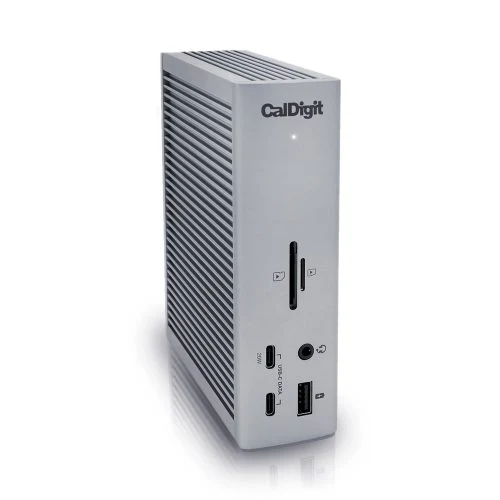
If the bigger purchase is the dock itself, see our CalDigit TS4 vs TS5 Plus comparison. For a USB-C computer, start with Thunderbolt dock compatibility with USB-C laptops.
Thunderbolt 4 vs Thunderbolt 5 cable charging wattage
A common buying mistake is assuming all Thunderbolt 4 cables stop at 100W. CalDigit specifies its Thunderbolt 4 Pro Cable at 40Gbps and up to 240W, while its separate standard Thunderbolt 4 cable is listed at 100W. Apple likewise specifies different charging limits for its own Thunderbolt 4 Pro and Thunderbolt 5 Pro cables.
That makes wattage a separate purchase check. A cable’s maximum rating is its supported ceiling; the charger or dock and laptop must also negotiate a compatible power level. A 240W cable does not make a 98W dock supply 240W.
For a charging problem, work through our dock charging checklist before replacing a working cable. Manufacturer references: CalDigit Thunderbolt 4 Pro specifications and Apple Thunderbolt Pro cable specifications.
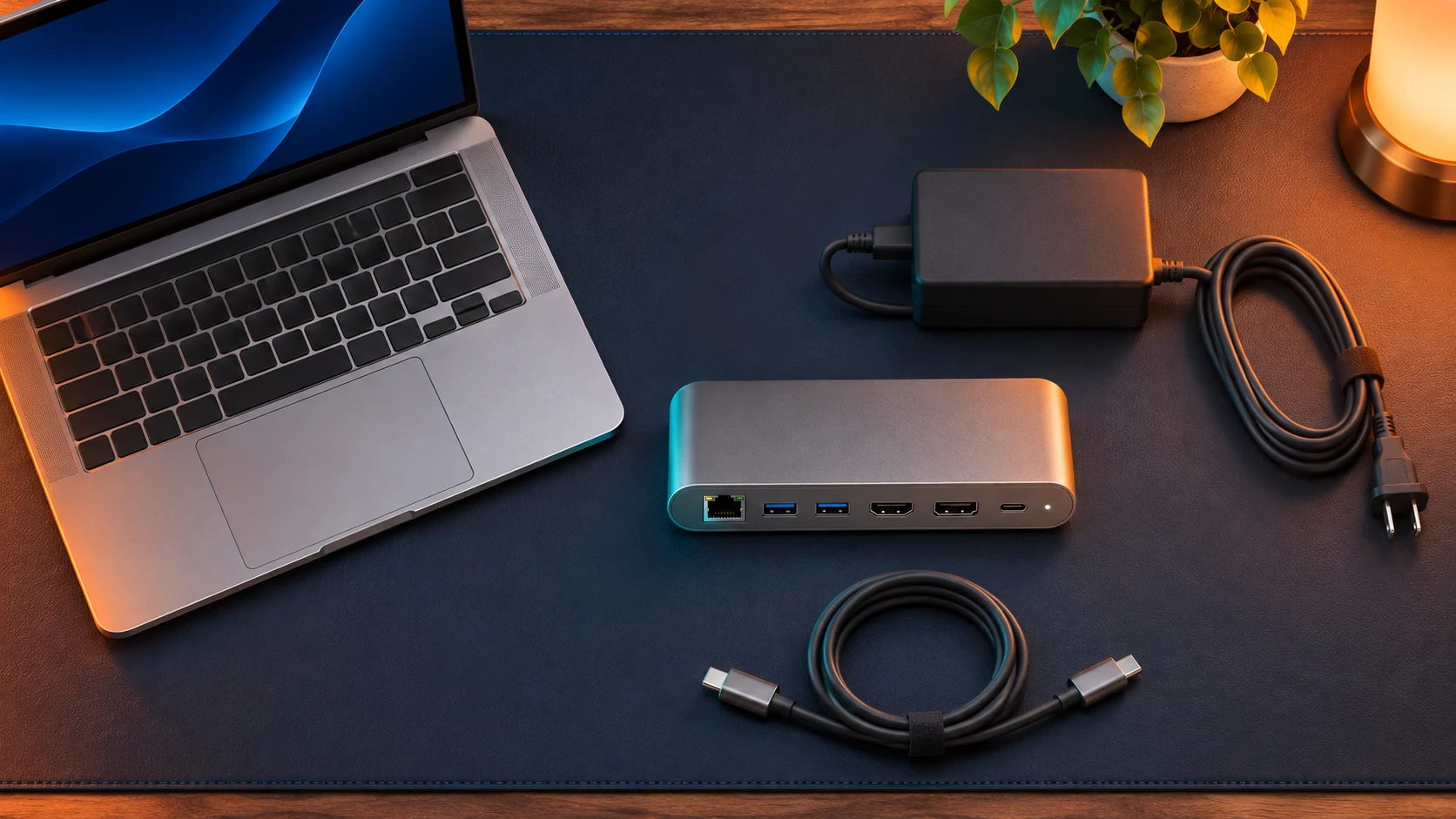
For a clearer power-rating comparison, read 60W vs 100W vs 240W USB-C cables. If you want one cable for different devices, use our phone and laptop USB-C cable checklist to separate charging, data and video requirements.
Two specific cables worth comparing
1. Plugable TBT5-240W1M — for a short Thunderbolt 5 connection. Its published specifications list a 1-meter length, 80Gbps bidirectional bandwidth, support for Bandwidth Boost and up to 240W charging. It is worth considering when your compatible laptop and accessory can use the faster link. The tradeoff is reach: measure your desk before choosing 1 meter. Display combinations remain dependent on the host.
Read Plugable’s complete specifications, then use the store buttons to compare offers. We have not performed a hands-on durability or throughput test of this cable.
2. CalDigit Thunderbolt 4 Pro Cable — for a 40Gbps setup that needs a 240W-rated cable. CalDigit lists 0.5-meter and 1-meter versions. It is a sensible specification match to investigate if your devices need Thunderbolt 4 bandwidth and the higher cable power rating. Do not confuse the Pro model with CalDigit’s standard 100W Thunderbolt 4 cable.
Check the exact CalDigit Pro model and available lengths. Compare its total price with a certified Thunderbolt 5 alternative before deciding; the newer generation is only useful when its capabilities or price suit your setup.
Five checks before you order
- Identify the host port. Open the laptop’s official specifications. USB-C describes the connector shape; use the documented Thunderbolt or USB capability to choose the cable.
- Identify the accessory port. A dock’s computer-facing input and downstream USB-C ports can serve different purposes. Read its manual.
- Write down your actual need. Include charging wattage, display resolution and refresh rate, or storage use. Compare those needs with the whole setup.
- Measure the route. Allow room for movement and a gentle bend. Check the specifications for the exact cable length, especially if you need a longer active cable.
- Compare like-for-like offers. Confirm the manufacturer model, length, warranty, seller and return policy. Avoid choosing from a listing title alone.
When keeping your current cable is the better choice
Keep it when your displays, storage and charging already behave as expected. Before replacing it, test the cable supplied with your dock, connect the dock directly to the laptop and remove an unnecessary extension or adapter. Change one part at a time so you can identify what solved the problem.
If two independent screens are the goal, a new cable cannot remove every laptop display limitation. Our DisplayLink vs Thunderbolt guide explains why the display connection method also matters.
Frequently asked questions
Can a Thunderbolt 5 cable work with Thunderbolt 4 devices?
Compatible Thunderbolt 5 cables support backward operation. Expect the capabilities of the connected devices, rather than Thunderbolt 5 performance from an older host.
Do I need Thunderbolt 5 just to charge a laptop?
Usually the important checks are USB Power Delivery compatibility and the cable’s wattage rating. Thunderbolt bandwidth is useful when you also need its data or display capabilities.
Is every Thunderbolt 4 cable rated for 240W?
No. Check the specific product. The CalDigit Pro example above is rated for up to 240W, while other Thunderbolt 4 models are rated for 100W.
Does a 240W cable charge every laptop at 240W?
No. The power source, laptop and cable must support a compatible negotiated charging level. The cable rating alone does not determine charging speed.
Should I replace the cable included with my dock?
Start with the included cable. Buy a replacement when you have identified a length, damage, power-rating or compatibility reason.
Our buying recommendation
For a working Thunderbolt 4 desk, keep the existing suitable cable. For a Thunderbolt 5 upgrade, start with the supplied cable and buy a certified replacement only when needed. Check power delivery separately from bandwidth, and spend on the capability your devices can actually use.
Editorial method: this buying guide compares published manufacturer specifications and practical purchase checks. Product recommendations are editorial judgments, not laboratory test results.




One Comment