Wireless Mouse Lag With a USB-C Hub? 7 Fixes
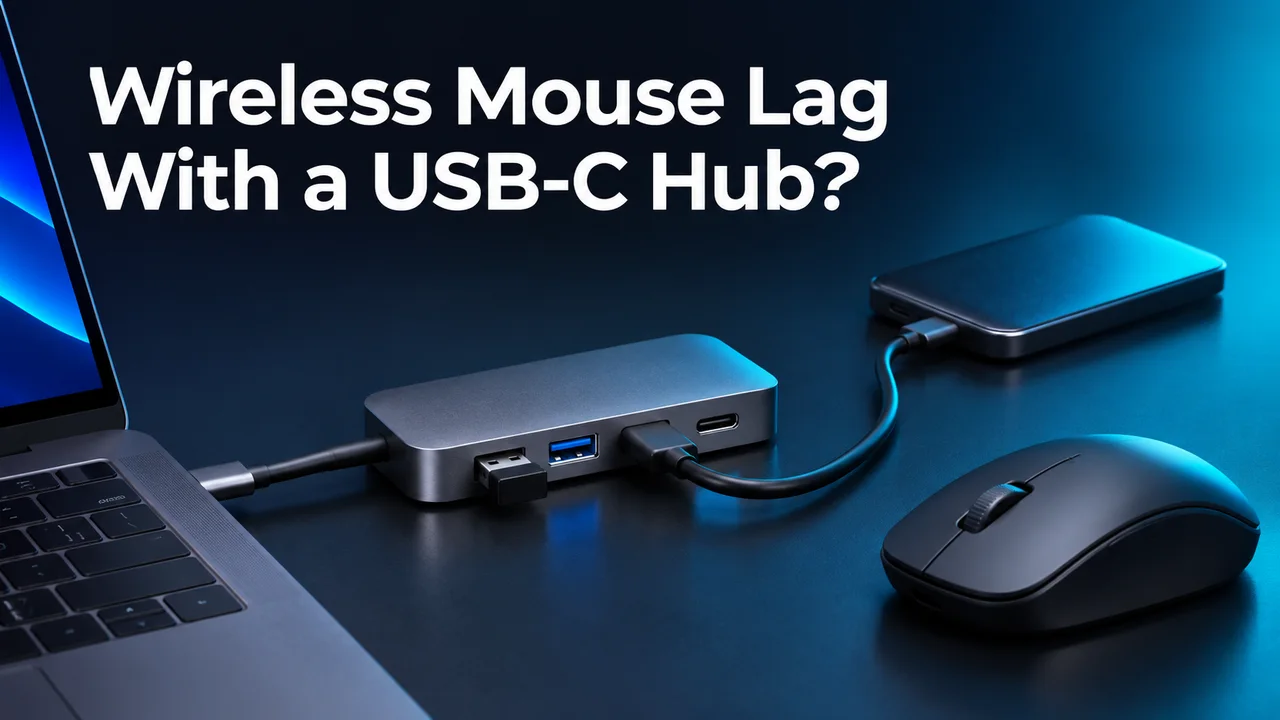
If you get wireless mouse lag with a USB-C hub, move the mouse’s USB receiver away from the hub and any USB 3.x SSD or cable. Try a port on the opposite side of the laptop first. If you only have one usable port, try a short USB 2.0 data extension for the receiver while leaving the SSD on its high-speed connection. When the cursor improves and the drive stays connected, receiver placement is a stronger lead than a failing hub.
Written by Ethan Walker for Gadget Makers Blog. This troubleshooting guide draws on published engineering and manufacturer documentation. The steps below are checks you can reproduce with your own setup.
Run the two-minute test · Go to the seven fixes · Decide whether to replace anything
Why your wireless mouse stutters beside a USB-C hub
A mouse with a USB dongle sends motion and button presses over a short-range radio link. Some USB 3.x equipment can emit noise near the 2.4 GHz band used by these receivers. If the receiver sits next to the hub, drive, or cable, that noise can make the mouse’s signal harder to pick out. The cursor may jump, a click may seem delayed, or the mouse may work only when it is close to the receiver. A wireless keyboard on the same receiver may also miss keystrokes.
USB-C describes the shape of the connector. The relevant factors here are the nearby USB 3.x connection, the shielding around it, and the position of the receiving antenna. Two hubs with the same advertised speed can behave differently on the same desk. An external drive can also contribute when connected and idle, so a quiet moment between file copies does not rule out interference. See the Intel USB 3.0 interference study and Logitech’s receiver placement guidance.
Run this two-minute test first
Use the same mouse, surface, and viewing position for each pass. Close any file transfer before you start and eject external storage before unplugging it. You can draw slow lines in a simple paint app or move the pointer in circles on the desktop. Watch for skipped motion, a cursor that stops briefly, or button presses that land late. If the whole desktop freezes, try the trackpad during the same pause. That difference matters.
Pass A: Leave the receiver in its current port. With the SSD connected as usual, check whether you can reproduce the lag. Note if the drive disappears or the display blinks at the same time. Pass B: Keep the receiver in the same port and safely remove the external USB 3.x drive. Try the same motion again. Pass C: Reconnect the drive and move only the receiver to a port farther from the drive and hub. Repeat the same check.
| What you observe | What to test next |
|---|---|
| Mouse improves when the drive is removed or the receiver is moved | Keep the drive on USB 3.x and separate the receiver physically. |
| A wired mouse and the trackpad lag at the same time | Check whether a busy app or the whole system is stalling. |
| The drive, wired keyboard, or display drops with the mouse | Check the hub connection, host cable, and power for a broader reset. |
| The mouse lags even with the hub and drive disconnected | Check the mouse battery, sensor surface, receiver pairing, or another computer. |
| The pointer skips only when the mouse is far from the receiver | Bring the receiver closer and move it out from behind metal or other desk equipment. |
A useful result is repeatable. If the mouse improves after you move the receiver, return the receiver to the old position once and see whether the symptom comes back. Then move it away again. That simple check is more informative than changing the cable, mouse battery, and operating system settings all at once.
7 ways to fix wireless mouse lag with a USB-C hub
1. Move the receiver to the far side of the laptop
If the hub connects on the left, try a port on the right for the mouse receiver. This keeps the receiver away from the hub enclosure as well as the drive connector. A direct USB-A port is convenient. On a USB-C-only laptop, a small USB-C to USB-A data adapter on a separate port can serve the same purpose. A charge-only accessory will not enumerate the receiver. Give the mouse a clear path to the dongle and retest with the SSD attached.
2. Use a short USB 2.0 data extension on the receiver
A USB-A male-to-female data extension lets you move the receiver onto the desk, close to the mouse. Connect the tiny receiver to the female end, and plug the male end into a data port on the computer or hub. If the mouse receiver uses USB-C, match the connector to its receiver or use a compatible data adapter. Logitech specifically lists an extension as a way to increase the distance from the noise source. You can test with a cable you already own before buying one.
Route the extension away from the external SSD, its cable, and the back of the dock. On a cramped desk, moving the receiver from behind the monitor stand to the front edge can give it a clearer path to the mouse. Leave the SSD on its normal high-speed port. An extension that fixes receiver placement does not need to carry the SSD’s data.
3. Separate the storage cable from the receiver
Using a different port on the same hub may put the dongle only a finger’s width away from the original source. Move the SSD and cable too if they sit next to the receiver. For example, route the drive to the back of the desk and bring the dongle forward. Check the connection during the work you normally do, such as moving files or editing footage. Avoid trapping the dongle between a metal laptop stand, a dock, and the display’s rear housing.
4. Try a verified USB 2.0 port for the mouse receiver
Some docks provide a separate USB 2.0 port suitable for a typical keyboard or mouse dongle. Look up your exact dock model and use the port diagram to identify it. Connector color varies between products. A USB 2.0 port still sits close to potential noise when it is adjacent to an active USB 3.x connection, so physical separation can matter even after the switch. Leave your external SSD on a port that supports the speed you need.
5. Test a direct wired mouse or the mouse’s Bluetooth mode
A wired mouse connected directly to the computer helps tell an unreliable wireless link from a computer or USB problem. If wired input is smooth and the dongle lags, repeat the spacing test with the dongle. If your mouse has a second connection mode, Bluetooth can also be worth trying. Bluetooth uses the same general frequency band and may still be affected, but its antenna is in a different location. Record which mode works at your normal seating distance before rearranging the desk.
6. Rule out surface, battery, and system load
Try a plain mouse pad, check the battery or charge level, and wipe dust away from the sensor with a dry cloth. A shiny desktop can cause tracking trouble even when the radio link is fine. On Windows, compare cursor behavior with Task Manager open if the slowdown coincides with an app or a copy job. On a Mac, compare with the trackpad and use Activity Monitor if the whole desktop feels slow. If both inputs freeze together, investigate the system or app before spending money on USB accessories.
7. Check for a hub reset when several devices drop together
If the cursor freezes and a wired keyboard, SSD, or Ethernet connection disappears at the same time, treat that as a broader hub problem. Test the hub with one low-power wired accessory, then add devices back one by one. Check whether the dock needs its original power supply or a host cable rated for its features. Try the laptop’s other compatible port if one is available. These tests help tell a receiver-placement issue from a hub link that actually drops.
For a port that never sees a device, see USB-C dock USB ports not working. If several connections repeatedly drop together, use the USB-C hub disconnect troubleshooting guide. If the mouse is fine and only wired networking drops, start with USB-C dock Ethernet troubleshooting.
A desk setup that keeps the SSD fast
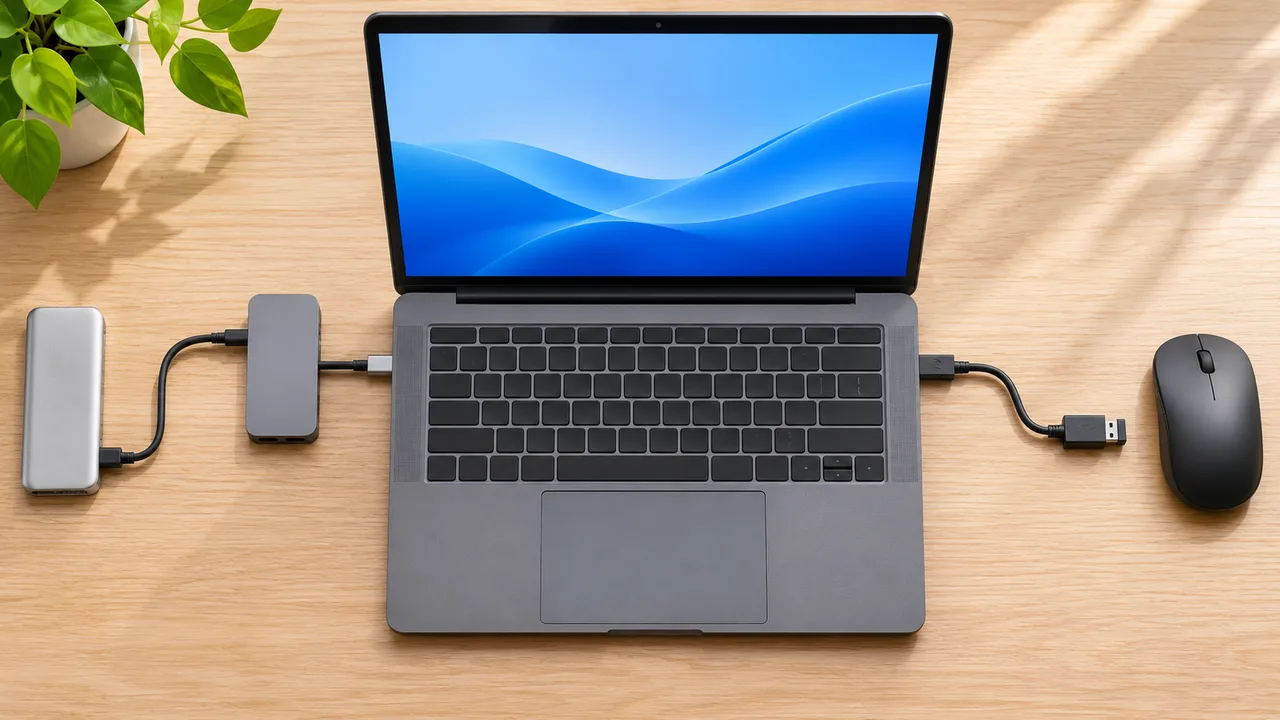
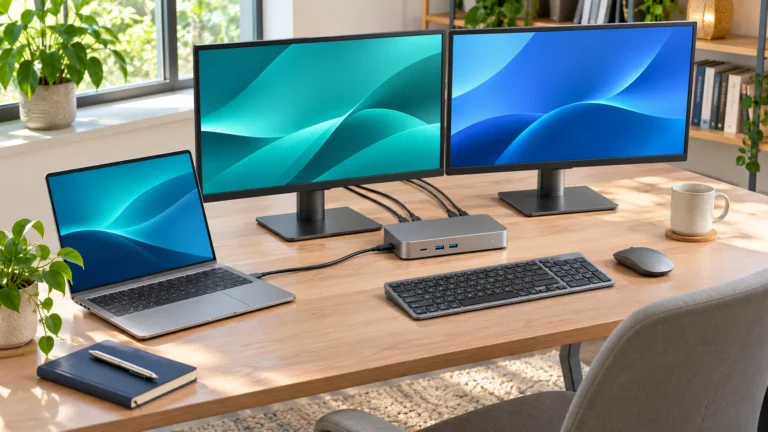
A laptop with two usable ports gives you the simplest layout. Keep the hub and SSD on one side and place the receiver on the other. With one usable USB-C port, keep the hub attached and put the wireless receiver on a short extension. Route the SSD cable away from that extension and place the receiver near the mouse. If you use the laptop on a stand, try leaving the receiver down on the desk instead of behind the elevated screen.
For a desktop PC, a rear port can put the receiver behind both the computer case and the desk. A front port or an extension to the desk surface may work better. If the front port sits next to a high-speed storage cable, compare placements with the drive connected in both cases. The best location is the one where the cursor remains stable during your usual workload and across the distance you actually sit. MSI also documents this issue in its USB 3.x wireless mouse and keyboard troubleshooting guide.
What is worth replacing?
If moving the receiver fixes the lag, keep the hub and mouse. A short data extension is worth considering only if there is no free port in a better position. If the same mouse still stutters with the hub removed, try it on another computer before changing the dock. Consistent lag that follows the mouse across computers points you toward the mouse, battery, sensor, or receiver. If multiple wired devices drop together in a minimal setup, test another compatible host cable or power supply where the manufacturer allows it. A replacement dock makes more sense after that problem is repeatable.
A new dock may change the receiver’s position or reduce noise around it, but a higher-speed label alone does not tell you how well a particular setup will behave. If you need a replacement for broader connectivity reasons, compare host compatibility, rear and front port placement, included power supply, and the options for keeping storage away from your receiver. Start with the laptop docking station buying guide.
Need a short extension? The StarTech USBEXTAA3BK is a 3 ft USB 2.0 data cable with a USB-A plug and socket. Use it for the wireless receiver after the placement test points to interference.
View the StarTech cable at WalmartFrequently asked questions
Can a USB 3.0 flash drive cause mouse lag without a hub?
Yes. A drive and receiver plugged into adjacent computer ports can produce the same symptom. Compare the same mouse motion with the drive connected and safely removed. If the cursor recovers after you move the receiver, keep the storage device on its fast port.
Why does the wireless keyboard miss letters at the same time?
If the keyboard and mouse share a wireless receiver, the same weak radio link can affect both. Move that receiver first. If a wired keyboard drops at the same time, check for a broader hub or computer issue.
Does an externally powered dock eliminate mouse interference?
External power can help when the dock has a power-budget problem. It does not guarantee that a nearby 2.4 GHz receiver will work well next to an active USB 3.x port. Use the receiver-placement test independently of any power changes.
Should I force my USB 3.x SSD to run at USB 2.0 speed?
Keep the SSD on its normal high-speed connection and move the receiver first. You can test the receiver on a USB 2.0 data extension without changing the drive’s port. That preserves storage throughput while you check whether the mouse improves.
Why does my mouse lag only after I connect an external monitor?
Check what changes along with the monitor. The dock may move behind the screen, or you may connect a drive and display at the same time. Try the trackpad while the pointer stutters. If the display or wired USB devices also drop, troubleshoot the dock connection first. If only the wireless mouse skips, start by moving its receiver.