

Why Does My Usb-c Hub Keep Disconnecting
USB-C hubs usually disconnect because of power limits, cable problems, compatibility issues, or driver and firmware conflicts. Start by testing one accessory at a time, then verify the hub, cable, charger, and host port before replacing anything.
If your USB-C hub keeps disconnecting, the cause is usually one of four things: not enough power, a loose or low-quality cable, a compatibility mismatch, or a driver/firmware issue. The good news is that most intermittent disconnects can be traced with a few safe checks before you replace anything.
- Power first: Many disconnects happen when the hub cannot support all connected devices at once.
- Check the cable: A loose or worn USB-C cable can cause intermittent resets and dropped connections.
- Verify compatibility: USB-C ports do not all support the same data, charging, or video features.
- Update software: Drivers, firmware, and OS settings can affect hub stability.
- Match the job: Heavy desk setups often need a powered hub or dock instead of a basic.
If the connection problem affects only a display, use our guide to a USB-C hub not detecting a monitor. If the symptoms involve laptop power, compare them with our USB-C hub charging troubleshooting guide. If you decide to replace a hub for a MacBook Air, compare our MacBook Air USB-C hub buying guide after checking compatibility.
Why Does My USB-C Hub Keep Disconnecting? The Most Common Causes Explained
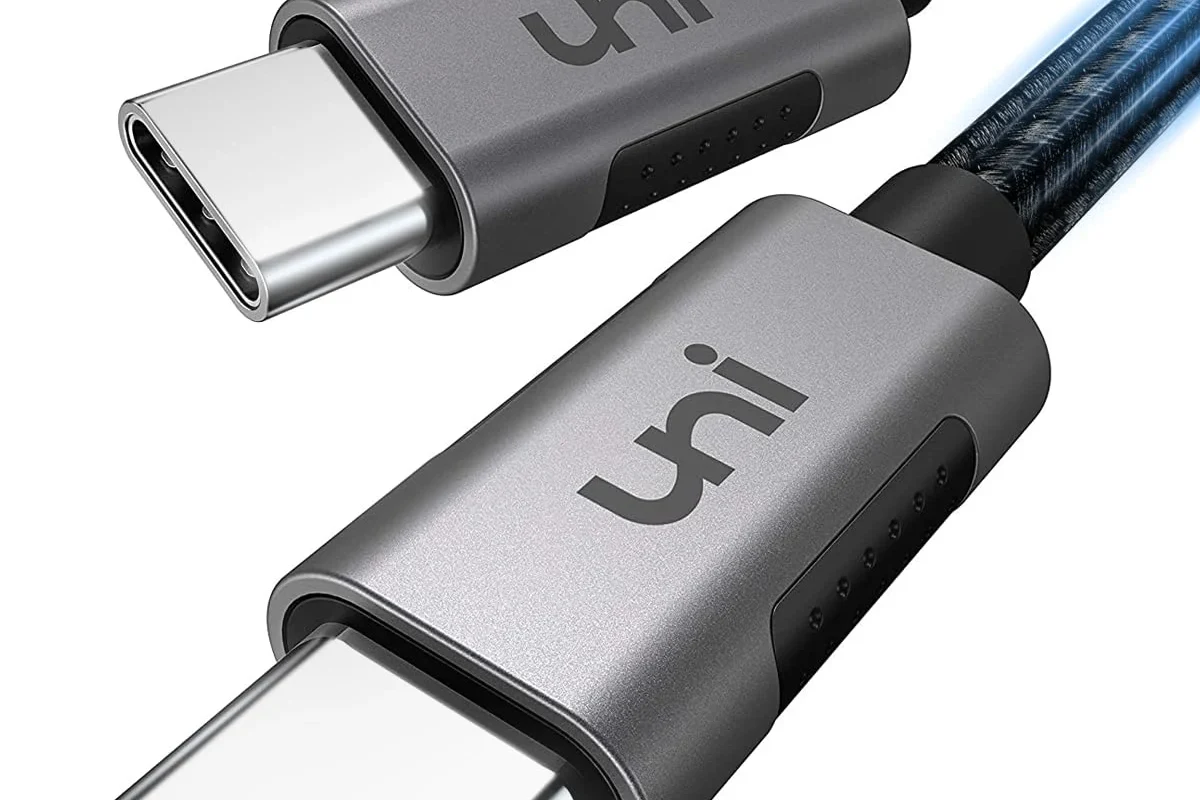
USB-C hubs sit between your computer and several accessories, so they depend on stable power, a secure physical connection, and the right protocol support from your device. When any one of those pieces is weak, the hub may briefly reset, drop a display, disconnect storage, or stop charging peripherals.
In everyday use, the problem often shows up when you plug in a monitor plus external drive, a webcam, and a phone charger at the same time. That combination can push the hub beyond its power budget or bandwidth limits, especially on thinner laptops, tablets, and phones that treat USB-C differently from one another.
How a USB-C Hub Works and Why Connection Stability Matters
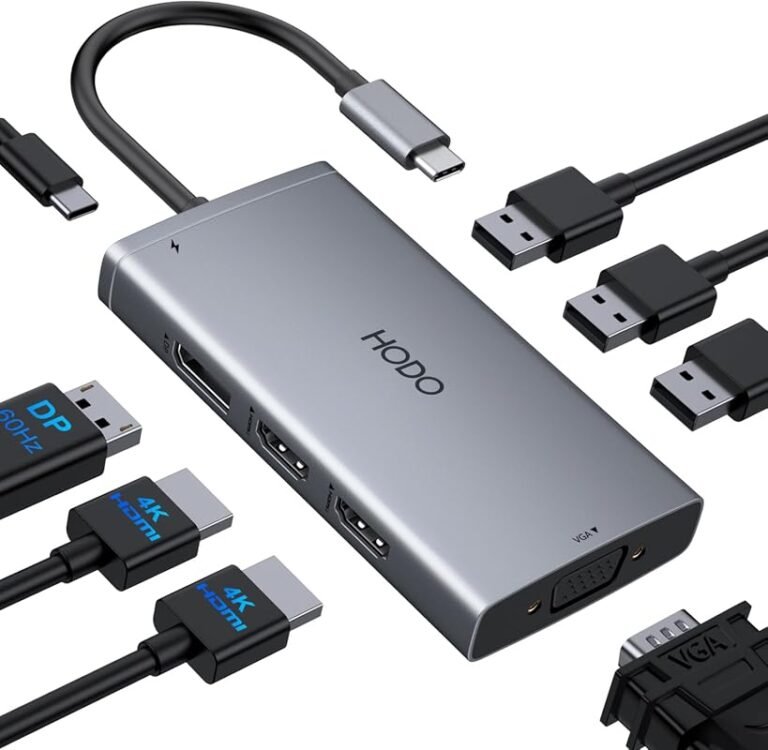
A USB-C hub takes one USB-C connection from your device and splits it into multiple outputs such as USB-A, HDMI, Ethernet, SD card slots, or extra USB-C ports. Some hubs also pass power through to the host device, which means the same cable can handle data, video, and charging at once.
That convenience also makes stability more sensitive. If the hub cable is loose, the adapter is underpowered, or the laptop’s USB-C port does not support the display or data mode the hub expects, the connection can drop and reconnect repeatedly.
USB-C is a connector shape, not a guarantee of the same features. Two USB-C ports can look identical while supporting very different data speeds, charging levels, and video output options.
Quick Diagnosis: Power, Cable, Port, or Compatibility?
The fastest way to narrow down the issue is to test one variable at a time. Start with the simplest setup, then add devices back gradually until the hub becomes unstable again.
Insufficient Power Delivery and Overloaded Hubs
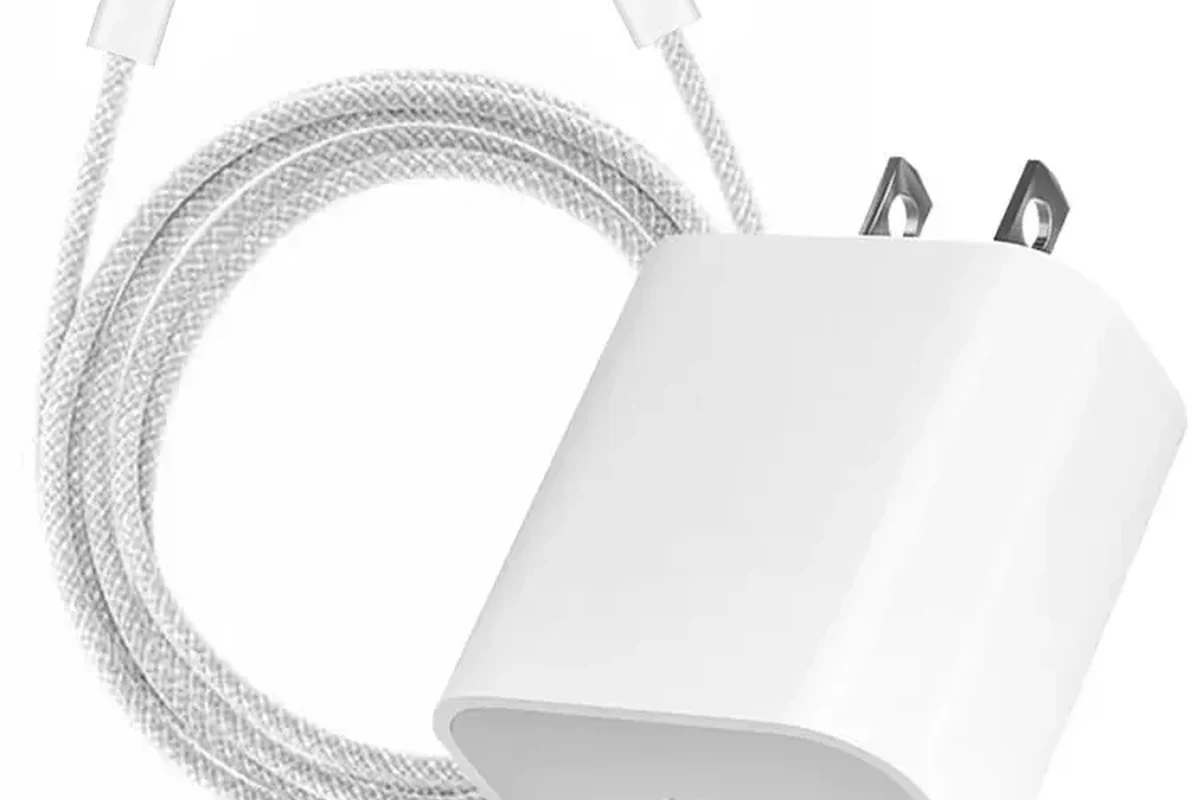
If the hub disconnects when you plug in several accessories, power is the first thing to check. A bus-powered hub draws from the host device, while a powered hub or dock can use an external adapter to support more peripherals and reduce strain on the laptop’s port.
Common signs of power trouble include flickering displays, a spinning external drive that disappears, a webcam that resets, or a phone that charges slowly while the hub is in use. If the hub includes pass-through charging, the charger wattage has to cover both the laptop and the connected accessories, not just the laptop alone.
Loose USB-C Cable Fit or Low-Quality Cable Problems
A USB-C plug should seat firmly, but some cables fit too loosely or wear out over time. If the hub disconnects when the cable is nudged, moved on a desk, or bent near the connector, the cable itself may be the weak point.
Low-quality cables can also cause intermittent behavior if they are not built for the data speed, power level, or video mode your setup needs. For example, a cable that works for charging may still be unreliable for a 4K display or a high-speed SSD enclosure.
Device Compatibility, Alternate Modes, and Bandwidth Limits
Not every USB-C port supports every feature. Some ports handle charging only, some support data and video, and others may have lower speed limits that become noticeable when multiple accessories are active.
Video output depends on alternate mode support or a dock/hub design that matches your computer’s USB-C implementation. If your monitor disconnects while storage still works, or the opposite happens, the hub may be reaching a bandwidth ceiling rather than failing completely.
Driver, Firmware, and Operating System Conflicts
Operating system updates, chipset drivers, display drivers, and hub firmware can all affect stability. A hub that worked fine before an update may start disconnecting if a driver changes how the computer negotiates power or display output.
This is especially relevant for newer laptops, tablets, and gaming handhelds that rely on vendor-specific firmware behavior. Check the manufacturer’s support page, the operating system’s update history, and the hub’s manual for known compatibility notes before assuming the hardware is defective.
Compatibility can vary by model, operating system version, and firmware revision. If the manufacturer publishes a compatibility list, use that as the first reference before buying a replacement hub.
Step-by-Step Troubleshooting Guide for Frequent Disconnects
Use this process in order. It avoids unsafe repairs and helps you separate a simple cable issue from a deeper compatibility problem.
Check the Wall Adapter, Wattage, and Power Budget
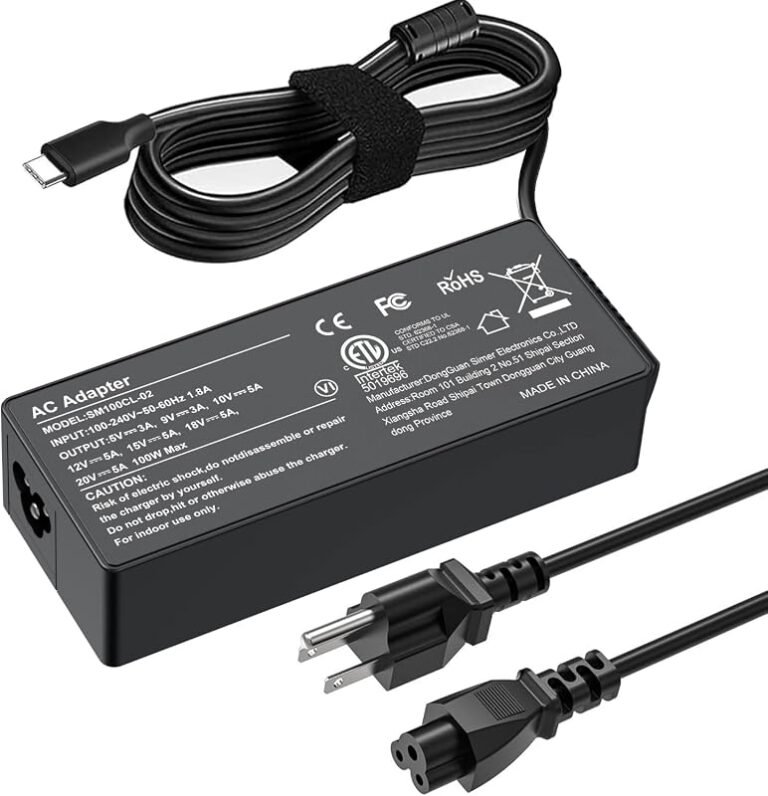
First, confirm that the charger or power adapter matches the hub’s requirements. If the hub supports power delivery passthrough, the adapter should provide enough wattage for the computer plus any attached accessories, especially if you are charging a laptop while using a monitor and storage device.
Unplug everything except the hub and the host device, then reconnect accessories one at a time. If the disconnects stop when you remove one power-hungry device, you have likely found the overload point.
Inspect the Hub, Host Port, and Connected Accessories
Look for dust, bent connectors, frayed cable jackets, scorch marks, or a plug that no longer clicks into place firmly. A damaged cable or port can cause momentary signal loss that looks like a software issue but is really a physical connection problem.
Also check whether the host device’s USB-C port is shared with charging, video, or high-speed data in a way that affects your setup. Some laptops reduce throughput or change behavior on certain ports, which can matter if you are using an external display or SSD.
Stop using damaged electronics, swollen batteries, frayed cables, overheating chargers, or unstable accessories. If a hub or adapter feels unusually hot, smells burnt, or disconnects with visible damage, follow the manufacturer’s guidance and replace it instead of forcing continued use.
Test With Fewer Devices and Different Ports
Disconnect everything, then test the hub with only one accessory at a time. If it stays stable with a mouse but disconnects with an external SSD or monitor, the issue may be tied to power draw or data bandwidth rather than the hub itself.
If your computer has more than one USB-C port, try each one. A different port can reveal whether the problem is local to one connector, one controller, or one side of the device.
Use only the host device, the hub, and one low-power accessory to see whether the connection remains stable.
Reconnect a monitor, drive, or charger separately so you can identify the trigger.
Use a known-good USB-C cable and a different host port to separate cable wear from port-specific issues.
Update Drivers, Firmware, and System Settings
Check for updates from the laptop, tablet, or desktop manufacturer first, then look for hub firmware or utility software if the hub vendor provides it. Some hubs need a firmware update to improve display compatibility, charging behavior, or device recognition.
On laptops, power-saving settings can also affect USB behavior. If the hub disconnects while the computer sleeps or enters low-power mode, review USB selective suspend, display sleep timing, and any vendor power management settings in the operating system.
If a hub only disconnects after sleep, wake, or hot-plugging a display, note the exact sequence. That pattern is often more useful than the brand name when checking support articles or firmware notes.
What to Look for in a Reliable USB-C Hub in 2026
If you are replacing a hub, the goal is not just “more ports.” You want a model that matches your device’s power, video, and data needs without forcing the hub to operate at the edge of its limits.
Port Types, Display Support, Ethernet, and Data Speeds
Start with the ports you actually use. A student who needs flash drives and HDMI has different needs from a creator who works with external SSDs, dual displays, and wired networking.
Check whether the hub supports the specific display output you need, such as HDMI or DisplayPort over USB-C, and whether it can handle the resolution and refresh rate your monitor requires. Also confirm whether the USB ports are fast enough for your storage devices and whether Ethernet is included if you rely on a wired connection.
Power Delivery Rating, Cable Quality, and Heat Management
A more stable hub usually has a realistic power rating, a well-built integrated cable, and enough internal design margin to handle normal heat. Heat is not always a defect, but excessive heat can shorten component life and make disconnects more likely.
Look for clear documentation on power delivery limits, included power adapter requirements, and whether the hub is intended for charging only, data only, or full workstation use. If the cable is permanently attached, cable quality matters even more because it becomes part of the hub’s reliability.
Build Quality, Port Layout, and Travel-Friendly Design
Port spacing matters more than many buyers expect. Tight layouts can make bulky USB drives, audio dongles, or HDMI cables press against each other and loosen the connection over time.
For travel, look for a compact hub that still has a sturdy shell, strain relief at the cable exit, and a layout that does not block adjacent ports on your laptop. If you move between classrooms, offices, or coffee shops, a hub that packs easily and tolerates frequent unplugging is usually a better choice than the cheapest option.
- Check compatibility, model number, app requirements, dimensions, ports, wattage, and intended use
- Confirm safety guidance, warranty, return policy, privacy settings, and update support
Who a USB-C Hub Fits Best and When a Dock Is the Better Choice
USB-C hubs are best when you need a small, flexible way to add a few essential ports. Once your setup becomes more demanding, a dock may offer better stability because it is designed for heavier power and display use.
Best Use Cases for Students, Remote Workers, and Creators
Students often need a hub for presentations, flash drives, SD cards, and occasional charging. Remote workers may want Ethernet, an external monitor, and a mouse or keyboard without turning their desk into a cable maze.
Creators and gamers can also use hubs successfully, but they should be more careful about power and bandwidth. If you are editing from an external SSD, running a capture device, or driving a high-resolution display, the hub has to match the workload rather than just the connector shape.
Choose a well-specified USB-C hub if you need portability, a few essential ports, and occasional desk use. If your setup regularly includes dual displays, multiple drives, and charging at the same time, a powered dock is usually the safer long-term fit.
When to Upgrade to a Thunderbolt Dock or Powered Hub
If your hub disconnects only when your desk setup gets busy, that is often a sign you have outgrown it. A Thunderbolt dock or a more robust powered hub can provide a steadier connection for heavier multitasking, but only if your computer supports that standard.
Before upgrading, verify your computer’s port type, supported standards, and operating system compatibility. A more expensive dock will not solve a mismatch between the host device and the accessories it is being asked to support.
Safe Use, Care, and Maintenance to Prevent Future Disconnects
Once you have a stable setup, a little maintenance goes a long way. Most recurring disconnects start with wear, heat, dust, or cables being bent too sharply during daily use.
Keeping Ports Clean, Cool, and Strain-Free
Keep dust out of the host port and the hub’s connectors, and avoid forcing plugs into place. Use gentle cable routing so the hub cable is not pulled sideways by a heavy adapter, monitor lead, or desk edge.
If the hub sits behind a monitor or under a laptop stand, make sure airflow is not blocked. Heat buildup can become a problem in small enclosures, especially when charging and data transfer happen at the same time.
Storage, Replacement Guidance, and Signs the Hub Is Failing
Store the hub in a pouch or drawer where the cable will not be kinked or crushed. If you travel with it, avoid wrapping the cable too tightly around the body of the hub, since repeated stress can damage the connector over time.
Replace the hub if disconnects become more frequent, if the cable feels loose at the connector, if ports stop recognizing devices, or if the unit runs unusually hot under normal load. At that point, the cost of downtime and data frustration is usually greater than the cost of a better replacement.
Final Recommendation: How to Choose a Stable USB-C Hub That Stays Connected
The most reliable USB-C hub is the one that matches your device, your accessories, and your power needs without running at the edge of its limits. If you want the fewest disconnects, prioritize a secure cable, verified compatibility, realistic power delivery, and enough bandwidth for the devices you actually use.
For simple setups, a compact hub can work well if you keep the load light. For busier desks or demanding laptops, a powered hub or dock is often the more stable choice, especially when you regularly use charging, video, storage, and networking together.
- Frequent disconnects usually come from power limits, cable issues, compatibility mismatches, or software conflicts.
- Test one variable at a time so you can identify whether the problem is the hub, the cable, the port, or the connected accessories.
- When replacing a hub, verify power delivery, display support, data speed, and host-device compatibility before buying.
- If your setup is demanding, a powered hub or dock is often more stable than a basic travel hub.
Frequently Asked Questions
That usually means the hub is hitting a power or bandwidth limit. Try fewer devices first, then add them back one at a time to identify the trigger.
Yes. A loose, worn, or low-quality cable can interrupt data, video, or charging even if the hub itself is fine.
Check the laptop’s manual or support page for data, charging, and video support on that port. USB-C ports can look identical while supporting very different features.
It can. Driver, firmware, and operating system updates sometimes improve power negotiation, display support, and device detection.
Replace it if disconnects continue after cable, power, and compatibility checks, or if the hub shows damage, overheating, or loose ports.
A hub is better for portability and lighter use, while a powered dock is usually better for multiple displays, drives, and charging at the same time.

2 Comments