Smart Locker Solutions Biometric Authentication Guide
Smart locker solutions with biometric authentication are worth considering if you want controlled access, fewer shared keys, and a clearer record of who opened storage and when. They make the most sense when multiple people need access to the same locker or when you want better accountability than a basic key, keypad, or RFID setup can provide.
- Best fit: Shared homes, offices, gyms, schools, and retail spaces benefit most from biometric access control.
- Key check: Verify dimensions, backup unlocking, app support, and connectivity before buying.
- Real trade-off: Biometrics improve convenience and accountability, but they can add setup and privacy considerations.
- Smart choice: Hybrid models with PIN, card, or mechanical fallback are often the most practical.
Smart Locker Solutions Biometric Authentication: What It Is and Whether It’s Worth It in 2026
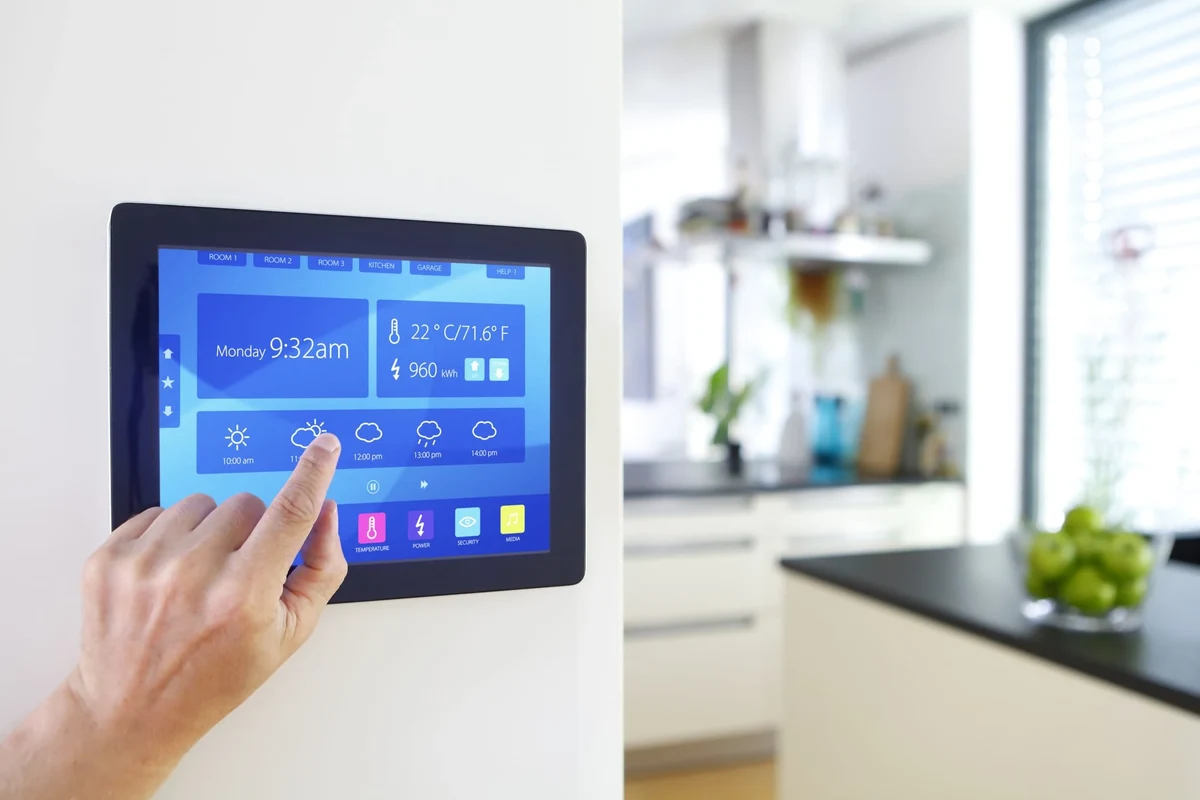
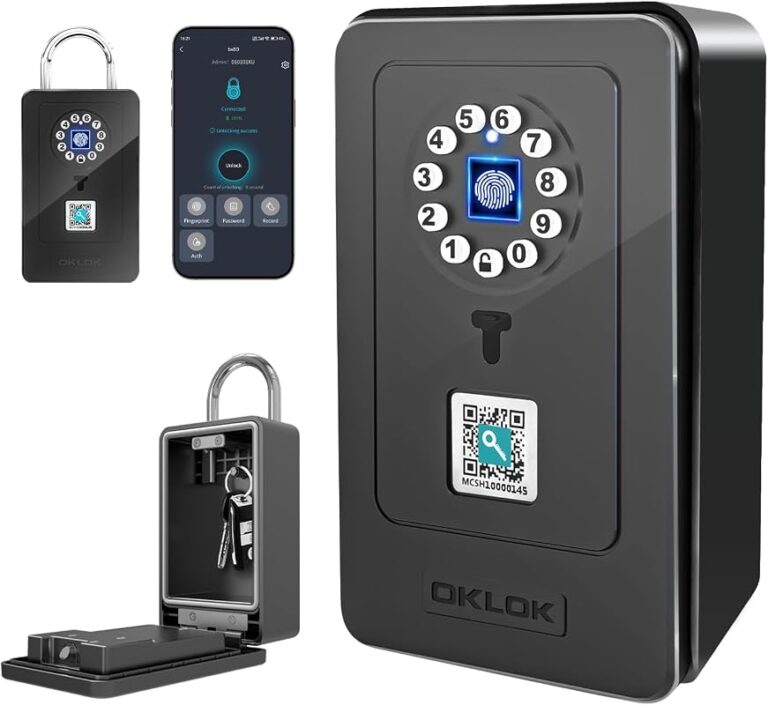
These lockers use a fingerprint scanner, facial recognition camera, or another biometric reader to unlock a compartment for approved users. The main value is convenience plus access control: you can reduce key handoffs, track usage, and make it harder for casual users to borrow access without permission.
Quick answer: who should consider it, and what problem it solves
Biometric smart lockers are best for homes with shared storage, apartments, gyms, schools, offices, and small businesses that need controlled access without constant key management. If your main need is basic personal storage, a simpler lock may be easier to maintain and cheaper to replace.
How Biometric Smart Locker Systems Work
Most systems pair a biometric sensor with a controller, lock mechanism, and software that stores approved users. When the scanner recognizes an enrolled fingerprint or face profile, the controller releases the latch; if not, the locker stays locked and may fall back to a PIN, card, or app-based method depending on the model.
Fingerprint, facial recognition, PIN backup, and multi-factor access
Fingerprint readers are common because they are fast and compact, but they can be affected by dirty sensors, wet fingers, or worn skin. Facial recognition can be more convenient for some environments, though it usually depends more heavily on lighting, camera quality, and firmware design.
Many locker systems include a PIN backup or admin code so users can still gain access if the biometric scan fails. Higher-security models may support multi-factor access, such as fingerprint plus PIN, which improves control but adds setup and daily-use friction.
Cloud-connected vs. local-control locker management
Cloud-connected lockers can sync access logs, user changes, and alerts through an app or web dashboard. That is useful for landlords, managers, and workplaces, but it also means you should review data handling, account security, and what happens if the internet goes down.
Local-control systems keep more functions on the locker itself or on a nearby hub, which can reduce reliance on the cloud. They are often simpler for private homes or small teams, but they may offer fewer remote features and less convenient log access.
Who Smart Locker Solutions Fit Best
The best fit depends on how many people need access, how often access changes, and how important audit trails are. A biometric locker can be overkill for a single-user closet, but it can be a smart upgrade where shared access creates confusion or security gaps.
Homes, apartments, shared offices, gyms, schools, and retail backrooms
In homes and apartments, biometric lockers can help secure valuables, medications, tools, or shared packages. In offices and retail backrooms, they can help track access to equipment, inventory, or sensitive documents.
Gyms and schools may use them for bags, devices, uniforms, or staff-only items, while property managers may prefer them for package rooms or resident storage. In each case, the best model depends on compartment size, user volume, and how much maintenance staff can realistically support.
Ideal users: families, landlords, small businesses, and property managers
Families may like the convenience of not sharing keys for every item, especially when kids, caregivers, or roommates need occasional access. Landlords and property managers may value the audit trail and the ability to add or remove users without rekeying hardware.
Small businesses often care most about accountability and reducing friction at shift changes. If you manage a shared space, the right locker system can also help standardize access without relying on memory or informal key swaps.
Key Specs and Buying Criteria to Compare Before You Choose
Because smart lockers vary widely, the most important buying step is matching the hardware to the space and the access pattern. The right model should fit the items you store, the users who need access, and the connectivity or power setup your location can support.
- Check compatibility, model number, app requirements, dimensions, ports, wattage, and intended use
- Confirm safety guidance, warranty, return policy, privacy settings, and update support
Locker dimensions, compartment layout, and storage capacity
Start with internal dimensions, not just the outer cabinet size. A locker that looks large on the outside may have shallow compartments, awkward dividers, or limited clearance for laptops, helmets, backpacks, tools, or medication bins.
Compartment layout matters too. Single large compartments, stacked cubbies, and modular banks serve different use cases, and the best choice depends on whether you need one shared secure space or many individual slots.
Authentication speed, accuracy, user limits, and access logs
Authentication speed affects daily convenience more than many buyers expect. A system that unlocks quickly but rejects valid users too often can become frustrating, while a slower but more reliable system may work better in busy shared settings.
Check whether the locker supports enough enrolled users for your household or team, and whether access logs show useful details such as time, user ID, or failed attempts. The usefulness of logs depends on the app, firmware, and admin permissions.
Connectivity requirements: Wi‑Fi, Bluetooth, Ethernet, and app support
Some lockers need Wi‑Fi for cloud features, while others use Bluetooth for nearby setup and control. In managed spaces, Ethernet may be preferred for stability, but it is not common on every model, so verify the actual port list before planning an install.
App support also matters. Confirm whether the locker works with iOS, Android, a desktop dashboard, or only one platform, and check whether guest access, notifications, and admin controls are included or gated by a subscription.
Power options, backup battery behavior, and fail-safe unlocking
Biometric lockers may run on wall power, batteries, or a combination of both. If the model uses batteries, confirm how long the backup lasts, whether low-battery alerts appear in the app or on the unit, and what happens if the battery dies before replacement.
Fail-safe unlocking is another key question. Some lockers keep a mechanical override, while others rely on admin codes, backup power, or service procedures. Do not assume every smart locker includes the same emergency access path.
Build quality, weather resistance, warranty details, and serviceability
For indoor use, look at hinge quality, latch strength, sensor protection, and cabinet material. For outdoor or semi-outdoor locations, weather resistance, dust protection, and temperature limits become much more important, and those details should be verified in the manual rather than assumed from marketing photos.
Warranty terms and serviceability matter because biometric hardware can be harder to replace than a standard lock. Ask whether the sensor, controller, battery, and lock module can be serviced separately or whether the entire unit must be replaced if one part fails.
Real-World Benefits and Practical Trade-Offs
Biometric lockers are appealing because they reduce the need to manage physical keys while improving access visibility. Still, they are not perfect, and the best systems balance convenience with realistic expectations about privacy, reliability, and maintenance.
Convenience, audit trails, and reduced key-sharing risk
The biggest everyday advantage is convenience. Users can usually access a locker without finding a key, remembering a code, or asking a manager for help, and admins can often add or remove users more cleanly than with traditional hardware.
Audit trails can also reduce confusion in shared spaces. If a locker has logs, you can often see when access happened, which can help with accountability, inventory control, or simple dispute resolution.
Security gains versus privacy, false rejects, and enrollment friction
Biometrics can improve access control, but they do not eliminate all risk. False rejects happen when a valid user is not recognized, and enrollment friction can be real if the scanner is picky or if many users must be trained.
Privacy is also part of the trade-off. Before choosing a cloud-connected locker, review what biometric data is stored, whether templates are encrypted, whether data can be deleted, and how the vendor handles account removal and device retirement.
Where biometric lockers outperform keypad or RFID systems
Biometric lockers usually outperform keypad systems when people tend to forget or share codes. They can also beat RFID in places where cards, fobs, or tags are easily lost, copied, or borrowed.
That said, a keypad or RFID system may still be the better choice if you need fast guest access, low maintenance, or simpler troubleshooting. For many buyers, a hybrid model that supports biometrics plus a backup method is the most practical option.
- Reduces key sharing and code reuse
- Can provide access logs for accountability
- Convenient for multi-user storage
- Can reject valid users in some conditions
- May require apps, updates, or network setup
- Privacy and service details vary by model
Setup Guide: Installation, App Requirements, and First-Time Enrollment
Good setup matters because many locker issues come from placement, weak connectivity, or skipped registration steps rather than from the biometric sensor itself. Before mounting or powering anything, read the manual and confirm the install requirements for your exact model.
Placement, mounting, clearance, and power/network setup
Place the locker where users can reach the sensor comfortably and where doors or compartments can open fully. Leave enough clearance for ventilation, cable routing, and maintenance access, especially if the unit has a battery compartment or network port.
If the locker needs Wi‑Fi, test signal strength at the installation location before final mounting. If it uses Ethernet or a dedicated hub, confirm cable length, outlet access, and whether the installation requires a protected indoor environment.
App permissions, firmware updates, and user registration steps
During setup, the app may request Bluetooth, local network, camera, or notification permissions. Grant only what is needed for the model’s documented features, and review privacy settings before enrolling users.
Firmware updates can improve reliability, fix bugs, or add features, but they should be installed from the official app or vendor tool only. Register admins first, then add everyday users one at a time so you can verify each profile and backup method.
Common setup mistakes that cause lockouts or sync issues
Common problems include weak Wi‑Fi, poor lighting for face recognition, dirty sensors, skipped admin setup, and using the wrong app version for the device. Another frequent issue is assuming a guest or family member can be added without checking user limits or permission levels first.
It also helps to avoid placing the locker near heat sources, direct sun, or high-humidity areas unless the model is specifically rated for those conditions. Environmental stress can affect both electronics and the mechanical lock over time.
Safe Use, Maintenance, and Troubleshooting
Biometric lockers are usually straightforward to maintain, but they still need regular cleaning, battery checks, and occasional software updates. A little upkeep can prevent most access failures and help the hardware last longer.
Cleaning sensors, checking hinges and locks, and preventing wear
Clean fingerprint sensors and camera lenses with the method recommended by the manufacturer, usually a soft, dry microfiber cloth. Avoid harsh cleaners unless the manual explicitly allows them, because residue or scratches can reduce recognition quality.
Also check hinges, latches, and door alignment. If the door sags or the latch drags, the biometric system may appear unreliable even though the real issue is mechanical wear.
Battery replacement guidance, cable quality checks, and heat limits
If your locker uses replaceable batteries, track the replacement schedule and keep spares on hand if the manual recommends them. For rechargeable models, use only the approved charging cable and power adapter, and inspect both for heat damage or bent connectors.
Heat limits matter because electronics inside a locker can be stressed by poor ventilation or high ambient temperatures. If the unit feels unusually warm, check the manual for operating limits and stop using it until the cause is understood.
What to do if the scanner fails, the app disconnects, or power is lost
If the scanner fails, first clean the sensor and retry with an enrolled user in the right lighting or positioning. If the app disconnects, check the phone’s Bluetooth or network permissions, confirm the locker is powered, and verify whether a firmware update is pending.
If power is lost, use the official backup method only. That may be a battery backup, admin code, or mechanical override, depending on the model, and you should confirm that process before the locker goes into daily use.
Safe-use limits: emergency access, shared credentials, and data privacy
Emergency access should be planned in advance, especially in workplaces or shared housing. Make sure at least one authorized person knows how to use the backup method, and store recovery details securely rather than in an obvious place near the locker.
Do not share admin credentials casually, and review biometric data policies if the system stores user templates in the cloud. Strong passwords, two-factor authentication, and regular permission reviews are still important even when the locker itself uses biometrics.
Value, Alternatives, and Final Recommendation
Biometric smart lockers are most valuable when access control, accountability, and convenience all matter at once. If those needs are only occasional, a simpler system may deliver a better balance of cost, maintenance, and reliability.
When biometric smart lockers are worth the price
They are worth considering when multiple people need access, when key control is a recurring problem, or when you want a better record of usage. They also make sense if you expect the locker to be used often enough that the convenience of biometric entry will genuinely save time.
Alternatives: keypad, RFID, mechanical lock, and hybrid systems
Keypad lockers are usually easier to understand and cheaper to manage, but codes can be shared or forgotten. RFID systems are fast for staff or members, though cards and fobs can be lost or duplicated more easily than a biometric profile.
Mechanical locks remain the simplest option for low-tech needs and minimal maintenance. Hybrid systems are often the smartest compromise because they combine biometrics with a backup PIN, card, or key for situations when the primary method fails.
Transparent verdict for different buyer types
Choose biometric smart locker solutions if you manage shared storage, need better access visibility, or want to reduce the hassle of key control. Choose a keypad, RFID, or mechanical option if you value simplicity more than detailed access management, or if you want the least complicated setup and maintenance path.
Biometric smart lockers are a strong fit for homes, apartments, offices, gyms, schools, and retail spaces that need secure shared access with fewer key headaches. They are less compelling for low-use storage or buyers who want the simplest possible lock, so verify dimensions, backup access, app requirements, and privacy terms before choosing a model.
Frequently Asked Questions
Biometric smart lockers are a good fit for homes, apartments, offices, gyms, schools, and small businesses that need shared access with better accountability. They are less necessary for simple personal storage where a basic lock is enough.
Yes, a backup PIN, admin code, card, or mechanical override is important in case the sensor, app, or power source fails. Confirm the exact fallback method in the manufacturer’s manual before buying.
Check dimensions, mounting needs, power options, Wi‑Fi or Bluetooth requirements, and whether the app works with your phone or platform. Also review clearance, ventilation, and the official installation instructions.
Fingerprint lockers can reduce code sharing and make access faster for frequent users. Keypad lockers are often simpler and easier to troubleshoot, so the better choice depends on your use case.
Clean the sensor or camera lens with the manufacturer-recommended method, usually a soft microfiber cloth. Also check hinges, latches, batteries, and cables regularly for wear or damage.
Review what biometric data is stored, whether templates are encrypted, how accounts are deleted, and whether two-factor authentication is available. Use strong passwords and official apps only.