Usb-c Cable Compatibility
USB-C cable compatibility depends on more than the plug shape, because charging speed, data transfer, and video support can all differ. Check the cable’s rated power and data standard against your device before buying or using it.
USB-C cable compatibility is not just about whether the plug fits. The cable also has to match the device’s charging needs, data speed, and any video or dock features you want to use.
- Connector shape: USB-C fit does not guarantee fast charging, data, or video support.
- Power rating: Match the cable’s wattage and current rating to the device and charger.
- Data standard: USB 2.0, USB 3.x, USB4, and Thunderbolt cables perform very differently.
- Device type: Laptops, docks, and monitors need more careful matching than basic phone charging.
- Safety: Replace frayed, loose, hot, or unreliable cables instead of continuing to use them.
USB-C Cable Compatibility: What It Means and Why It Matters in 2026
Quick answer: not every USB-C cable supports the same speed, power, or features
Many USB-C cables look identical, but they can behave very differently. One cable may handle only basic charging and slow data transfer, while another supports fast charging, high-speed file transfers, or external displays.
How USB-C compatibility affects charging, data transfer, and video output
For charging, compatibility determines how much power a cable can safely carry and whether the device can negotiate fast charging. For data, it determines whether you get simple USB 2.0 syncing or much faster USB 3.x, USB4, or Thunderbolt performance. For video, only certain cables support display output through USB-C alt modes or Thunderbolt-style connections.
How USB-C Cables Work Across Devices and Standards
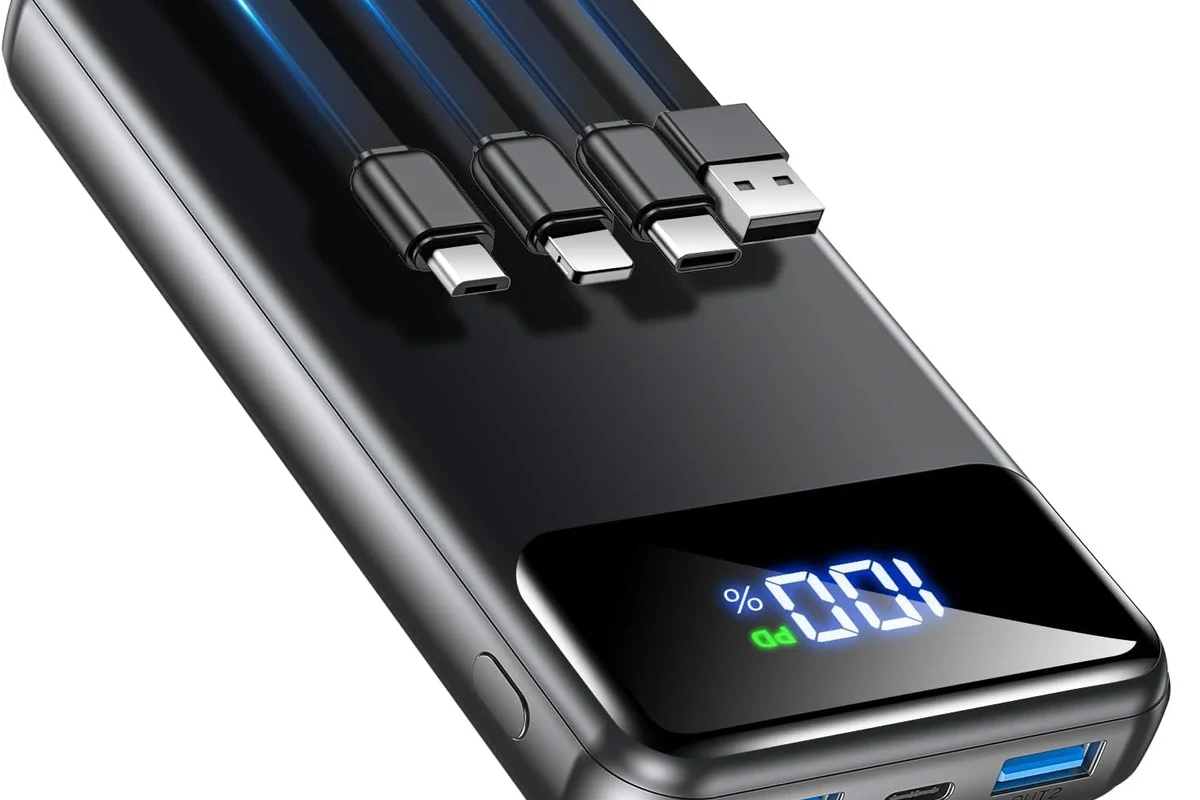
USB-C connector vs. USB data standard vs. charging protocol
USB-C is the shape of the connector, not a guarantee of performance. The cable still needs to support the right data standard and charging protocol for your device, which is why two USB-C cables can have very different capabilities.
USB 2.0, USB 3.x, USB4, Thunderbolt, and USB Power Delivery explained
USB 2.0 cables are fine for basic charging and simple syncing, but they are much slower for file transfers. USB 3.x, USB4, and Thunderbolt cables are designed for higher data throughput, and USB Power Delivery is the charging standard many phones, tablets, laptops, and accessories rely on for negotiated fast charging. Exact support varies by cable and device, so the label matters.
Why two USB-C cables can look identical but perform very differently
A cable’s internal wiring, shielding, current rating, and certification can change what it supports. Some cables are built only for charging, some are full data cables, and some are designed for high-power laptops or displays. The outer jacket alone does not tell you which one you have.
A USB-C plug can be reversible while the cable underneath still supports very different power and data limits depending on how it was built.
Which Devices Need Careful USB-C Cable Matching
Phones, tablets, and laptops: matching wattage and fast-charge support
Phones and tablets often work with many USB-C cables, but fast charging depends on both the charger and the cable. Laptops usually need more careful matching because they may draw much more power and may also depend on a cable that supports the right wattage and data features.
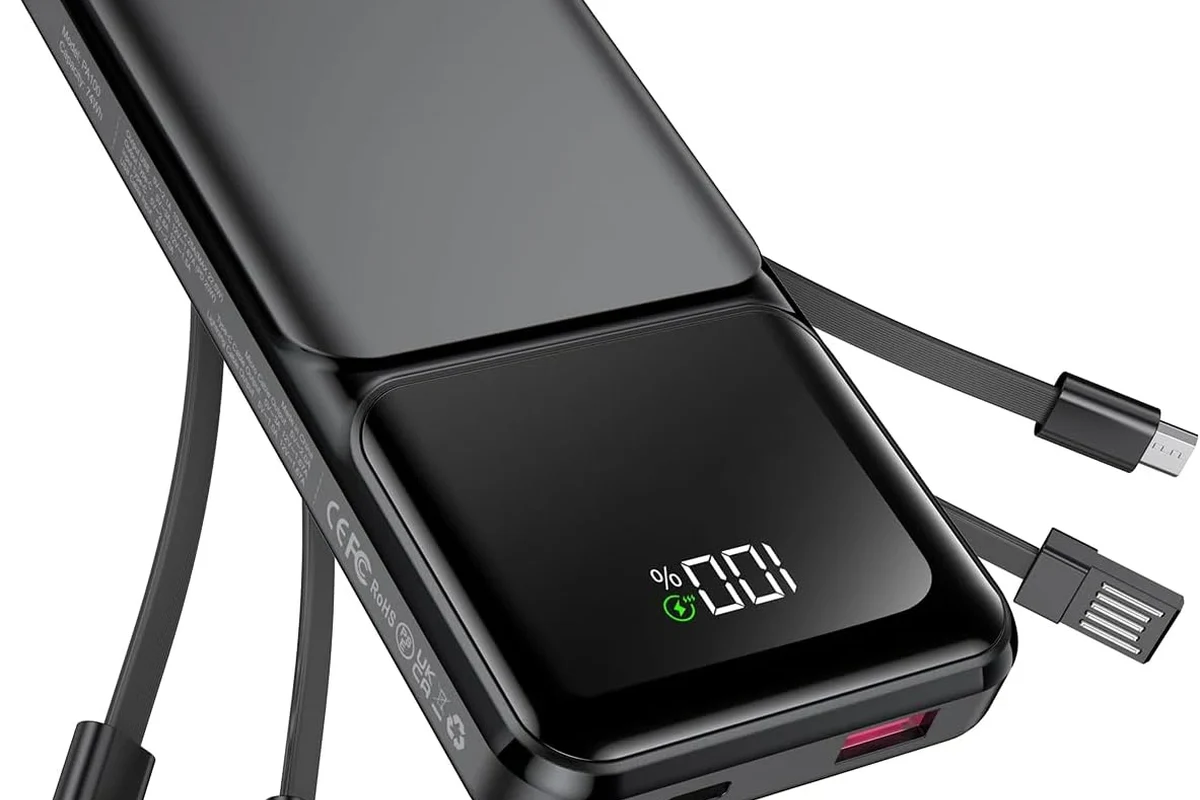
Power banks, chargers, and battery-powered gadgets: safe output limits and heat
When a power bank or charger is involved, the cable must safely handle the output level the device may request. If the cable is underspecified, heat can rise and charging can slow down. Always follow the manufacturer’s guidance for maximum wattage and supported charging modes.
Stop using any cable that gets unusually hot, feels loose, shows discoloration, or has damaged insulation. High-power charging should only be used with cables and adapters that are rated for the device.
Audio gear, gaming accessories, wearables, and travel tech: portability and connection trade-offs
Smaller gadgets often need only basic charging or simple data, so a compact cable may be enough. But gaming accessories, docks, audio interfaces, and travel monitors can need more capable cables for stable connections, lower latency, or video support. Portability matters too, especially when you want a short cable for a bag or desk setup.
Key Specifications to Check Before Buying a USB-C Cable
Rated wattage, current rating, and e-marker requirements
Check the cable’s wattage rating and current rating before buying. Higher-power USB-C cables may also need an e-marker chip so connected devices can identify the cable’s safe limits. If the cable is meant for a laptop or fast charger, the spec sheet should make that clear.
Data speed, video support, and Thunderbolt compatibility
If you only charge a phone, data speed may not matter much. If you move large files, connect a dock, or use a monitor, check whether the cable supports USB 3.x, USB4, or Thunderbolt. Video support is especially important for laptops, hubs, and portable displays.
Cable length, build quality, shielding, and bend resistance
Longer cables can be more convenient, but performance may vary with length and build quality. Better shielding can help reduce interference, especially for data-heavy or video-related use. Reinforced ends and good bend resistance can improve durability in bags, on desks, and in car setups.
Connector fit, device port limits, and compatibility labels to verify
Some cases, phone cases, and recessed ports can make connector fit more important than it first appears. Also check whether your device’s USB-C port supports charging only, data only, alt mode video, or higher-speed transfer. Manufacturer labels, manuals, and compatibility lists are the safest place to confirm.
- Check compatibility, model number, app requirements, dimensions, ports, wattage, and intended use
- Confirm safety guidance, warranty, return policy, privacy settings, and update support
Real-World Benefits and Limitations of the Right USB-C Cable
Faster charging, stable data transfers, and fewer connection issues
The right cable can reduce charging bottlenecks and improve reliability. It can also make syncing more consistent, which matters if you move photos, edit video, back up devices, or use a dock for work. In everyday use, a properly matched cable usually means fewer disconnects and less confusion.
When premium cables are worth it and when basic cables are enough
Premium cables are most useful when you need high wattage, fast data, or video output. For a basic phone charger, a simpler certified cable may be perfectly adequate. The best value usually comes from buying only the features you actually need.
Choose a higher-spec cable for laptops, docks, external drives, and monitors; choose a basic certified cable for simple phone charging and light syncing.
Common limitations: slow charging, no display support, and reduced performance over distance
Not every USB-C cable can do everything. Some will charge well but transfer data slowly, while others may support data but not video. Performance can also drop with longer runs or lower-quality construction, so the label and use case matter more than appearance.
Common USB-C Cable Compatibility Mistakes to Avoid
Assuming all USB-C cables support fast charging or high wattage
This is one of the most common mistakes. A USB-C cable may fit your device but still be limited to basic charging speeds. Always check the printed rating, product page, or manufacturer documentation.
Using low-quality or damaged cables with high-power chargers
Cheap or worn cables can create heat, unstable charging, or intermittent connection problems. That risk is greater with laptops and other high-draw devices. If a cable is frayed, bent sharply, or unreliable, replace it instead of pushing it further.
Mixing up charging-only cables with full-feature data cables
Some cables are intended only for power. If you need file transfers, docking, or monitor output, make sure the cable supports those functions. A charging-only cable may work fine for a phone but fail for a laptop dock or external SSD.
Ignoring device-specific requirements for laptops, docks, and monitors
USB-C compatibility gets stricter as the device becomes more demanding. Laptops, docking stations, portable monitors, and audio interfaces may need a specific standard or feature set. The official manual or compatibility list should be your first stop before buying a replacement.
Compatibility can vary by device model, operating system version, firmware, and even the exact port being used. If a feature is important, verify it on the manufacturer’s current documentation rather than assuming USB-C alone guarantees it.
Safe Use, Heat Checks, and Cable Care
How to inspect for fraying, loose connectors, discoloration, and overheating
Look closely at both ends of the cable and the full length of the jacket. Fraying, exposed wires, bent connectors, scorch marks, and loose plugs are all signs the cable may no longer be safe or reliable. If a cable feels hot during normal use, treat that as a warning sign.
Stop using damaged electronics, swollen batteries, frayed cables, overheating chargers, or unstable accessories and follow the manufacturer’s guidance.
Replacement guidance for worn, bent, or unreliable cables
Replace a cable if it disconnects when moved, charges inconsistently, or no longer fits snugly. Repeated bending near the connector is especially hard on cables, so failure often starts there. If you rely on the cable for work or travel, replacing it early is usually safer than waiting for a complete failure.
Storage, coiling, and travel tips to extend cable life
Store cables loosely rather than wrapping them tightly around chargers or devices. Avoid sharp bends, heavy objects on top of the cable, and repeated pinching in drawers or bags. A simple pouch or cable organizer can help reduce wear during travel.
- Use short cables for desk charging and longer ones only when the extra reach is useful.
- Keep one cable dedicated to high-power charging and another for travel or backup use.
- Check cables periodically if they live in a car, backpack, or shared family charging area.
When to stop using a cable immediately
Stop using the cable right away if it sparks, smells burnt, becomes extremely hot, or shows exposed conductors. The same applies if the connector is loose enough to wobble badly or the device repeatedly disconnects. In those cases, replacement is the safer choice.
Best Value Approach and Final Recommendation
How to choose the right USB-C cable for your main device and budget
Start with your most important device, then choose the lowest-cost cable that fully supports its needs. For a phone, that may mean a solid certified charging cable. For a laptop or dock, it may mean paying more for the correct wattage, data standard, and video support.
Best-fit recommendations by use case: charging, syncing, docking, and travel
For charging only, prioritize wattage and safety. For syncing photos or backups, prioritize data speed. For docking or monitor use, prioritize USB4 or Thunderbolt compatibility where required. For travel, prioritize durability, compact length, and a cable you can trust without checking it every time.
Transparent verdict: prioritize certified specs over appearance or brand claims
The smartest USB-C cable purchase is the one that matches your device’s real requirements, not the one that looks the most premium. Check the specs, verify them against the device manual, and treat unsupported claims with caution. That approach saves money, reduces frustration, and lowers the chance of charging or connection problems.
USB-C cable compatibility comes down to power, data, and feature support, not just the connector shape. If you verify the cable rating against your device’s needs, you can avoid slow charging, missing video output, and unreliable connections.
Frequently Asked Questions
No. A USB-C cable may fit your device but still be limited to basic charging speeds. Check the cable’s wattage rating and your device’s charging requirements before buying.
Look for the supported USB standard, such as USB 2.0, USB 3.x, USB4, or Thunderbolt. Charging-only cables may not support file transfers, docks, or external drives.
No. Video support depends on the cable, the device port, and the display standard being used. Check the manufacturer’s compatibility notes for USB-C alt mode or Thunderbolt support.
Use a cable that matches the laptop’s required wattage and any needed data or display features. For docks and monitors, confirm the cable supports the correct USB or Thunderbolt standard.
Inspect it for fraying, loose connectors, discoloration, and overheating. If it becomes unusually hot, disconnects often, or shows damage, replace it.
Premium cables are most useful for high-power charging, fast file transfers, and monitor or dock use. For simple phone charging, a basic certified cable is often enough.