USB-C Portable Monitor Power: Charger and Cable Guide
Get the right connection before buying another charger
A practical USB-C portable monitor power guide for a cleaner desk and a dependable travel setup.
Affiliate disclosure: As an Amazon Associate I earn from qualifying purchases. We may also earn from qualifying Walmart purchases through our links, at no extra cost to you.
Match the exact screen and recommended supply.
A power rating does not establish display capability.
Check simultaneous laptop and monitor output.
Include cables, delivery and return terms.

Quick answer: start with the monitor, not the charger
A USB-C portable monitor needs a compatible source of power and a compatible video connection. Those jobs may share one cable, but they are separate checks. Start with the adapter and cable supplied with your monitor. If you are replacing either item, read the exact model manual before buying. A connector that fits does not establish the required voltage, charging protocol, video support, or direction of power flow.
For a simple laptop setup, try the supplied USB-C cable directly between a video-capable laptop port and the monitor. If the screen needs additional power, connect its approved external supply to the designated power input. A monitor with HDMI may instead use one cable for the picture and a separate cable for power. These are different connection paths, and the correct choice depends on your particular screen.
Read the power label before choosing a replacement
Find the model number on the back of the screen, on the original box, or in its on-screen menu. Download the manual for that exact version. Similar product names can hide different power inputs. Write down the recommended adapter, accepted input ratings, which socket accepts power, and any instructions about connecting devices in a particular order. Keep a photo of the label on your phone so you can compare it while shopping.
An input marking such as 5V at 3A describes a 15W electrical input at that listed operating point. It does not tell you the monitor supports every other voltage or that every 15W phone adapter will work. If the manual requires USB Power Delivery, look for that protocol and the relevant output profiles on the replacement. If it specifies a proprietary adapter, follow the manufacturer guidance rather than improvising a connector conversion.
A useful shopping note is more precise than “USB-C charger for monitor.” Write something like “replacement supply for this model, required input profile confirmed, separate power cable needed.” That note makes it easier to reject irrelevant search results. It also prevents a large headline wattage from distracting you from a missing requirement in the small print.
Choose one of three connection layouts
Layout one is laptop-to-monitor over USB-C. This is the neatest option when the laptop port supplies suitable power and supports the display method your screen uses. It can reduce the number of cables in a travel bag. It also puts the screen’s power demand on the laptop, so compare battery life with your actual brightness setting and workload before relying on it for a long session away from an outlet.
Layout two is external power plus USB-C video. The monitor receives power through the input identified in its manual, while a separate connection carries the picture from the computer. This is useful when the laptop cannot reliably power the display by itself. Check the manual for which of the monitor’s sockets should receive each cable. Two identical-looking ports can have different roles, and a power-only socket cannot be assumed to accept a picture.
Layout three is HDMI video plus separate power. Choose this when both devices provide a compatible HDMI path and the monitor supports that input. Check whether the monitor uses full-size HDMI, mini HDMI, or another connector. Buying the wrong small plug is an easy mistake. The separate USB power cable must still meet the screen’s requirements; an HDMI connection does not replace the power supply described in its manual.
| Layout | Video path | Power check |
|---|---|---|
| One USB-C cable | Compatible laptop port to monitor | Laptop must provide suitable power |
| Separate power | USB-C from laptop | Use the monitor’s approved power input |
| HDMI plus power | Compatible HDMI connection | Separate supply still required as specified |
A charging cable is not automatically a monitor cable
Buy the video cable according to its stated display capability, supported resolution and refresh rate, length, and compatibility with your equipment. A power rating alone does not answer those questions. Keep the original monitor cable as a troubleshooting reference if you have it. When a new cable fails, comparing it with a known working cable is usually more informative than immediately replacing the entire screen or charger.
ASUS distinguishes USB-C DisplayPort Alt Mode screens from USB display solutions that require software, and advises checking both devices and the supplied cable. That matters because “USB-C monitor” can describe different implementations. Read the actual monitor documentation instead of assuming every USB-C display uses the same connection method. For a conventional Alt Mode setup, confirm video support at the computer port as well as at the monitor.
If you only need a cable from a charger to the monitor’s power input, select it for the required power function. If it also connects the computer’s video output, select it for both jobs. Label the two cables in your travel pouch. A small reusable tag saying “display cable” helps avoid accidentally substituting a phone charging cable when you set up in a hotel, library, or shared office.
How much charger power do you need?
There is no single wattage that covers every portable monitor. Screen size, brightness, extra functions, battery charging and laptop pass-through can change the requirement. The monitor’s recommended supply is the right starting point. Avoid treating a figure from a different screen as a universal rule. In particular, a monitor-only power input and a system that also charges a laptop should not be treated as the same shopping task.
For a separate laptop-and-monitor arrangement, make a two-line power budget. Put the laptop’s charging requirement on the first line and the monitor’s requirement on the second. Then check the charger’s output table with both chosen ports in use. A multi-port adapter’s largest printed wattage can refer to total output or a particular one-port mode, so inspect the actual combination you plan to use.
For example, if your own equipment documentation calls for 65W at the laptop and 15W at the screen, that is an illustrative 80W combined budget before considering the charger’s real allocation rules. It does not prove that any charger labeled 100W will provide the required profiles at the same time. Look for an explicit two-port allocation that meets both devices’ requirements and use suitable cables for each connection.
Pass-through charging needs a separate compatibility check
Some portable monitors can accept an external supply and provide charging power to a connected computer. Others cannot. If this is important to you, confirm it in the exact model manual and find the stated output limit. Do not infer laptop charging support simply because a screen has two USB-C ports. Also check whether the monitor manufacturer specifies an adapter or connection sequence for this function.
ViewSonic’s VG1655 documentation is one model-specific example: it describes powering a notebook or phone when the included adapter is connected and explains that device recognition can depend on connection order. This shows why the manual matters. It does not mean another monitor behaves the same way. Follow the instructions for your own screen, especially when you are connecting a phone and laptop to different ports.
Compare the monitor’s available laptop output with your computer’s needs under the workload you expect. A laptop may report that it is connected to power yet still lose battery during demanding work. If the documented pass-through output is insufficient, consider charging the laptop directly and powering the screen separately. Judge the result after an actual work session, not just from the presence of a charging icon.

Three buying choices that solve different problems
Choose a dedicated replacement supply when the monitor works well and you only need to replace its adapter. The advantage is a straightforward setup with fewer shared-port rules. The tradeoff is another item in your bag. Before ordering, confirm the required output profile, included cable, plug type and seller return terms. A lower-priced listing is poor value if it lacks the cable or voltage support your screen needs.
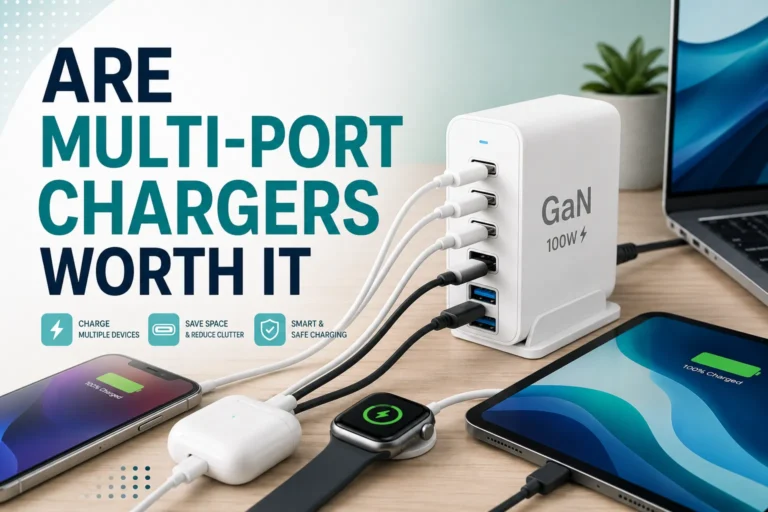
Choose a multi-port USB-C supply when you want to power a laptop and monitor separately from one wall outlet. The important specification is simultaneous output, followed by supported profiles and cable requirements. Compare the two-port allocation chart rather than adding the adapter’s individual port maxima together. Check whether connecting a phone changes that allocation, since your everyday setup may include more than the two devices in the initial test.
Choose a replacement video-capable USB-C cable when power is stable but the picture fails with a different cable, provided both devices support that connection. Confirm the advertised display mode at the length you are buying. If your original cable already works, a spare can be useful for travel, but buying a more expensive charger will not fix a computer port that lacks the needed display function.
Dedicated compatible power supply
For replacing only the monitor supply. Match the manual’s input and protocol requirements.
Multi-port charger with suitable output allocation
For a separately powered laptop and screen. Verify the two-port output table.
USB-C cable with explicit video support
For the picture connection. Confirm resolution, refresh rate and device compatibility.
Amazon vs Walmart: compare the exact basket
Use the retailer searches below to find suitable candidates, then compare identical model numbers where possible. Search results can mix replacement adapters, complete monitors, cables and marketplace offers. A search page is not a verified recommendation for every item it contains. Open the listing and check each requirement against your notes before treating it as a match.
No current Amazon or Walmart selling price is asserted in this guide. The buttons open live searches so you can review current offers. Compare item price, cable inclusion, delivery charges, seller, delivery date and return terms in the same session. If two products differ, describe the tradeoff rather than declaring one retailer cheaper for the same item. Do not use a headline discount percentage as a substitute for that comparison.
When you find an exact match at both stores, write down the delivered total and any included accessories. A bundle with a useful video cable may cost less overall than a cheaper adapter sold alone. Conversely, a bundle is not a saving if its cable cannot carry the display mode you need. Keep the receipt and packaging until you have tested the full setup with your computer and screen.
| Check | Amazon offer | Walmart offer |
|---|---|---|
| Exact model and output | Verify listing | Verify listing |
| Current item price | Open live search | Open live search |
| Cables and delivery | Add any missing accessories | Add any missing accessories |
| Decision | Choose the lower suitable delivered total for an exact match, or compare the differences explicitly. | |
Troubleshoot a black screen before spending money
Start with a short, direct connection and the original accessories. Remove the hub or dock from the first test so you can isolate the monitor and computer. Select the correct input on the monitor if it offers more than one. Check the computer’s display settings for a detected external screen. Note whether the monitor shows its own menu, a no-signal message, or no signs of power; these observations help narrow the next check.
If the screen’s menu works but there is no computer image, inspect the signal path first. Confirm that the laptop socket supports the required video function and use the monitor’s intended video input. Then test the supplied display cable. If the screen repeatedly restarts, disconnects or dims, check its power source against the manual and try the recommended supply. These symptoms suggest a test direction, not a remote diagnosis of a failed component.
Change one item at a time and record what happens. Replacing the charger, video cable and hub together makes it harder to know which change solved the issue. If the original setup also fails, contact the manufacturer with the exact model numbers, cable arrangement and symptom. Stop using visibly damaged connectors or cables and replace them through a suitable support or warranty route.
Build a practical travel kit
Pack only the accessories needed for the connection layout you have tested. For many people, the useful kit is the supplied display cable, a compatible power supply, the appropriate power cable, and an HDMI cable if the screen and computer support that backup path. A small pouch keeps connectors from being crushed against the monitor. Avoid forcing a tight bend where a cable leaves the screen.
Test everything at your usual brightness and resolution before leaving home. Include the laptop charger and any phone you normally connect to the same adapter. Then unplug and reconnect the equipment in the order recommended by the monitor maker. This catches a shared-power limitation or a missing cable while you still have time to fix it. Save the manual locally so the port diagram remains available when internet access is unreliable.
Measure the distance from the desk outlet to the actual monitor position before choosing cable length. A cable that hangs under tension can be awkward even when its specifications are correct. Route it so the screen can be moved without pulling on a port. A clean desk is useful, but reliability matters more than achieving a one-cable appearance that your particular equipment does not support.
Our selection approach
This is a compatibility and buying guide, not a hands-on roundup or electrical test report. The recommendations are organized around connection tasks rather than untested claims that one adapter is best for every monitor. Manufacturer documentation informs the model-specific examples. The shopping checklist and illustrative power budget are editorial guidance, and the relevant model manual should decide any uncertain compatibility question.
Before you buy, you should be able to answer four questions: which connection carries the image, which connection supplies power, what each device requires, and what the charger provides with all intended ports occupied. If one answer is missing, resolve it before ordering. That simple check is more useful than chasing the highest wattage, the shortest cable, or the largest advertised discount.
Frequently asked questions
Can a phone charger power a portable monitor?
Only if it meets the exact monitor’s power and protocol requirements. Check its output label and the screen’s manual. The connector shape alone is not enough.
Will a 100W charging cable always carry a monitor image?
No. Check the cable’s explicit video specification separately from its power rating, as well as the display capabilities of both devices.
Why does the monitor work with HDMI but not USB-C?
Check the USB-C port’s video support, selected input and cable. HDMI working does not establish that the USB-C path is compatible.
Is Amazon or Walmart cheaper?
That depends on the exact current offer, included cables, seller and delivered total. This guide does not claim a verified price winner.
About this guide
Prepared for Gadget Makers Blog’s charging and computer accessories readers. Manufacturer documentation supports the model-specific examples; this article does not claim hands-on product testing.
Sources and related guides
- ASUS: identifying USB-C portable-monitor display support
- ViewSonic VG1655: connecting power and devices
- Choosing a charger for two laptops
- Under-desk power strips with USB-C compared
Editorial check: October 26, 2026. Specifications and offers can change. Check your exact model manual and current listing before purchase.