

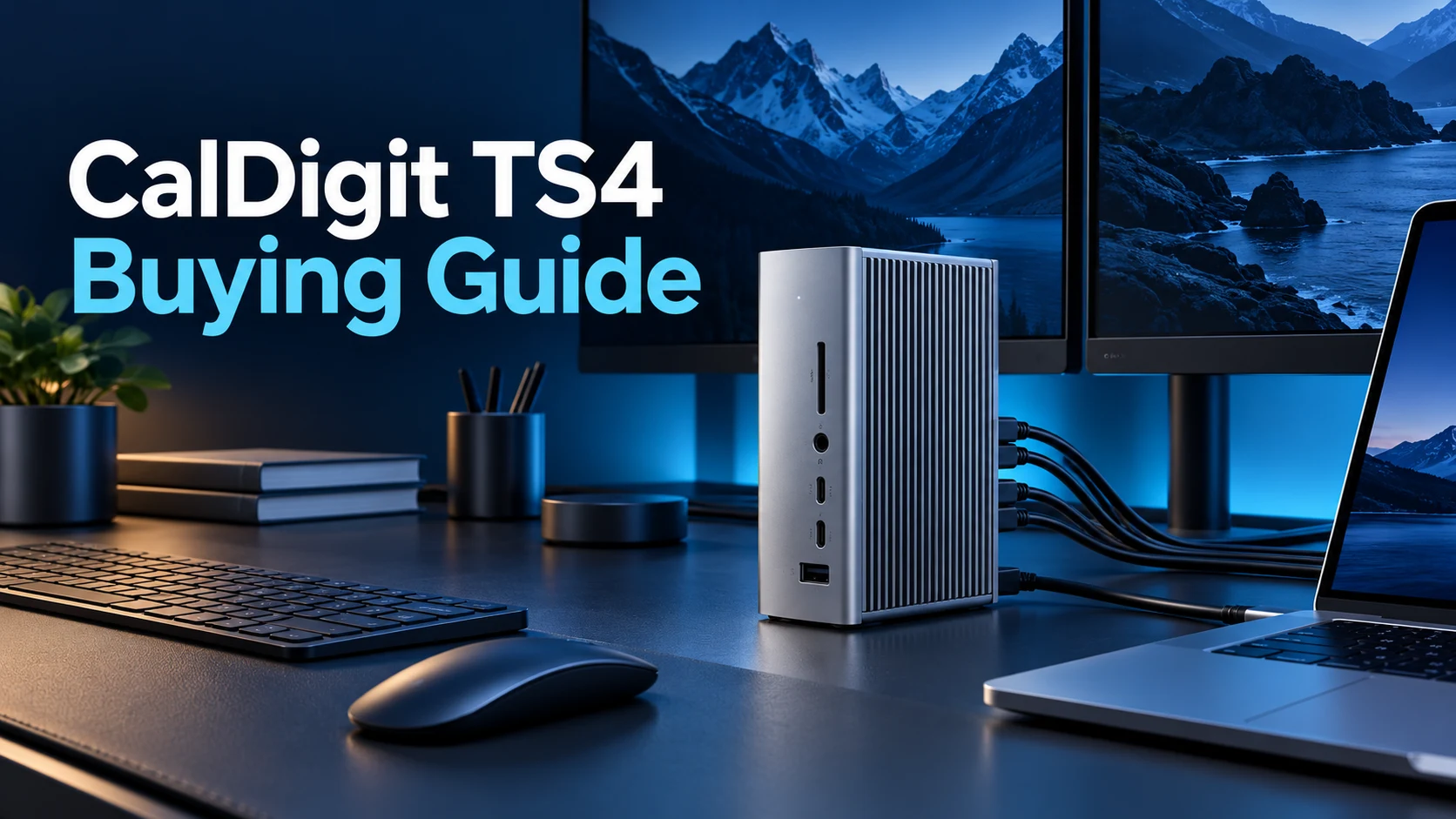
CalDigit TS4 Buying Guide: Is This Premium Dock Worth It?
PREMIUM DESK UPGRADE
One desk connection, with compatibility checked first
The CalDigit TS4 is worth shortlisting when your laptop and accessories can use its connectivity. Compare offers after checking your charging and monitor requirements.
Affiliate disclosure: As an Amazon Associate I earn from qualifying purchases. We may also earn a commission through Walmart links, at no extra cost to you.
This CalDigit TS4 buying guide helps you decide whether a premium Thunderbolt dock solves enough desk problems to justify the purchase. The useful question is how many connections you need every working day, and whether your laptop can support them through one port.
Our verdict: shortlist the TS4 for a permanent workspace with several wired accessories. Compare a simpler hub if you mainly need a mouse and one screen. Investigate newer docks if a higher charging budget or a newer host connection is central to your next setup.
What are you paying for?
A dock is most useful when it replaces a repetitive routine. Imagine arriving at your desk with a laptop, then reconnecting storage, a keyboard, a display and a network cable. A permanent docking setup can simplify that routine. Its value is smaller if you already leave those accessories connected to a desktop.
Before buying, make a list of the devices you actually use together. Mark the connections that must stay attached and those you only need occasionally. That list is a better shopping tool than a headline port count. It also helps you notice whether a less expensive accessory would solve the same problem.
| Published feature | What it means for buying |
|---|---|
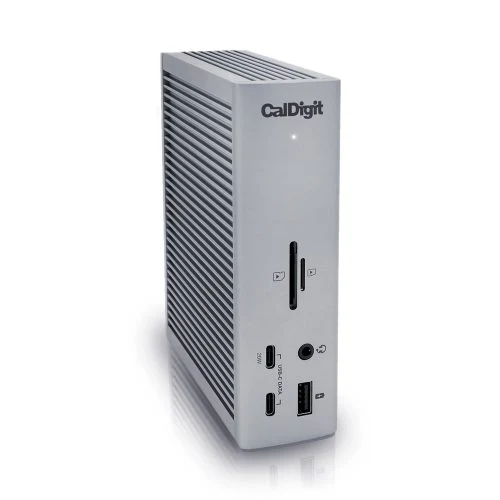
| 18 connections; three Thunderbolt 4 ports | One Thunderbolt port connects to the host; two remain downstream. |
| Up to 98W host charging | Compare this with your laptop’s charging requirement. |
| Five USB-A and three USB-C data ports, rated up to 10Gb/s | Check peripheral types and required cables. |
| DisplayPort 1.4; no built-in HDMI | Include suitable adapters in the budget for HDMI monitors. |
| 2.5Gb Ethernet and UHS-II SD/microSD readers | Useful only when your host and workflow support the features. |
Specifications: CalDigit TS4 support. Ratings are manufacturer maxima, not our measured results.
Check your laptop before choosing the TS4
Start with the exact model number of your computer. Two laptops sold under the same family name may have different ports or display limits. Find the manufacturer’s specification for your configuration, then write down its host connection, supported external displays and power input.
Thunderbolt and ordinary USB-C are different buying cases
CalDigit lists several compatible host types, but functionality changes with the host. Its documentation says the TS4’s Ethernet connection does not work through ordinary USB-C hosts. A USB-C-shaped socket alone is therefore insufficient evidence that every feature will work.
If networking is your main reason for buying, resolve that question before comparing prices. Paying for a premium dock and then adding another adapter can undermine the purpose of the upgrade. For an uncertain configuration, send your exact laptop model and planned accessories to the manufacturer’s support team before ordering.
Check the computer’s display limit
The dock cannot remove a computer’s native external-display restrictions. CalDigit documents different capabilities for base Apple silicon models and Pro/Max variants; it also notes a lid-closed exception for the M3 MacBook Air. Check your exact chip and computer rather than assuming all MacBooks behave alike.
Write down each monitor’s resolution, refresh rate and input connection. Then check the complete path from laptop to dock to display. If your plan requires an unusual combination, get confirmation for that combination rather than relying on a large resolution number in a retailer’s headline.
For help planning the connections, see our two-monitor docking setup guide.
Will the 98W charging replace your laptop adapter?
The TS4’s host output is rated up to 98W. That may suit a compatible notebook, but it is not a promise of full performance on every high-power laptop. A computer supplied with a much larger adapter deserves an especially careful check.
Compare the laptop’s documented USB-C input and recommended power supply. If your work depends on sustained performance while charging, plan around the manufacturer’s guidance for that workload. Keep the original adapter available until you have confirmed that the desk setup works for you.
There is also a practical distinction between replacing an adapter and reducing cable handling. A dock may still be useful even if a demanding laptop needs its original charger. Decide whether that arrangement fits your desk before paying for the promise of a single connection.
Our guide to charging a laptop through a dock explains the checks to make.
Amazon vs Walmart: compare the complete offer
Check the model, seller and total cost
The Amazon button opens the TS4 product listing. The Walmart button opens a search, where results may include accessories or other docks. A Walmart search result is not confirmation that the TS4 is in stock.
| Store | Price status | What to confirm |
|---|---|---|
| Amazon | Check current offer; no verified price quoted | TS4 model, seller, condition and included accessories |
| Walmart | Search offers; availability unconfirmed | Actual TS4 listing, marketplace seller and return terms |
Compare baskets after adding any necessary display adapters. A lower dock price may not mean a lower setup cost. Check shipping, applicable tax, delivery timing and the seller’s return policy. If one listing is refurbished and another is new, treat them as separate buying choices.
CalDigit lists a power supply, power cord and 0.8m Thunderbolt cable in the standard box. Check the selected listing for missing accessories, especially on used offers. Avoid comparing a bare replacement dock with a complete retail package as though they were identical.
We cannot name a cheaper retailer without comparable current offers. Open both options and choose on the terms available to you at checkout.
Who should buy it—and who should compare alternatives?
Strong reasons to shortlist
- You reconnect several accessories every workday.
- Your exact laptop supports the connections you need.
- A permanent desk setup matters more than travel size.
- You have budgeted for the complete setup.
Reasons to pause
- You only need one or two extra connections.
- Your required charging power exceeds the dock’s output.
- You expect it to bypass a laptop display restriction.
- A required feature remains unconfirmed for your host.
For a broader shortlist, compare our remote-work docking station guide. If you are planning a new laptop purchase too, read the Thunderbolt 5 dock comparison before committing to a desk accessory.
CalDigit now offers newer TS5 and TS5 Plus models. Their existence does not automatically make the TS4 a poor purchase. Compare the current complete cost against features you will actually use; do not pay extra solely for a newer generation label.
Set up and check the dock during the return window
- Start with the supplied power system. Follow the manual and connect the laptop to the designated computer port.
- Add one display first. Confirm resolution and refresh rate in the operating system.
- Add the other accessories gradually. Check storage, network access and audio separately.
- Try your normal working routine. Include reconnecting the laptop and waking it from sleep.
- Keep the packaging until satisfied. Resolve missing features while the seller’s return period is still open.
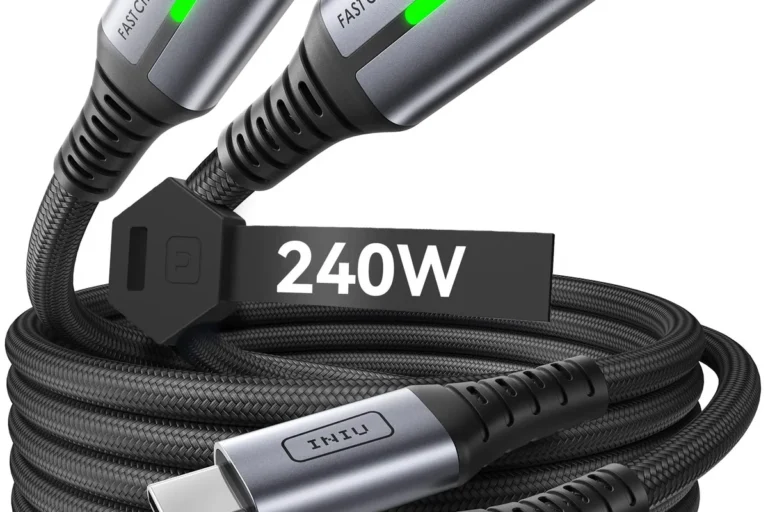
Use the included host cable as your starting point. A cable advertised for high charging power is not automatically appropriate for the same data and display tasks. See our USB-C power, data and video guide before substituting a longer cable.
Frequently asked questions
Is this a hands-on CalDigit TS4 review?
No. This buying guide uses manufacturer documentation and practical purchasing criteria. We have not tested a unit or assigned a performance score.
Does the TS4 have an HDMI port?
No. Check suitable adapters for your planned display connection. CalDigit specifies an active adapter when converting its DisplayPort output to HDMI.
Does every USB-C port on the dock support a monitor?
No. CalDigit directs display connections through DisplayPort or the spare Thunderbolt ports, rather than the ordinary USB-C data ports.
Will it charge two laptops at its full host rating?
No. There is one designated host connection. Do not treat this dock as a dual-laptop charger.
Is Amazon or Walmart cheaper?
We have not verified comparable current prices. Match the exact product, condition, accessories and seller terms before comparing delivered totals.
Final buying recommendation
Shortlist the CalDigit TS4 when it solves a clear daily connection problem and your laptop supports the features you need. Make the compatibility checks first, then compare the full delivered cost. A well-matched dock is more useful than an impressive specification sheet that leaves one essential task unsupported.
Sources checked October 27, 2026: TS4 product and compatibility information; TS4 specifications and box contents; official user guide; current CalDigit dock range.


2 Comments