Can Two Laptops Share One Docking Station?
TWO LAPTOPS. ONE DESK.
Choose the right way to switch
Start with the dock you own, then check video, USB, and charging separately.
Can two laptops share one docking station? Yes, you can often use a compatible dock with either laptop by moving its host cable between them. That does not mean both computers can control the dock together. For button-based switching, you need a supported combination of dock and switch, or a purpose-built KVM setup.
Our recommendation: If you switch computers once or twice a day, try manual cable switching first. If you switch repeatedly, write down your monitor, USB, and charging requirements before buying a switch. A matching connector shape is not enough.
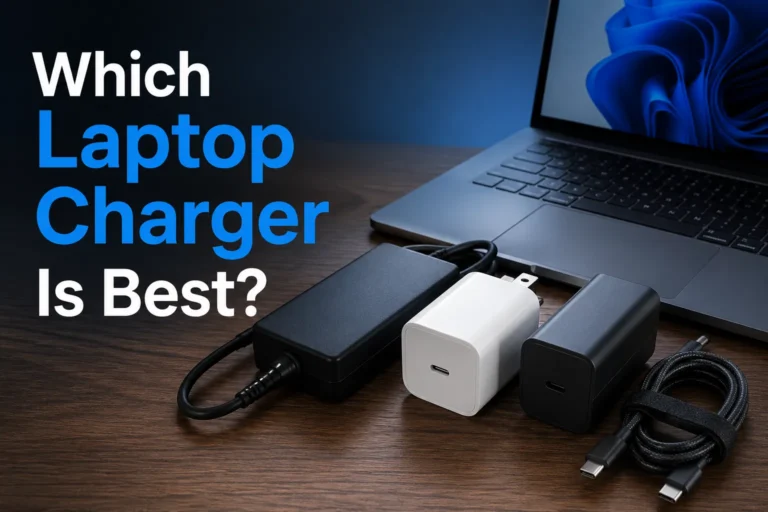
This guide uses manufacturer documentation and practical setup checks. The images are conceptual illustrations; they do not show a tested product configuration.
Pick a setup for your actual goal
| Your goal | Approach to evaluate | Main trade-off |
|---|---|---|
| Occasionally use one dock with either laptop | Move the supported host cable | Manual reconnection |
| Share only a keyboard and mouse | Compatible USB peripheral switch | Video and charging remain separate |
| Switch screens and USB devices with a button | Purpose-built KVM or KVM dock | Exact display and host support matter |
| Share a supported USB 3.0 DisplayLink dock | Manufacturer-approved USB sharing setup | Software and separate laptop power may be required |
| Control another supported Windows PC or move files | Check Intel Thunderbolt Share requirements | Software, hardware, and licensing conditions apply |
1. Start with manual host-cable switching
Keep your monitor, keyboard, mouse, and other desk accessories connected to the dock. Connect the dock’s designated computer-facing port to laptop A using its supported host cable. When you want laptop B to use the desk, safely disconnect laptop A and move that host cable to laptop B.
Test both laptops separately before adding another device to the chain. Confirm that each can run the display at your desired settings, detect the keyboard and mouse, and use the network or audio connections you need. This gives you a baseline for judging whether a switch is helping or causing trouble.
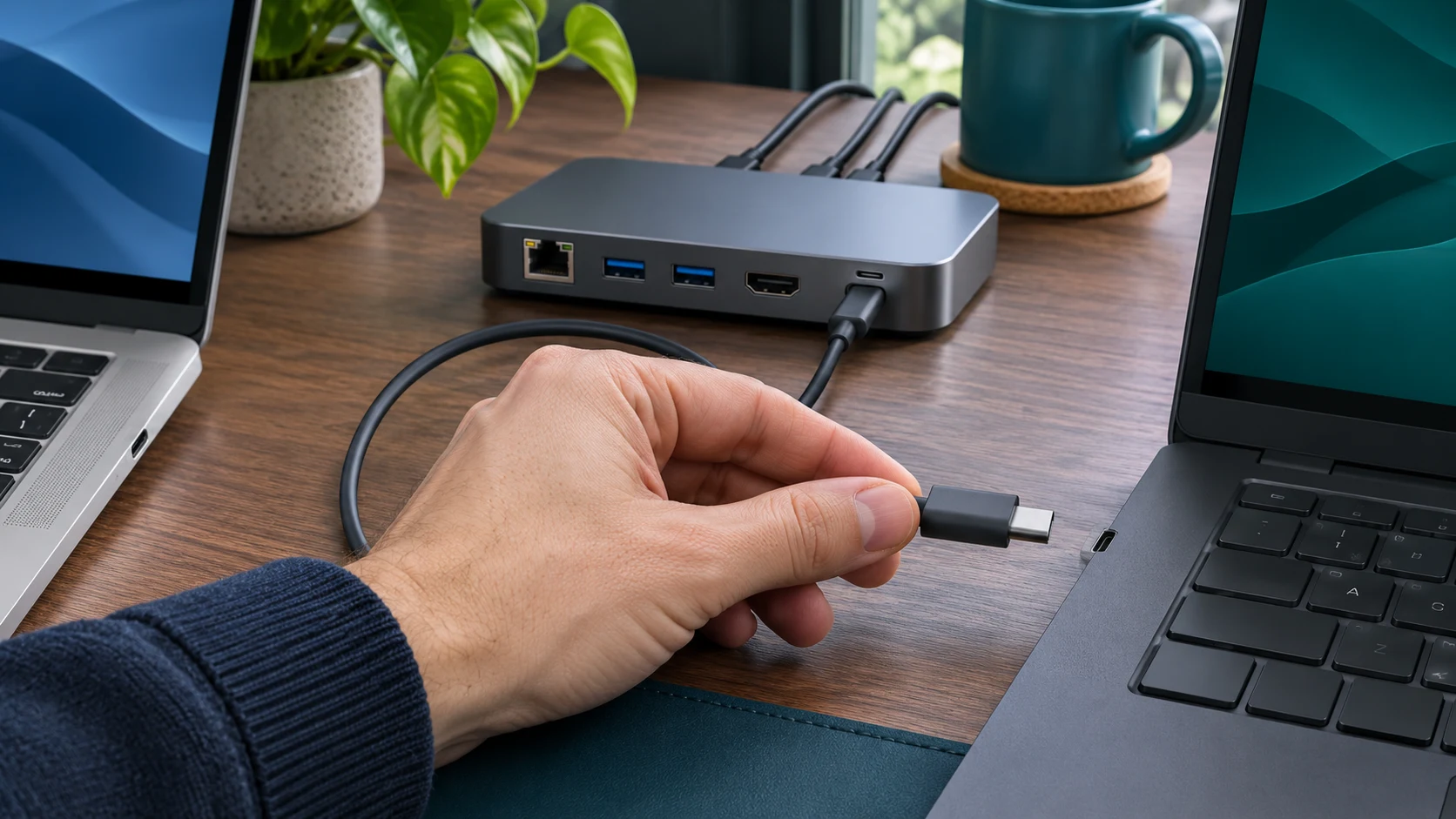
Before moving the cable: finish file transfers, close files stored on attached drives, and safely eject removable storage. Expect some time for displays and accessories to reconnect. Do a test switch before an important meeting rather than discovering a camera or microphone issue during the call.
2. Do not assume a USB switch can switch your whole dock
A basic USB sharing switch can be useful for selected peripherals. However, the presence of USB-C sockets or an adapter does not prove that it carries the video, charging, USB4, or Thunderbolt functions your dock needs.
Plugable’s switching guide specifically says its USB 3.0 sharing switch is incompatible with USB-C and Thunderbolt docks that rely on those USB-C features. It also notes that the USB-A switching connection does not charge laptop batteries. Treat this as a product-specific compatibility rule, not a promise about every switch on the market.
If a seller describes a switch as universal, look for an explicit list of supported connection standards and tested dock models. Ask the manufacturer about your complete setup when the documentation is unclear.
3. Understand the DisplayLink exception
Some USB 3.0 DisplayLink docks can be shared through a specifically supported USB switch. In its DisplayLink switching guidance, Plugable recommends manual host-cable switching or USB3-SWITCH2 for compatible USB 3.0 DisplayLink models. It excludes docks requiring USB-C Power Delivery, DisplayPort Alt Mode, USB4, or Thunderbolt.
For that supported arrangement, both computers need the required software, only the selected computer uses the dock, and each laptop needs its own charger. Plugable also distinguishes this from placing a traditional video KVM into a DisplayLink dock setup, which it does not recommend.
Write down the exact dock model before shopping. The words “DisplayLink” and “USB-C” can appear together in product descriptions; read the host-connection requirements instead of relying on the product title.
4. Evaluate a purpose-built KVM for frequent switching
A KVM—keyboard, video, and mouse—can make a shared desk more convenient when it supports both computers and the devices you want to switch. Some arrangements use separate native video and USB cables from each computer. Others are integrated KVM docks. Follow the intended wiring for the exact product.
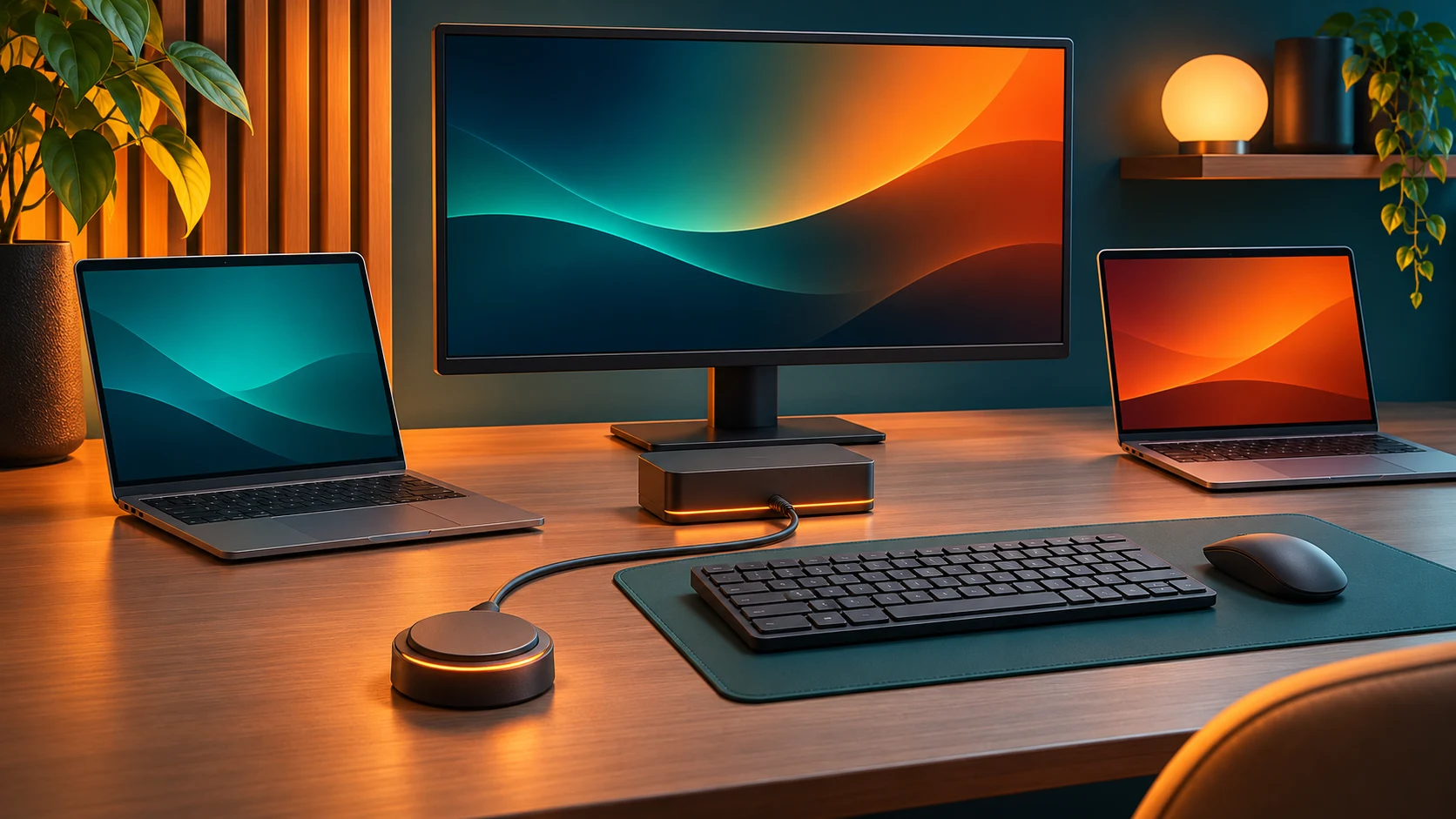
Do not buy by port count alone. A desk with two high-resolution monitors, an external SSD, and a webcam has different needs from a desk with one office monitor and basic input devices. Keep a simple checklist:
- Exact laptop models, operating systems, and available host ports.
- Monitor count, connector types, resolution, and refresh rate.
- Keyboard, mouse, webcam, headset, and storage requirements.
- Whether laptop charging is included, and the output available to each host.
- Which supplied cables are required and whether extra adapters are supported.
- Driver or software restrictions on a managed work laptop.
For purchasing, prioritize written compatibility documentation and a practical return window. Pay for the switching behavior you need rather than the newest connection label.
5. Keep laptop charging as a separate decision
Switching accessories and powering two laptops are different tasks. Do not assume the inactive computer keeps charging, or that a two-host product delivers the same wattage to both laptops. Check the manual’s charging behavior for each host connection.
If your existing dock works well but does not power both computers as needed, keeping separate chargers may be simpler than replacing the entire desk setup. Our Thunderbolt dock charging checklist helps separate a power problem from a compatibility problem.
6. Thunderbolt networking and Thunderbolt Share are different
Connecting two computers through Thunderbolt can enable networking or software-based sharing in supported configurations. It does not automatically turn a standard dock into a two-host hardware KVM.
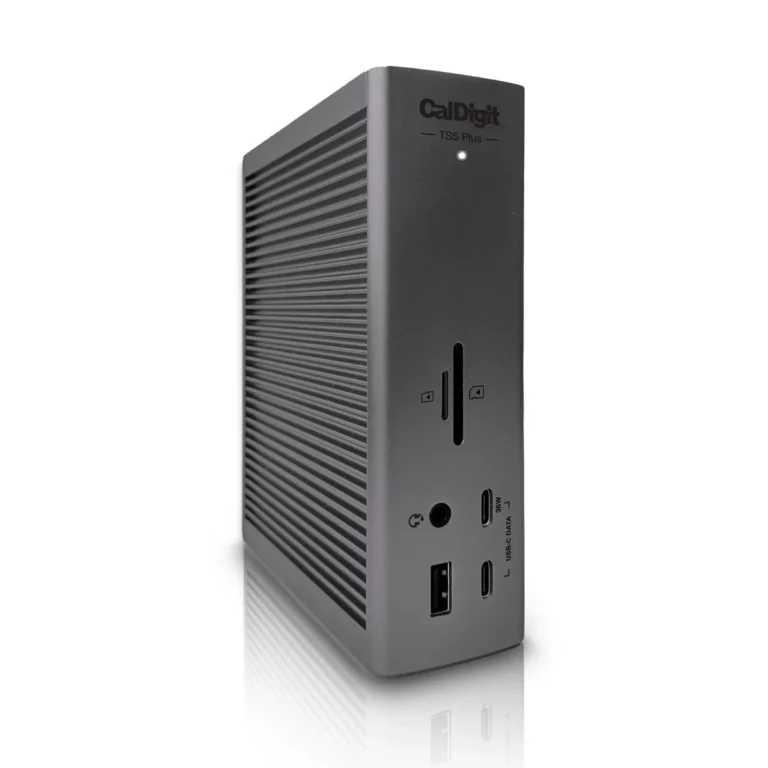
CalDigit’s Thunderbolt networking documentation describes a host computer on the Computer port and a second computer on a downstream Thunderbolt port for supported networking. That is a networking use case; it should not be read as a general promise of interchangeable host control.
Intel’s Thunderbolt Share requirements describe supported Windows PC-to-PC experiences using Thunderbolt 4 or 5, with at least one manufacturer-licensed PC or accessory. Check its current hardware, software, and licensing requirements before choosing that route. A Thunderbolt logo alone does not establish eligibility.
Which approach should you choose?
Keep your current dock when it works directly with both laptops and moving one cable is acceptable. Share only the keyboard and mouse when your displays already have a convenient separate switching method. Evaluate a documented KVM setup when you need repeated one-button changes across the whole desk.
If you are still choosing the underlying dock, read our Thunderbolt and USB-C compatibility guide and CalDigit TS4 vs TS5 Plus comparison. Neither a premium price nor a newer Thunderbolt generation, by itself, establishes two-host switching support.
Frequently asked questions
Can both laptops use the same ordinary dock at once?
Do not assume so. Check whether the product explicitly supports multiple hosts and how it assigns peripherals. An ordinary host connection and several accessory ports are not equivalent to a two-computer KVM.
Can a USB-C splitter solve this?
Do not rely on a passive splitter to add host-switching capability. Use the connection method documented for the dock or a purpose-built, supported switch.
Can I share a dock between a Mac and a Windows laptop?
Potentially, if the exact dock works with each computer and the switching arrangement supports both operating systems. Check display behavior, required software, charging, and workplace software policies for each laptop.
Will files automatically move between the laptops?
No. Moving a dock cable changes which computer uses the connected devices. File sharing requires a separate supported method. Safely disconnect external storage before switching its host.
Best next step: test your dock directly with each laptop, list what you want to switch, and choose the simplest supported arrangement that meets that list.