USB-C Dock USB Ports Not Working? Windows & Mac Fixes
If your USB-C dock USB ports are not working, unplug the affected keyboard, mouse, or drive and connect it directly to the laptop. Then plug a basic wired mouse into one of the dock’s downstream data ports, with the other accessories disconnected. Those two tests tell you where to look before you change settings or buy replacement hardware.
The laptop can still charge while USB data fails. The dock may also run an external display while its USB peripherals disappear. Charging, video, and USB data depend on different capabilities of the connection, so test the specific function that failed.
As an Amazon Associate, GadgetMakersBlog earns from qualifying purchases. We may also earn a commission from Walmart links.
Start with two quick tests
First, plug the original accessory directly into a known-working USB data port on the laptop. If the laptop has USB-C only, use a known-good data adapter. A charging adapter or a charge-only cable can turn this into an invalid comparison. For a storage drive, look for it in the system’s disk utility as well as the file browser. For a mouse or keyboard, test basic movement or typing in a local app.
Second, connect the dock using its original power supply and host cable. Temporarily unplug every device from the dock and plug one basic wired peripheral into a port documented for USB data. Try a second downstream port if the first one fails. Keep power and the upstream laptop connection in place while changing one downstream connection at a time.
| What you see | What to test next |
|---|---|
| One accessory fails directly and through the dock | Try a working cable or test that accessory on a second computer. |
| The accessory works directly, but a wired mouse also fails on every dock port | Check the host cable, laptop data port, dock power supply, and accessory approval. |
| A mouse works but a portable drive disappears | Try the drive alone. Check the drive’s cable, the dock’s available power, and whether the operating system sees the disk. |
| One dock port fails with two working devices | Verify that the port supports data, then compare it with an equivalent port. |
| Devices return after reconnecting the dock | Compare cold startup with sleep and wake, then check updates for the laptop and dock. |
Check which USB-C port you are using
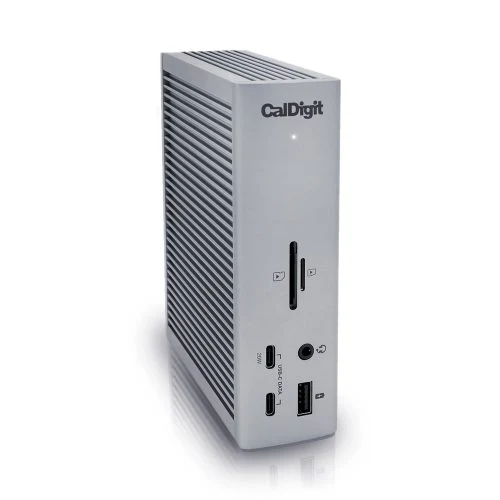
Look for the upstream port on the dock. It is the connection intended for the computer and is often marked Host or paired with a captive cable. Other USB-C ports may be downstream data ports, charging outputs, or inputs dedicated to a power adapter. The symbol and the model’s manual are more reliable than the shape of the connector.
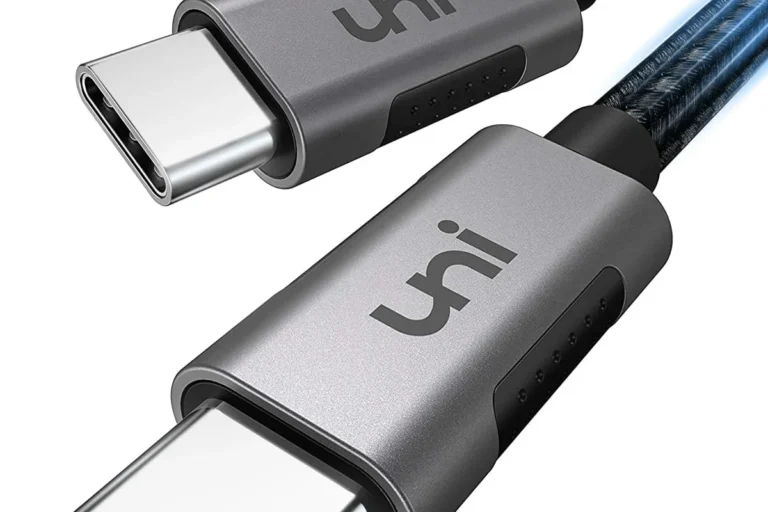
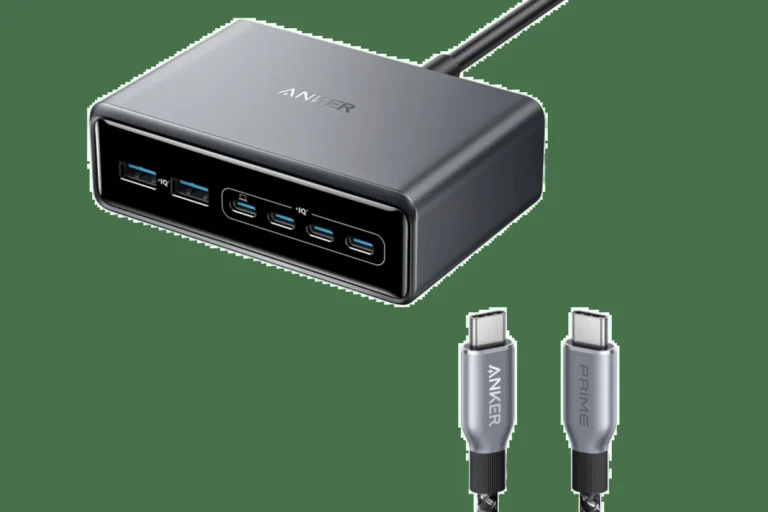
Use the manufacturer’s host cable during troubleshooting. If the dock has a removable host cable and you need a substitute, match the dock’s required connection type. A basic USB cable might transfer data between a phone and a computer yet still lack features a USB4 or Thunderbolt dock needs. A high wattage rating alone tells you how much charging power the cable can carry. See the guide to Thunderbolt 4 and Thunderbolt 5 cables for cable examples.
Try a second laptop port only if its documentation supports the dock’s connection type. Some computers have identical-looking ports with different capabilities. Unplug any intervening monitor, extension, or adapter so the host cable runs straight between dock and laptop. Once you have a working baseline, add those devices back individually.
Reset the dock and test power under load
Save your work and eject connected drives before pulling cables. Disconnect the dock from the laptop, unplug downstream devices, and disconnect the dock’s power adapter if it has one. Follow the reset procedure for your model. Reconnect the original power adapter and host cable in the order specified by the manufacturer, then try a single wired mouse or keyboard.
If the device works alone, reconnect the original accessories one at a time. Add portable drives, webcams, and other devices with higher power or bandwidth demands individually. Note the exact device or port combination that brings the failure back. A drive that vanishes when a second accessory starts can point toward shared power or a cable fault. Confirm the result with a direct connection and a second known-good cable before assuming you need a larger dock.
A bus-powered travel hub draws power from the laptop. A desktop dock with its own adapter still has limits on downstream power. If the problem occurs only with one combination, check the dock’s per-port specifications and the drive’s power requirements. You may be able to move the drive directly to the computer, use the drive’s own power supply where provided, or split the workload across documented ports.
Windows 11 checks
Right-click Start and open Device Manager. Connect the dock and then connect a test device while watching for changes under Universal Serial Bus controllers and the category for the peripheral. A mouse may appear under human interface devices or mice, while a drive may appear under Disk drives. A USB-C error notification or a yellow warning icon gives you a more specific lead than a port that merely seems dead.
If Windows displays an error for the device, open its properties and note the code under Device status. Test the same accessory directly. If the error follows the accessory, investigate the accessory or its cable first. If the error appears only through the dock, check the laptop maker’s chipset or USB4 updates and the dock maker’s firmware for your exact model. Use the vendor’s supported update process and keep the dock powered as instructed.
If a drive appears in Device Manager but is missing from File Explorer, open Disk Management and look for its existing volume. A missing drive letter, an unsupported file system, or a disk that appears offline can look like a failed USB port. If the drive contains data you need, stop before initializing or formatting it. Try it on the computer that last read it successfully.
If the failure starts after sleep, compare with a full restart. Write down which USB devices and screens come back when you unlock, and whether reconnecting the host cable restores the devices. Test with one accessory first. If only the screen stays dark, follow the separate dock monitor wake guide.
Mac checks
On a Mac laptop with Apple silicon, unlock the Mac before connecting a new or unknown dock. Look for the accessory approval prompt and allow the dock if you recognize it. Apple explains that charging can continue even when accessory data access is declined. If the prompt is missing, reconnect the dock while the Mac is unlocked and check the accessory connection setting under Privacy & Security.
Open System Information, select USB, and compare the list before and after connecting the dock and the test peripheral. If the peripheral appears, troubleshoot the device itself or its app. For storage, open Disk Utility and choose View → Show All Devices. A drive visible there has established a connection, even if its volume is unmounted or Finder is set to hide external disks.
If the dock or test peripheral never appears, repeat the single-device test with another compatible port, the original host cable, and the original power adapter. If a work or school Mac manages accessory settings, ask the administrator whether the dock can be approved. Record the Mac model and macOS version if you contact the dock maker so they can check the exact configuration.
When only one kind of device fails
Keyboard or mouse
For a wireless keyboard or mouse with a USB receiver, move the receiver closer to the peripheral and away from a busy USB 3 cable or storage device. Test a wired mouse in the same port so you can separate a radio problem from a dead USB path. A Bluetooth mouse paired directly with the laptop does not test the dock’s USB ports.
External SSD or hard drive
Try the shortest known-good data cable for the drive, then connect the drive alone. Watch what happens during a modest copy of disposable test data after confirming that the drive mounts. A drop under load is different from a disk that is consistently visible but has an unreadable volume. If connections are unstable and the disk contains important files, complete copying or recovery through the most stable direct connection you have.
Webcam or headset
A webcam may appear in the operating system but remain unavailable in a meeting app because of camera permissions or device selection. Select the camera in the app and test it with other high-bandwidth peripherals temporarily disconnected. If sound is the only missing function, use the dock audio troubleshooting guide to check output and input routing.
When a replacement makes sense
A replacement is reasonable when multiple known-working accessories fail through the dock, those devices work directly, and the same failure repeats with a known-good host connection and the correct power supply. A single damaged data port may justify a warranty claim if you need every port. If you only lose the ports when an adapter or KVM sits in the connection, test that intermediate hardware before replacing the dock.
Before you buy, count the ports that will remain free with your permanently connected devices. Look for enough downstream data ports at the speeds your peripherals need, a suitable power supply for your desk, and documented compatibility with your specific laptop. A keyboard and a wired mouse have modest bandwidth requirements. An external SSD or capture device may need a faster dedicated connection. If you also need new display outputs, use the site’s DisplayLink versus Thunderbolt buying guide to check monitor compatibility separately.
If you compare Amazon and Walmart, match the manufacturer model number and check what comes in the box. One listing might exclude the host cable or power adapter, or come from a different seller with a shorter return window. Compare the checkout total on the same model, with shipping, return terms, and warranty eligibility in view.
Frequently asked questions
Why does the dock charge my laptop when the USB ports do not work?
Power delivery can still work while a cable, port, approval prompt, or dock issue prevents data. Connect a basic wired peripheral to a documented downstream data port to check the data connection.
Why do only the dock’s USB-C ports fail?
Check the manual to confirm each USB-C connector’s purpose. One may be the host connection or a power input. If multiple ports are meant for data, test them with the same working device and data cable.
How can I tell whether the host cable is the problem?
Keep the laptop port, dock power adapter, and test accessory the same. Swap only the host cable for the original or a known-good cable with the required capability. A repeatable difference between the cables is stronger evidence than a single successful reconnect.
Why do the USB devices stop working after sleep?
Check whether the devices are listed in Device Manager or System Information after you unlock. Compare against a restart with one peripheral attached. If the issue is specific to resume, look for a documented laptop or dock update that addresses it.
Official troubleshooting references
Microsoft Support for USB-C problems in Windows and Apple Support for accessory connection approval.