DisplayLink vs Thunderbolt Docks: Which Should You Buy?

DisplayLink vs Thunderbolt docks comes down to one practical question: do you need extra office screens beyond your laptop’s native display support, or a native display connection for a demanding desk setup? Our recommendation is to choose DisplayLink when extra productivity screens solve a real limitation, and Thunderbolt when your compatible laptop already supports the screens you need.
Disclosure: As an Amazon Associate I earn from qualifying purchases. Retailer links below are affiliate search links; confirm the exact model, seller, included power supply and compatibility before ordering.
How this guide was prepared: This is a specification-based buying guide, not a hands-on test. We checked manufacturer documentation on November 5, 2026. Recommendations are editorial judgments based on those documented capabilities; we do not claim measured latency, benchmark results or personal testing.
Quick choice: two docks worth comparing
Extra office displays: Plugable UD-6950PDH. Consider this DisplayLink model for spreadsheets, email and browser-based work when your laptop’s native monitor limit gets in the way. Plugable specifies two 4K 60Hz outputs and up to 100W host charging, with DisplayLink software required. Confirm the exact hardware version and operating-system support.
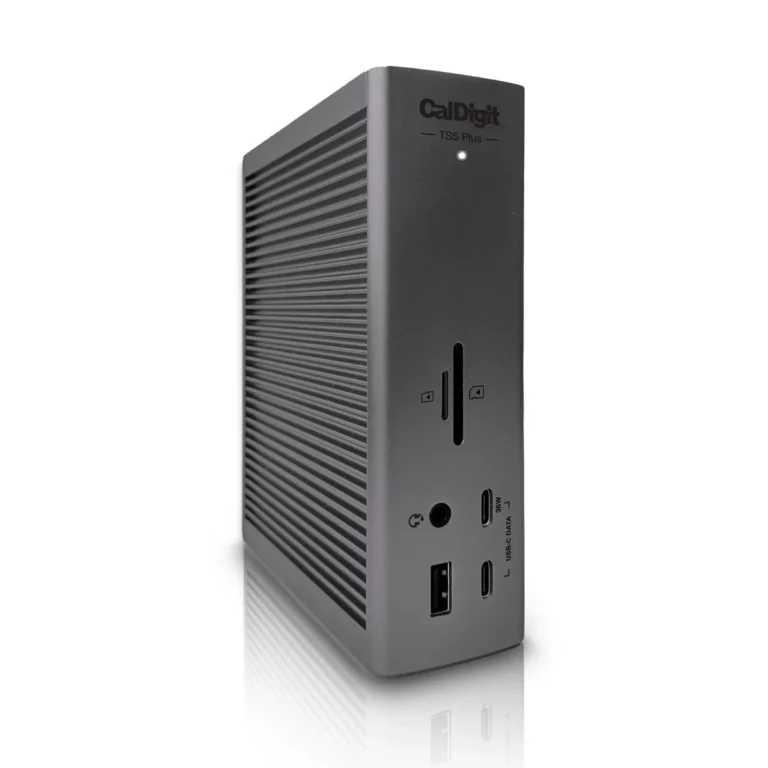
Native Thunderbolt desk: CalDigit TS4. Consider this Thunderbolt 4 model if your laptop supports your intended display configuration and you want a broad selection of connections. CalDigit lists 18 ports and up to 98W host charging. It is not a DisplayLink workaround for a computer’s native display limit.
Compare the total delivered cost, return policy and included cables. We have not verified live Amazon prices or stock, so neither model is presented as the cheapest deal. If you already own a compatible dock, identify the missing capability before buying a replacement.
DisplayLink vs Thunderbolt docks at a glance
| Decision | DisplayLink | Native Thunderbolt display path |
|---|---|---|
| How the picture travels | Software processes display updates over USB to DisplayLink hardware | Native display signals travel over the Thunderbolt connection |
| Main reason to choose it | Additional productivity screens on a supported computer | A compatible workstation using native display support |
| Software consideration | DisplayLink driver or Manager required | No DisplayLink software for native outputs; other dock updates may apply |
| Gaming and creative work | Check application limitations carefully | Our preferred starting point; verify resolution and refresh rate |
| Laptop charging | Depends on the dock and host USB-C PD support | Depends on the dock and laptop power requirements |
| Monitor count | Depends on chipset, driver, OS and model | Depends on the laptop, dock and display configuration |
How DisplayLink and Thunderbolt differ
DisplayLink is a USB graphics technology. Synaptics explains that its software detects connected displays and encodes display updates for transmission to the DisplayLink device. Its adaptive compression responds to the content and available connection bandwidth. This is different from simply passing through a laptop’s native video output. See Synaptics’ explanation of how DisplayLink works.
Thunderbolt is a connection technology that carries data and display traffic through a USB-C-shaped connector. Intel documents 40Gbps bandwidth for Thunderbolt 4 and configurations such as two 4K displays at 60Hz on supported systems. The connector shape alone does not prove a laptop has Thunderbolt. Read Intel’s Thunderbolt 4 and USB-C explanation.
Watch for hybrid docks. Some docks combine different display technologies. Ask which output uses DisplayLink and which uses a native display path. Buying by the number of HDMI sockets alone can lead to a configuration that behaves differently from what you expected.
Which should you choose for a MacBook?
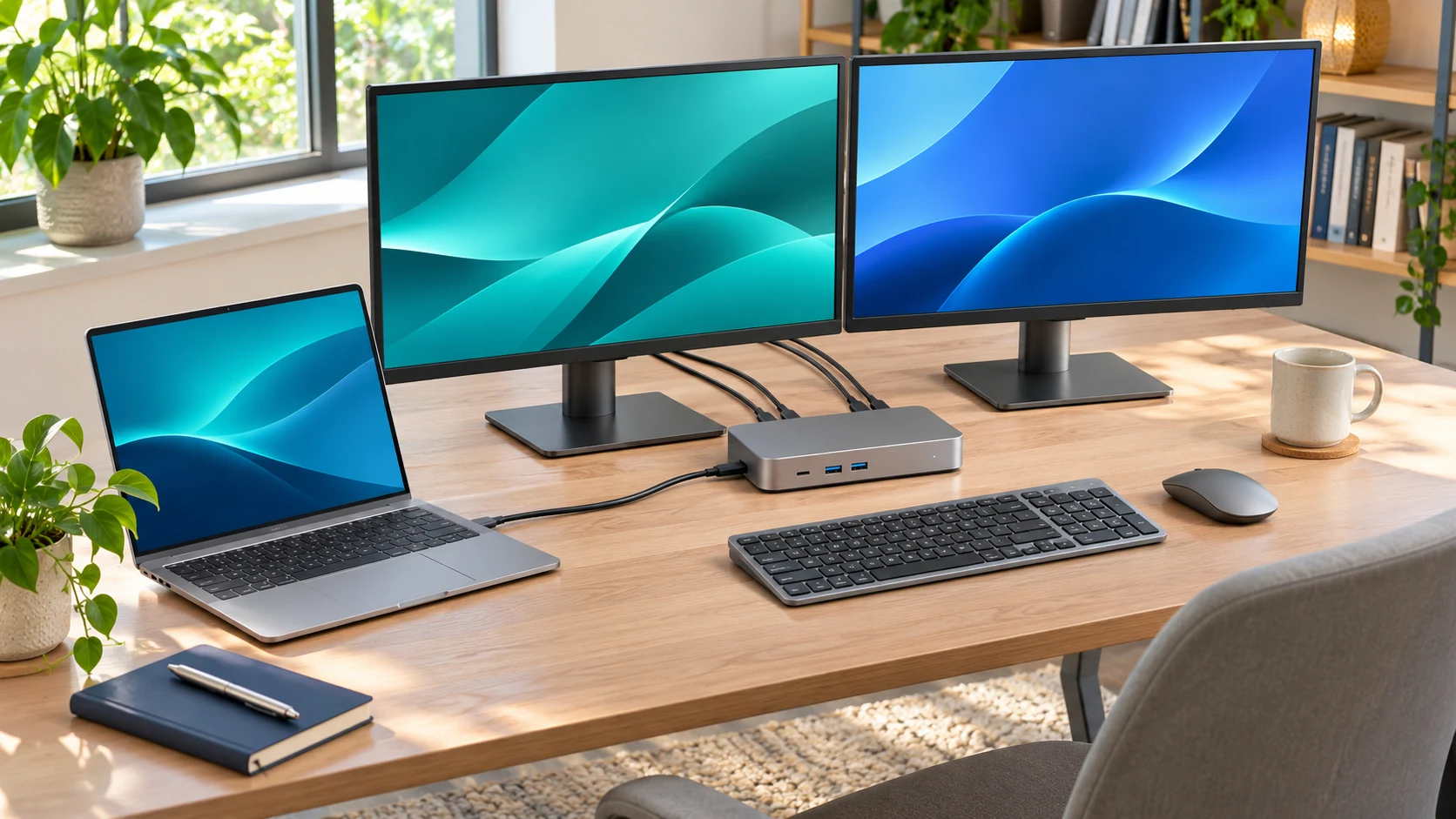
Start with your exact Mac model and chip. Apple’s MacBook Air external-display guide lists different capabilities by generation: M1 and M2 Air models support one external display natively; M3 Air supports a second external display with the lid closed under the required setup; M4 Air supports two alongside the built-in display. Do not apply one Air model’s limit to every MacBook Pro or a newer model.
Our buying advice: write down the number of screens you want to keep active, including the laptop screen. If native support meets that requirement, investigate a compatible native dock first. If it does not, a supported DisplayLink solution may be useful for office work. Check the dock’s compatibility table before ordering.
Software permissions and protected video
DisplayLink on macOS needs Screen Recording permission to provide its display output. That permission can matter on an employer-managed laptop, so obtain IT approval before purchasing hardware that depends on it. Plugable explains that the permission enables the display data path; it does not mean the dock is saving a video recording of your work.
Protected streaming content is a separate limitation. DisplayLink’s macOS support notice says some protected content can show a black picture while audio continues, and an active DisplayLink screen can affect playback on other screens too. Plugable’s HDCP guidance recommends a native video connection instead of a DisplayLink output. If streaming is part of your desk routine, include it in your return-window checks.
Gaming, video editing and everyday office work
We recommend starting with a native video connection for gaming or graphics-intensive work. Plugable positions its UD-6950PDH for productivity and warns that gaming, 3D applications and video-editing software may not behave as expected. A headline such as “dual 4K” is therefore not a promise about gaming performance.
For an email-and-spreadsheet desk, the decision is different. An additional useful screen may matter more than features you never use. List your actual applications, then check their compatibility with the proposed display path. For a gaming display, record the required refresh rate and whether adaptive-sync support matters; ask the dock maker to confirm your exact connection plan.
Charging: compare power delivered to the laptop
Check the host-charging specification rather than treating the power brick’s wattage as laptop output. Match the dock’s stated USB-C Power Delivery output with your laptop’s requirements. A USB-A connection does not provide USB-C laptop charging. If a gaming laptop needs its original power adapter under load, plan space for that adapter instead of assuming a single cable will replace it.
Already have a power problem? Follow our Thunderbolt dock not charging checklist before replacing the dock. For a non-Thunderbolt computer, read whether a Thunderbolt dock works with a USB-C laptop.
A five-step checklist before you order
1. Identify the host: record the exact laptop model, operating system and port capabilities.
2. Describe the screens: note quantity, resolution, refresh rate and connector type.
3. Confirm software access: check whether you can install DisplayLink and approve required permissions.
4. Price the complete setup: include display adapters, a suitable host cable, shipping and any separate charger.
5. Test during the return period: try wake from sleep, your normal applications, charging and protected video before discarding packaging.
If two people share the desk, switching the host is another requirement. See our guide to sharing one docking station between two laptops. A monitor-expansion feature does not automatically provide convenient computer switching.
Frequently asked questions
Is DisplayLink the same as DisplayPort?
No. DisplayLink is USB graphics technology. DisplayPort is a display interface. A dock can have DisplayPort sockets while using DisplayLink internally, so check the technology behind the output.
Does every Thunderbolt dock need DisplayLink Manager?
No. A native Thunderbolt display output does not use DisplayLink Manager. A hybrid dock may require it for specific outputs; check the manufacturer’s instructions.
Will a more expensive dock add more native Mac displays?
Price does not change the Mac’s documented native display support. Choose against the exact model’s capabilities and your planned screen arrangement.
Which should I buy?
Choose DisplayLink if supported extra office screens solve your main problem and you accept the software requirements. Choose a native Thunderbolt dock if your compatible laptop already supports the intended screens and your priority is a demanding workstation. If your current setup already meets both needs, keep it.
Manufacturer references
Plugable UD-6950PDH specifications and limitations · CalDigit TS4 specifications and compatibility · Apple MacBook Air display support · Intel Thunderbolt 4 overview. Product specifications and software support may change; recheck the current requirements for your exact hardware before purchase.