How to Reset iHome Smart Plug Easily in Minutes
If you need to know how to reset iHome smart plug devices, the fastest fix is usually a factory reset followed by a fresh pairing in the iHome app. In most cases, that means holding the plug’s reset button until the status light changes, then reconnecting it to your 2.4 GHz Wi‑Fi network.
- Factory reset: Use it when the plug is stuck offline, paired to the wrong account, or.
- Wi‑Fi matters: Many pairing issues come from 2.4 GHz network requirements or router settings.
- Safety first: Do not keep using a plug that shows heat damage, cracked plastic, or loose.
- Model-specific: Reset timing and LED behavior can vary, so the manual is the final reference.
How to Reset an iHome Smart Plug: Quick Answer for 2026
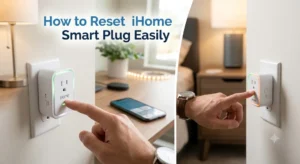
A reset is the right move when the plug will not pair, keeps dropping offline, or no longer responds in the app. If it only lost connection after a router change, app update, or password change, a simple reconnect may solve it without wiping your settings first.
When a reset is the right fix versus a simple reconnect
Try a reconnect first if the plug is still powered, shows up in the app, and only needs new Wi‑Fi credentials. A full reset is better when the device is stuck in pairing mode, invisible to the app, or tied to an old account you can no longer access.
What an iHome Smart Plug Does and Why Resetting Helps
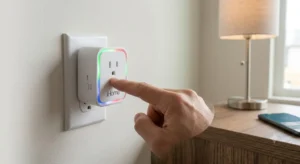
An iHome smart plug lets you switch power on and off from the app, set schedules, and often connect with voice assistants or home automation routines. Resetting clears the plug’s stored network and account pairing so it can start over with a clean connection.
How the plug works with Wi‑Fi, app control, and scheduling
The plug connects to your home router, then communicates with the iHome app through your account. Once paired, you can create timers, automate lamps or small appliances, and control the outlet remotely when the device is online.
Common reasons the plug needs a factory reset
Most reset requests come from Wi‑Fi changes, router replacements, app login problems, or a plug that will not complete setup. It can also help after moving the plug to a different room, restoring a phone, or troubleshooting a device that keeps going offline.
Before You Reset: Check Compatibility, App, and Safety Basics
Before you press anything, confirm that you still have access to the iHome app account used for setup and that your phone is ready for pairing. It also helps to verify your Wi‑Fi band, outlet location, and the electrical load you plan to switch through the plug.
iHome app requirements, Wi‑Fi band support, and account access
Many smart plugs in this category require the official app for setup and may depend on a 2.4 GHz Wi‑Fi network during pairing. If your router uses a combined network name for 2.4 GHz and 5 GHz, you may need to separate them temporarily or follow the router’s band-steering guidance.
Outlet placement, device load limits, and safe-use considerations
Use the plug only with devices it is rated to handle, and avoid connecting anything that exceeds the manufacturer’s limits. Small lamps, fans, and holiday lights are common uses, while heating appliances and other high-draw devices should be checked carefully against the manual.
What to verify about warranty, model number, and setup details
Look at the model number on the plug, box, or manual before you troubleshoot. Warranty terms, supported app features, and setup steps can differ by model and region, so it is worth checking the official product page or support documents if the reset does not behave as expected.
Step-by-Step: How to Reset an iHome Smart Plug Easily in Minutes
The exact button timing can vary, but the basic process is usually simple: power the plug, hold the reset button until the indicator light changes, then remove the old pairing from the app and set it up again. If your model uses a different LED pattern, use the manual as the final reference.
Soft reset versus factory reset
A soft reset usually means power-cycling the plug or re-adding it in the app without clearing everything. A factory reset erases the stored Wi‑Fi and account link, which is the better choice when the plug refuses to reconnect or has been assigned to the wrong network.
Button sequence, LED light behavior, and what each status means
Press and hold the reset or power button on the plug until the LED begins blinking in the pairing pattern described by the manual. In many smart plugs, a rapid blink means pairing mode, while a steady or different blink pattern can indicate normal operation or a connection problem.
For readers comparing smart-home setup habits, our guide to smart light switches and Alexa-compatible smart lights can help you think through app and voice-assistant compatibility before you build a larger setup.
How to reconnect the plug after resetting
After the reset, remove the old device entry from the app if it still appears, then add the plug as a new device. Keep your phone close to the router and plug during setup, and avoid switching networks or leaving the pairing screen until the process finishes.
Common Setup Problems After Reset and How to Fix Them
If the plug still will not connect after a reset, the problem is often outside the plug itself. Router settings, phone permissions, weak signal, or an account issue can block setup even when the hardware is functioning normally.
Wi‑Fi pairing failures, app login issues, and router settings
Check whether the app is signed into the correct account and whether your router is blocking new devices. Some routers use guest isolation, device filtering, or security settings that can interfere with smart-plug pairing, so it helps to test on the main home network first.
2.4 GHz network requirements and signal-strength checks
Many smart plugs pair more reliably on 2.4 GHz than on 5 GHz, especially during initial setup. If the plug is far from the router, move it closer for pairing or improve signal strength before placing it back in its final location.
What to do if the plug stays offline or won’t enter pairing mode
If the LED never changes, unplug the device, wait a moment, and try the reset again according to the manual. If the app still cannot find it, remove the old device entry, restart the router, and check whether any firmware or app update is pending; for broader network troubleshooting, see our guide on safe charger and power setup habits for the same kind of inspection mindset applied to electronics.
Who the iHome Smart Plug Is Best For in a Smart Home
This type of plug is best for people who want simple remote control without replacing a fixture or appliance. It is especially useful when you want one outlet to become schedule-based, app-controlled, or voice-controlled with minimal installation.
Best use cases for lamps, fans, holiday lights, and small appliances
Smart plugs are a strong fit for table lamps, decorative lighting, seasonal displays, and some small fans or low-power devices. They are also handy for routines like turning on a bedside lamp at sunset or shutting off holiday lights on a timer.
Who should consider a different smart plug instead
If you need advanced energy monitoring, outdoor weather resistance, or compatibility with a specific platform that the iHome model does not support, another plug may be a better match. People with high-draw appliances, stricter privacy preferences, or flaky Wi‑Fi may also want a different category of device.
Real-World Benefits, Limitations, and Value in 2026
The main value of an iHome smart plug is convenience: it can reduce manual switching and make routine control easier for busy homes. Its usefulness depends less on raw specs than on how stable your Wi‑Fi is, how well the app works on your phone, and whether the plug matches your device load.
Convenience, automation, scheduling, and voice-assistant control
For many users, the biggest benefit is automation. A single plug can make a lamp feel smarter, help manage pet lighting, or simplify routines for students, remote workers, and travelers who want a little more control from their phone.
Drawbacks to consider: app dependence, network limits, and load restrictions
The tradeoff is that the plug depends on an app, a stable network, and the right router settings. It also has electrical limits, so it is not a universal solution for every appliance in the home.
- Quick way to add app control to existing devices
- Useful for scheduling and basic automation
- Simple reset-and-repair process when the network changes
- Setup can be sensitive to Wi‑Fi band and router settings
- Not ideal for high-power appliances
- App and firmware behavior may vary by model
How it compares on value, reliability, and long-term usefulness
In long-term use, the best smart plug is usually the one that stays easy to reconnect, works with your network, and survives routine power cycling without drama. If your current plug needs frequent resets, the issue may be less about “value” and more about whether the model still fits your home network and usage pattern.
Care, Storage, and Final Recommendation
A smart plug does not need much maintenance, but a little care can help it last longer and reconnect more easily after a reset. Keep the contacts clean, avoid strain on the outlet, and store the plug in a dry place if you remove it for seasonal use.
Cleaning, inspection, cable and outlet checks, and storage tips
Wipe dust from the exterior with a dry cloth and inspect the outlet and connected device for looseness or heat damage. If you store the plug, keep the manual or model number with it so you can identify the correct reset method next time.
When to replace the plug instead of resetting it again
If the plug repeatedly loses connection after resets, shows physical wear, or no longer pairs reliably with a known-good router and app, replacement may be the safer and less frustrating option. Repeated reset attempts are not a fix for hardware failure or a poor fit with your current smart-home setup.
Transparent verdict for readers deciding whether to keep using it
If your iHome smart plug is otherwise in good condition, a proper factory reset is often the fastest way to solve pairing and offline issues. If it keeps failing after you verify the app, Wi‑Fi band, and load limits, it is usually time to move on to a more reliable option for your home.
- Use a soft reconnect for minor Wi‑Fi changes, but choose a factory reset when the plug is stuck or fully offline.
- Most pairing problems come from 2.4 GHz network issues, app account mismatches, or router settings rather than the plug alone.
- Always verify model-specific reset steps and load limits before putting the plug back into regular use.
Frequently Asked Questions
Press and hold the reset button until the LED changes to the pairing pattern shown in your manual. Then remove the old device entry in the app and add the plug again as a new device.
A soft reset usually means power-cycling or reconnecting the device without clearing everything. A factory reset erases the saved Wi‑Fi and account pairing so you can start fresh.
The issue is often a 2.4 GHz Wi‑Fi requirement, a router setting, or an app account mismatch. Try moving the plug closer to the router, checking the correct network band, and confirming you are signed into the right account.
Many smart plugs in this category pair more reliably on 2.4 GHz during setup. Check your exact model’s manual because requirements can vary by model and firmware.
They are commonly used for lamps, fans, holiday lights, and other low-power devices. Always verify the load limits in the manual before connecting any appliance.
Replace it if it keeps dropping offline after resets, shows physical damage, or will not pair even on a known-good network. Repeated resets do not fix hardware wear or an incompatible setup.