How to Reset Enbrighten Smart Plug Fast and Easily
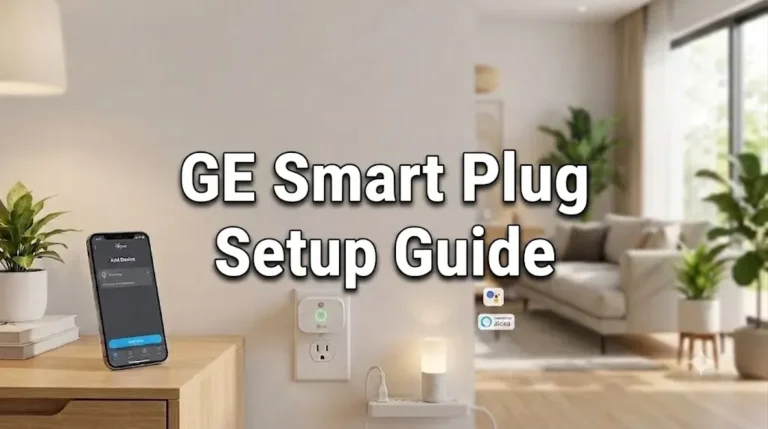
If you need to reset an Enbrighten smart plug, the fastest safe method is usually a factory reset from the plug’s button or reset control, then re-add it in the app. After that, you can reconnect it to Wi-Fi and restore schedules or voice control if your model supports them.
- Factory reset: Use it when the plug must be paired again or keeps going offline.
- Wi-Fi check: Many smart plugs need 2.4 GHz Wi-Fi, not 5 GHz.
- Safety first: Verify the plug’s load rating before reconnecting appliances.
- App setup: The official app and correct account matter for re-pairing.
- Troubleshooting: Weak signal, wrong password, or permissions can block setup.
How to Reset Enbrighten Smart Plug: The Fast Answer
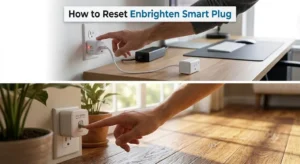
Most Enbrighten smart plugs can be reset by pressing and holding the reset button until the LED changes state, then waiting for the plug to enter pairing mode. The exact blink pattern and hold time can vary by model, so the safest move is to follow the plug’s manual or app instructions for your specific version.
What the Reset Does and When You Need It
A reset clears the plug’s saved network and pairing information so it can be set up again from scratch. That is different from simply turning the outlet off and on, which may fix a temporary glitch but does not erase stored Wi-Fi details or app connections.
Common reasons to reset an Enbrighten smart plug
People usually reset a smart plug when it changes Wi-Fi networks, stops responding in the app, or will not reconnect after a router update. A reset is also useful after moving to a new home, giving the plug to someone else, or troubleshooting a device that appears stuck offline.
Sometimes the problem is not the plug itself but a router setting, an app login issue, or a weak signal near the outlet. If you are also setting up other smart gear, it can help to review broader compatibility first, such as in our guide to what smart lights work with Alexa or what smart lights work with Google Home.
How a reset differs from a restart or power cycle
A restart or power cycle means unplugging the device briefly or switching power off and back on. That can clear a minor software hiccup, but it usually keeps the plug paired to your account and network.
A factory reset is more complete. It removes the current setup so the plug behaves like a fresh device during setup, which is what you want when the app cannot find it or the Wi-Fi credentials are no longer valid.
Step-by-Step Reset Instructions for Enbrighten Smart Plug
Because Enbrighten makes several smart plug versions, the reset process can differ slightly by model and app ecosystem. Check the label, manual, or product page for your exact model if the button behavior or LED pattern does not match what you expect.
Locate the reset button and check the LED behavior
Find the physical button or control on the plug body. On many smart plugs, the LED indicates whether the device is powered, connected, or ready to pair, but the color and blink pattern are model-specific.
Perform the factory reset safely
Confirm the plug is ready for re-pairing
After a successful reset, the plug should usually appear in a discoverable or pairing-ready state. That means the app can search for it again, and the LED often changes to a blinking pattern or another setup indication.
If the plug does not seem ready, repeat the reset once using the exact timing in the manual. If it still fails, move on to troubleshooting rather than forcing the button for a long time.
Setup Requirements Before Reconnecting the Plug
Reconnecting is often easier when you prepare the app, Wi-Fi, and outlet location first. Small setup issues are a common reason smart plugs fail even after a correct reset.
App requirements and account setup
Make sure you are using the official Enbrighten app or the app required by your specific plug model. Some smart plugs work through a companion platform, and setup may depend on creating an account, signing in, or granting Bluetooth and local network permissions on your phone.
- Confirm the correct app for your exact model
- Sign in to the right account before pairing
- Allow phone permissions needed for device discovery
- Update the app if pairing keeps failing
Wi-Fi compatibility, 2.4 GHz limits, and router considerations
Many smart plugs only support 2.4 GHz Wi-Fi, not 5 GHz. If your router combines both bands under one network name, temporary setup issues can happen, so it may help to verify your router’s band settings before trying again.
Distance matters too. A plug in a far room, behind thick walls, or near interference from other electronics may have trouble pairing or staying online. If your router offers guest networks, mesh nodes, or band steering, confirm whether the plug’s model supports them before setup.
Outlet placement, dimensions, and space around the plug
Smart plugs can be bulky enough to block adjacent outlets, power strips, or wall plates. Before reconnecting, check that the plug fits the outlet location without pressing against furniture, curtains, or other heat-sensitive items.
Good airflow around the plug is important for safe operation, especially when it controls lamps or small appliances that stay on for long periods. If the outlet is cramped, a different location may be better for both convenience and safety.
How the Enbrighten Smart Plug Works After Reset
Once the plug is reset and re-added, it behaves like a fresh smart device. You can usually rename it, assign it to a room, and rebuild schedules or scenes based on how you want to use it.
Pairing process with the app and voice assistants
Open the app, choose the add-device flow, and follow the discovery prompts. If your model supports voice assistants, you may need to link the plug again through the assistant’s official integration after the app pairing is complete.
For households already using smart lighting, this is a good time to check whether your broader setup is compatible across platforms. Our guides on smart light switches and smart lights for home automation can help you think through the bigger system, not just one plug.
Scheduling, remote control, and automation basics
After setup, most users rely on schedules, timers, or remote on/off control. That makes the plug useful for lamps, fans, holiday décor, coffee makers with simple mechanical switches, and other low-risk household routines.
Automations can also help make a room look occupied while you are away or turn a light on before sunset. Keep in mind that schedules depend on the app, cloud service, or local automation features supported by your exact model.
Power rating, load limits, and safe-use boundaries to verify
Before plugging anything back in, verify the plug’s rated load and the device you want to control. Smart plugs are not meant for every appliance, especially high-heat or high-draw equipment like space heaters, large kitchen appliances, or anything the manufacturer excludes.
Common Reset Problems and Troubleshooting Tips
If the reset does not work on the first try, the issue is usually timing, app setup, Wi-Fi compatibility, or distance from the router. Work through the basics before assuming the plug is defective.
When the LED does not blink or respond
If the LED stays unchanged, the plug may not be receiving power, the button may need a longer hold, or the device may already be in a different state than expected. Try a different outlet, then repeat the reset using the manual’s timing instructions.
- Use a known-good outlet to rule out power problems
- Wait a few seconds between reset attempts
- Avoid rapid repeated presses unless the manual says to do so
When the app cannot find the plug
If the app cannot discover the plug, confirm that Bluetooth, location, or local network permissions are enabled if the setup flow requires them. Also make sure you are signed into the correct account and using the official app version for that model.
Deleting and reinstalling the app can help in some cases, but only after you have verified the account and network basics. If the app offers a manual add-device path, try that as well.
Wi-Fi, password, and distance issues that block setup
Incorrect Wi-Fi credentials are a common cause of failed pairing, especially after router changes or password updates. Double-check the network name, password, and band selection, then move the plug closer to the router for the initial setup if possible.
If the plug works near the router but not in its final location, the issue may be signal strength rather than the device itself. In that case, consider whether a mesh node, better outlet location, or a different smart-home device would fit the room better.
Real-World Benefits, Limitations, and Who It Fits
After a reset, an Enbrighten smart plug can be a practical way to add app control to simple devices without replacing the whole appliance. The value comes from convenience and automation, but only if your Wi-Fi, app, and load requirements line up.
Best use cases for lamps, small appliances, and routines
Smart plugs are best for devices that already return to the same “on” state when power is restored, such as many lamps, fans, and decorative lights. They are especially useful in bedrooms, offices, dorm rooms, and living spaces where scheduling matters more than advanced features.
They can also support routines like morning lights, evening shutoff, or vacation presence simulation. That makes them a good fit for homeowners and renters who want simple automation without rewiring anything.
Trade-offs, compatibility limits, and maintenance needs
The trade-off is that smart plugs depend on app support, router stability, and model-specific compatibility. They also need occasional maintenance, such as checking the firmware, reviewing automations after a router change, and keeping the outlet area clear.
If you are building a larger smart home, it helps to choose devices that match your ecosystem instead of mixing incompatible platforms. For example, if you also care about smart lighting choices, our roundup of smart lights for Alexa can help you compare ecosystem fit before you expand.
Warranty details, replacement guidance, and value considerations
Warranty terms vary by model and region, so check the official product page or packaging before assuming coverage. If the plug repeatedly fails to reset, overheats, or shows physical damage, replacement may be the safer option than continued troubleshooting.
From a value standpoint, a smart plug is usually worth keeping only if it reliably reconnects and controls the devices you actually use. If your router, app, or home layout makes setup frustrating every time, a different model or platform may be a better long-term fit.
Final Recommendation: Reset, Reconnect, and Use the Plug Safely
If your Enbrighten smart plug is offline or stuck, a factory reset is the right next step before deeper troubleshooting. Use the official manual for your exact model, reconnect it on the correct Wi-Fi band, and verify the load limits before putting it back into daily use.
- Reset the plug when it needs to be paired again, not for every minor glitch.
- Check the app, Wi-Fi band, and router distance before retrying setup.
- Verify load limits and safety guidance before connecting appliances.
- If the plug overheats, behaves erratically, or looks damaged, stop using it.
Frequently Asked Questions
Reset it if the plug is offline, changed Wi-Fi networks, or will not pair again in the app. A simple power cycle may fix small glitches, but a reset clears saved setup data.
Usually yes, because the plug is treated like a fresh device after a factory reset. You may need to rebuild schedules, scenes, and voice assistant links after setup.
Common causes include using the wrong Wi-Fi band, incorrect password, missing permissions, or being too far from the router. Confirm the official app and your model’s setup steps first.
Many smart plugs only support 2.4 GHz Wi-Fi, but you should verify the exact model. If your router combines bands, setup can fail until the network settings are adjusted.
Use it for low-risk devices like lamps, fans, or simple routines that fit the plug’s load rating. Avoid high-draw appliances or anything the manufacturer excludes in the manual.
Replace it if it overheats, shows physical damage, repeatedly fails to reset, or cannot reconnect after you verify the app and Wi-Fi basics. Safety should come first.