Security Camera Round Green Light Explained Clearly
A round green light on a security camera usually means normal status, such as power, connection, pairing, or live view. The exact meaning depends on the model, so check the official manual before troubleshooting.
If you see a security camera round green light, it usually means the camera is powered on, connected, or actively in a normal status mode such as live view, pairing, or privacy signaling. The exact meaning depends on the brand, model, and app settings, so the safest next step is to check the camera’s manual or status-light guide before assuming something is wrong.
- Usually normal: A green light often means the camera is powered and functioning.
- Model-specific: The same color can mean different things on different brands.
- Check the app: Compare the light with device status, alerts, and live view.
- Troubleshoot basics first: Power, Wi-Fi, firmware, and mounting issues are the most common causes.
- Replace damaged parts: Frayed cables, overheating, or battery swelling need immediate attention.
Security Camera Round Green Light: What It Usually Means Right Away
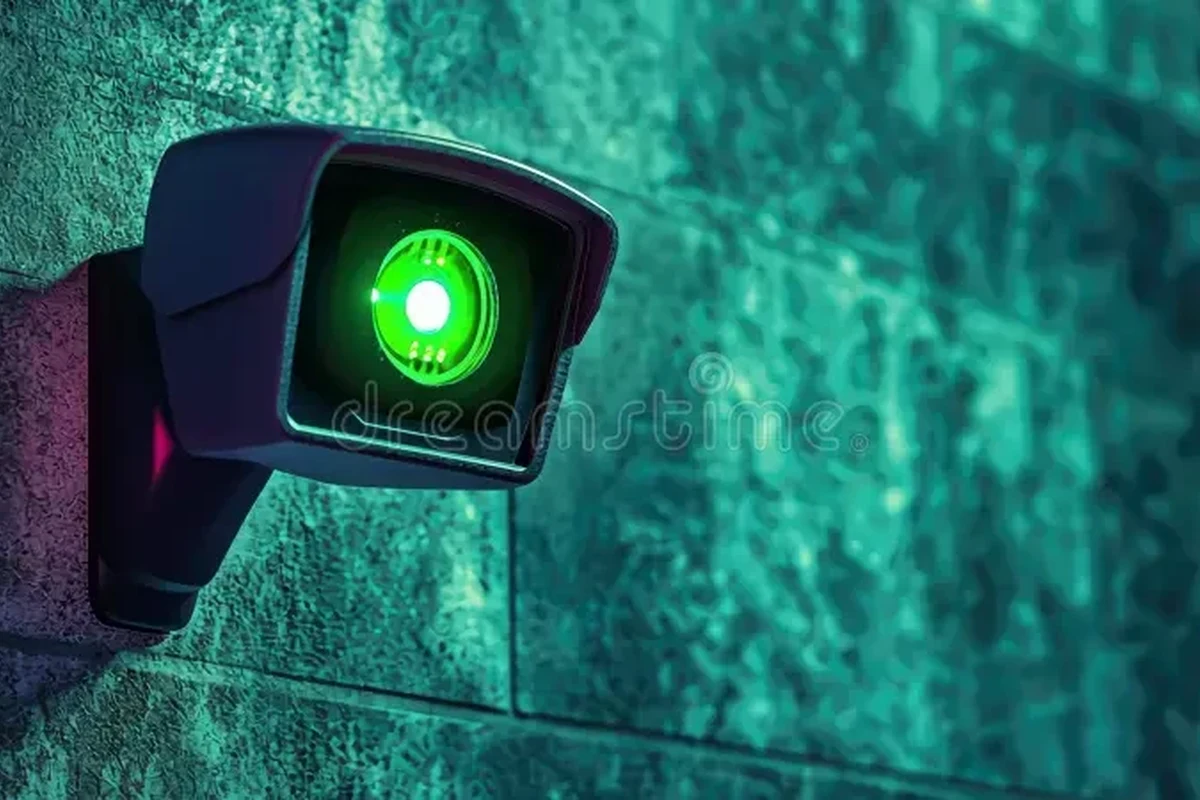
A round green light on a security camera is most often a status indicator, not a warning. In many systems, green suggests the camera has power and is operating normally, but the behavior can vary widely by manufacturer and even by firmware version.
Some cameras use a green ring or dot to show that the unit is online, recording, pairing, or ready for setup. Others use the same light to show a privacy state, network connection, or a mode that only appears during app interaction. Because of that variation, the color alone is not enough to diagnose the camera.
How the Round Green Light Works on Common Security Cameras
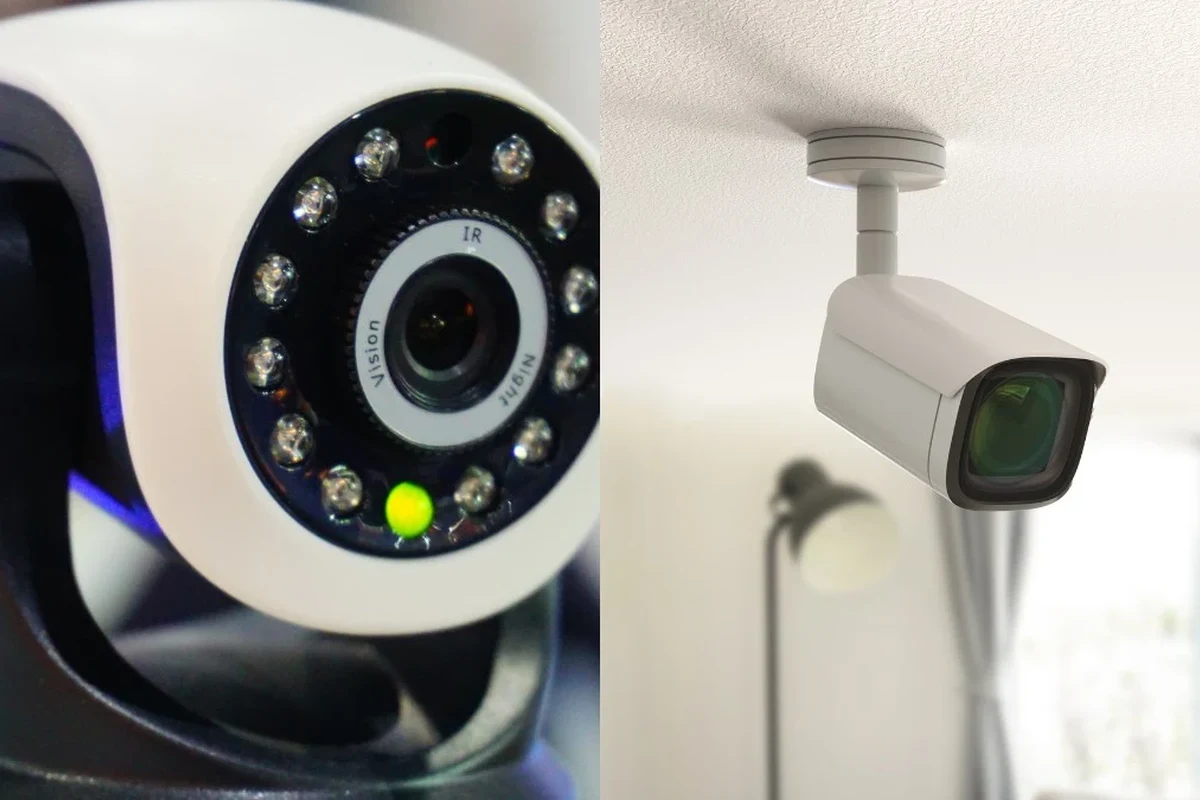
Modern security cameras often use small LEDs or light rings to communicate basic system states without opening the app. A round green light is one of the simplest ways for a camera to signal “ready,” “connected,” or “active,” but the meaning is not standardized across every brand.
Status indicators vs. recording indicators
Many cameras separate general status from recording behavior. A status indicator may show power, pairing, Wi-Fi connection, or firmware activity, while a recording indicator may turn on only when the camera is live, motion-triggered, or in a specific mode.
That distinction matters because a green light does not always mean the camera is recording 24/7. On some models, recording happens silently in the background, while the light only reflects connection status. On others, the light may turn on when a person opens the app and views the feed.
Some cameras let you disable status LEDs in the app for privacy. If the light behavior changed after an update, review the latest app settings and firmware notes for that exact model.
Night vision, privacy mode, and network status signals
Green can also appear alongside night vision or privacy-related behavior, depending on the camera design. For example, a camera may use one color while infrared night vision is active and another color when the lens is covered or privacy mode is enabled.
Network status is another common use. If the camera is trying to reconnect to Wi-Fi, finishing setup, or waiting for pairing, a green light may appear briefly or blink in a pattern. The pattern matters as much as the color, so blinking, pulsing, and solid illumination can each mean something different.
Why You Might See a Green Light on Indoor or Outdoor Cameras
There are several normal reasons a camera shows a green light, and most are not problems. The key is to compare the light behavior with what the camera was doing before the light appeared.
Normal operation and live view activity
On many cameras, a green light simply means the device is awake and functioning. If you open the app, start a live view, or trigger a motion event, the camera may light up to show it is processing video or communicating with the cloud or local storage.
This is especially common on indoor cameras, video doorbells, and smart cameras linked to a mobile app. If the light appears only during app use and disappears afterward, that is often normal behavior.
Power, pairing, firmware, or connectivity states
A green light can also show that the camera has enough power and is in a setup or pairing state. Battery-powered cameras may use it after charging, during first-time setup, or while reconnecting after a battery swap. Plug-in models may show it when the adapter is supplying stable power.
Firmware updates can also change light behavior. If a camera suddenly shows a green light after an update, the change may be intentional. Before troubleshooting, check the app’s release notes or the manufacturer’s support pages.
If the green light appears after a router change, password update, or app reinstall, start by confirming Wi-Fi credentials, account login, and device pairing status before assuming hardware failure.
When the light is harmless and when it may signal a problem
A harmless green light usually appears in predictable situations such as live view, setup, charging, or normal online status. If the camera is otherwise responsive, the app shows it online, and notifications still work, the light is probably informational.
It may signal a problem if the light stays on when the camera should be idle, if the app shows it offline, or if the light is paired with poor video, repeated disconnects, or failed motion alerts. In that case, the issue is often connectivity, power, or firmware rather than the LED itself.
Which Security Cameras Use a Round Green Light and Who They Fit Best
Round green lights are common on many camera categories, but they are not universal. The best fit depends on how the camera is powered, where it is mounted, and how much app interaction you want.
Wired vs. battery-powered models
Wired cameras often use a green light to show stable power or online status. Because they stay connected to a power source, their indicator behavior may be more consistent and easier to interpret.
Battery-powered cameras may use green lights more often during charging, pairing, or wake-up cycles. Their light behavior can be less constant because the device saves power by sleeping between events. That makes the status ring useful, but also more model-specific.
Indoor, outdoor, and doorbell camera use cases
Indoor cameras often use a green ring or dot as a simple “ready” signal. Outdoor cameras may use it to confirm weatherproof models are powered and connected, especially when mounted where the app is the main way to check status.
Doorbell cameras frequently use light rings because they need to communicate status quickly to visitors and homeowners. If you are comparing camera categories, our guides to smart light switches, smart light bulbs for Google Home, and smart light strips can help if you are also building a broader smart-home setup around the camera.
Homeowners, renters, and small business setups
Homeowners often want cameras that are easy to mount permanently and integrate with other smart-home devices. Renters may prefer battery-powered or adhesive-mounted models that are easier to remove without damaging walls.
Small businesses usually benefit from cameras with clear status indicators, reliable alerts, and straightforward app controls. In shared spaces, a visible green light can be useful for staff, but it may also raise privacy questions, so placement and settings matter.
Key Specs and Decision Criteria to Check Before Buying or Troubleshooting
If you are buying a new camera or trying to understand a green light on an existing one, focus on the specs that affect power, connectivity, and placement. These details matter more than the LED color by itself.
Power input, battery life, and rated wattage for powered models
For plug-in cameras, the adapter rating and cable quality matter because unstable power can cause light flickering, reconnect loops, or false status changes. Battery-powered models need attention to charging method, battery health, and how often the camera wakes up for motion events.
Do not assume every USB cable or adapter will work the same way. Match the manufacturer’s recommended power source, especially for outdoor cameras or doorbells that may draw more power during night vision or motion processing.
Connectivity: Wi-Fi bands, app requirements, and smart home compatibility
Many camera issues that look like a “green light problem” are actually Wi-Fi problems. If the camera cannot maintain a stable connection, the light may stay on, blink, or cycle in a way that suggests normal power but poor communication.
Before buying, confirm whether the camera supports 2.4 GHz, 5 GHz, or both, and whether it needs a specific app, account, or cloud plan. If you use smart assistants or home automation, verify compatibility in the official product listing rather than relying on retailer descriptions alone.
Dimensions, mounting style, and cable quality
Size and mounting style affect both appearance and reliability. A camera mounted at the wrong angle may catch glare, block sensors, or make the status light harder to interpret from a distance.
Cable quality matters for plugged-in models because loose or damaged cables can create intermittent power behavior that looks like a camera fault. For outdoor units, make sure cable routing keeps connectors protected from rain, strain, and accidental pulls.
Weather rating, storage options, and warranty details to verify
Outdoor cameras need a weather rating appropriate for the installation location, but the exact rating should be verified in the official specs. Storage options also matter: some cameras record locally, some rely on cloud storage, and some support both.
Warranty terms can help you judge long-term value, especially if the camera is installed in a hard-to-reach location. If the light behavior becomes unreliable after the warranty period, replacement may be more practical than repeated troubleshooting.
How to Set Up, Inspect, and Use the Camera Safely
Good setup reduces confusion about what the green light means and helps the camera perform more reliably. A careful installation also lowers the chance of false alerts, poor Wi-Fi performance, and unnecessary wear.
Choose a location with a strong Wi-Fi signal, a clear view of the area, and minimal glare from windows, lamps, or direct sun.
Use the official app, check for updates, and review the status-light guide for the exact model before changing settings.
Walk through the camera’s field of view, open the live feed, and note when the green light appears so you can recognize normal patterns later.
Installation steps that reduce false alerts and light confusion
Mount the camera where motion is meaningful, not where trees, fans, traffic, or reflective surfaces will trigger constant activity. Too many false alerts can make the light seem random when the camera is actually reacting correctly.
After installation, test the camera at different times of day. Lighting changes can affect infrared switching, app notifications, and the way the status light appears in a room or doorway.
Safe power use, cable routing, and heat checks for plugged-in units
For powered cameras, use only the adapter and cable type recommended by the manufacturer. Route cables so they are not pinched, stretched, or exposed to water, and avoid covering the camera body if ventilation is needed.
Stop using any camera, adapter, or cable that shows fraying, swelling, overheating, melted plastic, or repeated power drops. Follow the manufacturer’s guidance and replace damaged parts rather than improvising a fix.
Privacy, placement, and legal considerations for shared spaces
In apartments, offices, and other shared environments, camera placement should respect local laws, building rules, and reasonable privacy expectations. A visible green light can reassure occupants that the camera is active, but it can also reveal when recording or live viewing is happening.
Review privacy settings in the app, especially if the camera faces a hallway, common area, or outdoor space near neighbors. If audio recording is enabled, check the legal requirements for your location before using it.
Common Mistakes That Cause Misreadings or Poor Performance
Many green-light concerns come from setup errors rather than broken hardware. The most common problems are app settings, weak wireless signal, dirty optics, and poor mounting choices.
Incorrect app settings, weak Wi-Fi, and outdated firmware
If the app is set to hide indicators, disable notifications, or reduce motion sensitivity, the camera may seem inconsistent even when it is working. Weak Wi-Fi can also cause delayed status reporting, so the app and the light may disagree about the camera’s real condition.
Outdated firmware can create strange indicator behavior after a router change or account migration. When in doubt, update through the official app and then retest the camera before changing hardware.
Dirty lenses, blocked sensors, and poor mounting angles
Dust, spider webs, rain spots, and smudges can interfere with motion detection and infrared performance. When that happens, the camera may activate unexpectedly, making the green light seem more active than it should be.
A bad mounting angle can also hide important parts of the scene or place the lens too close to a wall. If the camera is constantly reacting to nearby movement, repositioning it may solve more than resetting it.
If the camera light seems confusing, compare the app’s device status, motion history, and live feed side by side. That helps separate a display issue from a real connection problem.
Ignoring battery health, charging limits, or overheating signs
Battery-powered cameras need regular attention because weak batteries can cause odd indicator behavior, delayed wake-ups, or frequent offline reports. Charging beyond the manufacturer’s guidance or using the wrong adapter can also shorten battery life.
If a battery compartment feels unusually warm, smells odd, or shows swelling, stop using the device and follow the manufacturer’s safety instructions. Battery problems should be treated as a safety issue, not just a performance problem.
Maintenance, Cleaning, and Replacement Guidance for Long-Term Reliability
Regular maintenance helps the camera stay accurate and makes the green light easier to trust. A few quick checks can prevent a lot of confusion later.
Routine inspection of light behavior, housing, and cables
Look at the light pattern occasionally to make sure it still matches normal behavior for your model. Also inspect the housing, mount, cable, and power connection for wear, looseness, or weather damage.
If the camera is outdoors, seasonal changes can affect seals, condensation, and mounting stability. Recheck the unit after storms, extreme heat, or freezing conditions.
Cleaning methods for lenses, sensors, and weather seals
Use a soft, dry or slightly damp microfiber cloth for the lens and exterior surfaces, following the manufacturer’s cleaning guidance. Avoid harsh solvents, abrasive pads, or sprays that could damage coatings, seals, or plastic parts.
Keep sensors and vents free of dust and debris, but do not open the camera housing unless the official instructions say it is user-serviceable. For outdoor models, inspect weather seals gently rather than forcing them.
When to replace batteries, adapters, mounts, or the whole camera
Replace batteries when runtime drops sharply, charging becomes unreliable, or the camera starts shutting down unexpectedly. Adapters and cables should also be replaced if they become loose, frayed, or inconsistent.
If the camera repeatedly disconnects, the app no longer supports it, or the manufacturer stops update support, replacing the whole unit may be the better long-term choice. That is especially true for older cameras installed in hard-to-access spots.
Final Recommendation: When a Round Green Light Is Normal, Useful, or Worth Investigating
A round green light is usually normal when it matches the camera’s expected status, such as power, pairing, live view, or online connectivity. It becomes worth investigating when the light behavior does not match the app, the camera drops offline, or performance problems appear at the same time.
For 2026 buyers, the best value usually comes from cameras with a clear status-light chart, strong app support, verified Wi-Fi compatibility, and straightforward power or battery guidance. If you are comparing options, verify the manual, warranty, and update policy first, then choose the model whose indicator behavior is easiest for you to understand and maintain.
- A green light is usually a status signal, not a fault.
- The exact meaning depends on the camera model, app, and firmware.
- Check power, Wi-Fi, mounting, and settings before replacing hardware.
- Use the official manual and support pages to confirm what the light means.
Frequently Asked Questions
It usually means the camera has power, is connected, or is in a normal status mode such as live view or pairing. The exact meaning depends on the model and firmware.
Not usually. It becomes a concern only if the app shows the camera offline, the light pattern is unusual for that model, or video and alerts stop working.
Many cameras light up when live view starts or when the device is actively communicating with the app. That behavior is common and often normal.
Sometimes, but not always. Some cameras use the light for recording, while others use it only for power, pairing, or connection status.
Check the manual, app status, Wi-Fi connection, power source, and any recent firmware updates. Also inspect the cable, mount, and battery health if applicable.
Consider replacement if the camera no longer gets updates, repeatedly disconnects, or has damaged power parts or battery issues. A camera that is hard to access may also be better replaced than repaired.