Defiant Smart Plug Setup Guide for Easy Home Control
Setting up a Defiant smart plug is usually straightforward: plug it in, add it in the companion app, connect it to 2.4 GHz Wi-Fi, and then test basic on/off control before building schedules or voice routines. The main things that decide how smooth the process feels are your router setup, outlet placement, and whether the plug is being used with a safe, compatible device.
- Setup basics: Most issues come from Wi-Fi band mismatches, app permissions, or pairing mode.
- Best use cases: Lamps, fans, and seasonal décor are the safest, most practical fits.
- Safety first: Check wattage limits and avoid heaters or high-draw appliances.
- Compatibility matters: Confirm the app, voice assistant support, and outlet clearance before buying.
Defiant Smart Plug Setup: What It Does and Whether It’s Worth Using
A Defiant smart plug turns a standard outlet into a remotely controlled outlet for lamps, fans, seasonal décor, and other small household devices. It is most useful when you want simple app control without replacing a switch or buying a more complex smart-home hub.
Quick answer: how to set up a Defiant smart plug in minutes
In most cases, the setup flow is: install the official app, plug the device into a wall outlet, put it in pairing mode, connect it to 2.4 GHz Wi-Fi, and rename it in the app for easier control. After that, you can test remote switching and create schedules or timers if the model supports them.
Who this guide is for in 2026
This guide is for anyone who wants a simple smart-home upgrade for lighting, routines, or accessibility without rewiring anything. It is also useful if you are comparing the plug against smart bulbs or smart switches like the ones covered in our smart light switches guide and smart lights roundup.
How the Defiant Smart Plug Works in a Smart Home
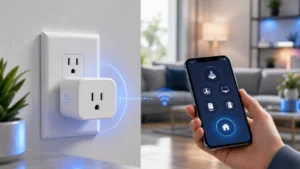
A smart plug acts like an app-controlled power switch. Instead of changing the device itself, you control the outlet feeding that device, which makes it a practical choice for lamps, fans, and other plug-in gear that should not be left running manually all day.
App control, schedules, timers, and voice assistant support
Most smart plugs of this type support basic app toggles, countdown timers, and schedules. Some versions may also work with voice assistants or home platforms, but support can vary by model, app version, and region, so it is worth checking the product listing and official compatibility notes before buying.
Connectivity basics: Wi-Fi requirements and pairing flow
Many smart plugs in this class use 2.4 GHz Wi-Fi because it typically offers better range for low-power devices than 5 GHz. Pairing usually involves a blinking indicator light, app discovery, and joining the plug to your home network through the app’s setup screen.
Before You Start: Compatibility, Dimensions, and Safety Checks
Before you begin the Defiant smart plug setup, check the outlet, the plug’s physical size, the appliance you plan to control, and the app requirements. These basics prevent most setup problems and reduce the chance of creating a safety issue later.
- Check compatibility, model number, app requirements, dimensions, ports, wattage, and intended use
- Confirm safety guidance, warranty, return policy, privacy settings, and update support
Outlet fit, plug size, and clearance around furniture or power strips
Smart plugs can be bulkier than a standard outlet adapter, so the outlet location matters. If the plug sits behind a couch, desk, or power strip, make sure the body of the device will not block the second outlet or press against furniture in a way that traps heat.
Device wattage limits, appliance types, and what not to plug in
Always verify the wattage or amperage rating on the exact model you own, because limits can vary. In general, smart plugs are best for low-to-moderate load devices like lamps and small fans, not for high-draw appliances, heaters, cooking equipment, or anything the manufacturer says should not be controlled this way.
App requirements, network setup, and account permissions to verify
Check whether the plug requires an account, location permission, Bluetooth during pairing, or notification access inside the app. If you are setting it up on a shared home network, confirm that your router allows new IoT devices and that your phone is connected to the same network during pairing.
Step-by-Step Defiant Smart Plug Setup Guide
The setup process is usually simple, but it helps to move slowly the first time so you can confirm the app, network, and naming are all correct before adding automations.
Unboxing, placement, and first power-on
Take the plug out of the box, inspect the housing and prongs for damage, and read the quick-start instructions before plugging it in. Place it in a wall outlet with enough clearance for the body of the plug and the cord of the device you want to control.
- Smart plug unit
- Quick-start guide or manual
- Any setup QR code or app instructions
Pairing the plug in the app
Open the official app, create or sign in to your account, and use the add-device flow. If the plug does not appear automatically, follow the manual’s pairing instructions, which often involve holding a button until the indicator light starts blinking in the correct pattern.
Connecting to 2.4 GHz Wi-Fi and naming rooms/devices
During setup, select your home’s 2.4 GHz network and enter the password carefully. Once connected, give the plug a clear name such as “Desk Lamp” or “Garage Fan,” and place it in the correct room so voice commands and schedules stay organized.
Testing remote on/off control and creating your first schedule
Before you set up a routine, test the basic on/off button in the app to make sure the plug responds consistently. Then create one simple schedule, such as turning a lamp on in the evening and off at bedtime, so you can confirm the automation works as expected.
- Start with one device and one schedule so troubleshooting stays simple.
- Use clear names that match the room and purpose, not generic labels like “Plug 1.”
- If voice control matters, link the plug to your assistant only after app pairing is complete.
Real-World Uses: Best Ways to Use a Defiant Smart Plug
The best smart-plug use cases are the ones that save time without adding complexity. Think of it as a convenience tool first and an automation tool second.
Lighting, fans, seasonal décor, and small appliances
Smart plugs are especially handy for table lamps, string lights, holiday décor, box fans, and small devices that you want to switch on from bed or from another room. If your main goal is lighting control, you may also want to compare it with the best smart lights for bedroom use or a full smart lighting system.
Convenience benefits for routines, energy awareness, and accessibility
For many households, the real value comes from routines. You can automate a lamp for morning wake-up, shut off a forgotten fan, or make a hard-to-reach outlet easier to manage, which can be especially helpful for students, remote workers, older adults, and anyone with limited mobility.
Where the plug fits best: bedrooms, living rooms, home offices, and garages
Bedrooms are a common fit because schedules and bedside control are easy wins. Living rooms and home offices also make sense, while garages and utility spaces are useful if the Wi-Fi signal is strong enough and the appliance stays within the plug’s load limits.
Limitations, Common Mistakes, and Troubleshooting
Most setup problems come from network mismatches, app permissions, or using the plug with the wrong kind of device. The good news is that many issues are fixable without special tools.
Pairing failures, Wi-Fi dropouts, and app sync issues
If the plug will not pair, check that your phone is on the same network, your router is broadcasting 2.4 GHz, and the device is in pairing mode. If it connects but later drops offline, the cause may be weak signal, router settings, distance, or a firmware issue that needs an update through the official app.
Overloading the plug, using the wrong outlet, and ignoring reset steps
Do not assume a device is safe just because it physically fits. An overloaded plug, a loose outlet, or skipping the reset procedure can create unstable behavior, so always follow the reset steps in the manual before trying repeated re-pairs.
Evidence limits: what setup results can vary by router, phone, and firmware
Setup speed and reliability can differ from home to home. Router brand, signal strength, phone operating system, app version, and firmware updates can all affect how quickly the plug appears in the app and whether automations run consistently.
Maintenance, Care, and Safe Long-Term Use
Once the plug is set up, a little maintenance helps it stay reliable. Smart plugs usually need very little care, but they do benefit from occasional inspection and a clean, dry environment.
Cleaning, inspection, and storage when not in use
Unplug the device before cleaning it, and use a dry cloth rather than liquids. If you store it seasonally, keep it in a cool, dry place with the manual so you can recheck pairing steps and safety limits later.
Heat checks, loose outlet signs, and when to replace the plug
Occasional warmth can happen, but excessive heat, buzzing, discoloration, or a loose fit in the outlet are warning signs. Replace the plug or stop using it if the housing is damaged, the connection becomes unreliable, or the outlet no longer grips the prongs securely.
Warranty details and what to confirm before buying
Warranty terms can vary by retailer, region, and exact model, so check the current product page or manual before purchasing. It is also smart to confirm return policy, app support, and whether software updates are still being provided for the version you plan to buy.
Final Verdict: Is the Defiant Smart Plug Setup Easy for Most Homes?
For most people, yes—the setup is usually easy if you have 2.4 GHz Wi-Fi, a compatible phone, and a low-risk device to control. The plug is best for simple convenience, not for heavy-duty automation or high-power appliances, and that limitation matters more than the brand name.
Best-fit user, value summary, and transparent recommendation
The best fit is a homeowner, renter, student, or remote worker who wants quick control over lamps, fans, or décor without changing wiring. If you value straightforward setup and basic scheduling more than advanced customization, a Defiant smart plug is a practical choice as long as you verify the exact model’s load rating and app support first.
Alternatives to consider if you need advanced automation or higher load support
If you need deeper automation, better platform integration, or support for more demanding equipment, look at higher-end smart plugs or full lighting solutions instead. For lighting-focused setups, our guides to smart lights for home automation and smart lights for Google Home can help you compare the broader ecosystem before you buy.
Defiant smart plug setup is generally beginner-friendly and useful for everyday control, but it works best when you stay within the plug’s load limits and confirm current app compatibility. If you want a simple, low-cost smart-home entry point, it makes sense; if you need advanced automation or heavy-duty power handling, choose a more specialized option.
Frequently Asked Questions
You need the official app, a compatible phone, and a 2.4 GHz Wi-Fi network. It also helps to confirm the plug’s load rating and make sure the outlet has enough clearance.
The most common causes are using a 5 GHz network, weak signal, or the plug not being in pairing mode. Check the manual, move closer to the router, and try the setup again.
Low-draw devices like lamps, small fans, and seasonal décor are usually the best fit. Always confirm the exact model’s rating and avoid heaters, major appliances, and anything the manufacturer says not to control with a smart plug.
Some models may support voice assistants, but compatibility can vary by model, region, and app version. Check the current product listing and official documentation before buying if voice control matters to you.
Reset steps vary by model, but they usually involve holding the device button until the indicator light changes pattern. Follow the manual for the exact reset method before trying to pair again.
Verify the Wi-Fi band, load rating, app requirements, and whether the plug fits your outlet without blocking nearby sockets. Also confirm warranty terms, return policy, and current compatibility with your smart-home platform.