

Can a Usb-c Hub Support Two Monitors
Yes, a USB-C hub can support two monitors if the hub and your device both support dual-display output. The exact result depends on the port standard, bandwidth, and whether the setup allows extended screens or only mirroring.
Yes—a USB-C hub can support two monitors, but only if the hub and your computer both support the right video standard, bandwidth, and display configuration. The catch is that “USB-C hub” is a broad label, so dual-monitor support can range from seamless extended desktops to mirrored screens or one display not working at all.
If you are shopping for a hub in 2026, the safest approach is to verify the host device’s display support first, then match it to a hub that explicitly lists two-monitor output. That matters more than the number of ports alone.
- Compatibility first: Your laptop, tablet, and operating system must support dual external displays.
- Bandwidth matters: Higher resolutions and refresh rates need more video bandwidth than basic office setups.
- Check the standard: DisplayPort Alt Mode, Thunderbolt, USB4, and MST do not behave the same way.
- Read the specs carefully: Look for extended-display support, not just “two ports.”
Once you have checked compatibility, follow our steps for connecting two monitors to a laptop docking station. If a connected display is not recognized, use our monitor-detection troubleshooting guide.
Can a USB-C Hub Support Two Monitors? The Short Answer and What It Depends On
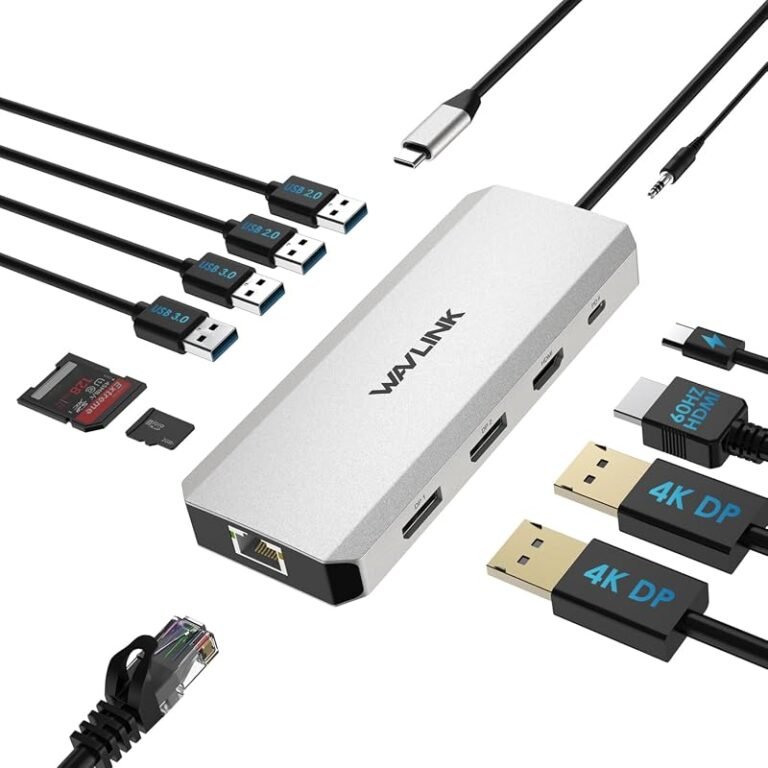
A USB-C hub can support two monitors when the host device sends enough video signal through the USB-C port and the hub is designed to split or route that signal correctly. Some hubs do this through DisplayPort Alt Mode, some through Thunderbolt or USB4, and some rely on a graphics driver solution that works differently from native video output.
In practical terms, the answer is “yes, sometimes,” not “always.” Two monitors may work at different resolutions, only in extended mode, or only with specific operating systems and laptops. A hub that works with one computer may not deliver the same result with another.
Manufacturer specs often describe dual-display support in different ways. Look for wording such as “dual 4K,” “extended display,” “MST support,” or “Thunderbolt dual monitor support,” and confirm whether that applies to your exact laptop, tablet, or operating system.
How USB-C Hubs Drive Dual Displays in 2026
Modern USB-C hubs usually handle dual displays in one of a few ways. The method matters because it affects whether you get two independent screens, mirrored screens, or reduced resolution and refresh rate.
DisplayPort Alt Mode, Thunderbolt, and USB4 Explained
DisplayPort Alt Mode lets a USB-C port carry video directly from the computer’s graphics hardware. Many hubs use this route for HDMI or DisplayPort outputs, but the number of monitors supported depends on the computer and the hub’s internal design.
Thunderbolt and USB4 can carry more bandwidth and are often better suited for dual-monitor setups, especially when you want higher resolutions or better refresh rates. Still, not every USB-C port with a small lightning bolt or similar symbol is Thunderbolt, so the exact port standard must be verified in the device specs.
Some USB-C hubs can output dual displays only when the host device supports Multi-Stream Transport, often called MST, while others use a separate driver-based method on Windows.
Why Some Hubs Mirror Instead of Extend Screens
Mirroring means both monitors show the same image. Extending means each monitor acts like a separate workspace. A hub may mirror displays if the host device, operating system, or video pipeline cannot support two independent external screens through that connection.
This is especially common when a device supports only one external display natively, or when the hub is built for basic presentation use rather than workstation use. If you need spreadsheets on one screen and video calls on another, confirm that the hub explicitly supports extended dual-display output.
Key Compatibility Checks Before You Buy
The biggest mistakes happen before purchase. A hub can be well made and still fail to deliver two monitors if the laptop, tablet, or OS is not compatible.
Laptop, Tablet, and Operating System Support
Start with the host device manual or official support page. Some laptops support two external monitors only through Thunderbolt, some support one through USB-C, and some support none without a dock or special adapter.
Operating system rules matter too. Windows is often the most flexible for dual-monitor hubs, while macOS, ChromeOS, and some tablets can have stricter limits depending on the chip and software version. On Apple silicon Macs, for example, external display support varies by model, so the same hub may behave differently across machines.
- Check the exact laptop or tablet model and its display output limits
- Confirm whether the operating system supports extended dual displays through the hub
- Verify the hub’s video standard, power delivery rating, and port layout
- Review the manufacturer’s compatibility list and manual before relying on claims
Port Standards, Bandwidth, and Resolution Limits
Two monitors do not just require two ports; they require enough bandwidth. A hub that handles two 1080p displays may not be able to drive two 4K screens at the same refresh rate, and some combinations will force a lower refresh rate or lower color depth.
If you care about smooth scrolling, gaming, or video editing, check the supported resolution and refresh rate for each display output. The same hub may advertise “dual 4K,” but that can still mean different limits depending on whether you use HDMI, DisplayPort, or a mix of both.
Graphics Capabilities and MST vs. Native Dual Output
MST, or Multi-Stream Transport, can split one DisplayPort signal into multiple displays on compatible systems. That is useful on many Windows laptops, but it is not universally supported across all operating systems and chipsets.
Native dual output means the host device and hub are both designed to provide two displays without relying on a workaround. If you want the least frustrating setup, native support is usually the better path. If the listing mentions MST, verify that your device supports it before buying.
What to Look for in a USB-C Hub for Two Monitors
Once you know your device can support dual displays, the next step is choosing a hub that matches your layout and workload. The best hub is not always the one with the most ports; it is the one with the right video outputs, power delivery, and thermal design.
Video Outputs: HDMI, DisplayPort, or Both
HDMI is common and convenient for TVs and many office monitors. DisplayPort is often preferred for higher refresh rate monitors and some professional displays. A hub with both gives you more flexibility, especially if your two monitors are different models.
Check whether the ports are independent or share bandwidth. Some hubs can drive two displays only when one is connected through HDMI and the other through DisplayPort, while others support two of the same type. The manual should state this clearly.
Power Delivery Rating and Charging Headroom
If the hub also charges your laptop, the power delivery rating matters. A hub might pass through enough power for light use but still leave your machine undercharged when you are running dual displays, external storage, and a webcam at the same time.
Look for a hub that provides enough charging headroom for your laptop model and workload. Remember that the hub’s advertised wattage is not the same as what your device actually receives after the hub’s own power needs are accounted for.
Use only the charger, cable, and power delivery rating recommended by the manufacturer. If a hub or cable becomes unusually hot, smells burnt, disconnect it and stop using it until it has been inspected or replaced.
Cable Quality, Build, and Heat Management
Dual-display hubs can run warm, especially when charging a laptop and pushing video to two screens. A compact metal body can help with durability and heat dissipation, but it can also feel hotter to the touch than plastic.
Good cable quality matters because unstable USB-C connections can cause flickering, dropped displays, or intermittent charging. For longer desk setups, choose certified cables that match the required data and video standard rather than the cheapest option available.
Port Selection for Peripherals and Workstation Use
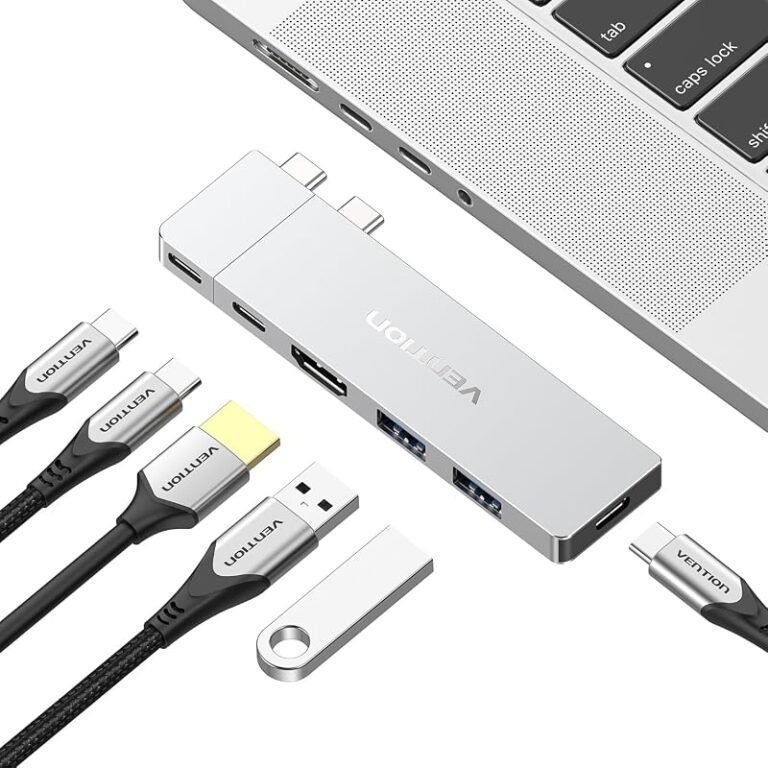
If the hub will live on a desk, think beyond the monitors. A practical hub for dual screens should still leave room for a keyboard, mouse, SSD, webcam, Ethernet, and audio device if needed.
For many people, the best setup is a hub that balances video outputs with enough USB-A or USB-C data ports to avoid daisy-chaining everything through one connector. That keeps the desk cleaner and reduces the chance of running out of ports later.
- Match the hub to your exact laptop model, not just the brand family.
- Prefer hubs that clearly list extended dual-display support in the official specs.
- Use short, certified display and USB-C cables when possible to reduce signal issues.
- Leave airflow around the hub if it will charge a laptop and run two monitors for long periods.
Who Benefits Most from a Dual-Monitor USB-C Hub
Two-monitor hubs are not only for power users. They can make everyday computing easier for anyone who wants a cleaner desk and less cable swapping.
Home Office and Productivity Setups
Remote workers often benefit the most because dual screens make it easier to keep email, documents, and video meetings visible at the same time. A USB-C hub can also reduce clutter by turning one laptop connection into a simple desktop-style setup.
If your routine includes frequent docking and undocking, a hub is often more convenient than a full-size dock. The trade-off is that some hubs are less robust for heavy workstation use, so buyers should still check port count, charging support, and display limits carefully.
Students, Creators, and Light Gaming Users
Students can use one display for research and the other for writing. Creators may keep a timeline or reference window open on one screen while working on the other. Light gamers may appreciate a hub for a secondary monitor, chat window, or streaming dashboard.
For gaming, refresh rate and latency matter more than they do for office work. A hub can support two monitors and still be a poor fit for high-refresh gaming if it forces lower output settings. Always verify the exact display limits before expecting smooth performance.
Travelers and Minimalist Desk Setups
Travelers and people with small desks often like the convenience of one compact hub that can connect to a portable monitor and a full-size display at home or in a temporary office. The main advantage is flexibility, not maximum performance.
If portability is the goal, prioritize weight, cable length, and the ability to pack the hub safely. A small hub is easier to travel with, but it may run hotter and offer fewer ports than a larger docking station.
Common Limitations, Mistakes, and Setup Problems
Even a good hub can disappoint if the setup details are ignored. Most dual-monitor problems come from compatibility assumptions, not defective hardware.
Why Two Monitors May Not Work on Every Laptop
Some laptops simply do not support two external displays over one USB-C connection. Others support it only through a specific port, a specific chip family, or a specific operating system version.
That is why the official manual matters more than the marketing page. If the manufacturer says one external display is supported, a hub cannot magically change that. In those cases, a different docking station, a laptop upgrade, or a display adapter strategy may be needed.
Bandwidth Bottlenecks, Resolution Drops, and Refresh Rate Trade-Offs
When bandwidth is limited, the system may reduce resolution, refresh rate, or both. This can happen even when the monitors themselves are capable of more.
For example, a hub might support two monitors only at 1080p, or it may support one 4K display plus one lower-resolution screen. If your workflow depends on sharp text or smoother motion, check whether the hub’s advertised numbers match your actual use case.
Resolution and refresh rate support can change based on cable type, monitor input, host device chipset, and firmware updates. When the exact combination is important, confirm it with the manufacturer before buying.
Driver, Adapter, and Cable Mistakes to Avoid
Some hubs require a driver to enable full functionality on certain systems, while others are plug-and-play. Mixing in low-quality adapters or old cables can create flickering, sleep/wake issues, or one monitor not being detected.
A common mistake is using an adapter chain that was never intended for dual-display work. Another is assuming any USB-C cable can handle video. Check whether the cable supports the needed data and display standard, not just charging.
Stop using damaged electronics, swollen batteries, frayed cables, overheating chargers, or unstable accessories and follow the manufacturer’s guidance. If a hub disconnects when touched or gets excessively hot, replace the cable or device before continuing.
Safe Use, Maintenance, and Long-Term Reliability
USB-C hubs are usually low-maintenance, but they still benefit from basic care. That is especially true for compact models that sit under monitors, behind desks, or inside travel bags.
Heat, Ventilation, and Overload Awareness
Heat is one of the main long-term concerns with dual-monitor hubs. Video output, charging, and data transfer all generate load, and a cramped setup can trap heat around the device.
Keep the hub in a ventilated spot and avoid covering it with papers, fabric, or other electronics. If the hub or cable becomes hot enough that you do not want to touch it comfortably, disconnect it and check the setup against the manufacturer’s instructions.
Inspection, Replacement, and Storage Best Practices
Inspect cables and ports regularly for bent connectors, looseness, or visible wear. Dust can also build up around ports, so gentle cleaning with a dry, manufacturer-safe method is useful for keeping connections stable.
When storing a hub for travel or seasonal use, coil cables loosely and avoid sharp bends. Keep the manual and warranty information accessible, since some issues are easier to resolve if you can confirm the exact model number and support terms.
- Can turn one USB-C port into a tidy dual-monitor workstation
- Reduces desk clutter and cable swapping
- Useful for home office, study, and travel setups
- Not every laptop or tablet supports dual displays
- Bandwidth limits can reduce resolution or refresh rate
- Some models require drivers or have OS-specific restrictions
Best Value Approach and Final Recommendation
The best-value choice is usually the simplest hub that clearly matches your exact device and display needs. For many buyers, that means prioritizing verified dual-display support, enough charging power, and the right mix of HDMI or DisplayPort over extra features they may never use.
When a USB-C Hub Is Enough vs. When You Need a Docking Station
A USB-C hub is enough when you want a compact, travel-friendly way to connect two monitors plus a few peripherals. It is often the right choice for light to moderate office work, studying, and occasional desk docking.
A docking station is usually the better choice when you need more ports, stronger charging support, more stable long-session use, or more predictable dual-monitor performance. If your setup includes high-resolution monitors, Ethernet, multiple drives, and a permanent desk, a dock may be the more reliable fit.
Transparent Verdict for Different User Types
For most everyday users, yes—a USB-C hub can support two monitors if the host device and hub are both designed for it. For power users and anyone with strict display requirements, the safer move is to verify compatibility line by line before buying, because the difference between “works” and “works well” often comes down to standards, bandwidth, and OS support.
Choose a USB-C hub for two monitors if you want a compact, flexible setup and your device officially supports dual external displays. If your laptop has limited video output, your monitors need high resolution or refresh rates, or you want the most dependable desktop experience, a docking station is usually the safer long-term choice.
Frequently Asked Questions
No. Dual-monitor support depends on the hub design, the host device, and the operating system. Some hubs mirror screens instead of extending them, while others cannot drive two displays at all.
MST splits one video signal into multiple displays on compatible systems. Native dual output is built to handle two displays more directly and is often more predictable across supported devices.
Not always. Some USB-C hubs can support two monitors through DisplayPort Alt Mode, but Thunderbolt or USB4 often provides more bandwidth and broader support for higher resolutions.
That usually means the host device, hub, or operating system is not set up for extended dual displays. Check the manual, the display settings, and the compatibility list for your exact model.
Check your laptop or tablet’s external display support, the hub’s video standard, the supported resolutions and refresh rates, and whether the hub needs drivers or MST support.
Choose a docking station if you need more ports, stronger charging, or a more stable permanent desk setup. It is often the better pick for high-resolution dual monitors and heavier workstation use.

3 Comments