Usb-c Cable Wattage Checker
A USB-C cable wattage checker shows how much power is actually flowing through a USB-C charging setup. It is most useful for troubleshooting slow charging, comparing cables, and confirming whether your charger and device are negotiating the expected power level.
A USB-C cable wattage checker helps you see how much power is actually moving through a USB-C connection, so you can spot slow charging, cable limits, or a mismatched charger faster. It is most useful when you want a practical check on real charging behavior without guessing from the charger label alone.
- Power reality: It shows actual charging behavior, not just charger labels.
- Best use: It helps isolate whether the charger, cable, or device is limiting speed.
- Buy smart: Match the meter’s wattage range and protocol support to your highest-power devices.
- Safety first: Stop using any cable or charger that overheats, loosens, or shows visible damage.
- Limitations: It cannot confirm battery health or guarantee long-term cable quality.
What a USB-C Cable Wattage Checker Actually Does—and Why It Matters
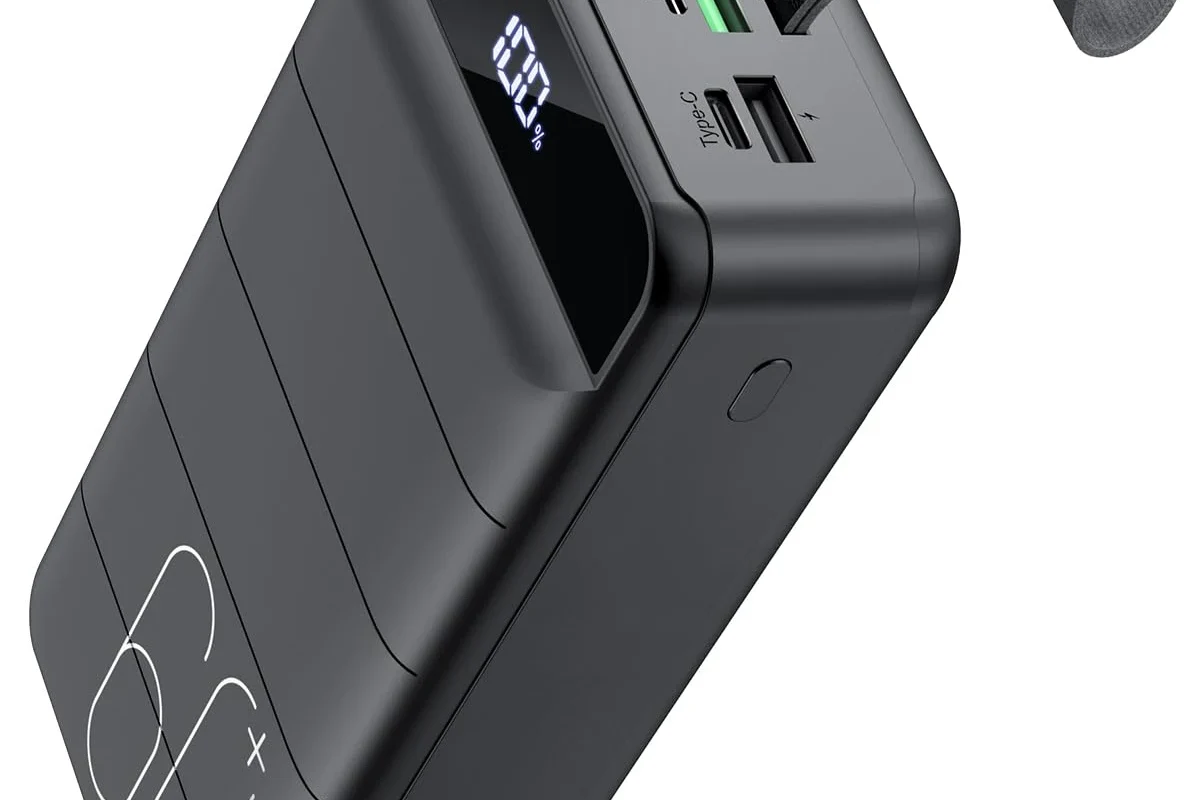
A USB-C cable wattage checker is a small diagnostic tool that sits between a charger, cable, and device or test load and shows the power flowing through the connection. Depending on the model, it may display voltage, current, wattage, and sometimes direction of power flow, which makes it easier to understand whether a device is charging as expected.
This matters because USB-C charging is not one fixed speed. The same cable can behave very differently depending on the charger, the device, the cable’s internal design, and whether the connected device supports USB Power Delivery or another fast-charging method. A checker gives you a clearer picture than the charger’s printed rating alone.
For everyday users, that can help answer questions like why a laptop is charging slowly, why a phone only reaches a modest wattage, or whether a third-party cable is behaving normally. It can also help separate a cable problem from a charger problem when you are troubleshooting mixed-device setups.
How USB-C Wattage Checkers Work: Power Delivery, E-Markers, and Real-World Limits
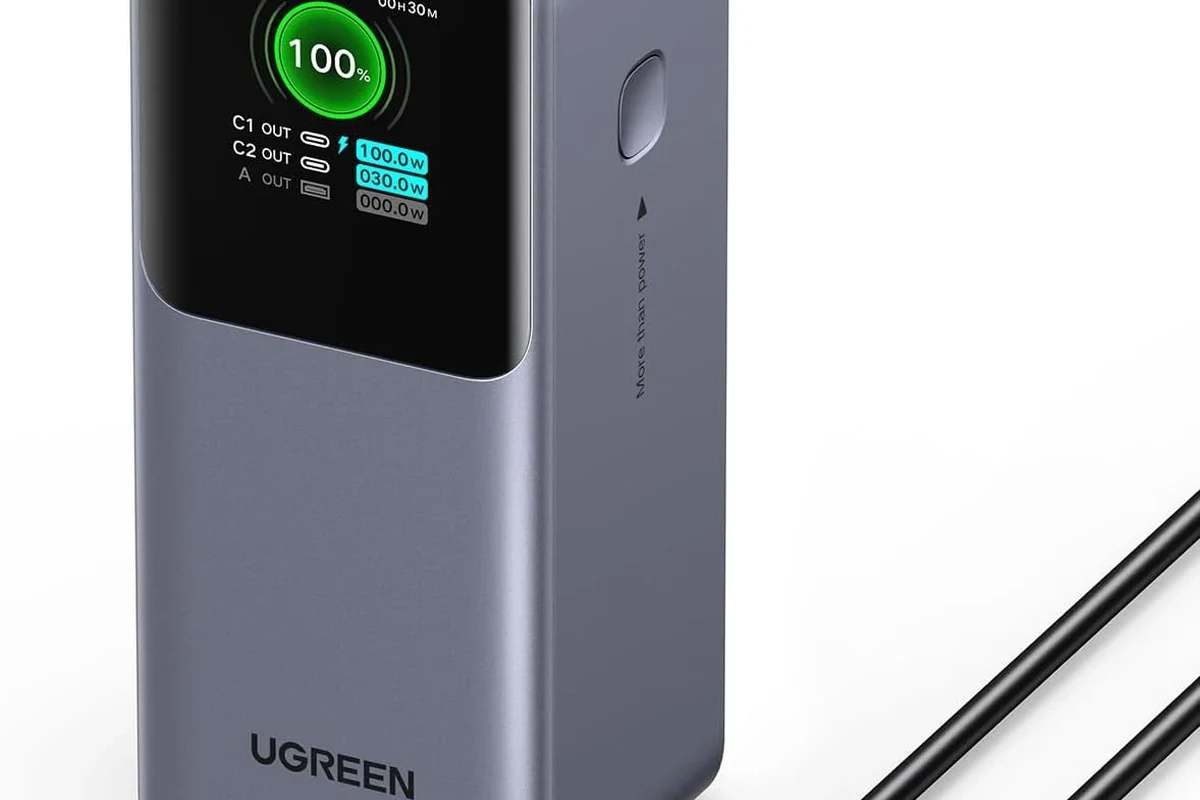
Most USB-C wattage checkers measure electrical values in the line and calculate wattage from voltage multiplied by current. Some are simple inline meters, while others are more advanced and can show USB Power Delivery negotiation details, such as which voltage profile the charger and device selected.
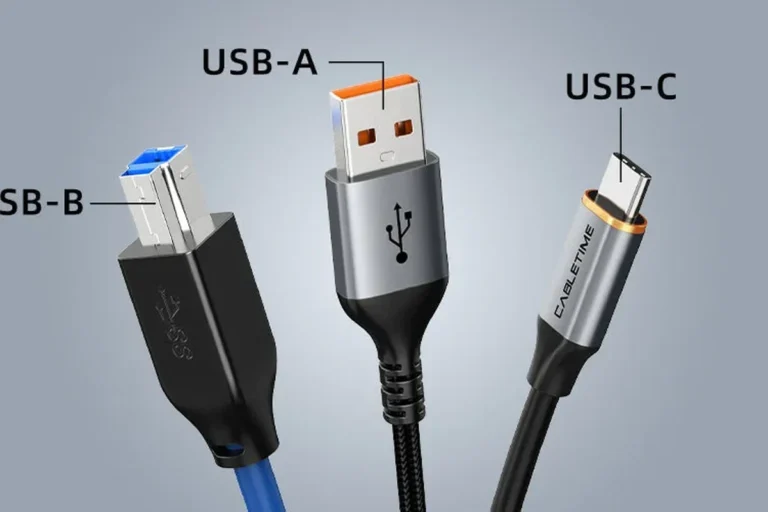
USB-C is also more than a shape of connector. Higher-power cables often rely on an internal electronic marker, commonly called an e-marker, that tells connected devices what the cable can safely handle. That matters because not every USB-C cable is rated for the same current or data speed, and a checker can help reveal when a cable is being asked to do more than it should.
Exact readings and supported features vary by model, firmware, and how the meter is placed in the charging chain. Always confirm the checker’s specs and the charger or device’s official charging limits before drawing conclusions.
Real-world limits also come from the device itself. A phone may negotiate only a modest amount of power even when the charger can supply much more. A laptop may pull higher wattage under load and less when the battery is near full. A wattage checker is useful because it shows the negotiated result, not just the theoretical maximum.
Who Should Use a USB-C Cable Wattage Checker in 2026?
Anyone who regularly charges more than one USB-C device can benefit from a checker, but some users get more value than others. The tool is especially helpful when charging habits are mixed, cables are shared, or you rely on fast charging for work and travel.
Best fit for phone, laptop, tablet, gaming, and travel setups
Phone users may want a checker to confirm whether a fast charger is actually delivering a fast-charge profile. Tablet and laptop owners often use it to compare different chargers, docks, and cables and to see whether a compact adapter is enough for daily use.
Gamers, creators, and travelers also benefit because their setups often include power banks, USB-C hubs, handheld gaming devices, and multiport chargers. In those cases, a checker can help identify which port or cable is the bottleneck when several devices are competing for power.
- Useful for mixed-device charging setups
- Helps isolate slow-charging causes
- Can reveal cable and charger mismatches
- Does not guarantee a device will charge faster
- Some models show limited detail
- Compatibility depends on cable and power protocol support
When a basic charger label is not enough
Charger labels tell you the adapter’s potential output, but not always the actual power reaching the device. That distinction matters if the cable is low quality, the port is shared, the device is warm, or the battery is nearly full, because each of those can reduce charging speed.
A checker is also useful when you are trying to compare two nearly identical chargers. Two adapters that look the same on paper may perform differently once a device negotiates its preferred voltage and current. The checker makes those differences more visible.
Key Specs to Compare Before You Buy: Wattage Range, Accuracy, Display, and Cable Compatibility
Not every USB-C wattage checker is suited to every setup. Before buying, focus on the meter’s supported wattage range, how it displays the data, and whether it can safely handle the kind of charging you plan to monitor.
Rated wattage and safe-use limits for chargers, power banks, and powered gadgets
Check the meter’s maximum voltage, current, and wattage support, then compare that to your charger and device. If you use high-power laptop chargers or multiport USB-C adapters, the checker needs enough headroom for those loads or it may be inaccurate or unsafe to use.
Also review whether the meter supports the charging standards you care about, such as USB Power Delivery. Some models are basic and only show simple voltage and current, while others can provide more useful information for modern fast-charging devices. If the listing is unclear, confirm the exact protocol support with the manufacturer.
Cable quality signals: gauge, build, connector fit, and heat handling
A checker can show power flow, but the cable still determines whether that power is delivered reliably. Look for cables that are clearly rated for the charging level you need, with sturdy connector housings, secure fit, and enough strain relief to handle daily plugging and unplugging.
Heat is another important clue. A cable that gets unusually warm, or a connector that feels loose or intermittently disconnects, may be a sign of poor build quality, wear, or a mismatch between the cable rating and the load. The checker cannot fix that problem, but it can help you notice it sooner.
- Check compatibility with your charger, device, and cable type
- Confirm the meter’s wattage, voltage, and current limits
- Review display readability, connector fit, and protocol support
- Verify warranty terms, return policy, and safety guidance
How to Use a USB-C Cable Wattage Checker Safely and Correctly
Using a checker is usually straightforward, but the order of connections matters. The safest approach is to follow the device manual and keep the setup simple, especially when testing higher-wattage chargers or unfamiliar cables.
Step-by-step setup, reading the display, and verifying power flow
Unplug the charger before inserting the checker into the cable path so you are not connecting and disconnecting under load.
Connect it between the charger and the cable or device exactly as the manual shows, since some models are directional.
Restore power and watch for voltage, current, and wattage values after the device begins negotiating charge.
Use the manufacturer’s charging specs to judge whether the reading is normal for that device and cable combination.
Common mistakes that cause false readings or unsafe use
One common mistake is assuming the meter reading is the charger’s permanent output. In reality, the number changes with load, battery state, and protocol negotiation. Another mistake is using the checker beyond its rated limits, which can damage the meter or create unsafe conditions.
Stop using any cable, charger, or checker that shows damage, overheating, loose connectors, flickering readings from a poor fit, or visible wear. Follow the manufacturer’s instructions and replace questionable accessories instead of forcing them to work.
It is also easy to misread a weak charging result as a broken cable when the device is simply near full charge or limiting input because of heat. Before replacing hardware, check the device status, the charger’s port sharing rules, and whether the battery is already in a slower top-off phase.
What You Can Learn from the Results: Charging Speed, Device Limits, and Heat Warnings
The best use of a USB-C cable wattage checker is not just watching the numbers change. It is using those numbers to understand whether the device, cable, or charger is the limiting factor.
Matching the cable to the device’s maximum supported wattage
If your phone only accepts a modest wattage, a much larger charger will not make it charge faster by itself. The checker helps confirm that the device is negotiating only what it can safely accept. That can prevent unnecessary cable swaps when the setup is already working as designed.
For laptops and tablets, the reading can show whether the cable is capable of carrying the power level the device expects. If the wattage is consistently lower than the device’s official charging range, the cable, charger, or port may be the bottleneck.
Signs the cable, charger, or port may need inspection or replacement
Repeated dropouts, erratic wattage, or noticeable heat at the connector are worth paying attention to. Those symptoms do not automatically mean failure, but they do suggest that the cable or port should be inspected carefully for debris, wear, or looseness.
Do not keep using a cable or charger that runs unusually hot, shows frayed insulation, or causes the device to disconnect and reconnect. Review the official manual and warranty guidance before replacing or returning the accessory.
If the checker shows normal power at one end of the chain but poor charging at the other, that can help narrow the problem. For example, a charger may be fine, but a worn cable or dirty port may be limiting performance.
Benefits and Limitations of USB-C Cable Wattage Checkers
A USB-C cable wattage checker is a practical troubleshooting tool, but it is not a complete diagnostic system. It can show power flow clearly, yet it cannot tell you everything about battery health, internal device charging logic, or long-term cable durability.
Practical value for troubleshooting slow charging and mixed-device households
In homes with multiple phones, tablets, laptops, and handheld devices, a checker can save time by showing which combinations work well together. It is especially useful when family members share chargers and cables, because it helps identify whether the issue follows the charger, the cable, or the device.
For remote workers and travelers, the tool can also help choose the right compact charger for a bag or desk setup. That can reduce the chance of packing a charger that looks powerful on paper but underperforms with your actual devices.
Evidence limits: what the tool can confirm and what it cannot
A checker can confirm the electrical behavior at the moment of testing, but it cannot guarantee long-term reliability. It also cannot verify a cable’s hidden construction quality, the accuracy of every manufacturer claim, or whether a device will maintain that same charging rate under all conditions.
Because support varies by model, always check the device manual, charger specifications, app or firmware notes if relevant, and any current safety notices before making a final buying decision. If the listing does not clearly state the meter’s limits, assume you need to verify them yourself.
Care, Storage, and Buying Advice: Getting Long-Term Value from Your Checker
Like any small electronic accessory, a wattage checker lasts longer when it is handled gently and stored properly. Keeping the connector clean and the display protected helps maintain readable results and a secure fit over time.
Maintenance, storage, and protecting the display and connectors
Store the checker in a pouch, drawer, or tech organizer where the ports will not collect dust or get bent by heavier gear. Avoid exposing it to moisture, extreme heat, or repeated stress from tight cable bends, since those conditions can shorten its useful life.
- Keep connectors clean and inspect them before each use
- Do not force USB-C plugs if the fit feels wrong
- Store the meter away from loose keys, coins, and sharp objects
- Recheck charger and cable labels whenever you change devices
If the checker has a screen, treat it like any small display: avoid pressure, drops, and unnecessary cable strain. If the device uses a companion app or firmware updates, confirm support through the manufacturer’s official instructions before depending on extra features.
Final recommendation: which type of user gets the most value
The people who get the most value from a USB-C cable wattage checker are those who charge several devices, rely on fast charging, or troubleshoot mixed charger-and-cable setups. It is less essential for someone who only charges one phone with one known-good cable, but it becomes much more useful as your device collection grows.
Choose a USB-C cable wattage checker if you want a simple way to verify real charging behavior, compare cables, and troubleshoot slow or inconsistent power delivery. The main limitation is that it shows power at the moment of testing, so you still need official device and charger specs to interpret the result correctly.
For most buyers, the best choice is a model that clearly supports your highest-wattage charger, has a readable display, and matches the USB-C cable types you already use. If you confirm those basics first, the checker can be a genuinely helpful everyday diagnostic tool rather than just another gadget in the drawer.
Frequently Asked Questions
It measures the power flowing through a USB-C connection, usually showing voltage, current, and wattage. Some models also show charging protocol details or direction of power flow.
You do not need one to fast charge, but it can help confirm whether your charger, cable, and device are negotiating the expected speed. It is especially useful when charging feels slower than expected.
Check the cable’s stated current or wattage rating, connector type, and any e-marker details if provided by the manufacturer. Then confirm that the checker’s power limits and the device’s charging requirements match your setup.
It can help narrow the cause by showing whether the charger, cable, or device is limiting power. It cannot diagnose every issue, such as battery health, heat-based throttling, or software-controlled charging behavior.
Stop using the setup and inspect the cable, charger, and ports for damage, looseness, or debris. Follow the manufacturer’s safety guidance and replace any accessory that shows overheating or wear.
Verify the supported wattage range, voltage and current limits, display readability, and compatibility with your charger and cable types. Also confirm warranty terms, return policy, and any protocol support you need.