

External SSD Keeps Disconnecting Through a USB Hub? 7 Fixes
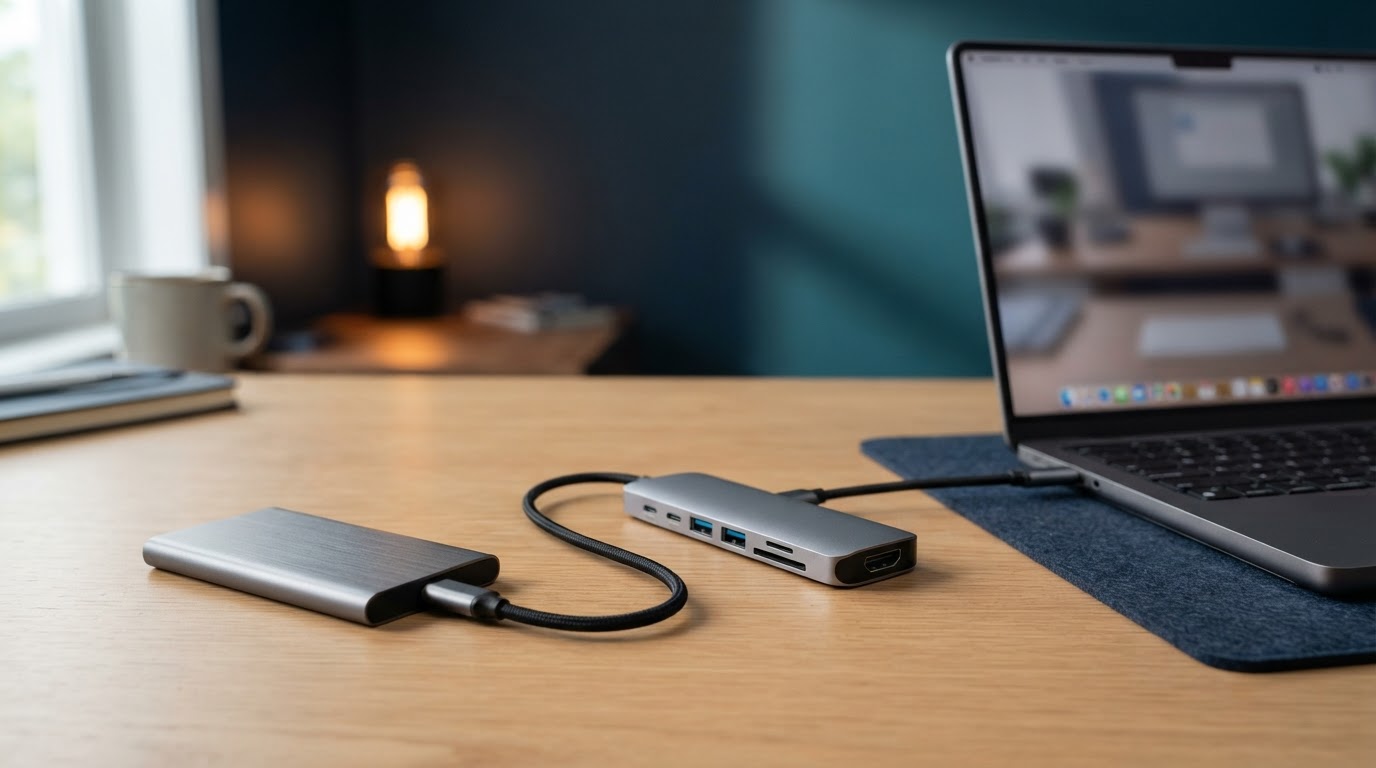
If your external SSD keeps disconnecting through a USB hub, stop active transfers, safely eject it if possible, and compare the same drive directly connected to your computer. Use the supplied data cable and a small test folder you already have backed up. If the direct connection works repeatedly but the hub connection fails, investigate the hub’s data port, upstream cable, peripheral power, and attached devices before replacing the SSD.
A slow transfer, a missing volume, and a USB device that disconnects are different problems. This guide helps you separate them on Windows and Mac. It is based on manufacturer and operating-system documentation, with a repeatable isolation procedure; it does not claim hands-on testing of your particular SSD or hub.
Start here: protect your files before testing
Do not use your only copy of an important folder as the test workload. If the drive remains readable, copy irreplaceable files to another reliable location first and open several copied files to confirm they are readable. A transfer that stops unexpectedly can leave incomplete destination files. Keep the original until you have verified the copy.
If the computer asks you to initialize, erase, or format a drive that contains needed files, cancel that prompt. Formatting is not a connection diagnostic. If the SSD repeatedly disappears even when directly connected, or you cannot read essential files, stop repeated stress tests and consider the drive manufacturer’s support or a data-recovery specialist.
Quick diagnosis: match the symptom
| Symptom | First comparison | Next direction |
|---|---|---|
| SSD disconnects only through hub | Same cable and workload directly on computer | Hub port, upstream link, power |
| All hub accessories disappear | Hub with SSD alone | Shared connection or hub power |
| Drive appears in system but no volume opens | Disk Management or Disk Utility | Mounting, unlocking, file system |
| Failure follows sleep | Direct versus hub wake cycle | Resume behavior and firmware |
| Transfer slows but drive stays visible | Check completion and errors | Performance rather than confirmed dropout |
1. Establish a direct-connection baseline
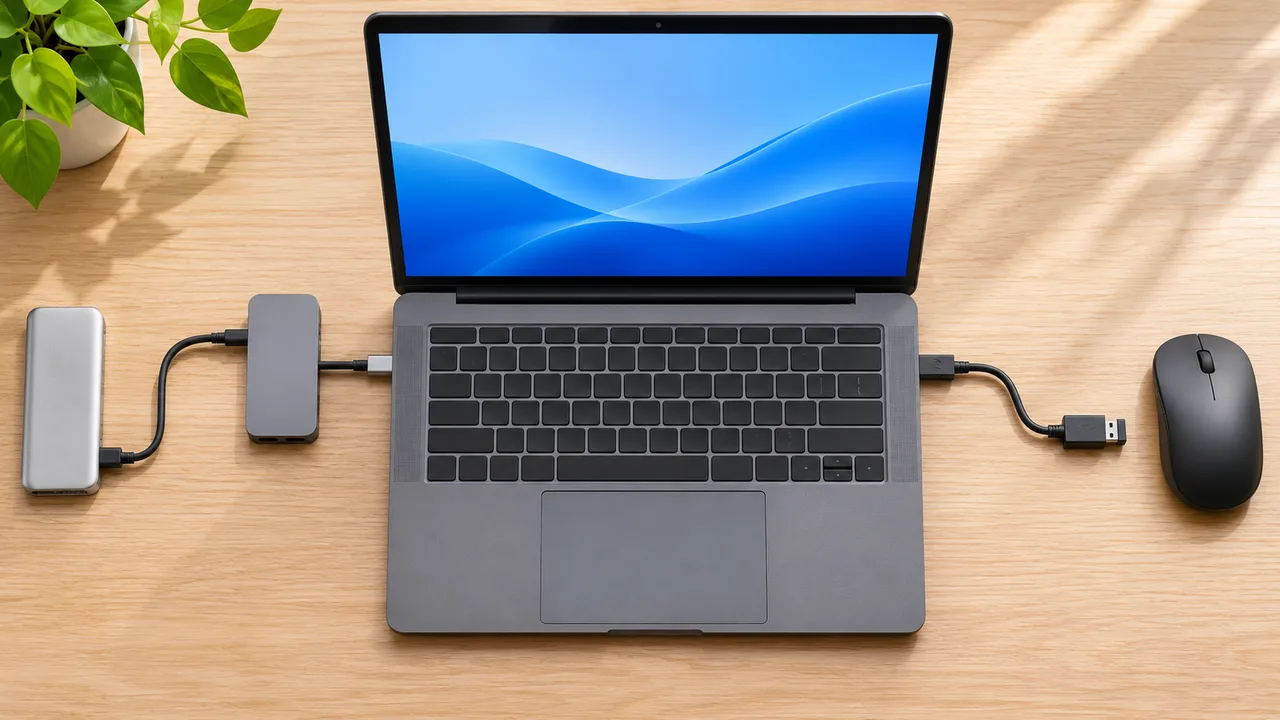
Close applications using the SSD, including photo editors, games, backup utilities, and virtual machines. Eject the drive normally, then remove the hub from the connection path. Plug the SSD into a built-in data port using its supplied cable. If an adapter is unavoidable, record its model because it remains part of the test.
Copy a modest folder of nonessential files from the computer to the SSD. Record its approximate size, whether the transfer completes, and any error message. Open a few copied files afterward. Repeat the same operation through the hub with no other accessories attached, using a new destination folder so the comparison actually copies data again.
Keep the laptop power state and test duration consistent. If the usual failure happens after 15 minutes, a successful 30-second copy does not clear the setup. Start with a small check, then extend the test only after your files are protected. A reproducible difference between direct and hub paths is more useful than one successful reconnect.
If the direct connection also fails, try another built-in data port and a known-good compatible cable. A hub replacement is unlikely to solve a failure that follows the drive across independent direct connections. For simultaneous hub-wide failures, also use our USB-C hub disconnect guide.
2. Check both cables and the exact USB data port
There are two links to inspect: SSD to hub, and hub to computer. With a detachable upstream cable, use the dock manufacturer’s supplied cable first. A phone charging cable may supply power without supporting the data mode the dock or SSD requires. Remove extension leads and stacked adapters while isolating the problem.
Read the hub’s port diagram. A USB-C socket labeled PD input may accept a charger without supporting an SSD. Other sockets can support different data speeds. Match the drive to a documented data port, then repeat the same test on another data port. Connector shape and charging wattage do not establish data capability.
If normal handling causes a dropout, stop flexing the connector to reproduce it. Check for visible damage or a loose fit and test another cable instead. Do not force a plug or put metal tools inside a socket. Our USB-C charging cable versus data cable guide explains why a cable that charges successfully can still be the wrong diagnostic substitute.

3. Isolate peripheral power from laptop charging
Reconnect the SSD as the hub’s only peripheral. If the hub or dock has a dedicated power supply, connect the manufacturer-specified supply. For pass-through hubs, follow the exact model’s charging instructions. A large laptop-charging number does not tell you the power available to each downstream accessory or the combined limit across USB ports.
Apple’s USB Devices Disabled guidance recommends trying another port, bypassing a hub, and checking the AC adapter for a self-powered hub when power-related USB warnings appear. These checks provide a useful starting point; they do not prove every disconnect is caused by insufficient power.
Once the SSD works alone, reconnect other accessories one at a time. Compare idle and active use: a webcam preview, an audio interface recording, or another storage transfer may expose a failure that does not happen at idle. If several accessories vanish together, record that shared dropout before reconnecting anything.
4. Separate shared-link problems from a slow transfer
Copy the same backed-up test folder with other devices idle, then repeat with your normal workload. If the SSD disconnects only when another accessory is active, move that accessory to a different built-in port and repeat. Separate physical ports can still share internal resources, so this is an isolation clue rather than proof of independent controllers.
A shared hub can reduce available throughput without disconnecting a drive. Watch whether the SSD remains in the operating system’s device list and whether the copy eventually completes. A falling speed graph alone is not evidence of a USB reset. File sizes, caching, source speed, enclosure behavior, and other traffic can all affect the displayed rate.
If a webcam is the competing device, compare its normal mode with a lower supported mode while keeping the storage test unchanged. See our webcam disconnect troubleshooting for the camera side of that comparison. If hub USB ports fail even with simple accessories, start with dock USB ports not working.
5. On Windows, check device detection before changing settings
When the fault occurs, inspect Device Manager and Disk Management before unplugging the SSD. Note whether the physical device is still listed and whether its expected volume appears. A listed disk with a locked or inaccessible volume requires different investigation from a device that disappears entirely. Record the exact message rather than immediately accepting a repair prompt.
If the problem started after a system change, check Windows Update and the computer, dock, enclosure, and SSD manufacturers’ support pages for your exact models. Install only applicable updates and read any backup or power requirements before firmware work. Avoid generic driver-download utilities or firmware intended for a similarly named product.
Do not make disabling USB selective suspend your default fix. Microsoft’s documentation says the feature is enabled by default and recommends keeping it enabled. If the hardware vendor prescribes a targeted power-setting test, record the original setting, follow that model-specific procedure, and restore it if the test provides no improvement.
6. On Mac, distinguish detection from mounting
Open System Information and inspect the USB or Thunderbolt device tree appropriate to your connection. Then open Disk Utility and choose View → Show All Devices. Compare the view while the SSD works and after the failure; refresh or reopen the information if necessary. A physical drive that remains visible while its volume disappears suggests a different investigation from the entire USB device vanishing.
Check whether an encrypted drive needs its normal unlock process and whether the file system is supported by your workflow. Do not erase the SSD to make an unexpected prompt disappear. Reconnect directly and compare another compatible port before assuming the stored data is damaged. Save the exact “not ejected properly” message and the event that preceded it.
If you suspect directory or file-system errors after the connection is stable, follow Apple’s Disk Utility repair instructions. Apple advises having a current backup before repair. First Aid addresses certain storage-structure errors; it cannot repair a loose cable or guarantee that unstable hardware is healthy.
7. Reproduce sleep and heat-related patterns carefully
If the SSD disconnects only after sleep, first finish transfers and close applications using it. Compare a normal sleep-and-wake cycle directly connected with the same cycle through the hub. Record whether the SSD alone disappears or the entire dock needs reconnecting. This narrows the question for the dock, enclosure, or computer vendor.
Keep the enclosure on an open surface and follow its ventilation instructions. Warmth by itself does not diagnose a fault. If failures consistently happen after sustained use, let the setup return to its normal idle condition and compare the same workload and placement. Avoid opening a sealed portable SSD or improvising thermal modifications while diagnosing the connection.
Check exact-model firmware notes for relevant stability or resume fixes. Firmware updates require a reliable connection and the vendor’s procedure; do not attempt one through a path that is actively dropping out. If the drive cannot stay connected long enough to follow that procedure, ask the manufacturer for the appropriate next step.
When should you replace the hub or SSD?
Consider replacing or servicing the hub when the SSD is repeatedly stable directly, fails through that hub with a suitable cable and documented power setup, and another compatible hub passes the same workload. Consider drive or enclosure support when the failure follows it across compatible direct ports, cables, and preferably another computer. Neither conclusion should rest on a single quick test.
Send support a compact record: computer and operating-system version, SSD and enclosure model, hub model, both cable details, power supply, attached accessories, workload, time to failure, and exact errors. Include which direct and hub comparisons passed. These details help support distinguish a compatibility issue from defective hardware without asking you to repeat random settings changes.
Frequently asked questions
Will a powered USB hub fix SSD disconnects?
It may help when peripheral power is the cause, but it cannot fix a damaged cable, unsupported port, unstable enclosure, or file-system problem. Compare the drive directly and check the hub’s documented downstream power before buying.
Can a faster cable solve the problem?
A suitable replacement can help if the original cable is damaged or does not meet the required data specification. A higher charging-wattage rating alone is not enough. The computer, hub, cable, and SSD must support the intended connection mode.
Should I format the SSD?
Not as an early troubleshooting step. Formatting removes data and does not isolate a hub or cable fault. Protect the files, establish a stable connection, and follow the drive vendor’s guidance if storage-structure problems remain.
What is the best first test?
Use the supplied data cable to connect the SSD directly to a built-in port and copy a backed-up test folder. Compare that result with the same SSD alone on the hub. Change one variable at a time and keep notes.






One Comment