

USB-C Dock Ethernet Stuck at 100 Mbps? 7 Fixes
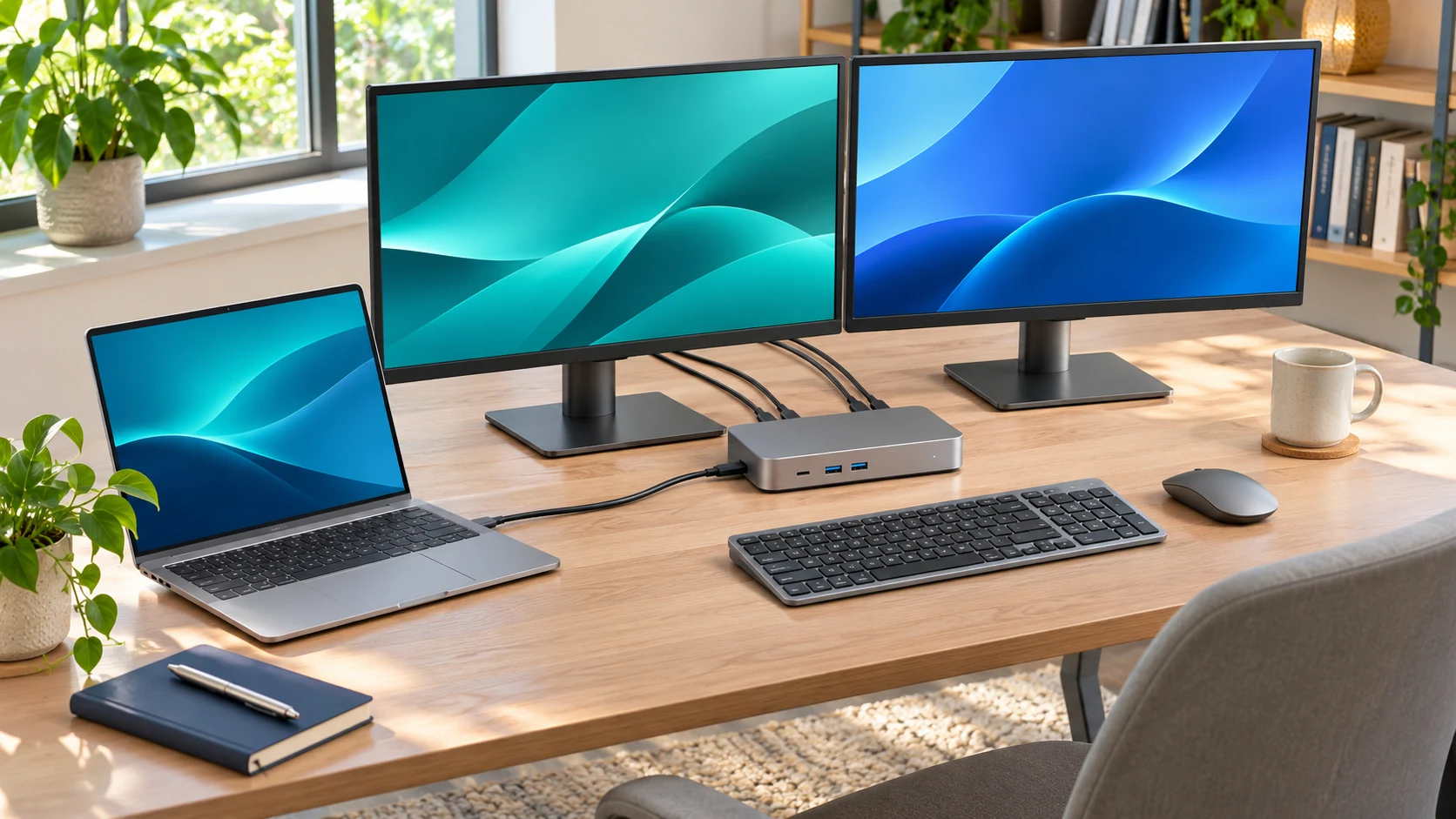
If your USB-C dock Ethernet is stuck at 100 Mbps, check the adapter’s negotiated link speed first. If the operating system reports 100 Mbps on a dock and router port that both support Gigabit Ethernet, compare a known-good Cat5e or Cat6 cable and another verified gigabit LAN port. Read the link speed again after each change before running an internet speed test.
If the adapter already reports 1 Gbps but a download stays near 100 Mbps, follow the throughput checks later in this guide. That result can involve the internet plan, another network link, the USB connection, or software. Writing down which number you are seeing will save you from replacing the wrong part.
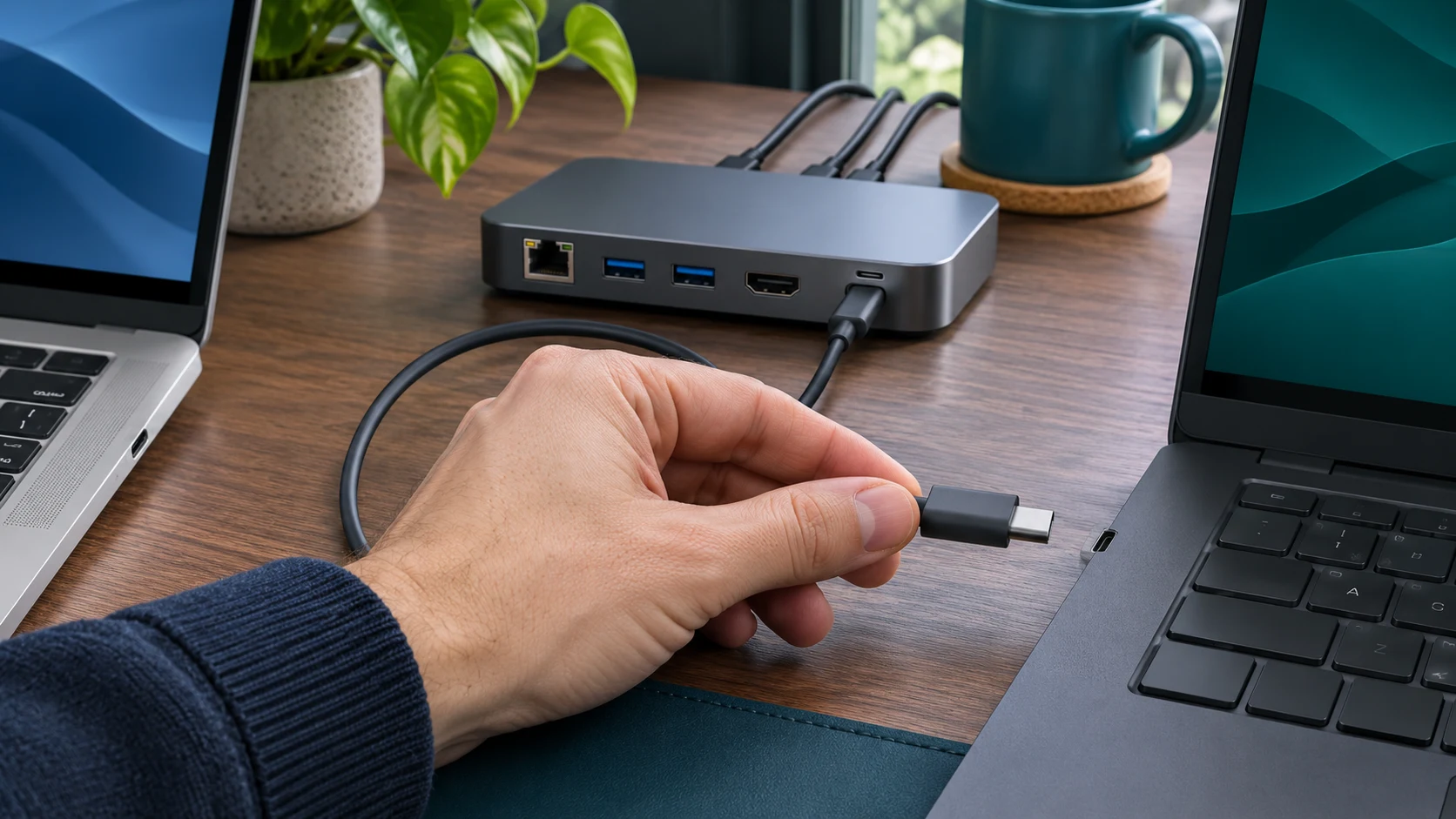
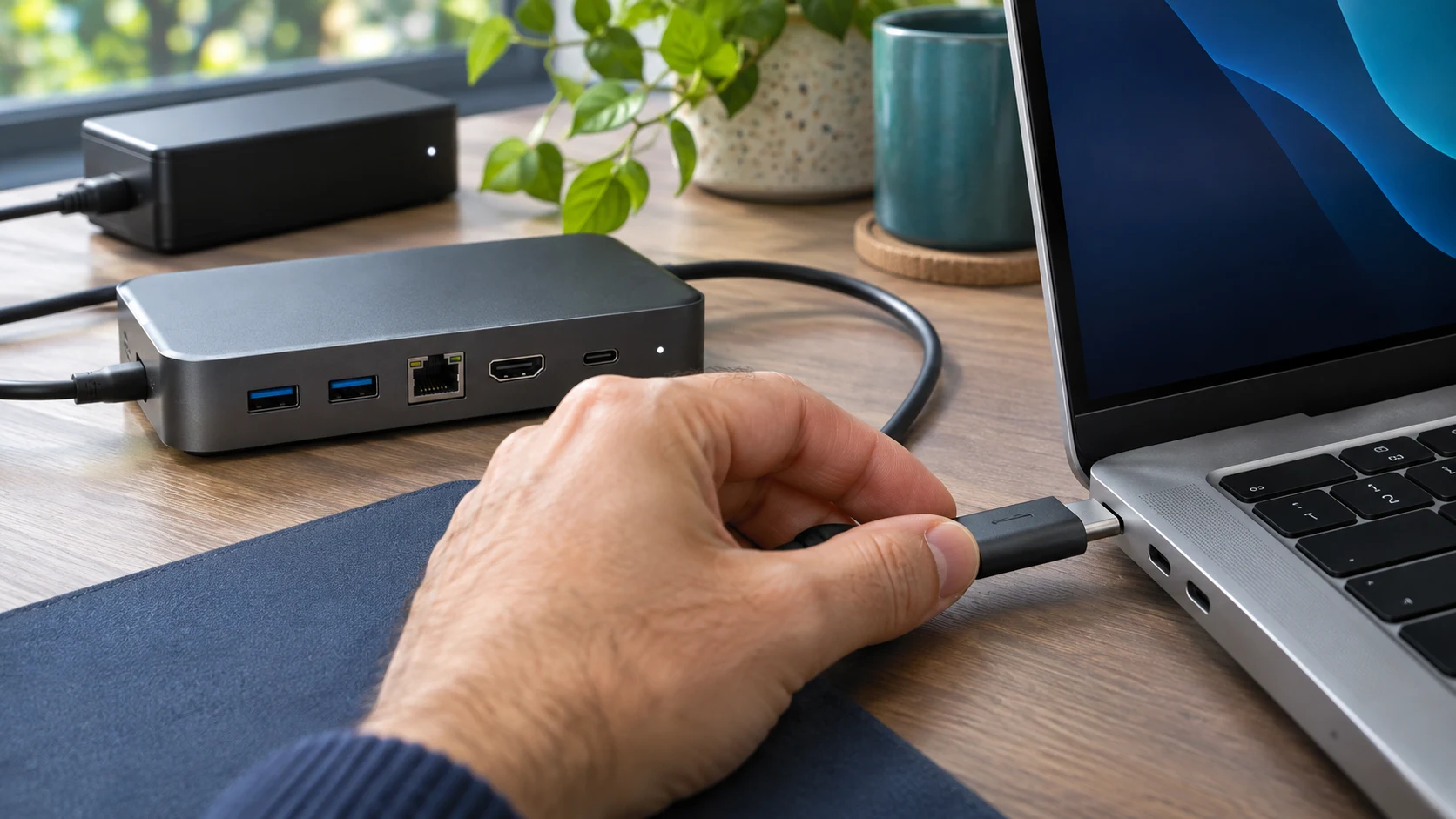
This is a research-based diagnostic workflow for an Ethernet connection that works but runs below the expected speed. It includes illustrative images reused from our dock setup guides. If the adapter is missing or Ethernet never connects, start with our USB-C dock Ethernet connection guide.
Find the limit before replacing the dock. Read the Ethernet link speed, then compare a known-good cable and port.
| What the test shows | Check next |
|---|---|
| Ethernet link speed is 100 Mbps | Port specifications, Ethernet cable, and negotiation. |
| Link is 1 Gbps but internet is near 100 Mbps | Internet plan and other links in the network path. |
| Direct adapter links at gigabit, dock at 100 Mbps | Dock-side settings, controller, and model support. |
| Both adapters link at 100 Mbps on the same route | Cable path and the connected LAN port. |
| Link is gigabit but throughput drops during dock activity | USB host connection and shared workload. |
1. Read the Ethernet link speed on the correct adapter
On Windows, press Windows + R, enter ncpa.cpl, open the dock’s Ethernet adapter, and look for the speed in its Status window. On a Mac, open System Settings, choose Network, select the Ethernet service, then check Details and Hardware where available. These paths are described in TP-Link’s link-speed checking guide.
Select the dock’s wired adapter rather than Wi-Fi, a VPN interface, or a second USB network adapter. Device names can use the network-controller brand instead of the dock brand. If you are unsure which one belongs to the dock, note the list, disconnect the dock when safe, and compare which device disappears. Reconnect and record the matching interface name.
The reported Ethernet link speed describes the connection to the adjacent router or switch port. A browser speed test measures a longer route to a remote server. Write down both readings separately. For example, “Ethernet Status 1.0 Gbps, browser download 92 Mbps” needs a different investigation from “Ethernet Status 100.0 Mbps.” Keep those labels in every test note.
2. Confirm that both Ethernet ports support the speed you want
Find the exact dock model and read its Ethernet specification. Then check the exact router or switch model and the port you actually use. Look for a stated rate such as 10/100, 10/100/1000, or 2.5GbE. Product branding and the USB-C connector shape are insufficient to establish the wired network rate.
A dock connected to a 10/100 LAN port has a 100 Mbps limit on that link. A 2.5GbE dock can connect to a gigabit switch, but that pairing cannot establish a 2.5 Gbps link. TP-Link’s 100 Mbps troubleshooting guidance emphasizes checking port specifications before changing the cable or device.
Check every intermediate box in the path. An older desktop switch, wall-mounted network extender, or a mesh unit’s Ethernet port may differ from the main router. Draw a short list such as laptop → dock → desk switch → router. Note each port’s advertised rate beside its model. You can then identify which link needs a direct comparison.
If you use managed office networking, ask the network administrator which switch port serves the desk and what rate it supports. Give them the dock model and observed link speed. Their port configuration and cabling records can make the test much quicker. Keep work-network changes within the process your organization uses.
3. Substitute one known-good Ethernet cable
Use a cable that has already established a gigabit link between compatible equipment, or a correctly specified Cat5e or Cat6 cable in good condition. Connect it directly from the dock to the same LAN port for the first comparison. Seat both plugs securely, let the connection establish, and read the negotiated speed again.
Keep the laptop, host cable, router port, and dock unchanged during this round. If the link moves from 100 Mbps to 1 Gbps with the replacement Ethernet cable, record that result and repeat it once. If it remains at 100 Mbps, move to the port comparison. A new label on the cable is less informative than a reproducible result on known equipment.
If the normal route includes a wall socket, coupler, or patch panel, compare a short direct connection to the router or switch when practical. That comparison bypasses the room’s cabling path. If the direct connection establishes gigabit and the wall route does not, pass the two results to the person responsible for the building cabling.
Avoid spending on a much higher cable category before establishing where the limit appears. For a gigabit target, the known-good Cat5e or Cat6 comparison is a useful starting point. Record the cable length and which cable you changed. Otherwise, a quick desk rearrangement can leave you unsure whether the improvement followed the cable or the port.
4. Compare another LAN port and a direct Ethernet adapter
Move the same known-good cable to another LAN port whose specification supports gigabit. Read the dock’s link speed again. If you have a working computer or separate adapter available, use it to verify that this cable and port establish the expected rate. The comparison is strongest when you change only the device at the computer end.
A laptop with built-in Ethernet can provide a convenient direct test. If yours has no Ethernet socket, use a known-good USB adapter with suitable computer and operating-system support. Record the adapter’s own rated speed. Comparing a 100 Mbps adapter with a gigabit dock would not establish whether the dock should be faster.
If the direct adapter establishes 1 Gbps on the same cable and port while the dock repeatedly reports 100 Mbps, the remaining dock-side configuration, controller, or hardware deserves attention. If both report 100 Mbps, investigate the cable path and network port before buying a dock. A repeatable comparison helps support evaluate the hardware.
For two laptops sharing a desk, note which computer you test and which host cable you move. Our two-laptop docking guide covers the connection choices. A result from another computer is useful only when you also record the operating system and adapter involved.
5. Check negotiation settings and model-specific updates
On a personal Windows computer, if your dock vendor provides a network-adapter setting for Speed & Duplex, inspect its current value before changing it. TP-Link’s slow-network troubleshooting guidance recommends automatic negotiation for its unmanaged-switch setup. Record any manual setting you find and follow the dock and network equipment instructions for your configuration.
For a managed computer, send the observation to IT before changing adapter or switch settings. For a personal setup using automatic negotiation, compare the known-good cable and port first. Forcing a higher number in a settings menu cannot establish that the full physical connection supports that rate. Read the actual negotiated result after the link reconnects.
Find drivers and firmware through the dock or computer manufacturer’s support page for the exact model and operating system. Read release notes for network fixes and follow the installation instructions. Save your work and safely eject attached storage before a procedure that restarts or disconnects the dock. Keep the old and new version numbers in your test log.
After an update, repeat the same cable, port, and link-speed comparison. Changing several unrelated settings can make an improvement difficult to explain. If the problem started after an update, report that timing along with the versions. Support may have model-specific instructions for confirming or reversing the change.
6. If the link is already 1 Gbps, test throughput separately
A 1 Gbps Ethernet link with a slower speed-test result means the next step is to compare the rest of the path. Note your internet plan, the selected test server, whether a VPN is required, and other active downloads. Run the same test under similar conditions through the dock and a direct adapter when available.
Inspect the router’s upstream connection as well. The dock-to-switch link may be gigabit while another connection between the switch, router, and modem runs at a lower rate. If local network transfers are fast but internet tests are slow across several wired devices, send those observations to the network owner or internet provider.
For a dock, also check the host connection and supplied cable. Plugable’s network adapter selection guide explains that the USB connection can limit performance. Use a compatible computer port and the documented host cable. A gigabit Ethernet link alone does not measure the rate of the separate USB path.
Keep the workload controlled. Finish or pause nonessential storage transfers and compare Ethernet throughput again, then reintroduce your usual activity. If performance changes only during another dock task, document the combination for support. If storage also disconnects, our SSD disconnect guide helps record that separate fault.
For certain older DisplayLink docks on macOS, Plugable documents a model-specific Ethernet performance limitation and lists affected products in its macOS network performance article. Check your exact model against that list before applying its advice. A throughput limitation documented there is a separate observation from an Ethernet link that negotiates at 100 Mbps.
7. Replace the component your comparisons identify
If one cable repeatedly links at 100 Mbps while the known-good cable establishes gigabit in the same setup, replace the cable. If a particular network port is limited by specification, plan the appropriate network upgrade with the owner. If the failure follows the dock across compatible computers and verified cables and ports, contact the dock manufacturer with the comparison log.
A separate USB Ethernet adapter can be useful when the dock’s display and USB ports still meet your needs. Match the adapter to the network rate you can actually use and to a compatible computer port. Verify operating-system support and driver requirements before buying. A higher-rated network adapter will still depend on the equipment at the other end.
Consider a replacement dock when several required functions are unreliable or its specifications no longer suit the desk. List the necessary monitor combinations, charging output, host connection, data ports, and Ethernet rate first. Our DisplayLink versus Thunderbolt dock comparison can help you choose the connection approach before comparing products.
For support, send a compact record containing the dock and laptop models, operating system, driver version, host cable, Ethernet cable, and network port. Add the negotiated speed for each comparison and the separate throughput results if measured. That information is more actionable than saying the internet feels slow, and it can avoid a replacement that leaves the same network bottleneck in place.
Frequently asked questions
Why does my gigabit dock show 100 Mbps?
Check the connected LAN port’s rating, the Ethernet cable path, and the adapter’s negotiation configuration. Compare a verified gigabit port and known-good cable, then read the speed again. The dock’s advertised maximum depends on the connection it can establish with the adjacent device.
Is a 100 Mbps speed-test result proof of a bad cable?
Check the operating system’s link-speed reading first. If the link already reports 1 Gbps, a browser result near 100 Mbps can reflect another part of the network or the test conditions. Compare a direct adapter using the same network path.
Do I need Cat8 to get gigabit Ethernet through a dock?
Start with a correctly specified, known-good Cat5e or Cat6 cable and verified gigabit ports. Compare the observed link rate before choosing another cable. A more expensive cable category cannot raise the maximum rating of a 100 Mbps network port.
Will a 2.5GbE adapter make my internet faster?
It can provide a faster Ethernet link when the connected port supports that rate and the computer connection is suitable. Your actual internet result also depends on the service plan and the rest of the path. Check those requirements before purchasing.
What should I try first on Windows or Mac?
Identify the dock’s Ethernet adapter and record its negotiated link speed. Then compare one known-good Ethernet cable and a verified gigabit LAN port. Use the direct-adapter comparison if the dock still negotiates at 100 Mbps.
Need a separate Ethernet adapter? Check your laptop, operating system, USB port, and network-port speed first. These links open retailer search results so you can compare compatible options.
As an Amazon Associate, we earn from qualifying purchases. We may earn a commission through other affiliate links at no extra cost to you.





One Comment