How to Reset Govee Smart Plug in Easy Simple Steps
Quick AnswerPress and hold the smart plug’s button until it enters pairing mode, then add it again in the Govee Home app. If it still fails, check 2.4 GHz Wi‑Fi, app permissions, and the plug’s safety condition.
If you need to reset a Govee smart plug, the usual fix is to hold the plug’s power button until the LED starts blinking and the device re-enters pairing mode. That clears the old connection so you can add it back in the Govee Home app or troubleshoot a Wi‑Fi issue without guessing.
- Reset method: Hold the plug’s button until the LED blinks, which usually means pairing mode.
- Common fix: Reconnect through the Govee Home app after a reset, not before.
- Wi‑Fi issue: Many setup failures come from 2.4 GHz network problems or router settings.
- Safety first: Stop using the plug if it shows heat, damage, or unstable behavior.
How to Reset Govee Smart Plug: Quick Answer and When You Need It
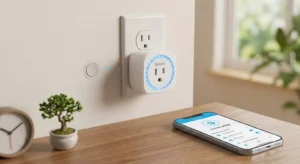
A reset is the right move when the plug will not connect, keeps dropping offline, was previously paired to another phone, or needs to be moved to a different Wi‑Fi network. In most cases, the process is simple: unplug if needed, press and hold the button until the indicator changes, then set it up again in the app.
What the Govee Smart Plug Does and How It Connects
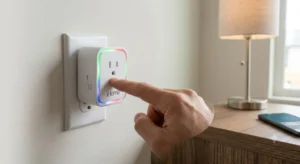
Govee smart plugs are designed to let you switch a connected device on or off remotely, usually through the Govee Home app and your home Wi‑Fi. Depending on the exact model, they may also support schedules, timers, voice assistants, and app-based automation, but those features can vary by firmware and region.
Because smart plugs sit between the wall outlet and your device, they depend on a stable network, correct app setup, and a safe power load. If the connection is unstable, a reset is often the cleanest way to start over.
Wi-Fi setup, app requirements, and compatibility basics
Most Govee smart plugs use the Govee Home app for setup and control. Before resetting, make sure your phone has the latest app version and that you can sign into the same account you used before, since account changes can make a device look “missing” even when it is still powered.
Compatibility also depends on your router settings. Many smart plugs require a 2.4 GHz Wi‑Fi network rather than 5 GHz, so a reset will not help if the router band or password is the real problem. If you are comparing smart-home ecosystems, it can also help to review broader platform support, such as which smart lights work with Alexa, because voice-assistant compatibility often follows the same setup logic.
Key specifications to verify before resetting
Those details matter more than the reset itself. If the plug is overloaded, paired to the wrong account, or placed on an incompatible network, the device may keep failing even after a successful reset.
Step-by-Step Guide to Resetting a Govee Smart Plug
The exact sequence can vary a little by model, but most Govee smart plugs follow the same basic pattern: power the plug, press and hold the control button, watch for the LED to blink, and then release it once pairing mode starts.
Soft reset vs. full factory reset
A soft reset usually means power-cycling the plug by unplugging it and plugging it back in. That can help if the device froze temporarily or the app lost contact for a moment.
A full factory reset is more thorough. It removes the current pairing information and returns the plug to setup mode so it can be added again from scratch. If the plug is still showing up in the app but will not respond, a factory reset is usually the better option.
Reset button method and LED indicator behavior
What to do if the plug does not enter pairing mode
If the plug will not blink or reset, check the basics first. Confirm the outlet works, the plug is seated properly, and the device is not controlled by a wall switch that has been turned off.
If that still does not work, unplug the smart plug for a minute, plug it back in, and try the reset again. If the button feels stuck, the LED never changes, or the plug shows signs of damage or overheating, stop using it and review the manufacturer’s warranty and support guidance.
How to Reconnect the Plug After Resetting
Once the plug is back in pairing mode, the next step is to add it again in the Govee Home app. This is where most setup problems happen, especially if the phone is on the wrong Wi‑Fi band or the app does not have the right permissions.
Adding the plug back in the Govee Home app
Open the Govee Home app, choose the option to add a new device, and follow the prompts for smart plugs or outlets. Keep the phone close to the plug during setup, and avoid switching apps or letting the screen sleep if the pairing process is slow.
If the plug was already tied to another account, you may need to remove it from that account first or sign back into the original one. This is one reason resets help with “ghost devices” that seem to exist in the app but no longer respond correctly.
2.4 GHz Wi-Fi requirements and router settings to check
Many smart plugs work best on 2.4 GHz Wi‑Fi because that band generally offers better range through walls and better compatibility with low-power smart-home devices. If your router combines 2.4 GHz and 5 GHz under one network name, the app may still work, but some setups become easier when the bands are separated.
Also check the password, special characters, guest network settings, and router security mode if pairing keeps failing. For a broader look at home-automation compatibility, see what smart lights work with Google Home and compare how app-based devices depend on network setup more than on the hardware alone.
Common setup mistakes that cause pairing failure
- Use the same Wi‑Fi network your phone is on during setup, especially if your router has multiple SSIDs.
- Keep Bluetooth, location permission, and local network permission enabled if the app asks for them.
- Move the plug closer to the router for the first setup, then relocate it after pairing succeeds.
- Avoid public, captive-portal, or enterprise Wi‑Fi networks, which often block smart-device setup.
Another common issue is trying to pair while the plug is already linked to another home profile. If you are setting up a full smart-home room, it can help to review the rest of your ecosystem too, such as the options in our guide to smart lights for home automation, because Wi‑Fi stability affects the whole system.
Who This Reset Guide Is Best For
This guide is most useful if you are dealing with a first-time setup, a Wi‑Fi change, or a plug that suddenly stopped responding in the app. It is also helpful if you manage several smart devices and need a clean way to remove an old connection before handing the plug to someone else.
New smart home users, renters, and multi-device households
New smart-home users often run into pairing problems because the plug, router, and phone app all need to work together at the same time. Renters may also move between apartments or shared internet plans, which makes resets more common.
In multi-device homes, a reset can help when one person set up the plug on a different account or when the device was moved from room to room and the app cache became confusing. If your household uses many connected devices, clear labeling in the app can save a lot of time later.
When a reset is the right fix vs. when replacement is better
A reset is the right fix when the plug is physically fine, the LED works, and the main issue is pairing or connectivity. It is less useful when the plug overheats, the button fails, the outlet contact is loose, or the device behaves erratically even after a clean reset.
If the plug is damaged or repeatedly fails to hold a connection after you verify the router and app settings, replacement may be the safer and more practical choice. For users comparing smart-home options, it can also be worth checking broader compatibility before buying another device, including articles like what smart lights work with Apple HomeKit.
Real-World Benefits, Limits, and Safety Considerations
Resetting a smart plug can solve a lot of everyday headaches, but it is not a cure-all. It is best understood as a clean restart for software, pairing, and network issues, not as a fix for hardware damage or unsafe electrical conditions.
What a reset can fix and what it cannot
A reset can fix stale Wi‑Fi credentials, app pairing errors, account mix-ups, and some temporary firmware or communication glitches. It can also help when the device was previously used in another home or with another phone.
What it cannot fix is a bad outlet, an overloaded circuit, a damaged plug, a faulty appliance, or a router that does not support the required setup band. If the plug keeps failing after a proper reset, the problem is likely outside the plug itself.
Safe use limits, load rating, and heat checks to verify
Smart plugs are meant for compatible household electronics, not every appliance in the home. High-draw devices, motors, heaters, and anything with special start-up load requirements may be unsuitable depending on the model, so check the official documentation before connecting them.
Care, placement, and storage tips for long-term reliability
Keep the plug in a dry indoor location with enough airflow around it. Avoid stacking it behind heavy furniture, covering it with fabric, or placing it where heat can build up.
If you store the plug, keep it clean, unplugged, and protected from moisture and dust. A simple wipe-down and occasional inspection of the prongs, housing, and outlet fit can help prevent future problems.
Maintenance Tips to Prevent Future Connection Problems
Once the plug is working again, a little maintenance goes a long way. Most recurring smart-plug issues come from app drift, router changes, weak Wi‑Fi, or simple wear around the outlet.
App updates, firmware checks, and routine inspection
Check the Govee Home app periodically for updates and review any firmware notices inside the app if they are available for your model. Updated software can improve stability, but the exact features and update path may vary by version.
Also inspect the plug occasionally for dirt, looseness, or signs of heat. If the device stops responding more than once, note when it happens and whether it follows a power outage, router restart, or app update.
Power cycling, Wi-Fi stability, and environmental factors
When a plug acts up, a simple power cycle may be enough before you reach for a full reset. But if your Wi‑Fi signal is weak in that room, no amount of resetting will make the connection reliable for long.
Placement matters too. Thick walls, metal furniture, microwaves, and crowded outlets can all affect performance, especially in apartments or shared homes with busy networks.
Final Recommendation: Is Resetting the Govee Smart Plug Worth It?
Yes, resetting a Govee smart plug is usually worth trying first because it is fast, safe when done correctly, and often fixes the most common pairing problems. The best outcome is a clean reconnect in the app, but the real value comes from identifying whether the issue is software, Wi‑Fi, or hardware.
Value, warranty details to confirm, and best next step for readers
Before you decide to keep troubleshooting or replace the plug, confirm the exact model’s warranty terms, app support, and load limits on the official product page or manual. If the plug resets successfully but still will not connect, the next best step is to verify router settings and then contact Govee support or consider replacement if the hardware appears faulty.
- Hold the plug’s button until the LED enters pairing mode, then add it back in the app.
- Most failures come from Wi‑Fi band issues, account mix-ups, or router settings rather than the reset itself.
- Stop using the plug if it shows heat, damage, or unstable behavior after troubleshooting.
Frequently Asked Questions
Reset it if the plug will not pair, keeps going offline, or was previously used on another account or Wi‑Fi network. A reset is also useful after a router change or app setup failure.
On many models, a blinking LED means the plug is in pairing mode. The exact color or blink pattern can vary by model, so check the manual for your specific plug.
Most Govee smart plugs require 2.4 GHz Wi‑Fi for setup. If your router uses one combined network name for both bands, pairing may still work, but band settings can affect reliability.
Check that the outlet works, the plug is powered, and the button is not stuck. If it still will not enter pairing mode, inspect it for damage and review the manufacturer’s support guidance.
No, a reset only helps with pairing, account, and some software issues. It will not fix a bad outlet, weak Wi‑Fi, overloads, or damaged hardware.
Replace it if the plug overheats, the housing is damaged, the button fails, or it keeps disconnecting after you confirm the router and app settings. Safety problems should not be solved with repeated resets.