Hikvision Camera Default Password Guide for Quick Access
Most Hikvision cameras do not have a universal default password in 2026. If you are locked out, use the official recovery path for your exact model instead of guessing credentials.
If you’re searching for the Hikvision camera default password, the short answer is that most Hikvision cameras do not use a universal default password in 2026. Newer devices typically require first-time activation, where you create the admin password during setup instead of logging in with a factory default.
That change is good for security, but it also means recovery and setup steps are more model-specific than many people expect. This guide explains how Hikvision login works now, what to check before you reset anything, and how to regain access without guessing passwords or risking lockouts.
- No universal default: Modern Hikvision devices usually require first-time activation and a new admin password.
- Identify the device: Model number, firmware, and whether it is a camera, NVR, or DVR affect recovery.
- Use official recovery: Reset button, web recovery, or Hikvision support is safer than random password lists.
- Separate logins: Local admin access and Hik-Connect app access may be different accounts.
Hikvision Camera Default Password: What It Is and Why It Matters
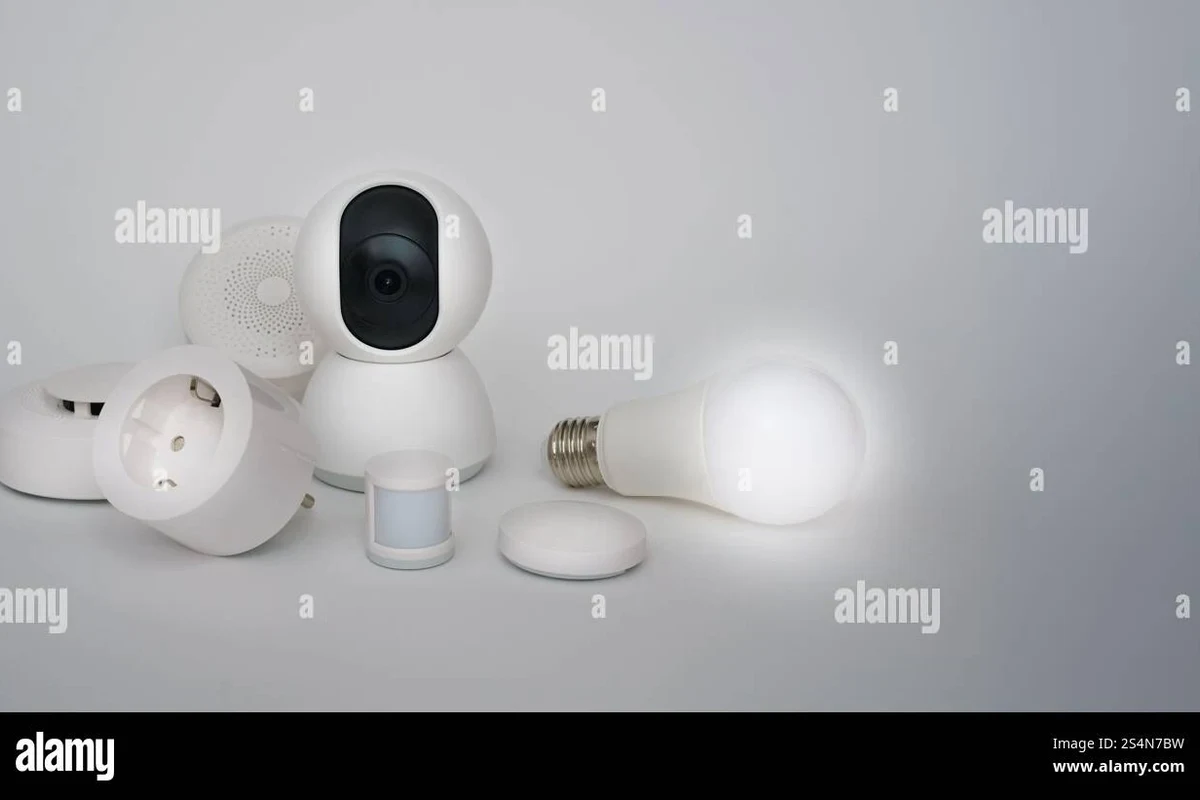
Quick answer: most Hikvision cameras do not ship with a universal default password in 2026
For many current Hikvision devices, there is no shared “admin/admin” or “12345” style password to try. Instead, the camera or recorder usually prompts for activation the first time it powers on, and the installer or owner creates the admin credentials during that process.
This matters because random password lists found online are often outdated, wrong for your exact model, or risky to use. If you are locked out, the safest path is to identify the device, confirm how it was activated, and use Hikvision’s official recovery method rather than guessing.
How Hikvision’s login setup changed from older factory defaults to modern first-time activation
Older security cameras and recorders often shipped with a simple factory login, then asked users to change it later. Modern Hikvision devices generally shift that responsibility to first-time setup, which helps reduce unauthorized access if a device is installed and forgotten.
In practice, that means the “default password” question is usually the wrong starting point. The better question is whether the device is unactivated, already tied to an admin account, or linked to a Hik-Connect account that controls remote access.
Login behavior can vary by model, firmware version, region, and whether the unit is a camera, NVR, DVR, or hybrid recorder.
How Hikvision Camera Authentication Works in 2026
Device activation, admin account creation, and why the old “admin/default password” idea is outdated
When a Hikvision camera or recorder is first activated, the system typically asks you to create an admin password and complete security questions or verification steps. That password becomes the primary local login for the device interface.
Because of this, “default password” usually refers to one of three situations: a brand-new unit that has not been activated, a device reset back to its initial state, or a used camera that is still linked to the previous owner’s account. The recovery method depends on which of those applies.
Many security devices now treat activation as part of the anti-theft and anti-tamper design, not just a setup step.
Where passwords are stored and how access differs across cameras, NVRs, DVRs, and the Hik-Connect ecosystem
Hikvision ecosystems can involve more than one login layer. A local camera or recorder may have its own admin password, while remote viewing through Hik-Connect may rely on a separate app account and device binding.
That separation is useful, but it can confuse owners who expect one password to control everything. If you can access the recorder locally but not the app, the issue may be account binding or network authorization rather than the device password itself.
- Check whether you need the local admin password, the app account password, or both.
- Look for device binding status before assuming the camera is broken.
- Keep recovery email and phone details current on any account tied to the system.
Who This Guide Is For and Which Hikvision Devices It Covers
Home security owners, installers, and small business users
This guide is for homeowners who inherited a camera system, installers setting up a new unit, and small business users who need to restore access without disrupting surveillance coverage. It is also helpful for renters, landlords, and anyone buying used security hardware.
If you manage cameras for a garage, storefront, office, or home entry points, the main concern is not just getting in once. You also want a recovery path that preserves security, avoids account sharing, and keeps remote access under control.
Compatible device types: IP cameras, PTZ cameras, NVRs, DVRs, and hybrid systems
Hikvision uses different authentication flows across device types. IP cameras and PTZ cameras often behave differently from NVRs and DVRs, and hybrid systems may combine local channels with networked access features.
Because of that, a password issue on one device does not always mean the whole system is affected. Confirm which unit is locked, where it was activated, and whether the recording system or the camera itself is asking for credentials.
What to verify before you start: model number, firmware version, and app/account setup
Before attempting any reset or recovery step, write down the exact model number from the label or packaging and check the firmware version if you can still access the device. Also note whether the unit is connected to Hik-Connect, a local recorder, or both.
This information helps you choose the right recovery path and avoid unnecessary resets. It also helps support teams confirm whether your device uses a model-specific process.
- Check compatibility, model number, app requirements, dimensions, ports, wattage, and intended use
- Confirm safety guidance, warranty, return policy, privacy settings, and update support
How to Find or Reset Access Safely Without Guessing Passwords
Check the label, packaging, quick-start guide, and first-time activation prompts
If the camera is new or recently reset, the quickest answer may be in the quick-start guide or first-time activation screen rather than an online password list. Some devices show setup instructions in the web interface, mobile app, or recorder menu during initial activation.
For used devices, the box label, seller notes, and original documentation may reveal whether the system was already activated. If the prior owner did not remove the device from their account, you may need account transfer help rather than a password reset.
Use the official reset path: local reset button, web interface recovery, or Hikvision support workflow
Hikvision recovery steps vary by model, but they usually follow an official path such as a physical reset button, a documented web-based recovery flow, or support-assisted verification. The exact process may require serial numbers, proof of ownership, or a time-sensitive reset file.
Record the model number, serial number, and whether it is a camera, NVR, DVR, or hybrid unit.
Use the device manual or support page to find the approved reset or recovery method for your exact model.
Complete the reset or verification steps exactly as documented, then create a strong new admin password immediately.
Why password-reset tools and random default-password lists can create lockout and security risks
Unverified reset tools can fail, corrupt settings, or make it harder to prove ownership later. Random password lists are equally unreliable because modern Hikvision devices often do not use universal defaults at all.
Using unofficial methods can also create security problems if the device is exposed to the internet or if the wrong account gets modified. The safest approach is to use the manufacturer’s workflow and keep a record of the new credentials in a secure password manager.
Do not use unofficial bypass tools, firmware hacks, or random credential generators. They can lock you out, weaken security, or create exposure on your home network.
Setup Requirements, Connectivity, and App Considerations
Network basics: Ethernet, PoE, Wi-Fi models, and router compatibility
Many Hikvision cameras rely on Ethernet, and some support Power over Ethernet, which can simplify installation by carrying power and data on one cable. Wi-Fi models add placement flexibility, but they also depend more heavily on signal strength and router compatibility.
For reliable operation, confirm that your router, switch, PoE injector, or NVR port matches the device’s network and power requirements. If the camera is outdoors or far from the router, cable quality and signal path matter as much as the camera itself.
Hik-Connect app requirements, account setup, and cloud vs local access trade-offs
Remote viewing often depends on the Hik-Connect app or a similar vendor workflow, but app availability and features can vary by region and device generation. In many setups, local access through the recorder or browser remains useful even if cloud access changes later.
Cloud access is convenient for alerts and off-site viewing, while local access can be more predictable when your internet connection is unstable. The trade-off is that each method may require different permissions, account setup, and privacy settings.
Set up local access first, then add remote access after you confirm the camera streams correctly on your home network.
Installation checks: cable quality, power supply ratings, connector fit, and weatherproofing for outdoor units
Before mounting a camera permanently, verify the power supply rating, connector type, and cable length you need. Loose connectors, underpowered adapters, or poor-quality cabling can cause rebooting, video dropouts, or failed activation.
Outdoor units also need proper weatherproofing at the mount, cable entry point, and junction area. Follow the manufacturer’s installation guidance for sealing, orientation, and temperature exposure rather than improvising with tape or generic covers.
Key Decision Criteria Before You Buy or Reuse a Hikvision Camera
Resolution, night vision, field of view, motion detection, and storage needs
If you are choosing a Hikvision camera or deciding whether to reuse one, focus on the features that affect usable footage. Resolution, night vision performance, field of view, and motion detection quality often matter more than marketing names.
Storage planning matters too. A higher-resolution camera may create larger video files, which affects NVR capacity, SD card usage, and how long you can keep recordings before they overwrite.
Security features to verify: firmware support, encryption, two-factor options, and admin control
Security features are just as important as image quality. Confirm whether the device still receives firmware updates, whether encryption options are available, and whether the ecosystem supports stronger account protection such as two-factor authentication where applicable.
Also check how admin rights are handled. If multiple people need access, make sure you can assign permissions without sharing one master password across the household or office.
Warranty details, firmware update policy, and what to confirm with the seller or installer
Warranty terms and update support can vary by region, distributor, and seller. Before buying used or refurbished equipment, ask whether the device is still eligible for firmware updates and whether the seller can provide the original activation status.
If an installer is supplying the system, confirm who controls the admin account, whether recovery information is documented, and how future firmware updates will be handled. That reduces the chance of getting locked out later.
Common Mistakes, Troubleshooting, and Safe Use Practices
Typical errors: confusing admin credentials, ignoring firmware updates, and reusing weak passwords
A common mistake is assuming the camera password, recorder password, and app password are all the same. Another is leaving the device on an old password after a reset or update, which makes the system easier to compromise.
Weak passwords are especially risky for internet-connected security devices. Use a unique password, store it securely, and update firmware only through the official channel so you do not break compatibility or security settings.
Stop using damaged electronics, frayed cables, overheating power adapters, or unstable mounts and follow the manufacturer’s guidance before reconnecting the system.
Safe-use limits: account sharing, remote access permissions, and exposure on unsecured networks
Account sharing is convenient, but it can make it hard to track who changed settings or viewed footage. If several people need access, use separate permissions when the platform allows it instead of giving everyone the same admin login.
Also be careful with public Wi-Fi, guest networks, and unsecured routers. Security cameras should not be exposed to weak network settings or reused passwords from other services.
Maintenance basics: periodic inspections, lens cleaning, cable checks, storage health, and replacement timing
Routine care helps the system stay reliable after setup. Check the lens for dust or spider webs, inspect cables for wear, and confirm that storage devices are still recording normally.
If video quality drops, motion alerts become unreliable, or the unit keeps disconnecting, it may be time to update firmware, replace a worn cable, or retire an aging camera. Maintenance is often the difference between a usable system and one that fails when you need it most.
Value, Limitations, and Final Recommendation for 2026 Buyers
Real-world benefits: faster setup, better security habits, and fewer support issues
Understanding Hikvision’s modern login process saves time and reduces frustration during installation or recovery. It also encourages better security habits, because you are more likely to create strong credentials, document ownership, and separate local and remote access properly.
For homeowners and small businesses, that usually means fewer support calls and less guesswork when a device is moved, reset, or added to a new network.
Limitations: no universal default password, model-specific recovery steps, and support dependence
The biggest limitation is simple: there is no reliable universal Hikvision camera default password to try across all devices. Recovery depends on the exact model, firmware, and activation history, so some situations require manufacturer support or reseller assistance.
That can be inconvenient, especially for used gear or inherited systems, but it is also part of the security design. The trade-off is less convenience in exchange for better protection against unauthorized access.
If you need access to a Hikvision camera in 2026, follow the official recovery path rather than searching for a universal default password. Choose Hikvision when you want a broad security-camera ecosystem and are comfortable verifying model-specific setup, but consider a different smart-home camera brand if you prefer simpler plug-and-play recovery and fewer account layers.
Frequently Asked Questions
Most Hikvision cameras do not use a universal default password in 2026. New devices usually require first-time activation and admin password creation.
Use the official recovery method for your exact model, such as a reset button, web recovery flow, or Hikvision support workflow. Avoid random password lists and unofficial tools.
Check the login prompt, setup screens, and device status in the app or recorder. If it asks for an existing admin login, the device was likely activated before.
They may be separate accounts depending on the device and setup. It is safer to use unique passwords and confirm whether you need local admin access, app access, or both.
Have the model number, serial number, firmware version if available, and proof of ownership. Also note whether the device is a camera, NVR, DVR, or hybrid system.
No, unofficial tools can cause lockouts, security issues, or account problems. Use Hikvision’s official recovery process and follow the device manual.