

Avigilon Camera Default Password Guide for Easy Access
Avigilon cameras often use unique setup credentials rather than one universal default password. Check the model documentation or installer paperwork, then change any initial login details to a strong new password.
If you are searching for the avigilon camera default password, the short answer is that many Avigilon cameras do not rely on one universal default password. In 2026, setup credentials are often unique to the device, installer, or onboarding process, so the safest move is to check the label, packaging, official paperwork, or your installer before trying to log in.
- No universal rule: Many Avigilon devices use model-specific or installer-provided login details.
- Check official sources first: Look at the camera label, box, quick-start guide, and installer handoff notes.
- Secure the account: Change temporary credentials right after setup and store them safely.
- Use supported recovery: If you are locked out, follow the official reset or support process.
- Avoid risky shortcuts: Skip generic passwords and unofficial reset guides that may be outdated or unsafe.
Avigilon Camera Default Password: The Short Answer and What It Really Means
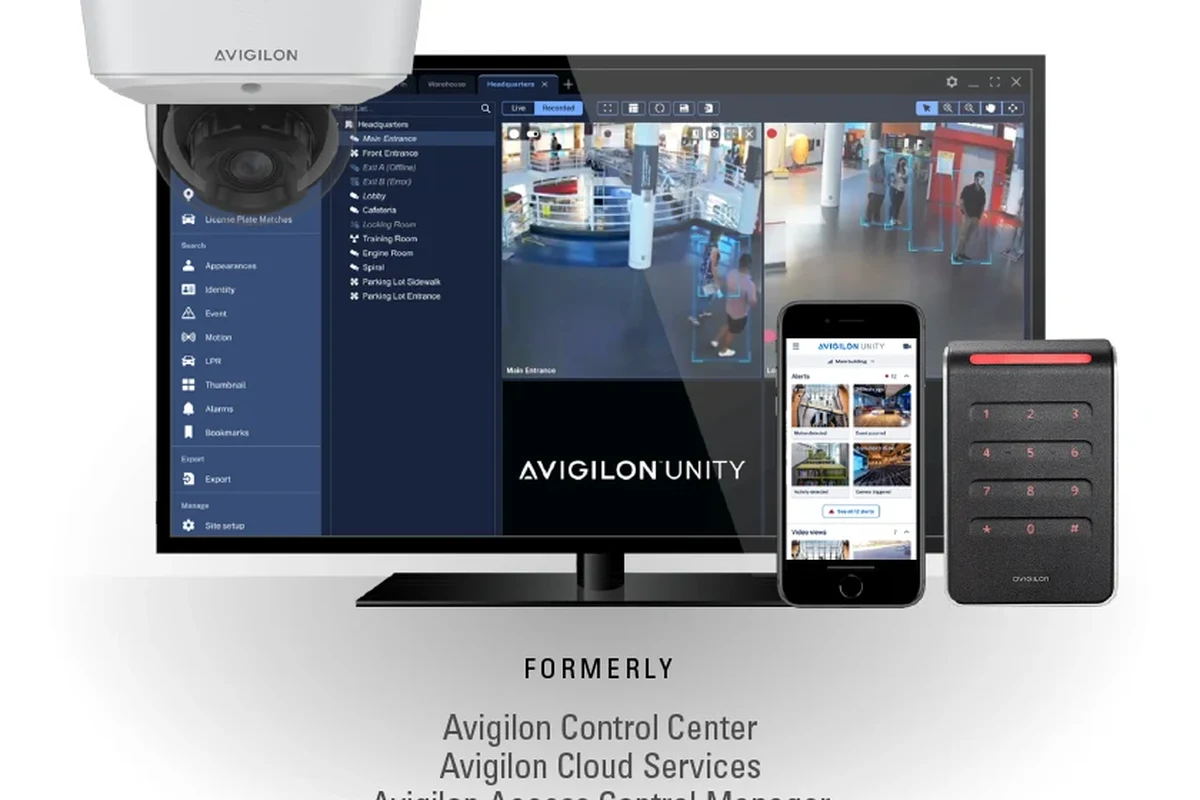
For most Avigilon systems, “default password” is less about a shared factory password and more about the credentials assigned during first-time setup. That matters because guessing or reusing old credentials can lock you out, create avoidable security risks, or trigger account recovery steps you do not need.
Exact login behavior can vary by model, firmware, region, and whether the camera is standalone or managed through Avigilon software. Always confirm the current setup steps in the official manual for your exact device.
If you already own the camera and cannot find the login details, the best path is to verify the model number, check the installer handoff documents, and then use the manufacturer’s official recovery or support process. Avoid random “universal password” lists, because they are often outdated, incomplete, or unsafe.
How Avigilon Camera Default Credentials Work in 2026
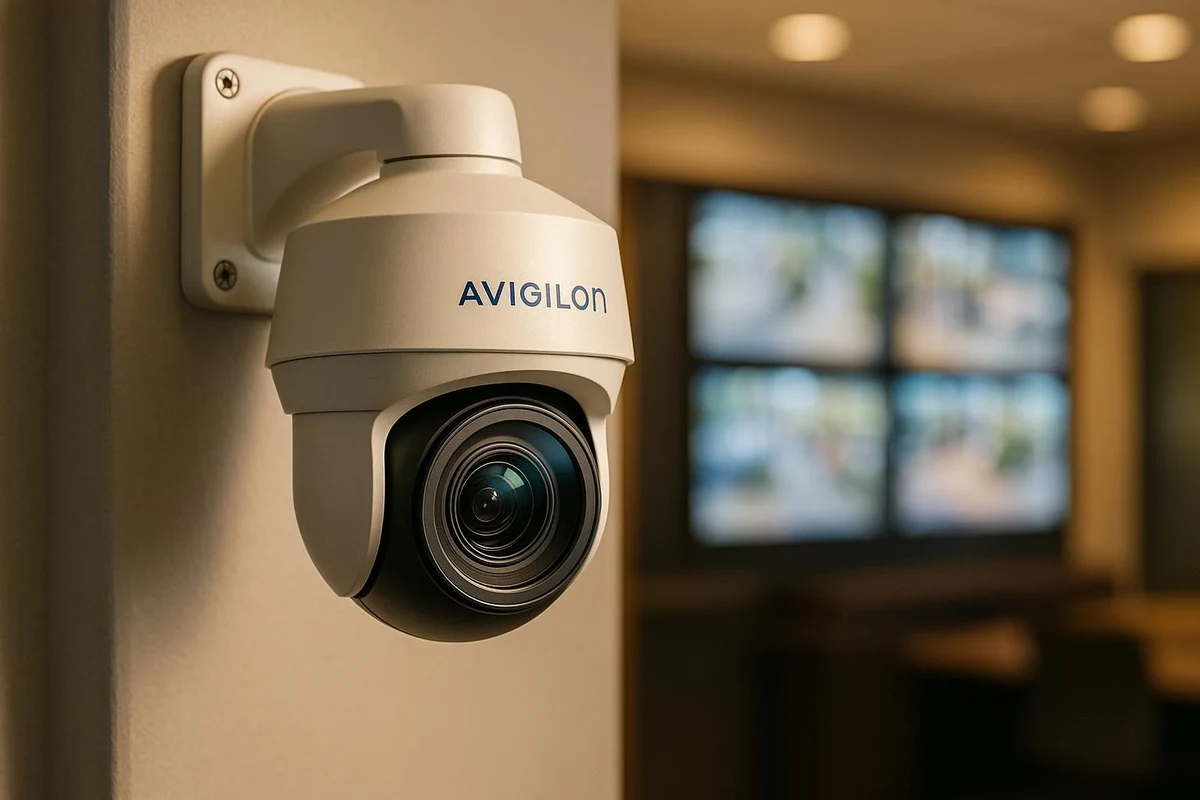
Modern security cameras are moving away from shared defaults because shared credentials are easy to abuse. Avigilon devices may instead use device-specific onboarding, temporary credentials, or a guided first-login flow that requires you to create your own password during setup.
Why many Avigilon devices use unique setup credentials instead of a universal password
Unique credentials help reduce the risk of unauthorized access, especially on cameras that may be installed in homes, offices, storefronts, or shared buildings. They also make it easier for installers and administrators to track ownership and permissions across multiple cameras.
Many smart security devices now treat the first login as an enrollment step rather than a simple “default password” login, because that approach is safer for connected systems.
That does not mean every Avigilon camera is identical. Some models may ship with setup instructions, QR codes, or serial-number-based onboarding details, while others depend on an installer-created account or management platform.
Where default login details are typically found on the device, box, or installer paperwork
If there is a default credential at all, it is usually documented somewhere official rather than hidden in the camera interface. Check the sticker on the camera body, the box label, the quick-start guide, the installation sheet, or the handoff notes from the installer or IT team.
- Write down the model number and serial number before you start troubleshooting.
- Look for onboarding codes, admin instructions, or reset steps in the original paperwork.
- If the camera was professionally installed, ask whether the installer kept the initial credentials.
If paperwork is missing, the official support documentation for your exact model is more reliable than generic web advice. This is especially important for cameras tied to a larger security system, recorder, or access-management platform.
Step-by-Step Setup and First Login for Avigilon Cameras
First-time setup is usually smoother when you verify the camera’s identity, power method, and network requirements before attempting login. A few minutes of preparation can prevent unnecessary lockouts and repeated resets.
Checking model number, firmware version, and network requirements before login
Start by confirming the exact model and, if available, the firmware version. These details affect whether the camera uses a web interface, mobile app, desktop software, or centralized management tool.
- Check the exact model number and firmware notes.
- Confirm whether setup uses web access, desktop software, or a management platform.
- Verify network requirements, including PoE support, router access, and any browser or app compatibility notes.
Also confirm whether the camera is meant for a local network only or for remote access through a vendor-managed system. That distinction changes how you create the password, where you sign in, and which recovery options are available later.
Connecting the camera to power, PoE, and your local network safely
Many Avigilon cameras are installed using Power over Ethernet, which sends both power and data through a single Ethernet cable. If your model supports PoE, use the proper switch, injector, or network port recommended by the manufacturer or installer.
Only use approved power sources, PoE equipment, and cables that match the camera’s requirements. If a cable, injector, or power adapter is damaged, overheating, or unstable, stop using it and replace it with a verified part.
For a safe first connection, place the camera where you can access it easily, connect Ethernet securely, and confirm the network link before mounting it permanently. If the camera is outdoors or in a dusty area, check the environmental rating and installation instructions before exposing it to weather.
Using Avigilon software or web access to complete initial configuration
Once the camera is powered and on the network, use the setup path specified in the manual. That may involve a browser, a desktop client, or an Avigilon management tool, depending on the product line and firmware.
Use the vendor-recommended app, client, or browser workflow for your exact model.
Set the initial administrator credentials when prompted, or enter the installer-provided login if one exists.
Install only official firmware or software updates to avoid compatibility and security issues.
Confirm that video, time settings, and user access work before finishing the installation.
If the camera is part of a larger system, you may also need to register it in a recorder or management platform before full access becomes available. In those cases, the password you create during onboarding may be separate from the credentials used for the broader system.
Security Best Practices: Changing the Default Password the Right Way
Once you have access, change any temporary or installer-provided credentials immediately if the system allows it. Strong password hygiene is one of the simplest ways to protect a smart security device from unauthorized access.
Creating a strong admin password and recovery plan
Use a password that is long, unique, and not reused from email, banking, or other smart-home accounts. A password manager can help you store it safely, especially if more than one person may need access later.
Do not keep the factory or installer password if the camera has already been deployed. Change it through the official interface, then verify that you can still log in before removing old notes or handing off the device.
Also create a recovery plan. That may mean storing the admin credentials in a secure password manager, keeping the serial number with your records, and documenting which email address or account owns the camera.
Enabling updates, role-based access, and secure remote access settings
If your model supports software or firmware updates, enable them according to the manufacturer’s guidance. Updates can improve stability, fix bugs, and close security gaps, but they should always come from the official source for your device.
Role-based access is useful when more than one person needs to view footage or manage settings. Give everyday users only the permissions they need, and reserve administrator access for the person responsible for maintenance and security.
For remote access, follow the vendor’s approved method rather than opening random ports or using unofficial login shortcuts. Secure remote access should be configured through trusted tools, with current passwords and any available multi-factor authentication enabled.
Who This Guide Fits Best: Home Users, Installers, and Small Business Owners
This guide is most useful if you inherited an Avigilon camera, are setting one up for the first time, or are helping someone regain access without compromising security. It also helps if you manage a small office, retail space, or home security system and need a cleaner handoff process.
When a basic password reset is enough versus when you need manufacturer support
If you still have access to the admin account or the installer credentials, a normal password change through the official interface is usually enough. If you are locked out, the camera is tied to a managed system, or the recovery process is unclear, manufacturer support or the original installer may be the safest next step.
Do not try to force access with unofficial reset tricks you found on random forums. Those methods can cause data loss, break system pairing, or leave the camera in a partially configured state.
How Avigilon compares with other smart security camera access workflows
Compared with older devices that shipped with a shared default password, Avigilon’s workflow is typically more security-focused and more installation-dependent. That can feel less convenient at first, but it usually reduces the chance that someone can guess the login from a public list.
| Workflow Type | Best For | Key Consideration |
|---|---|---|
| Shared default password | Very basic legacy setups | Easy to guess and less secure |
| Unique first-time setup credentials | Modern home and business installs | Safer, but requires paperwork or onboarding access |
| Installer-managed account | Multi-camera or commercial systems | Recover through the installer or vendor support |
For most buyers, the more secure workflow is the better tradeoff, especially if the camera stores sensitive footage or is reachable from the internet through a managed platform.
Common Problems, Mistakes, and Safe Troubleshooting
Most access problems come from mismatched model information, forgotten onboarding details, or firmware and software differences. Start with the simplest checks first, and only move to official recovery steps when you have confirmed the basics.
Locked-out accounts, forgotten setup credentials, and firmware-related access issues
If the account is locked, wait for the official timeout period if one exists, then try again carefully with the correct username and password. If the password was never documented, check whether the camera was activated through a management platform that may still hold the original enrollment details.
- Official recovery methods preserve system integrity
- Installer paperwork can solve many first-login issues quickly
- Recovery can take time if records are missing
- Firmware differences can change the exact steps
If firmware seems to be causing the issue, check the current support notes for your model. Some login problems are caused by outdated software, unsupported browsers, or a management app that no longer matches the device version.
Risks of using generic passwords, reused passwords, or public reset guides
Generic passwords are risky because they may work on older devices, but they also make your camera easier to compromise. Reused passwords are just as problematic because a breach in another account can expose your security system too.
Public reset guides can also be outdated, model-specific, or flat-out wrong. If a guide tells you to bypass security, ignore safety steps, or use a secret backdoor, treat it as a red flag and stop there.
If you are unsure whether a step is safe, compare it against the official manual or support page for your exact model before proceeding.
Maintenance, Warranty Checks, and Long-Term Access Management
Good access management is not just about the first login. Over time, you should also keep the camera updated, check connectivity, and make sure the account ownership is still documented correctly.
What to verify for firmware updates, storage, connectivity, and device health
Review the camera’s firmware status, recording behavior, and network connection at regular intervals. If the camera uses local storage, cloud storage, or a recorder, confirm that footage is still being saved as expected.
Storage options, recording retention, and app features can vary by model and by the platform the camera is connected to. Confirm the current settings in the device dashboard rather than assuming a feature is active.
It is also smart to check the physical condition of the camera and cable runs. Dust, moisture, loose connectors, and unstable mounts can all affect reliability even when the password is correct.
Warranty, support channels, and documentation details to keep on hand
Keep the model number, serial number, purchase record, installation date, and any transfer-of-ownership notes in one secure place. Those details can help with warranty questions, support requests, and future password recovery.
- Camera model and serial number label
- Quick-start guide or installation sheet
- Any onboarding code, QR code, or setup card
- Power, PoE, or mounting accessories included by the seller
If you need help later, official support channels and the product manual are usually more reliable than generic forum advice. That is especially true if the camera is part of a larger security ecosystem with centralized permissions.
Final Recommendation: When to Use the Default Password and When Not To
Use the default or initial Avigilon credentials only as part of the official first-time setup process, or when the manufacturer and installer documentation clearly say they are valid. Once the camera is online, switch to a strong unique admin password, document it securely, and rely on official recovery channels if you are locked out later.
For home users, installers, and small business owners, the safest approach is simple: verify the exact model, follow the official onboarding steps, and avoid generic passwords or unofficial reset tricks. If the login path is unclear, the manual or manufacturer support is the right next stop.
Frequently Asked Questions
Many Avigilon cameras do not use one universal default password. Setup often depends on the exact model, installer paperwork, or a first-time onboarding process.
Check the camera label, box, quick-start guide, installation sheet, or handoff notes from the installer. If those are missing, use the official manual for your exact model.
Confirm the model number, check whether the camera is managed by software or an installer account, and then use the official recovery process. Avoid random public reset guides or generic passwords.
Yes, change any temporary or installer-provided password as soon as the official setup allows it. Use a long, unique password and store it securely in a password manager.
Yes, firmware and software versions can change the login flow, browser compatibility, or recovery steps. Always check the support notes for your exact model before troubleshooting.
Contact support or the original installer if the camera is tied to a managed system, you are locked out, or the credentials were never documented. They can help without risking the device configuration.

One Comment