Why Is My Smart Light Unresponsive Alexa Fix It Fast
Check power first, then confirm the bulb is online in its own app and refresh Alexa discovery. If it still fails, the issue is usually Wi-Fi, account linking, naming conflicts, or a bulb that needs replacement.
If your smart light is unresponsive to Alexa, the fastest fix is usually to check power, confirm the bulb is online in its app, and refresh Alexa device discovery. In many cases, the problem is not the bulb itself but a pairing, Wi-Fi, or naming issue that blocks the voice command chain.
- Power first: A smart bulb cannot respond if the wall switch or lamp switch cuts power.
- App status matters: If the bulb is offline in the maker app, Alexa will not control it.
- Re-linking helps: Rediscovery and skill re-linking fix many stale Alexa connection issues.
- Wi-Fi can be the cause: Weak signal, 2.4 GHz problems, or mesh handoff issues often break control.
- Replacement is sometimes best: If the bulb keeps failing after correct setup, a different bulb or a smart.
Why Your Smart Light Is Unresponsive to Alexa: The Fast Answer
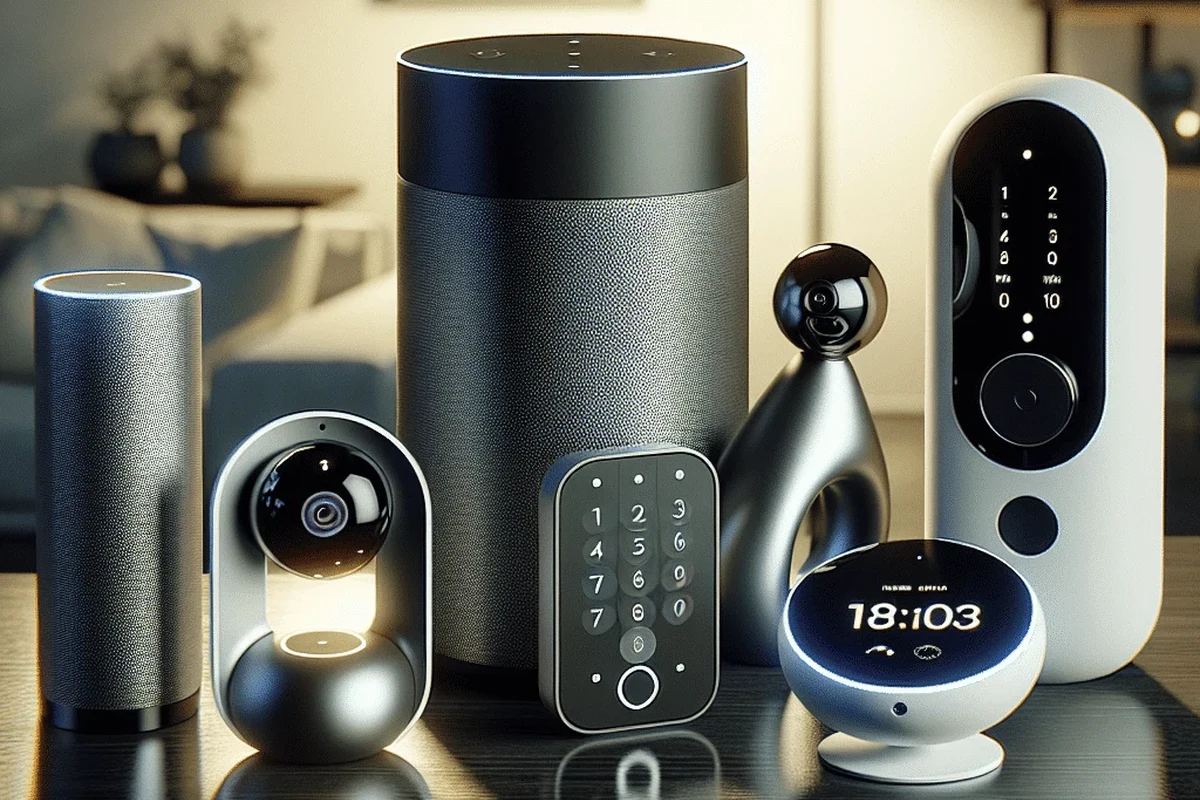
“Unresponsive” usually means Alexa can still see the device name, but the command is failing somewhere between your Echo, your network, the smart home skill, and the light bulb. Start with the simplest checks first: make sure the switch is on, the bulb has power, and the bulb shows as online in the manufacturer app.
How Alexa Smart Lights Work and What “Unresponsive” Usually Means
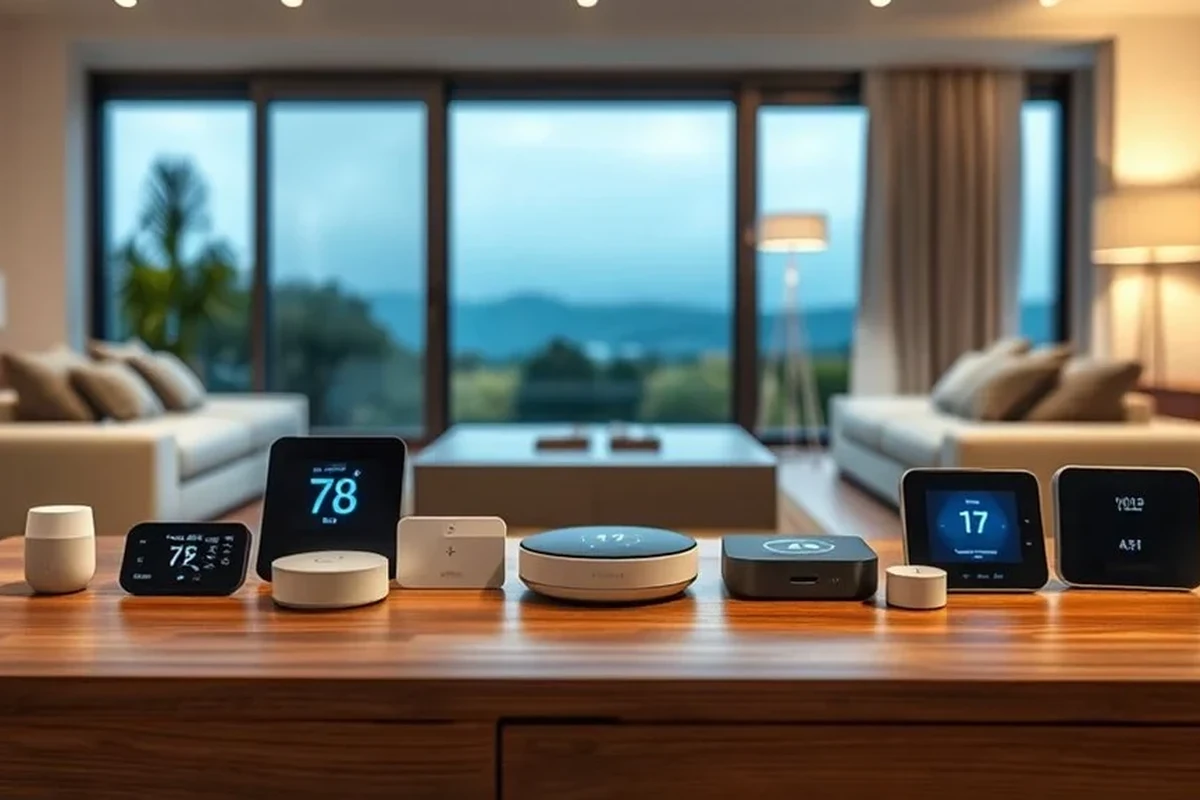
Alexa does not directly control most smart bulbs by magic alone. It sends your voice command through the Echo device, your home network, the smart home skill or account link, and then to the bulb’s cloud service or local bridge, depending on the brand and model.
Voice command path: Echo device, Wi-Fi, smart home skill, and light bulb
When you say, “Alexa, turn on the lamp,” the command has to travel through several links. If any one of them is broken, delayed, or misconfigured, Alexa may respond with a device unavailable message or simply do nothing.
This is why a light can appear in the Alexa app but still fail in practice. For a broader compatibility check, see Is Smart Lighting Compatible With Alexa and Do Smart Lights Work With Alexa.
Common failure points: power, pairing, app sync, and network issues
The most common causes are simple: the bulb lost power, the smart home skill disconnected, the light was renamed in one app but not the other, or the Wi-Fi signal is too weak where the bulb is installed. Some bulbs also become flaky after firmware updates, router changes, or account changes in the manufacturer app.
Behavior can vary by brand, firmware version, and whether the bulb uses direct Wi-Fi, a hub, or a bridge. Always check the manufacturer’s app and support notes for model-specific steps.
Quick Fixes to Try First When Alexa Can’t Control the Light
Work through the basics in order. These steps solve many “why is my smart light unresponsive Alexa” problems without needing a reset or replacement.
Check power at the switch, bulb, and fixture
Make sure the wall switch is on and the fixture is supplying power. If the switch is off, most smart bulbs go offline completely, which means Alexa cannot reach them at all.
If the bulb is in a lamp, verify the lamp switch, plug, and outlet too. A smart bulb with no power is not a network problem; it is simply unreachable.
Confirm the bulb is online in the manufacturer app
Open the bulb maker’s app and look for online status, connectivity warnings, or recent errors. If the bulb is offline there, fix that first before troubleshooting Alexa.
If the bulb works in the manufacturer app but not in Alexa, the issue is usually account linking, discovery, naming, or a stale Alexa device entry rather than the bulb hardware.
Refresh Alexa discovery and re-link the smart home skill
Ask Alexa to discover devices again, or refresh devices in the Alexa app. If that does not help, disable and re-enable the smart home skill, then sign in again with the same account used in the bulb app.
This is especially helpful after changing passwords, resetting the bulb, moving to a new phone, or replacing a router. If you are comparing new gear, the guide to smart lights for Alexa can help you avoid compatibility mismatches later.
Restart the router, Echo device, and light
A simple power cycle often clears stale network sessions. Restart the router first, then the Echo device, and finally the bulb or its hub if it has one.
Give each device a minute or two to reconnect before testing Alexa again. If the bulb uses a bridge, restart the bridge as well.
Smart Light Setup Requirements That Affect Alexa Reliability
Some lights are technically compatible with Alexa but still unreliable if the setup does not match the product’s requirements. The details matter more than many buyers expect.
Wi-Fi band, router range, and 2.4 GHz compatibility
Many smart bulbs rely on 2.4 GHz Wi-Fi, which usually offers better range but less speed than 5 GHz. If your router is set up with combined bands, band steering, or a mesh system, the bulb may struggle during setup or reconnects.
Range also matters. A bulb near the edge of your Wi-Fi coverage may work one day and vanish the next if signal quality drops. For placement and product-fit planning, see what smart lights work with Alexa.
App requirements, account linking, and firmware updates
Most smart lights need the manufacturer app for first-time setup, account linking, and firmware updates. If the app is outdated or the account link breaks, Alexa may stop controlling the light even though the hardware still powers on.
Check whether the bulb needs a hub, a specific skill, or a region-specific app version. Official manuals and current app store listings are the safest sources for those details.
Dimensions, bulb type, and fixture fit considerations
Unresponsive issues are sometimes really fit issues in disguise. A bulb may physically fit the socket but still be a poor match for an enclosed fixture, a dimmer switch, or a lamp that cuts power in a way the bulb does not like.
Always verify bulb base type, shape, and fixture compatibility before buying a replacement. If you are still deciding between bulbs and switches, smart light switch options may be a better fit for your room.
- Check compatibility, model number, app requirements, dimensions, ports, wattage, and intended use
- Confirm safety guidance, warranty, return policy, privacy settings, and update support
How to Tell Whether the Problem Is the Bulb, Alexa, or Your Network
Separating the source of the failure saves time. The same symptom can come from three different places, and the fix depends on which one is actually failing.
Signs the bulb itself is failing or unsupported
If the bulb flickers, drops offline often, ignores commands in its own app, or never completes pairing, the bulb may be failing or incompatible with your setup. Some bulbs also stop behaving well after repeated power interruptions or if they are installed in fixtures they were not designed for.
Stop using any smart bulb that shows heat damage, cracking, unusual odor, or repeated power instability, and follow the manufacturer’s safety guidance before reinstalling it.
Signs Alexa routines, naming, or grouping are causing conflicts
If Alexa controls the bulb sometimes but not others, the issue may be a routine, room group, or duplicate name conflict. Names like “Light,” “Bedroom Light,” and “Bedroom Lamp” can confuse voice recognition if there are multiple similar devices.
Also check whether a routine is turning the light off immediately after turning it on, which can look like an unresponsive bulb when the real issue is an automation conflict.
Signs your home network or mesh setup is the weak link
If multiple smart devices drop offline at the same time, the network is likely the problem. Frequent router reboots, weak mesh handoff, crowded Wi-Fi channels, or guest-network isolation can all interfere with Alexa control.
Mesh systems are especially tricky when a bulb roams poorly between nodes or connects to a weak access point. If the bulb works near the router but not in the room where it is installed, signal quality is a strong suspect.
Many smart-home issues are caused by account sync or Wi-Fi changes rather than the device hardware itself, which is why re-linking and rediscovery often help.
Common Mistakes That Make Smart Lights Seem Unresponsive
Some of the most frustrating problems come from small setup choices that are easy to overlook. Fixing these can make Alexa control feel much more reliable.
Using a wall switch that cuts power to the bulb
If the wall switch is off, the smart bulb has no power and cannot listen for Alexa commands. This is one of the most common reasons people think a bulb is broken when it is actually just disconnected from power.
For rooms where people still want manual control, a smart switch may be a better long-term choice than a smart bulb.
Assigning confusing names or duplicate device labels
Duplicate names, room names that overlap, or renamed devices that were not updated in both apps can all create confusion. Keep names simple and unique, especially if you have multiple bulbs in one room.
For example, “Desk Lamp Left” and “Desk Lamp Right” are easier for Alexa to understand than two nearly identical names with different capitalization or punctuation.
Skipping updates, resets, or proper re-pairing steps
Skipping firmware updates or doing a partial reset can leave the bulb stuck in a half-connected state. If the manufacturer recommends removing the device from the app before re-adding it, follow that sequence carefully.
- Use the manufacturer app first, then Alexa, not the other way around.
- Rename devices only after they are stable and online.
- If you reset a bulb, remove the old entry from Alexa before rediscovery.
When to Replace the Bulb or Switch: Value, Limits, and Alternatives
Replacement makes sense when troubleshooting no longer saves time or when the current setup is a poor match for the room. The best choice depends on how you use the light, not just on whether it is smart.
What specs and warranty details to verify before buying a replacement
Before replacing anything, check the bulb base, supported app ecosystem, Wi-Fi or hub requirement, dimming behavior, and warranty terms. Availability and support can change by region and firmware, so verify current details on the manufacturer’s site or packaging.
If you want to compare options before buying, the roundup of the best smart light bulbs for Alexa is a useful starting point, but still confirm the exact model’s compatibility before ordering.
Smart bulb vs smart switch vs smart plug: which fits your setup
A smart bulb works best when you want color, scene control, or room-by-room lighting effects. A smart switch is often better for family spaces, renters with permission, and rooms where the wall switch gets used a lot.
A smart plug is only useful when the lamp or fixture can safely stay powered through the plug and does not need bulb-level color or dimming features. For a simple comparison, here is the practical rule:
| Option | Best For | Key Consideration |
|---|---|---|
| Smart bulb | Color, scenes, and individual lamp control | Needs constant power and good Wi-Fi |
| Smart switch | Whole-room control and frequent manual use | May require electrical installation |
| Smart plug | Simple on/off control for compatible lamps | Does not replace bulb-level features |
Limitations, safety considerations, and long-term maintenance
Smart lighting is convenient, but it adds app dependence, network dependence, and occasional maintenance. Expect to update apps, check account links, and occasionally re-sync devices after router or phone changes.
For long-term reliability, keep firmware current, avoid overloaded fixtures, and follow the bulb’s temperature and enclosure guidance. If a device keeps failing after correct setup, replacement is often more cost-effective than repeated troubleshooting.
Final Recommendation: The Fastest Path to a Working Alexa Smart Light
If your smart light is unresponsive to Alexa, the quickest path is to verify power, confirm the bulb is online in its own app, refresh Alexa discovery, and restart the router and Echo device. If that fails, look for naming conflicts, Wi-Fi range issues, or a bulb that no longer matches your fixture or network requirements.
In most homes, the problem is fixable without replacing everything. But if the bulb keeps dropping offline in both apps, replacing it with a better-matched bulb or switching to a smart switch is usually the most reliable long-term move.
Frequently Asked Questions
It usually means the command broke somewhere between Alexa, your Wi-Fi, the smart home skill, and the bulb. Check power first, then confirm the bulb is online in its own app.
Start by making sure the wall switch, lamp switch, and fixture are all supplying power. Then refresh device discovery in Alexa and restart the router, Echo device, and light.
That often points to account linking, stale device discovery, or a naming conflict in Alexa. Re-link the smart home skill and rediscover the device.
Many smart bulbs do, but requirements vary by model. Check the manufacturer’s manual and current compatibility notes before setup.
Choose a bulb if you want color and scene control, and choose a switch if the room gets frequent manual use. A switch is often more reliable when the wall switch is turned off often.
If the bulb keeps dropping offline in both the manufacturer app and Alexa after correct setup, replacement is usually the practical choice. Verify warranty and compatibility before buying a new one.